Incremental refresh is the mechanism that makes large Import-mode semantic models operationally viable. Instead of truncating and reloading an entire fact table on every refresh cycle, Power BI divides the table into date-range partitions and reloads only the most recent window, leaving historical partitions untouched. For a five-year sales history, that difference is the gap between a 20-minute refresh and one that reliably times out.
The setup looks straightforward in documentation. In practice, getting it right requires understanding a chain of interdependent decisions: partition strategy, query folding behavior, license-based limits, and the XMLA toolchain you will need once the model outgrows the standard service interface.
How Power BI Incremental Refresh Partitions a Table
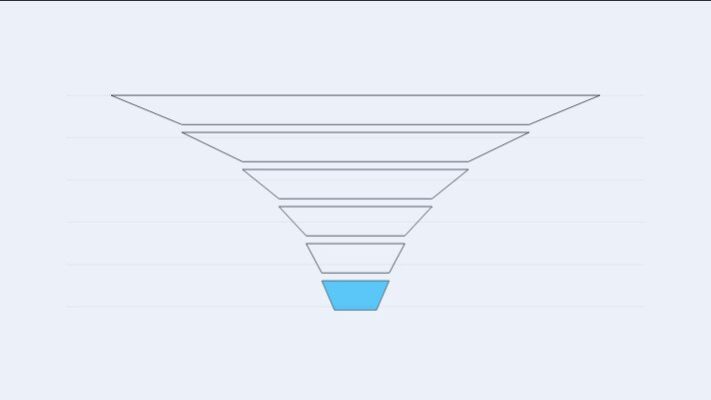
The core mechanic is partition management. Power BI Desktop defines the policy; the service executes it. Once published, the service creates and manages all partition objects automatically, naming them by period granularity: year partitions for the oldest data, then quarter, month, and day partitions as you move toward the present.
This granularity gradient matters. Recent data sits in fine-grained daily or monthly partitions that the refresh window targets precisely. As those partitions age out of the refresh window, the service merges them progressively: days collapse to months, months to quarters, quarters to years. The partition count stays manageable even for a 10-year model.
The refresh window reloads data by truncating and re-importing all partitions that fall within it. Historical partitions outside that window are never touched by a standard scheduled refresh unless you explicitly target them via XMLA.
RangeStart and RangeEnd: How the Parameters Work
Two Power Query parameters control how each partition is filtered at the source. Their names are reserved and case-sensitive: `RangeStart` and `RangeEnd`. Both must be set to the `Date/Time` type, not `Date`, not `Text`, and not `DateTimeZone`. Using the wrong type causes silent failures or broken query folding.
In Power BI Desktop you set small default values, typically covering a two-day window, to keep the local development model lightweight. After publishing, the service ignores those defaults entirely and substitutes the actual partition boundary values on every refresh. The parameters are a development-time scaffolding; production behavior is driven by the policy.
The filter expression itself must use a specific operator pattern:
“`powerquery
#”Filtered Rows” = Table.SelectRows(Source, each [OrderDate] >= RangeStart and [OrderDate] < RangeEnd)
“`
One bound is inclusive (`>=`), the other exclusive (`<`). Using `<=` on both boundaries causes the same row to appear in two adjacent partitions, producing duplicates that can break relationships and invalidate measures.
When the source date column is an integer surrogate key (for example, `20240115`), do not convert it to `Date/Time` in the query. That conversion breaks query folding. Instead, write a helper function that converts the `Date/Time` parameter values to the integer format your source uses, and apply that function in the filter step. The folding chain stays intact because the comparison types remain consistent with the source column.
One other detail: the service defaults to UTC when computing partition boundaries. For non-UTC operations, configure a time zone in the semantic model’s Refresh settings. XMLA-initiated refreshes always use UTC regardless of that setting.
Query Folding: The Hard Prerequisite
Query folding is not optional. If the `RangeStart`/`RangeEnd` filter is not pushed to the data source as a native predicate, Power BI retrieves the entire table for every partition refresh and then applies the filter locally. The incremental refresh infrastructure is still there, but the performance benefit disappears. You effectively get a slower full refresh with more moving parts.
Sources that fold reliably include SQL Server, Azure SQL Database, Azure Synapse, Oracle, Teradata, and Snowflake. Sources that do not fold include flat files, SharePoint lists, web connectors, and most BLOB storage targets. Incremental refresh technically accepts a non-folding source, but the result is a full extract on every partition query.
Several common transformations silently break the folding chain:
- A `Table.Buffer` call inserted before the date filter
- A `Table.Sort` step placed before `Table.SelectRows`
- Query merges that span more than one data source
- `Value.NativeQuery` calls without `[EnableFolding=true]`
- A data source privacy level set to “Private,” which restricts cross-query data exchange
The easiest diagnostic is in Power Query Editor: right-click the last applied step. If “View Native Query” is available and not greyed out, the chain folds to that point. If it is greyed, work backward one step at a time to find where folding breaks. For SQL Server, a running profiler trace confirms whether the source receives a `WHERE` clause on the date column. No `WHERE` clause means no folding.
There is one narrow exception. You can embed `RangeStart`/`RangeEnd` directly in a native SQL string using `Value.NativeQuery` without `EnableFolding`. The query does not need to fold in the M chain because the filter is already inside the SQL text. This approach has a hard limit: it cannot be used with hybrid tables, because the DirectQuery partition strictly requires automatic folding.
Configuring the Incremental Refresh Policy
The policy dialog is accessed by right-clicking the table in Power BI Desktop’s model view. Two settings are mandatory.
The store window (“Archive data starting before refresh date”) defines how many years, quarters, months, or days of data the model retains in total. Rows older than this window are deleted on subsequent refreshes. The refresh window (“Incrementally refresh data starting before refresh date”) defines how far back each scheduled refresh reaches. Both values must be specified, and the refresh window must be shorter than the store window.
A typical enterprise configuration might store five years of history while refreshing the last three days on each run. With that policy, each scheduled refresh touches only a handful of daily partitions, leaving 4+ years of historical data completely undisturbed.
One optional setting worth enabling is “Only refresh complete days.” It prevents partial-day refresh artifacts and is automatically activated when you enable the DirectQuery real-time partition. A model covering multiple tables can use the same `RangeStart`/`RangeEnd` parameter pair across all of them; each table carries its own independent policy with its own store and refresh windows.
For context on how storage mode choices interact with partition strategy, the Metrica Power BI storage modes: Import, DirectQuery, and Composite for enterprise models article covers the Import, DirectQuery, and Composite approaches that underpin most of these decisions.
Hybrid Tables: Combining Import History with a Live DirectQuery Partition
Standard incremental refresh leaves a data latency gap equal to your refresh interval. If you refresh every 30 minutes, reports can be up to 30 minutes stale. Hybrid tables close that gap by adding a DirectQuery partition that covers the period beyond the most recent import partition. Every DAX query against the table transparently merges in-memory historical data with a live source query for the tail window.
Hybrid tables require Premium capacity, Premium Per User, or Power BI Embedded. They cannot be published to a Pro workspace. Query folding is a strict requirement for the DQ partition, not a recommendation.
There are operational constraints that are easy to overlook:
Related tables must be in Dual storage mode. If any table related to the hybrid fact table sits in Import mode, Power BI generates a limited relationship when evaluating the DQ partition. Limited relationships retrieve far more data than needed and produce incorrect aggregate results for some queries. Converting those related tables to Dual mode (which serves as both Import for historical partitions and DirectQuery for the live partition) resolves this.
Visual caching still applies. Power BI caches report visual results by default, so even with a DQ partition providing live data, a user’s report may display a cached result from the previous load. Enable Automatic Page Refresh on reports that use hybrid tables. On Premium, change detection measures provide an efficient trigger. On Pro, fixed-interval refresh is the only option.
One source only. All partitions in a hybrid table must query the same data source. Mixing sources across import and DQ partitions breaks the pattern entirely.
Detect Data Changes for Efficient Incremental Updates
The “Detect data changes” setting adds a layer of intelligence above the basic partition refresh logic. You specify a `Date/Time` column that tracks when rows were last updated, such as a `LastModifiedDate` or `UpdatedAt` audit field. Before refreshing any partition within the refresh window, Power BI evaluates the maximum value of that column. If the max has not changed since the last refresh, that partition is skipped entirely.
A three-day refresh window with only one day of genuine updates becomes roughly a one-day refresh window in practice. The column you specify must be separate from the partition key column used by `RangeStart`/`RangeEnd`. Hard deletes are invisible to this mechanism: only inserts and updates that change the `LastModified` column are detected. When a change is detected, the entire partition re-imports rather than just the changed rows. Finer partition granularity reduces the scope of each re-import.
By default, the `LastModified` column is persisted in VertiPaq. For high-cardinality timestamp columns, that persistence inflates model size noticeably. For large models, the better path is a custom `pollingExpression` defined via XMLA or Tabular Editor. A custom expression lets the engine query an aggregation table or ETL-managed control table instead of storing the full column in-memory.
Refresh Frequency Limits by License
How often you can refresh depends on the capacity your workspace uses.
| License / Capacity | Max Scheduled Refreshes per Day | Min Interval |
|---|---|---|
| Power BI Pro (shared capacity) | 8 | Every 3 hours |
| Power BI Premium Per User (PPU) | 48 | Every 30 minutes |
| Premium Capacity (P/EM/A SKUs) | 48 | Every 30 minutes |
| Fabric Capacity (F SKUs) | 48 | Every 30 minutes |
Pro’s eight-refreshes-per-day limit is a meaningful constraint for enterprise fact tables that need sub-hourly freshness. Moving to Premium or PPU raises the ceiling to 48 scheduled refreshes per day at 30-minute minimum intervals.
The XMLA endpoint changes the picture significantly for Premium workspaces. Refreshes triggered through XMLA (via SSMS, Tabular Editor, PowerShell, or the enhanced refresh REST API) are not subject to the 48-per-day limit. There is no daily cap on XMLA-initiated operations. This is the practical path for high-frequency partition-level refresh patterns that would otherwise saturate the scheduler.
For Fabric capacities, Semantic Model Refresh Templates in Fabric Data Pipelines (generally available as of August 2025) add event-driven and monthly scheduling options that the standard semantic model scheduler does not support, including triggers on dataflow or pipeline completion and cascading multi-model refreshes.
One operational note: Power BI automatically pauses scheduled refresh after two months of workspace inactivity. The model owner receives an email notification, and refresh must be manually re-enabled.
Timeouts and Parallelism
Standard refresh timeouts are straightforward: two hours per refresh operation on shared (Pro) capacity, five hours on Premium capacity and PPU. XMLA-initiated refreshes have no time limit.
These limits apply to the entire refresh operation, not to individual partitions. A model with 60 active partitions refreshing simultaneously must complete within the five-hour window even if each individual partition query is fast. For initial loads or historical backfills, that ceiling is frequently the binding constraint.
The default service-triggered refresh runs up to six partitions concurrently. For a model with 50 partitions, the wall-clock time depends on the slowest batch of six. Via XMLA TMSL, you can raise `maxParallelism` to as high as 30:
“`json
{
“sequence”: {
“maxParallelism”: 9,
“operations”: […]
}
}
“`
Increasing parallelism reduces wall-clock time but puts more concurrent load on the source system. If the source has connection limits or per-query resource constraints, aggressive parallelism shifts the bottleneck downstream and can cause source-side timeouts rather than service-side ones. Test with a conservative `maxParallelism` value before scaling up.
Initial Refresh and Partition Deployment Patterns
The first refresh of a model with an incremental refresh policy is the most dangerous moment in its lifecycle. The engine must create all partition objects, load all historical data, and build indexes in a single operation. For a five-year model on Premium, that operation often exceeds five hours and times out.
The standard mitigation is a two-step bootstrap using Tabular Editor and SSMS:
- Publish the model from Desktop with the incremental refresh policy defined.
- Connect to the workspace XMLA endpoint using Tabular Editor in Read/Write mode. Right-click the table, select “Apply Refresh Policy.” This creates all partition objects but loads no data.
- Connect with SSMS and process partitions in small batches using TMSL `refresh` commands targeting specific partition names.
- Once all partitions contain data, the standard service refresh takes over and reloads only the refresh-window partitions.
An alternative requiring no external tools is the empty-filter bootstrap: add a filter step that returns zero rows, publish, run the initial refresh (which completes instantly), then remove the filter step using ALM Toolkit for a metadata-only deployment.
One constraint applies regardless of method: do not republish the `.pbix` file after the first partitioned refresh runs. Republishing wipes all partition objects and forces a full reload. All subsequent schema changes must go through ALM Toolkit or Tabular Editor via XMLA.
Monitoring Refreshes at Enterprise Scale
The Power BI service’s built-in Refresh History is the first diagnostic stop: it shows status, start time, duration, and error messages for every operation including XMLA-initiated refreshes, but it does not show partition-level detail or capacity consumption.
For Premium and Fabric workspaces, the Fabric Capacity Metrics App is the primary enterprise monitoring tool. The Compute page shows 14-day CU utilization trends and identifies which semantic model refreshes consume the most capacity. The Timepoint page drills into any 30-second window to show the mix of background refresh operations versus interactive query load. The `capacityThrottlingMs` metric in Workspace Monitoring logs reveals how long individual refreshes were delayed by capacity pressure.
For partition-level diagnostics, the Workspace Monitoring Eventhouse captures `SemanticModelLogs` XMLA trace events with 30-day retention. A KQL query against those logs can plot partition refresh parallelism as a time series, pinpointing whether bottlenecks live in Power BI’s scheduler, the source system, or capacity throttling.
The Metrica Substack article on Microsoft Fabric capacity pricing covers how CU consumption maps to F-SKU capacity tiers for teams planning refresh workload budgets.
Common Failure Modes and How to Avoid Them
Most production failures with incremental refresh cluster around a small set of root causes. The table below maps symptoms to causes and fixes for the scenarios that appear most frequently in enterprise deployments.
| Failure | Symptom | Root Cause | Fix |
|---|---|---|---|
| Query folding broken | Refresh duration equals full refresh; gateway CPU spikes; timeout at 2h or 5h | Non-foldable transformation step before date filter; no `WHERE` clause at source | Remove non-foldable steps before `Table.SelectRows`; use `Value.NativeQuery` with `[EnableFolding=true]`; verify via “View Native Query” in Power Query |
| Initial refresh timeout | First refresh fails at 2h (Pro) or 5h (Premium) | All historical partitions loading in a single operation | Bootstrap with Tabular Editor “Apply Refresh Policy,” then process partitions in SSMS batches |
| Duplicate rows | Uniqueness violations; doubled aggregates; relationship errors | Both `RangeStart` and `RangeEnd` use `<=`; or source rows retroactively back-dated | Use `>= RangeStart and < RangeEnd`; refresh all partitions from the earliest changed date via SSMS |
| Data truncation | Refresh succeeds but data is missing; Azure Data Explorer returns 64 MB error | Source caps per-query result size at 64 MB compressed | Reduce refresh period granularity (e.g., monthly instead of yearly) to keep partition queries small |
| Republish wipes partitions | After schema change from Desktop, next refresh runs full reload | Publishing `.pbix` replaces all partition definitions | Use ALM Toolkit or Tabular Editor via XMLA for metadata-only deployments |
| Hard deletes not reflected | Deleted source rows still appear in reports | Incremental refresh is append/update oriented; hard deletes have no `LastModified` change | Use soft-delete pattern with `IsDeleted` flag; schedule periodic XMLA full refresh of affected partitions |
| Related table limited relationship (hybrid) | Slow queries; incorrect aggregates on hybrid fact table | Dimension tables in Import mode when fact is hybrid | Set related tables to Dual storage mode |
| Capacity throttling | Refreshes delayed; `capacityThrottlingMs > 0` in Workspace Monitoring | Capacity oversubscribed; background operations queued | Use Fabric Capacity Metrics App to identify CU spikes; shift refreshes to off-peak hours; reduce `maxParallelism` |
For SAP-sourced fact tables connecting to Power BI, the Power BI Connector for SAP handles the authentication, data type mapping, and query push-down requirements that affect whether the incremental refresh filter folds correctly from the Power BI side through to BW or HANA.
Incremental Refresh FAQ
Q · 01
Can incremental refresh be used with DirectQuery tables?
No. Incremental refresh partitioning applies to Import-mode tables (and the import partitions in hybrid tables). A pure DirectQuery table queries the source live on every interaction and has no partitions to manage. The hybrid table pattern is the mechanism for combining live DirectQuery coverage with Import-mode historical storage.
Q · 02
Does republishing the.pbix file always destroy partition data?
Yes. Publishing from Desktop overwrites the entire model definition in the service, including all partition objects. All future schema changes must be deployed through ALM Toolkit or Tabular Editor via XMLA.
Q · 03
Why does the service ignore Desktop parameter default values?
`RangeStart` and `RangeEnd` defaults are for development-time use only. On every scheduled refresh, the service substitutes the actual partition boundary values derived from the policy. Desktop defaults are irrelevant in production.
Q · 04
Is incremental refresh the same as Direct Lake in Microsoft Fabric?
No. Direct Lake reads directly from Delta/Parquet files in OneLake using a framing mechanism. It does not use `RangeStart`/`RangeEnd` parameters or the partition-based incremental refresh model described here. Incremental refresh applies to Import-mode and hybrid tables. For how Direct Lake operates differently, the Metrica Hashnode article on Power BI Direct Lake: performance limits and architecture provides a detailed comparison.