Table of Contents
Power BI Salesforce templates are now available in Metrica’s Power BI Connector for Salesforce. The collection includes 10 prepared Salesforce reports in Power BI for sales pipelines, forecasts, leads, support cases, and accounts.
Each Power BI Salesforce template provides the structure for a specific analysis, including the relationships between Salesforce data, metric calculations, and charts. The connector generates a matching data source with the required Salesforce fields already selected. Users can then load Salesforce data into the prepared Power BI dashboard and adapt the Salesforce report to their requirements.
Why Use Power BI Salesforce Templates?
Building a Salesforce report in Power BI involves connecting the platforms, identifying the Salesforce data needed for the analysis, understanding the relationships between Salesforce records, exporting the data, and creating the calculations and charts. Depending on the requirements, this can involve both Salesforce administrators and Power BI specialists.
The new Power BI Salesforce templates reduce that preparation. For a pipeline review, for example, users begin with the relevant opportunity and account fields selected, together with a prepared Power BI dashboard for examining the pipeline. They can review the Salesforce results sooner because the initial data selection and Salesforce report design are already prepared.
Once the connector is installed and configured, the main workflow has three steps: select a Salesforce dashboard template and generate its data source, download the matching Power BI template file, and load Salesforce data in Power BI Desktop.
The resulting Salesforce reports remain editable. Teams can use the prepared analysis as it is or extend it with additional Salesforce fields, calculations, and charts.
10 Power BI Salesforce Templates and When to Use Them
The collection covers four reporting areas: sales, leads, service, and accounts. Choose a Power BI Salesforce template according to the business question you need to answer.
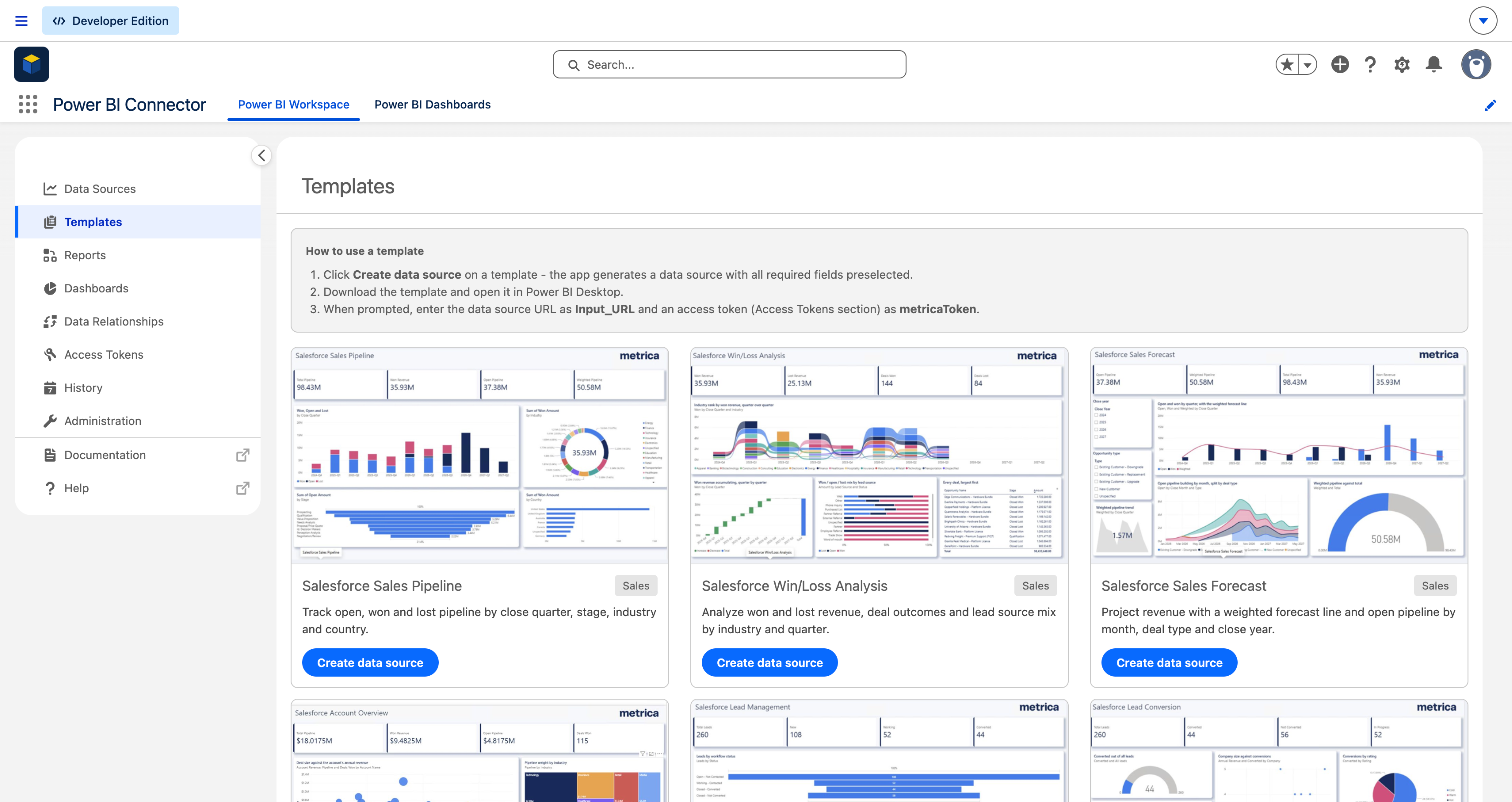
1. Salesforce Sales Pipeline Template
The Salesforce Sales Pipeline template shows open, won, and lost opportunities by closing quarter, stage, industry, and country.
For a weekly sales review, use this Salesforce report in Power BI to examine the distribution of opportunities across stages and compare the pipeline across markets.
2. Salesforce Win/Loss Analysis Template
The Salesforce Win/Loss Analysis template compares won and lost revenue, deal outcomes, and lead sources across industries and quarters.
Sales leaders can use this Salesforce report in Power BI to compare outcomes across industries, examine which lead sources contribute to won revenue, and review where lost revenue is concentrated.
3. Salesforce Sales Forecast Template
The Salesforce Sales Forecast template presents a weighted revenue forecast and open pipeline by month, deal type, and closing year. The forecast uses opportunity amounts and probabilities.
The prepared forecast calculations give sales leaders and revenue operations teams a basis for revenue planning, with expected revenue and open opportunities presented in a Salesforce dashboard in Power BI.
4. Salesforce Account Overview Template
The Salesforce Account Overview template compares pipeline and won revenue across accounts, with a view of deal size in relation to account annual revenue.
Use this Salesforce report in Power BI for account reviews that focus on the opportunities and won business associated with individual accounts.
5. Salesforce Lead Management Template
The Salesforce Lead Management template organizes leads by status, rating, source, industry, and country.
In this Salesforce dashboard in Power BI, a marketing team can compare lead sources, while a sales team can examine status and rating distributions when reviewing follow-up priorities.
6. Salesforce Lead Conversion Template
The Salesforce Lead Conversion template focuses on funnel progression, conversion, and drop-off patterns, with breakdowns by lead rating and annual revenue band.
Choose this Salesforce report in Power BI for funnel reviews, using the segment breakdowns to investigate differences in lead progression and inform qualification and follow-up processes.
7. Salesforce Case Management Template
The Salesforce Case Management template shows support cases by status, priority, channel, and reason.
Priority and channel breakdowns help support managers structure regular reviews around the types of requests the team handles and the status of existing cases.
8. Salesforce Support Workload Template
The Salesforce Support Workload template examines case volumes by account, open and closed cases, and the distribution of priorities, case types, and channels.
Account-level case volumes give support and account management teams a shared Salesforce report in Power BI for discussing customers with a high support workload.
9. Salesforce Account Portfolio Template
The Salesforce Account Portfolio template groups accounts by industry, country, type, and rating.
Use this Salesforce dashboard in Power BI for segmentation reviews, such as examining the distribution of accounts across industries or comparing account ratings across countries.
10. Salesforce Account Value Template
The Salesforce Account Value template examines account annual revenue and employee count, with breakdowns by revenue band, country, and industry.
This Salesforce report in Power BI helps teams segment accounts by company size. The annual revenue here describes the account company’s revenue; the Salesforce Account Overview template covers pipeline and won revenue associated with the account.
How to Use a Power BI Salesforce Template
Start by installing Power BI Connector for Salesforce from Salesforce AgentExchange and completing the initial setup. Installation requires Salesforce administrator access. The connector installation guide explains the setup options.
Before using a Power BI Salesforce template, you also need:
- Power BI Desktop on Windows.
- Permission to create data sources in the connector.
- A connector access token, generated under Access Tokens in the Salesforce app.
The access token authorizes Power BI to retrieve Salesforce data through the connector. See the access token instructions if you have not created one yet.
Step 1. Select a Salesforce Dashboard Template and Generate Its Data Source
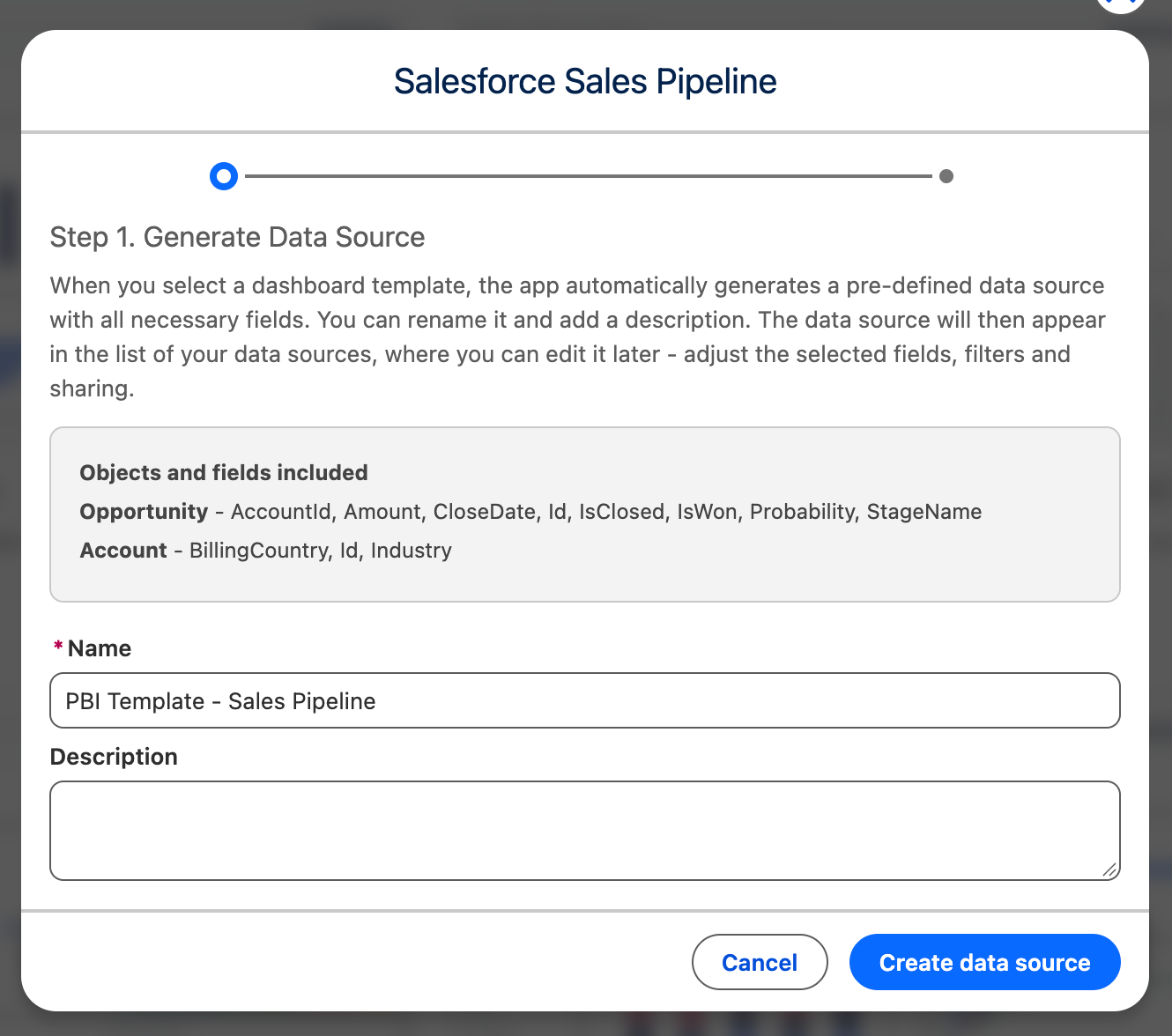
Open Power BI Connector inside Salesforce and select Templates. Find the required Salesforce dashboard template and click Create data source.
The connector displays the Salesforce objects and fields required for that analysis. Keep the suggested name or enter a different one, then confirm Create data source.
A data source is a saved configuration that defines which Salesforce objects and fields the connector makes available to Power BI. With a Power BI Salesforce template, these selections are already prepared, so users do not have to identify and select each required Salesforce field manually.
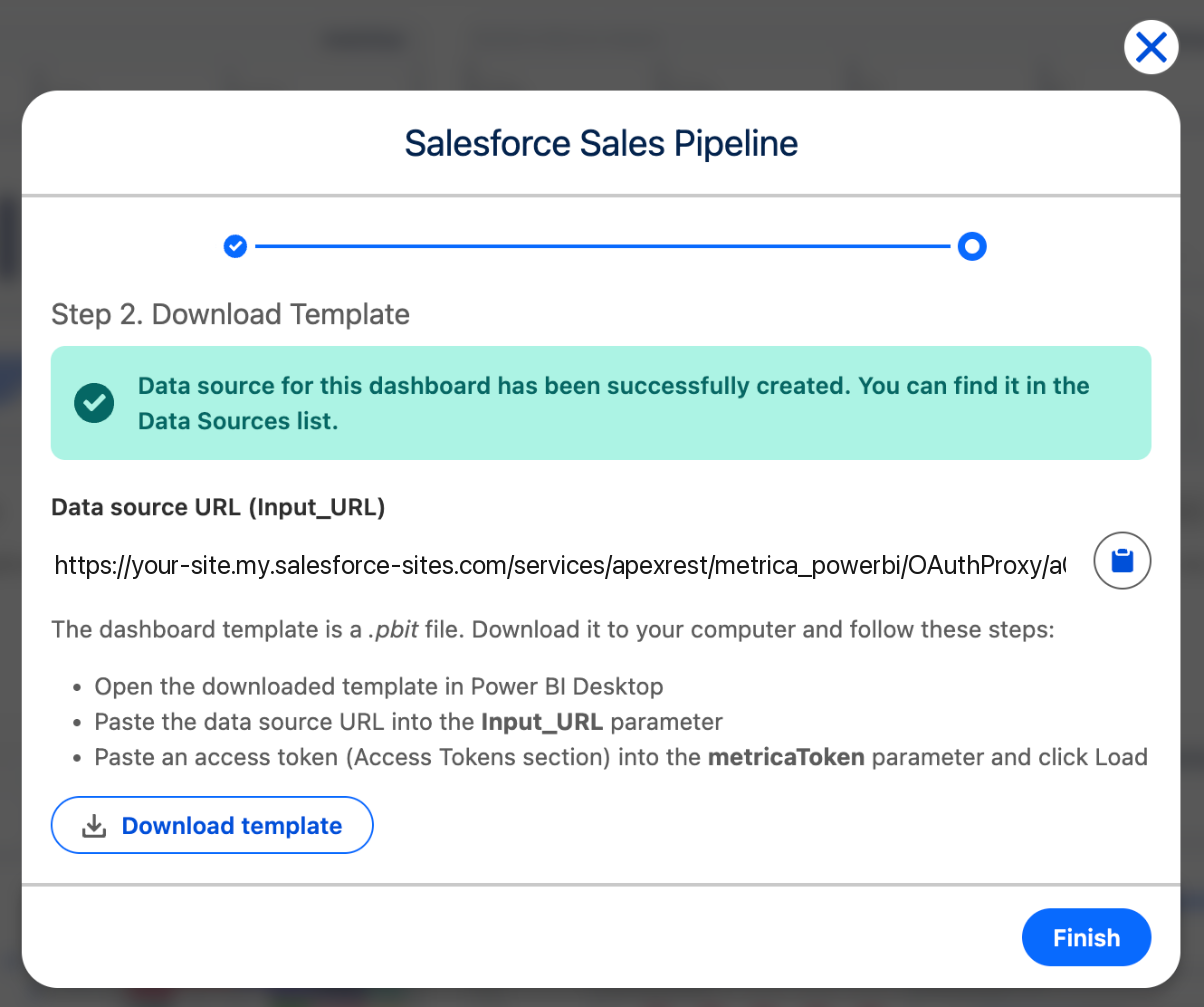
Step 2. Copy the Data Source URL and Download the Power BI Template
Copy the generated Data source URL (Input_URL) and download the matching .pbit file.
The two items have different purposes:
- The data source URL tells Power BI where to retrieve the selected Salesforce data.
- The .pbit file contains the prepared Salesforce report structure, including data relationships, calculations, and charts.
Keep the URL available for the next step.
Step 3. Load Salesforce Data in Power BI Desktop
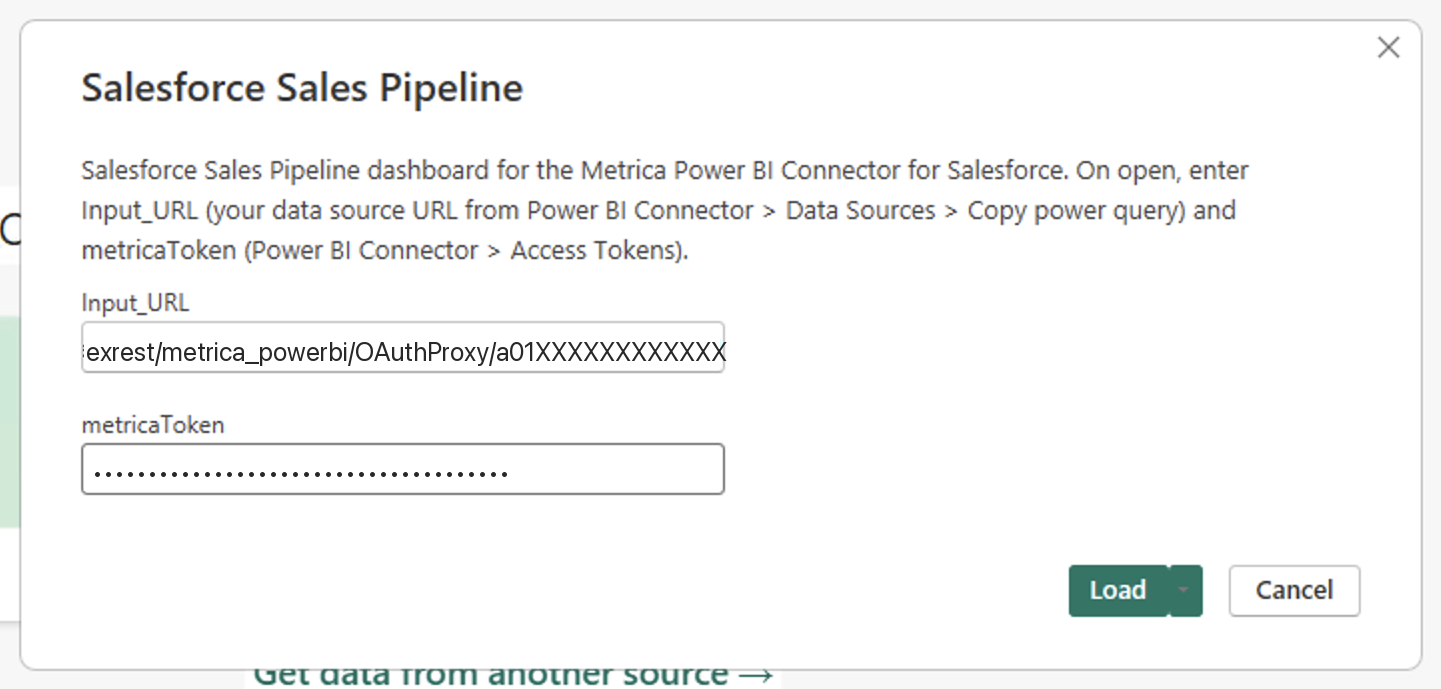
Open the downloaded .pbit file in Power BI Desktop. When prompted, enter:
- Input_URL: the data source URL copied from the connector.
- metricaToken: the connector access token.
Click Load. Power BI retrieves the selected Salesforce data through the connector and populates the prepared Salesforce dashboard.
If Power BI asks for an authentication method, select Anonymous and click Connect. The connector access token is already supplied through the template parameter.
Save the loaded Salesforce report as a .pbix file to continue working with it in Power BI Desktop.
For the complete walkthrough, including authentication screens and troubleshooting, see the Power BI Salesforce dashboard templates user guide.
Adapt Power BI Salesforce Templates to Your Business Requirements
A prepared Salesforce report gives teams a working analysis they can develop further in Power BI. Users can change the layout, remove unnecessary charts, adjust calculations, or add visuals for a more specific business question.
To include additional Salesforce fields, open the generated data source in the connector, add the required fields, and update the Salesforce report in Power BI. Keep the Salesforce fields required by the original Power BI Salesforce template selected, because its calculations and charts depend on them.
For example, a team can begin with the Salesforce Sales Pipeline template and refine the Power BI dashboard around its regular pipeline review. This lets the team spend its development effort on the additional analysis it needs, while retaining the prepared foundation.
Refresh and Share Salesforce Reports in Power BI
Use Refresh in Power BI Desktop to retrieve current Salesforce data. The Salesforce dashboard updates when the refresh runs.
For ongoing team access, publish the Salesforce report to the Power BI service and configure scheduled refresh. The Power BI publishing and refresh guide explains the required credentials and service settings.
The connector also supports incremental refresh for suitable Salesforce reporting configurations. This requires a separate refresh policy in Power BI.
Teams that work primarily in Salesforce can also embed Power BI reports in Salesforce, making the Salesforce analysis available within their existing workspace.
Choose Your Power BI Salesforce Template
Start with the Salesforce dashboard template that matches your immediate reporting task, whether that is a pipeline review, lead analysis, or support workload review. Load the prepared Salesforce report, review the results, and adapt the Power BI analysis where your business needs more detail.