This guide walks you through connecting Power BI Connector for Salesforce to Microsoft Power BI Desktop, from creating an access token to loading Salesforce tables into a report.
You need three things from the connector app before you open Power BI: an access token, a data source, and the Power Query script the app generates for that data source. The sections below create them in that order, then use them in Power BI Desktop.
1. Create an Access Token #
An access token authorizes Power BI to read your data sources. It is tied to your Salesforce user, so Power BI sees exactly the records you can see.
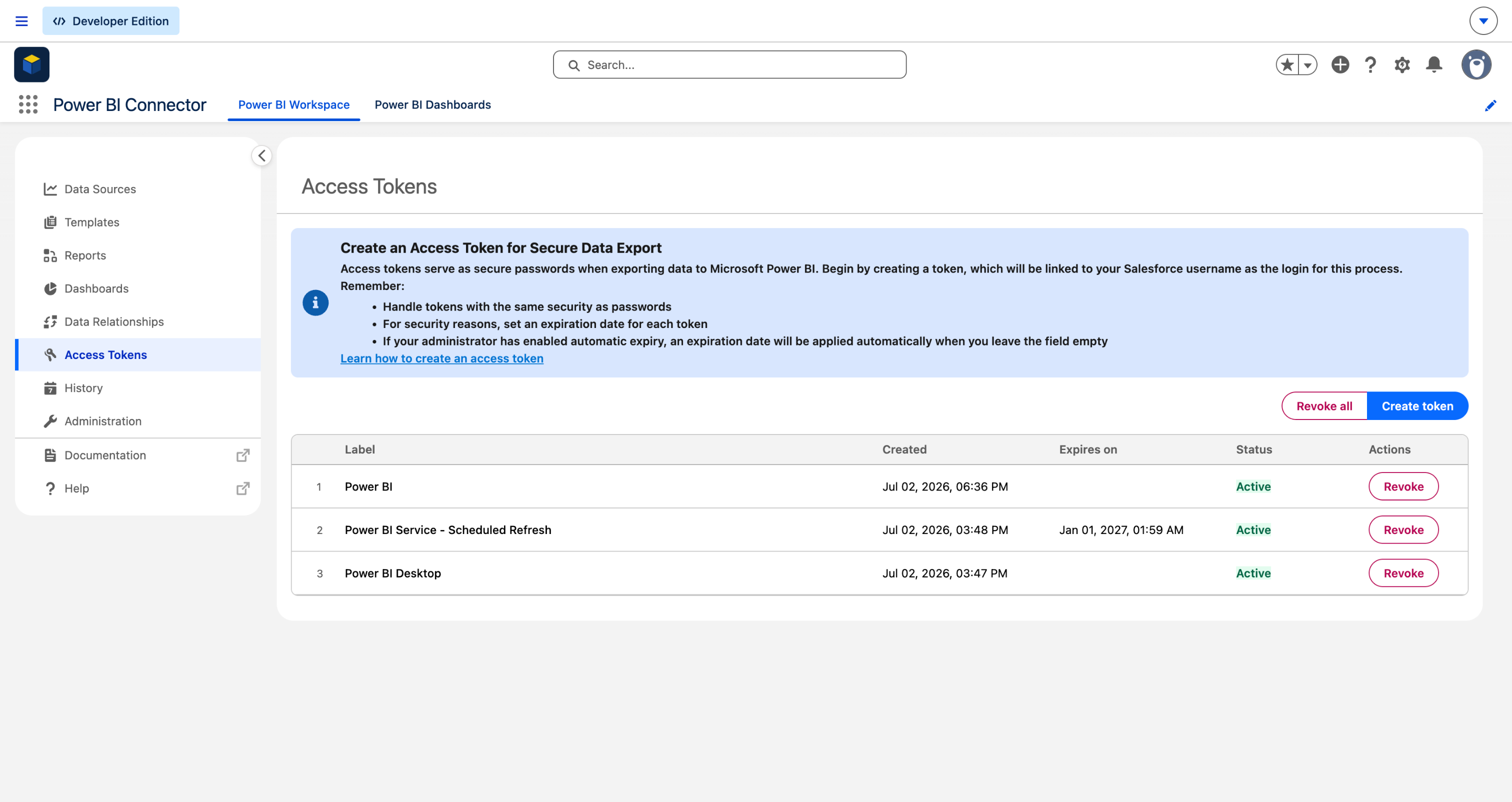
Step 1: Open Access Tokens #
- Open the Power BI Connector app in Salesforce.
- In the left menu, click Access Tokens.
Step 2: Create the token #
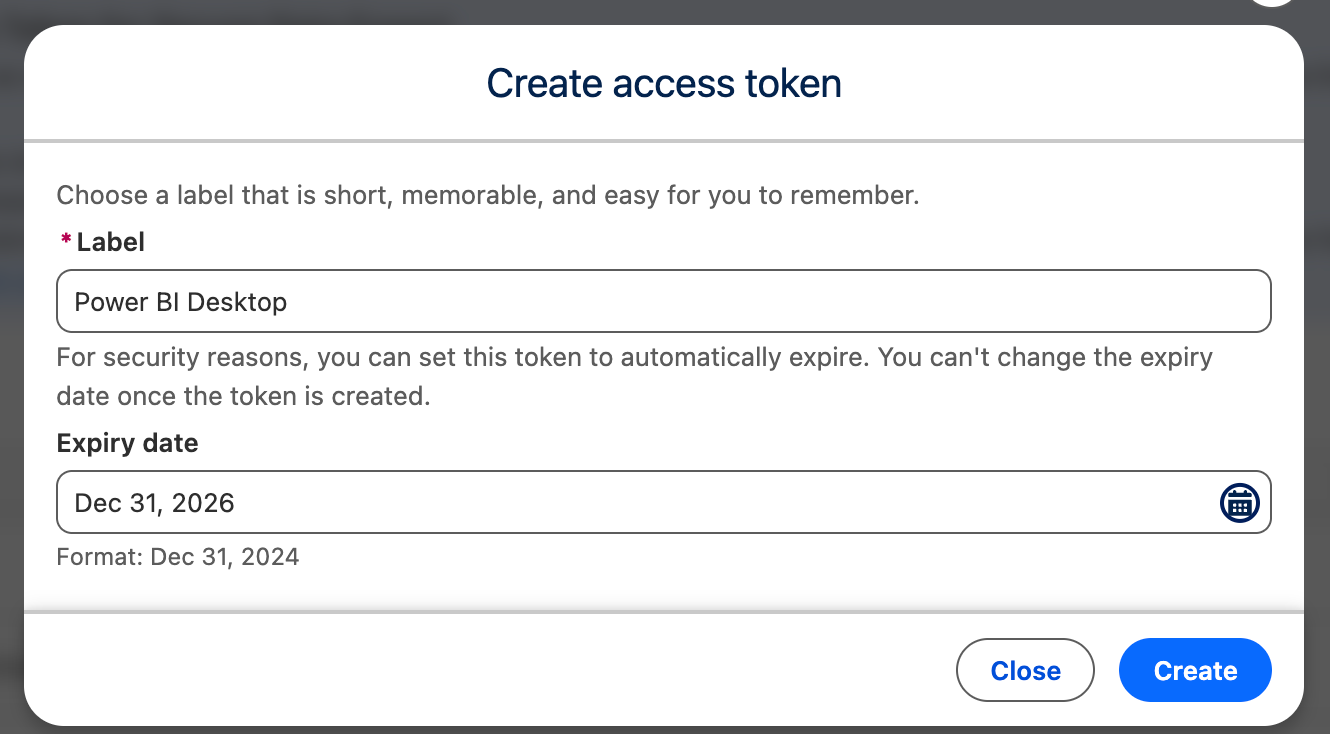
- Click Create token.
- Enter a Label that tells you where the token is used, for example Power BI Desktop.
- (Recommended) Set an Expiry date. The date cannot be changed after the token is created. If your administrator has enabled automatic expiry, a date is applied when you leave the field empty.
- Click Create.
Step 3: Copy the token #
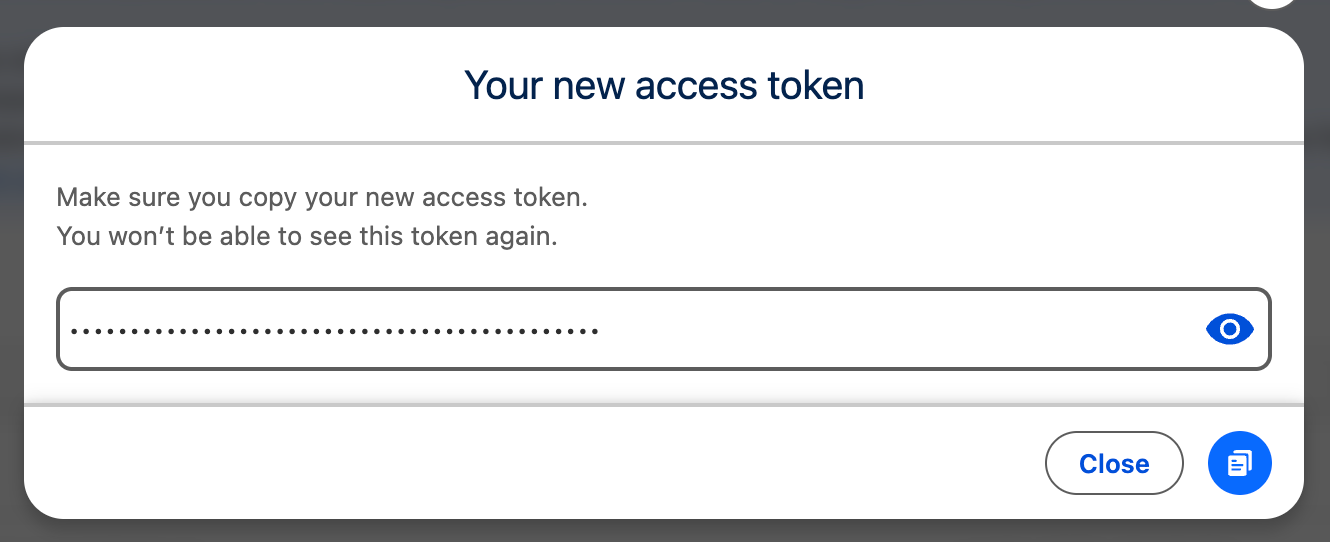
The token is shown once. Click the Copy button and keep the value somewhere safe until you paste it into Power BI in section 4.
You can revoke a token at any time from the Access Tokens page. Expired and revoked tokens stop working immediately; Power BI then needs a new token in its parameter (see Updating the token below).
2. Create a Data Source #
A data source is the set of Salesforce objects, fields and filters that Power BI will receive. Create it in the connector app under Data Sources → Create data source: give it a name, tick the objects you need, expand each object and select its fields, then click Save.
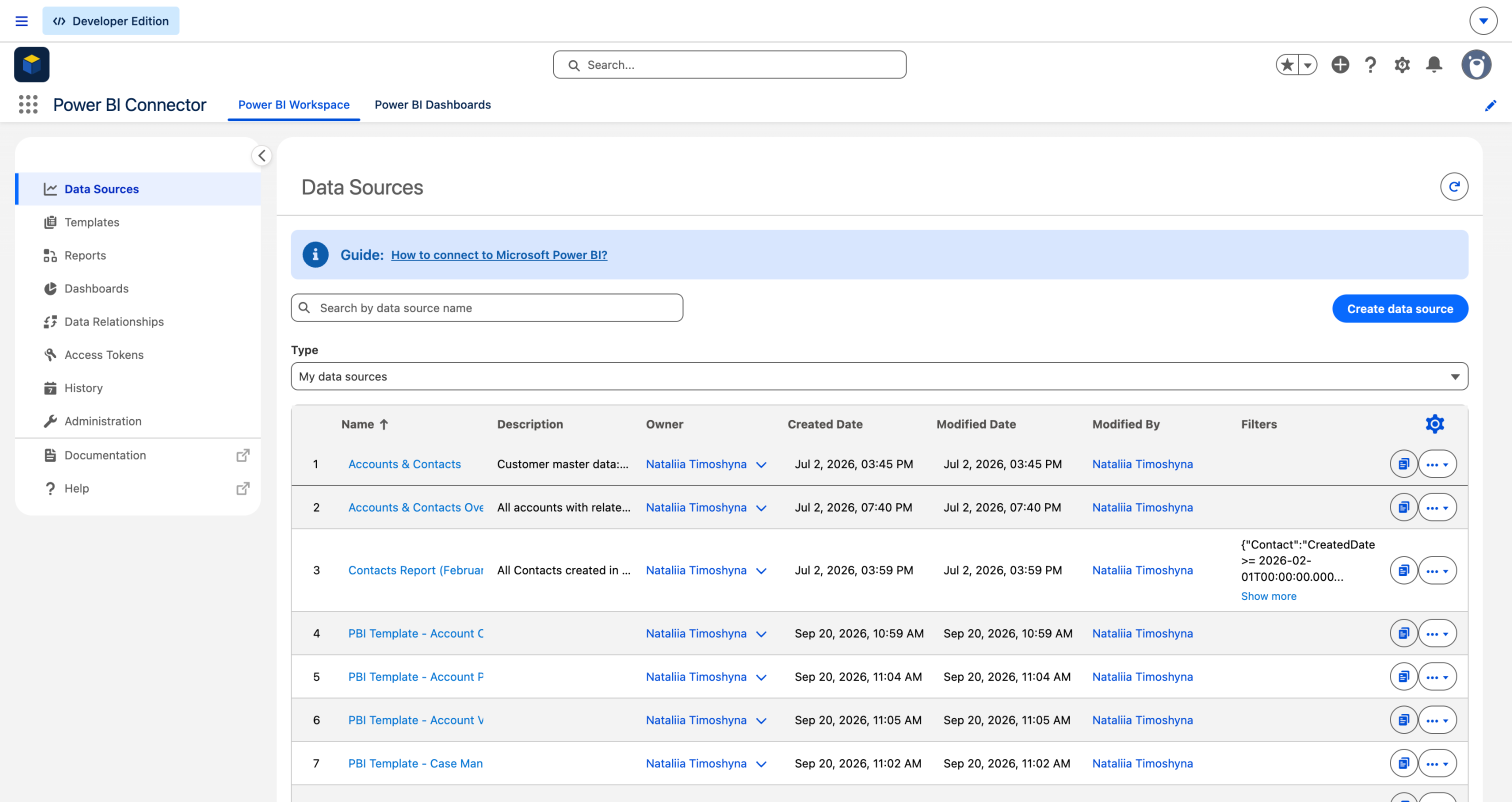
After saving, the data source appears in the Data Sources list.
3. Copy the Power Query Script #
Each data source has its own connection script. You copy it once here and paste it into Power BI in section 4.
- In the Data Sources list, find your data source.
- Click the Copy power query button at the right end of the row (the first of the two buttons). A Copied! message confirms the script is on your clipboard.

The script looks like this:
let
    Source = OData.Feed(
        "https://[your Site URL]/services/apexrest/metrica_powerbi/OAuthProxy/a01XXXXXXXXXXXX",
        [xUserKey = metricaToken]
    )
in
    Source
Where:
- [your Site URL] is the Salesforce Site the connector is published on (for example https://your-company.my.salesforce-sites.com). The app fills it in for you.
- a01XXXXXXXXXXXX is the ID of this data source. Every data source has a different one.
- metricaToken is the name of the parameter you will create in Power BI Desktop to hold your access token. Keep the name exactly as it is.
4. Connect Power BI Desktop #
All of the following happens in the Power Query Editor, a separate window that Power BI Desktop opens on top of the report canvas. Keep it open until you reach Close & Apply in Step 6.
Step 1: Open a blank query #
- Open Power BI Desktop and start a Blank report.
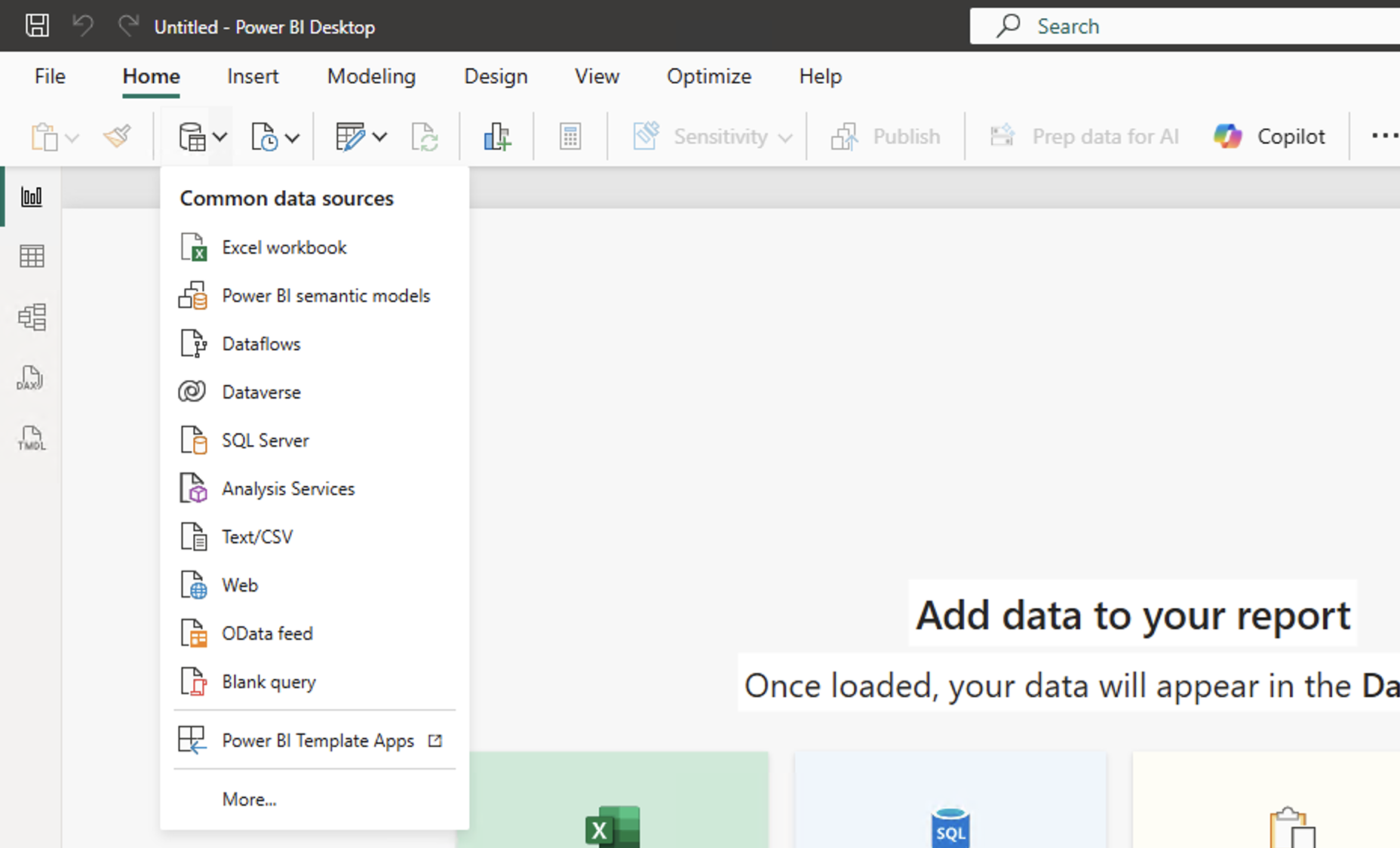
- On the Home tab, open the Get data drop-down and click Blank query.
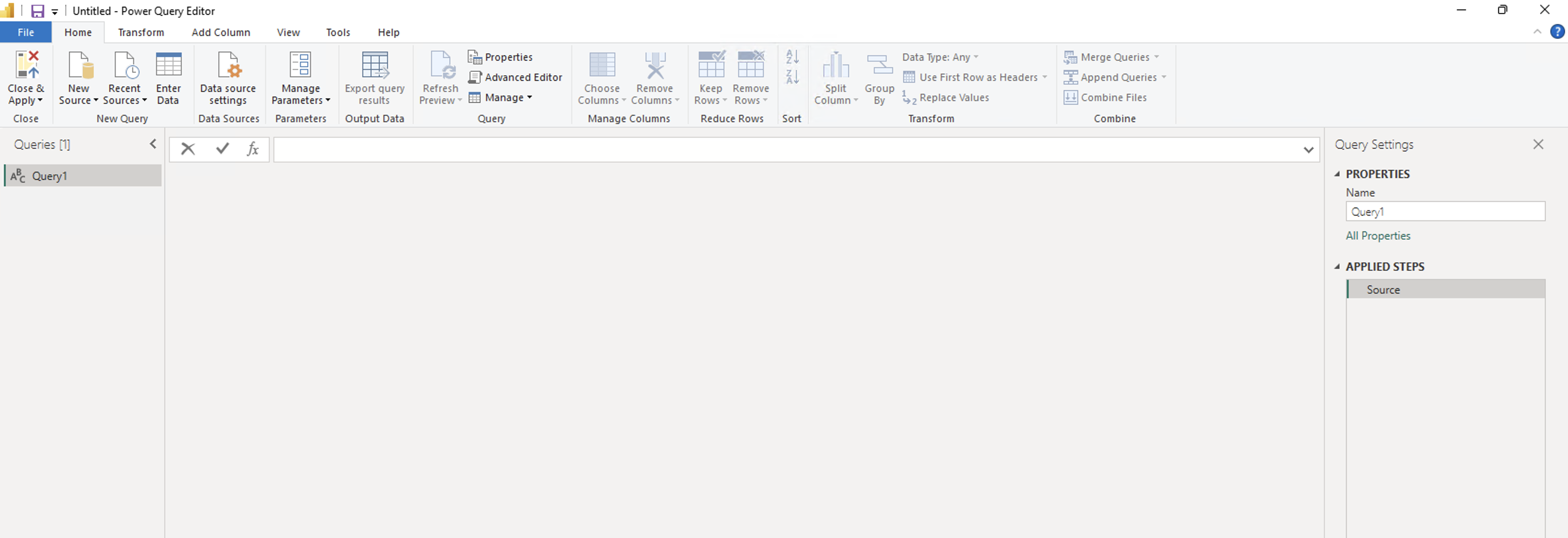
The Power Query Editor opens with an empty query named Query1 in the Queries pane on the left.
Step 2: Create the token parameter #
The parameter keeps your token out of the query text, so you can replace the token later without touching the script.
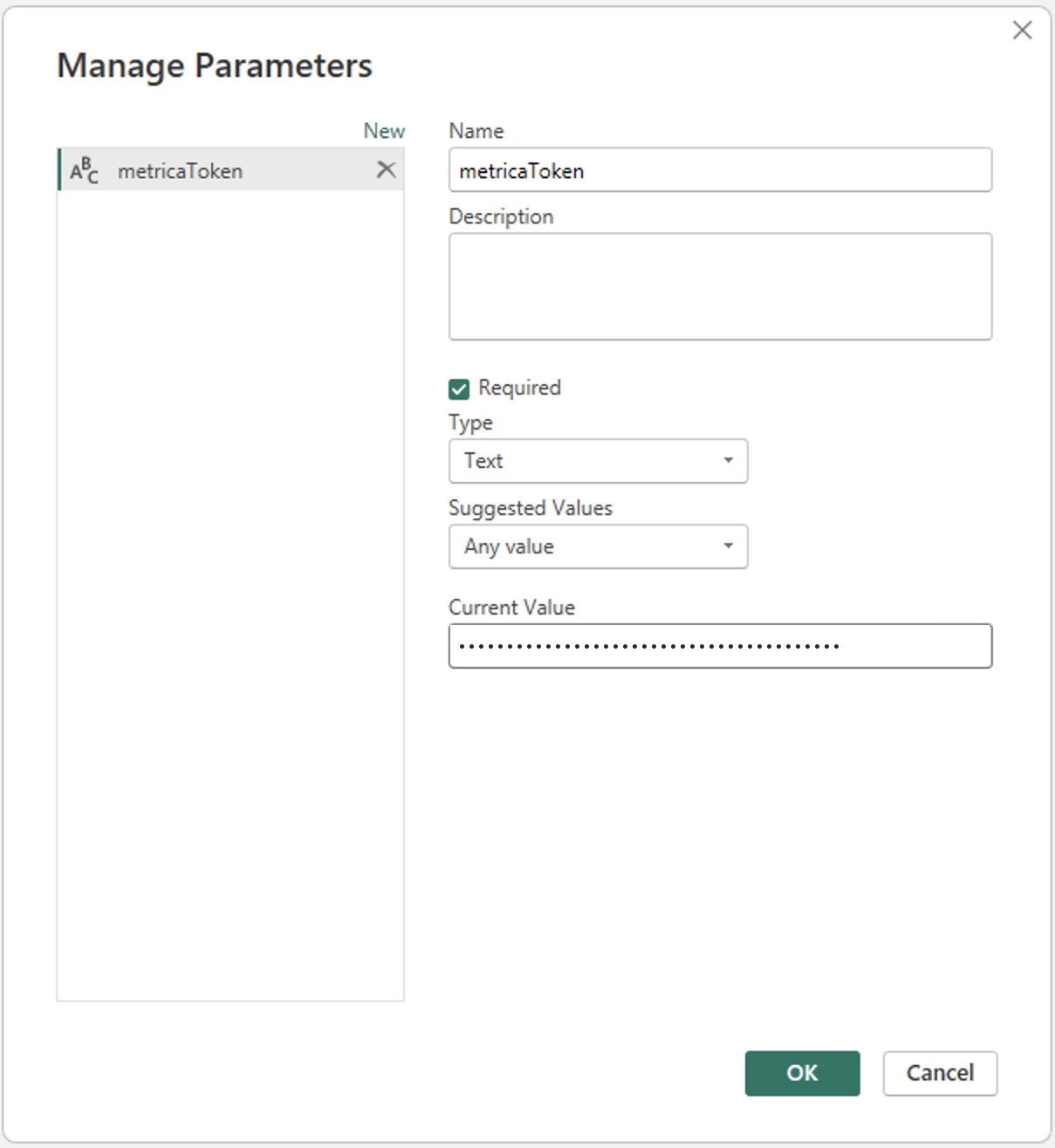
- On the Power Query Editor Home tab, click Manage Parameters → New Parameter.
- Set Name to metricaToken (exactly as written, it is case-sensitive).
- Leave Type as Text and Suggested Values as Any value.
- Paste your access token into Current Value.
- Click OK. The parameter appears in the Queries pane.
Step 3: Paste the script #
- In the Queries pane, select Query1.
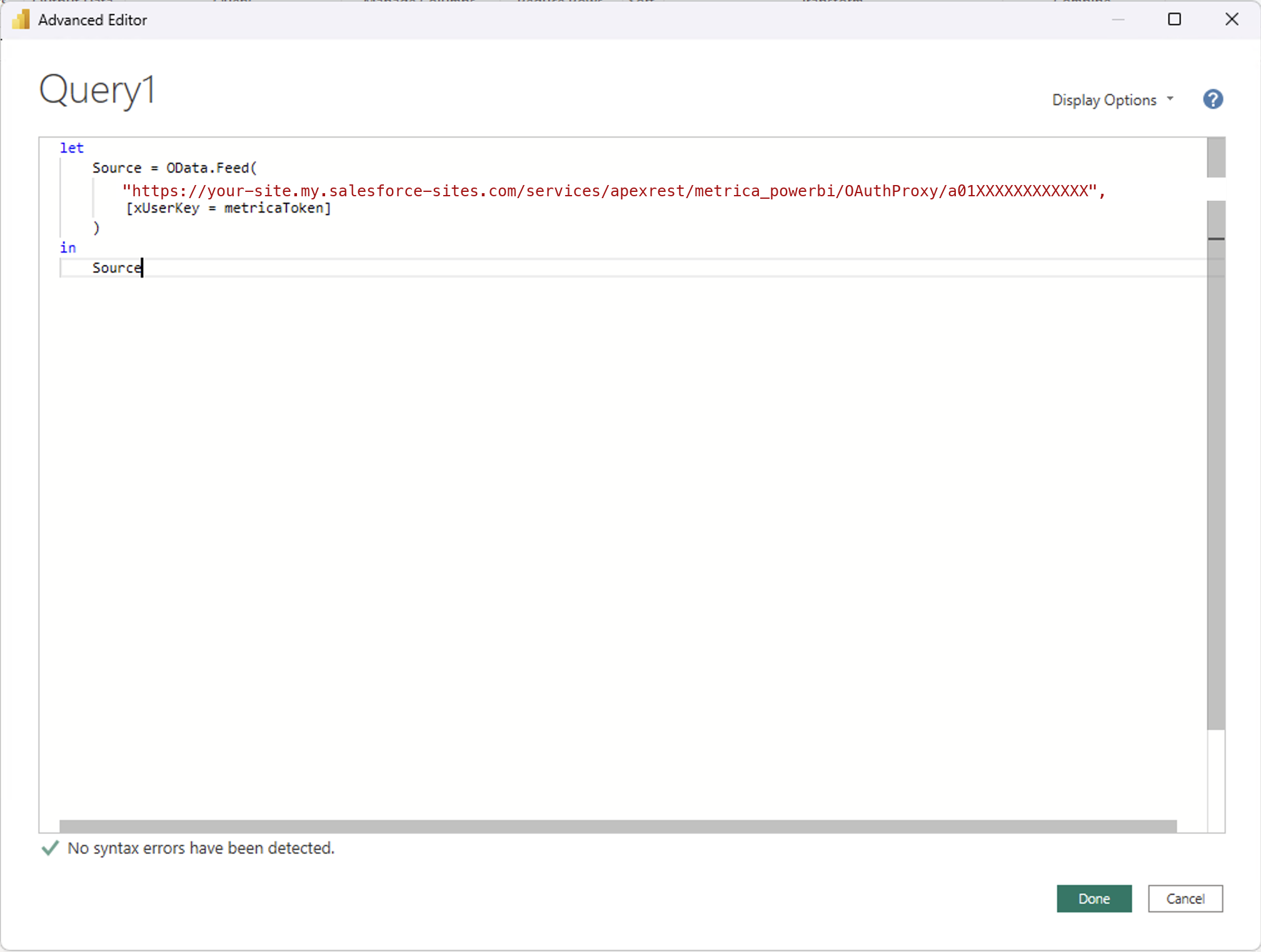
- On the Home tab, click Advanced Editor.
- Delete the placeholder text, paste the script you copied in section 3, and click Done.
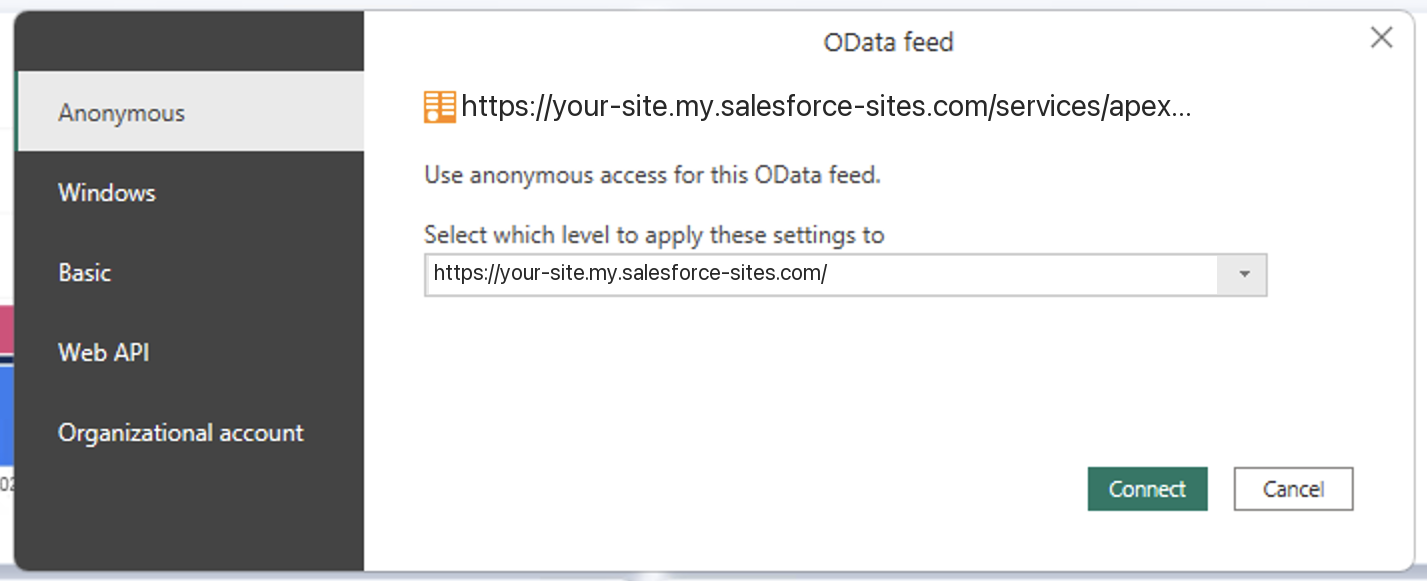
Step 4: Choose Anonymous when asked #
The first time Power BI Desktop connects to a data source URL it asks how to authenticate, either in a dialog or through an Edit Credentials button above the preview.
- Select Anonymous.
- Leave the level as suggested (the Salesforce Site address).
- Click Connect.
Step 5: Add each object as a table #
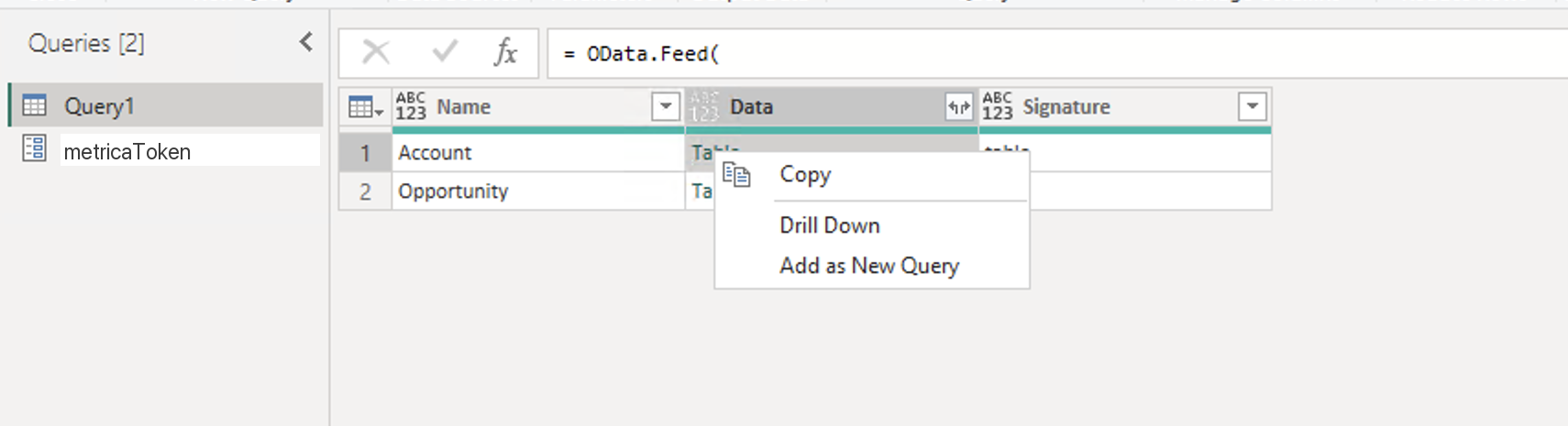
Query1 now shows one row per Salesforce object in the data source, with a Table link in the Data column.
- Right-click the word Table next to an object and click Add as New Query.
- Rename the new query to the object name, for example Account or Opportunity (right-click the query → Rename).
- Go back to Query1 and repeat for every object you want in the report.
When you are done, the Queries pane lists the parameter, Query1 and one query per object:
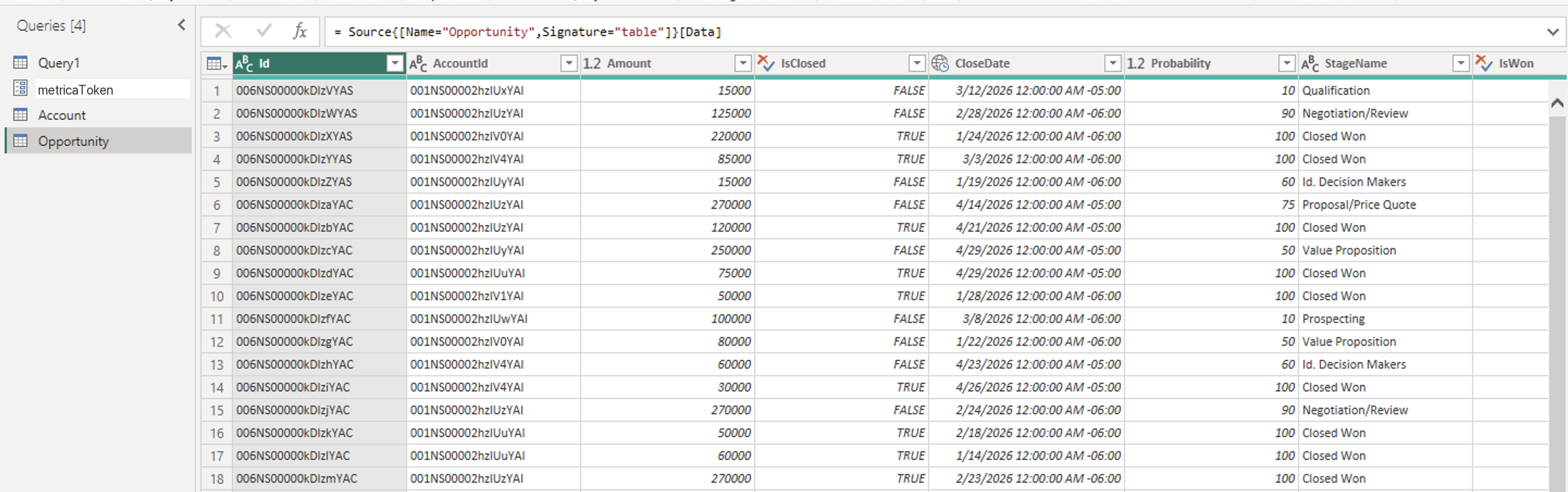
Query1 itself does not need to load into the report. Right-click it and clear Enable load, or delete it once you have added all the tables.
Step 6: Close & Apply #
- On the Home tab, click Close & Apply.
- Power BI loads the data. The tables appear in the Data pane of the report, ready for visuals.
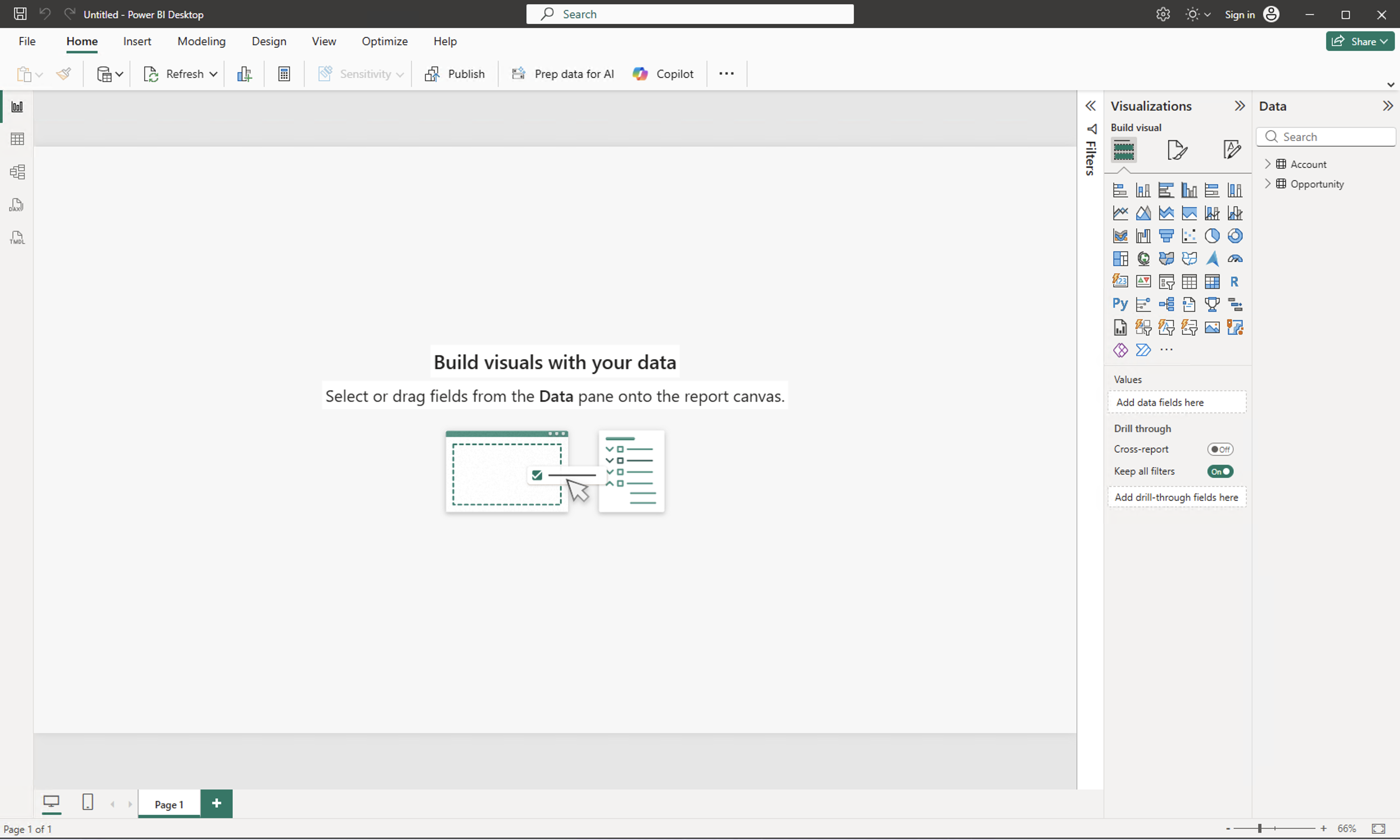
To pull fresh data from Salesforce later, click Refresh on the Home tab of the report.
5. Publish to the Power BI Service and Refresh Online #
A report published to the Power BI service refreshes online without a gateway. One setting is different from other data sources: the service cannot test the credentials, so you tell it to skip the test.
Step 1: Publish the report #
- In Power BI Desktop, click Publish on the Home tab and choose a workspace.
- In the Power BI service, open the workspace, find the semantic model that was published with the report, open its menu (···) and click Settings.
Step 2: Set the credentials with Skip test connection #
Expand Data source credentials. The service reports that it failed to test the connection. This is expected: the test sends a plain request without your token.
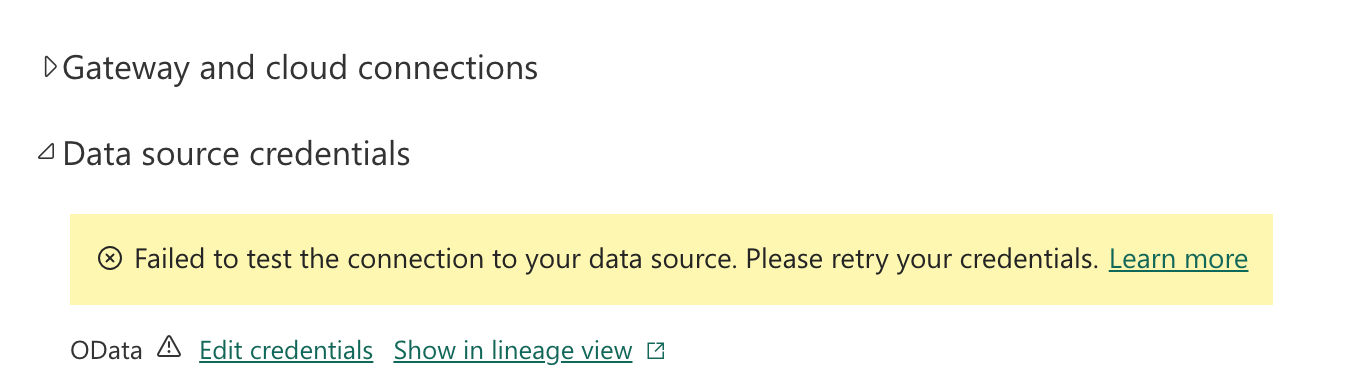
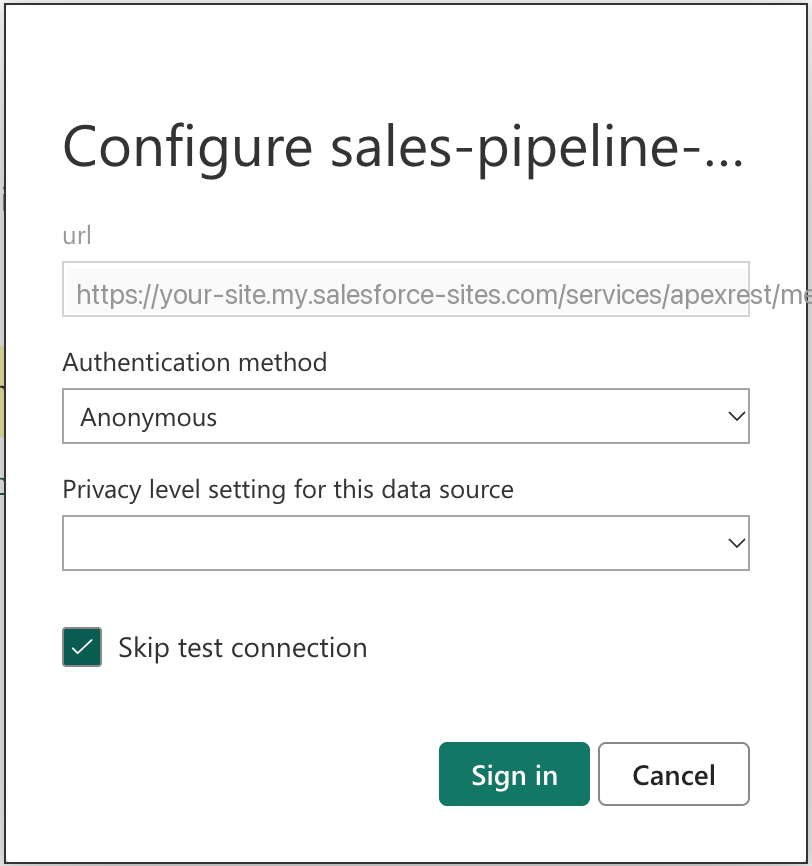
- Click Edit credentials.
- Set Authentication method to Anonymous.
- Tick Skip test connection.
- Click Sign in.
Step 3: Refresh #
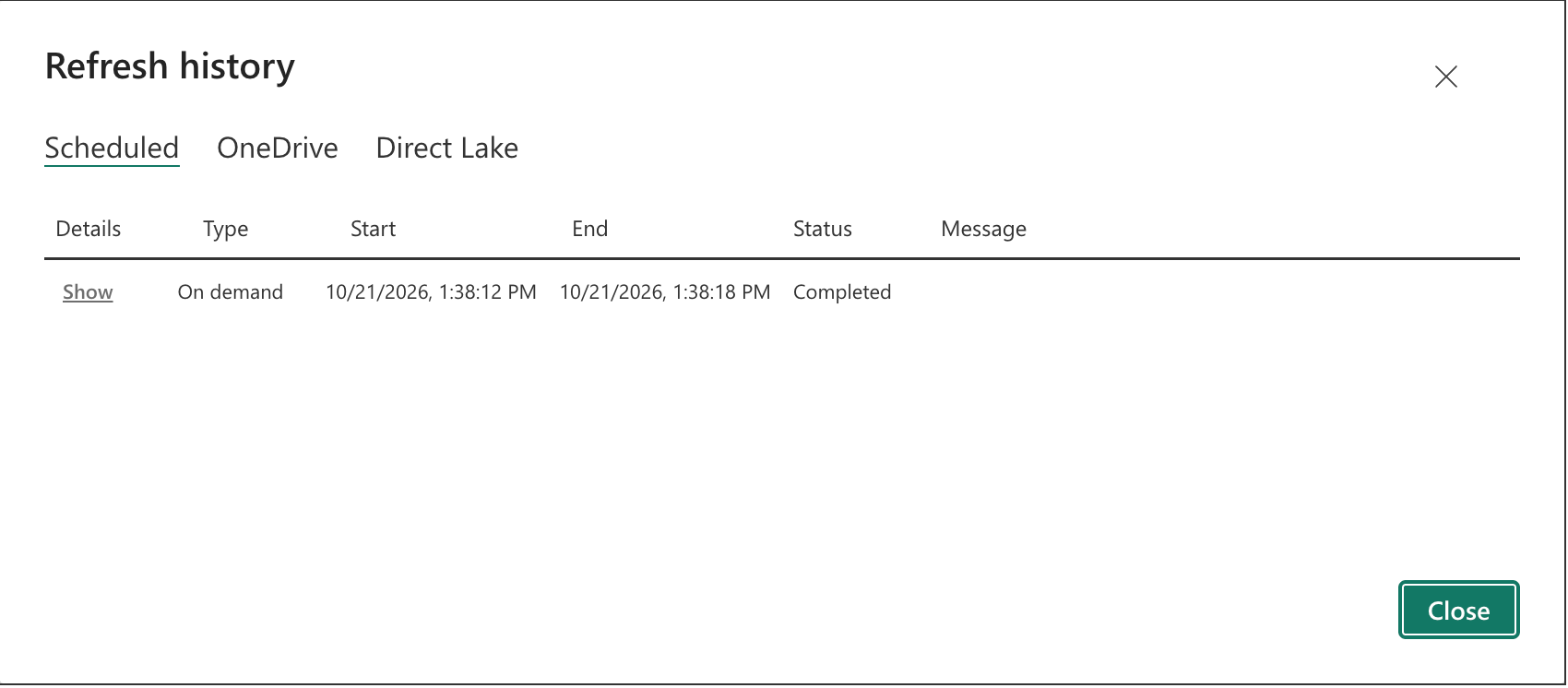
Back in the workspace list, open the semantic model menu and click Refresh now. The refresh completes in a few seconds for a typical data source, and Refresh history on the settings page shows it as Completed. From here you can configure Scheduled refresh on the same settings page.
6. Updating the Token #
When a token expires or is revoked, Power BI returns 400 Bad Request on the next refresh. Create a new token in the connector app and put it into the parameter:
- Power BI Desktop: on the Home tab, open the Transform data drop-down → Edit parameters, paste the new token into metricaToken and click OK. Then Refresh.
- Power BI service: open the semantic model Settings → Parameters, replace the value of metricaToken and click Apply. Then refresh the model.
The script itself never changes. Only the parameter value does.
Troubleshooting #
| What you see | What it means | What to do |
|---|---|---|
| 400 Bad Request, Missing user key | The request reached Salesforce without a token. | Check that the parameter is named metricaToken (case matters) and holds a current token. In the Power BI service, make sure the credentials were saved with Skip test connection (section 5). |
| 400 Bad Request after the token worked before | The token expired or was revoked. | Create a new token and update the parameter (section 6). |
| A credentials prompt that does not accept the token | The wrong authentication method is selected. | Choose Anonymous. The token is a parameter, not a credential. |
| We expected a property … but the OData service omitted it | A field the query uses is no longer in the data source. | Edit the data source in the connector app and add the field back. |
| Empty tables, no error | The data source filters exclude every record, or your Salesforce user cannot see the records. | Check the filters on the data source and your object permissions. |
| Copy power query does nothing | Clipboard access is blocked in the browser. | Allow clipboard access for your Salesforce domain, or open the data source and copy the script from there. |


