Table of Contents
Access tokens are used to securely export data from Salesforce to Power BI.
Each export request is authenticated using an access token, ensuring that only authorized users can access the data.
Create an Access Token #
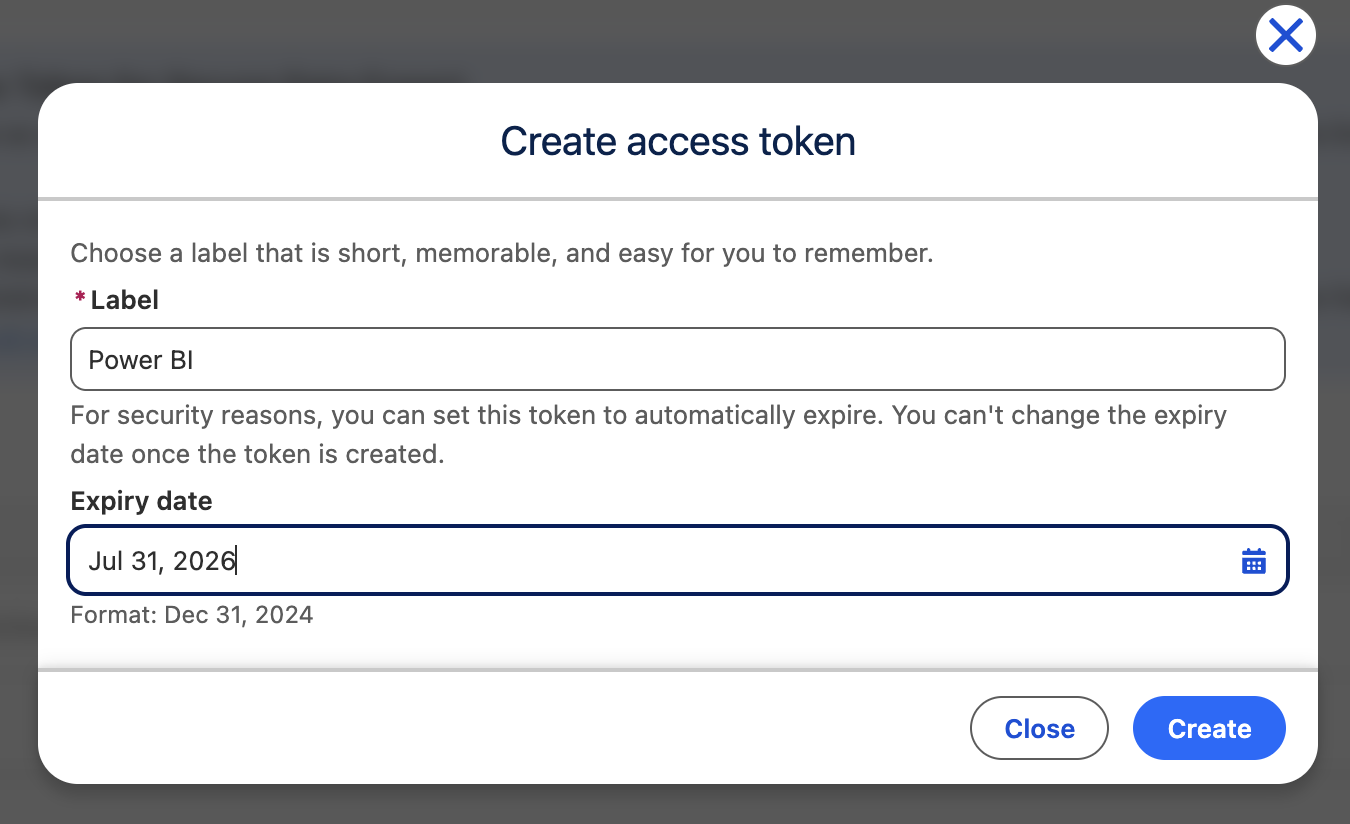
Go to Access Tokens and click Create token.
- Enter a label (e.g., Power BI)
- Optionally set an expiry date
- Click Create
Copy and Store the Token #
After creating a token:
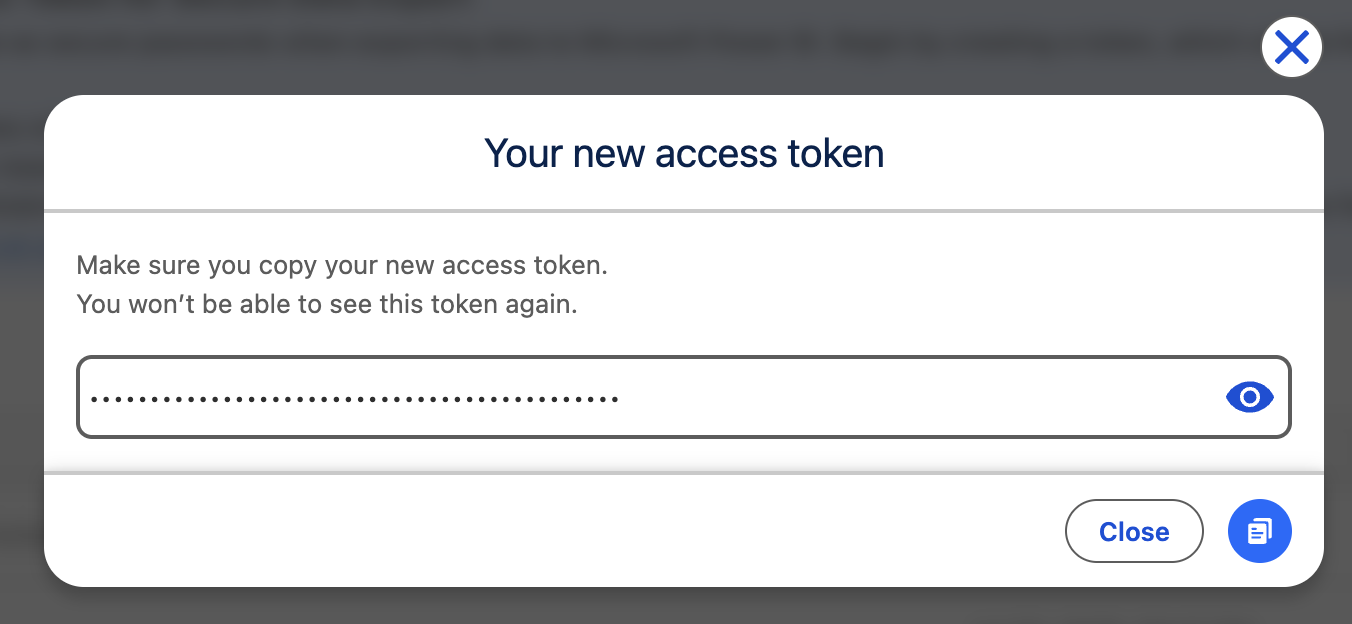
- Copy it immediately
- You won’t be able to see it again
View and Manage Tokens #
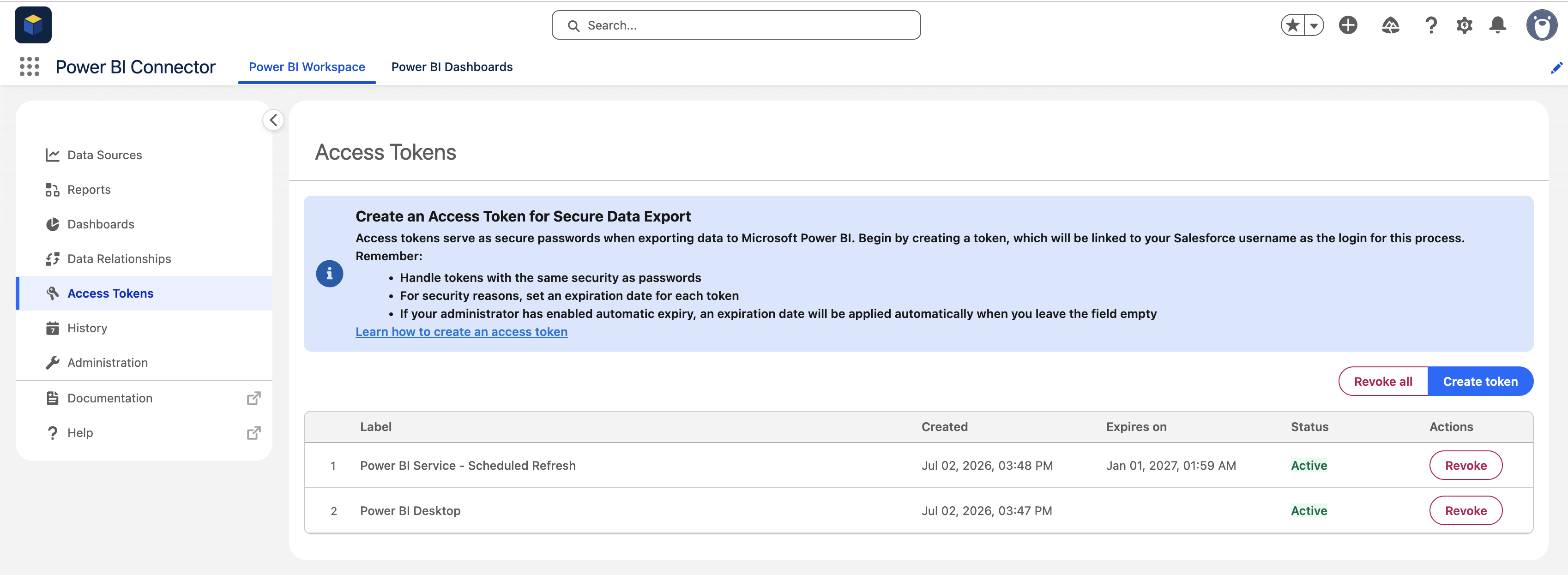
In the Access Tokens page, you can:
- See all your tokens
- Check:
- Creation date
- Expiry date
- Status (Active / Expired)
- Revoke tokens when no longer needed
Revoke Tokens #
- Only the token owner can revoke their tokens
- You can revoke tokens individually or use Revoke all
Revoking a token immediately stops it from being used in exports.
Access Token History #
You can track token activity in History → Access tokens history.
- Users can see their own token history
- Administrators can see all users’ token history

Admin Controls #
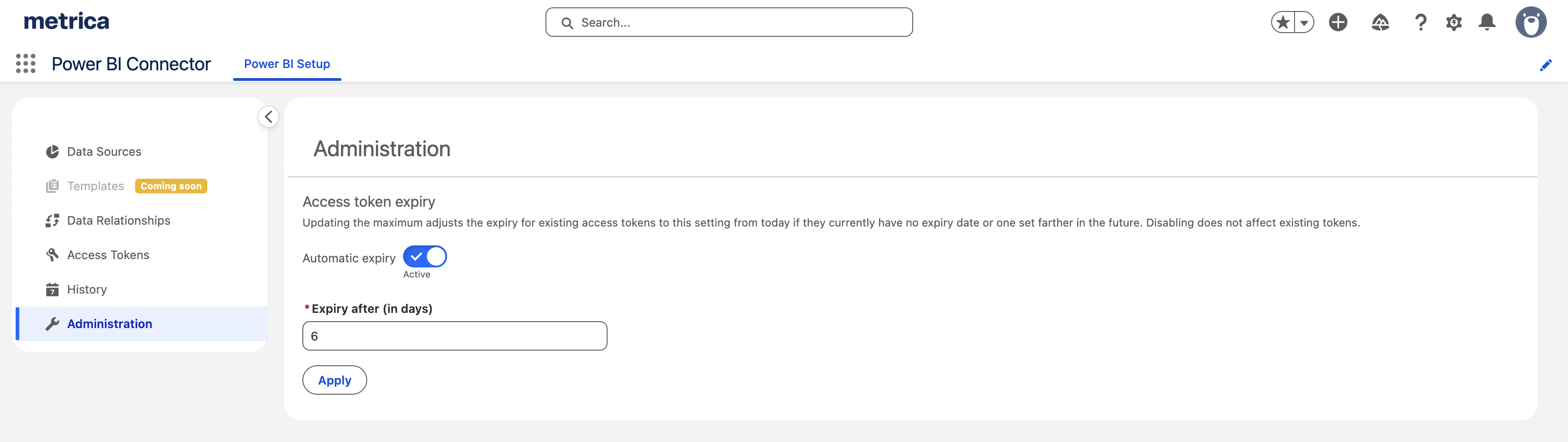
Administrators can enforce security policies:
- Set a maximum token expiry period
- Enable or disable automatic expiration
This helps align token usage with company security requirements.
How Access Works #
- Each user creates and manages their own tokens
- Tokens are not shared between users
- Access is always tied to the user who created the token
💡 Notes #
- Tokens are required for exporting data to Power BI
- Expired or revoked tokens will cause export failures
- Use expiration dates to improve security
See How to Import Salesforce Data into Microsoft Power BI to understand how access tokens are used in exports.


