To remove Power BI Connector for Salesforce from your Salesforce org, run the standard Salesforce package uninstall from Setup → Installed Packages. Salesforce gives you a 48-hour data-export window in case you change your mind.
Step 1: Open Installed Packages #
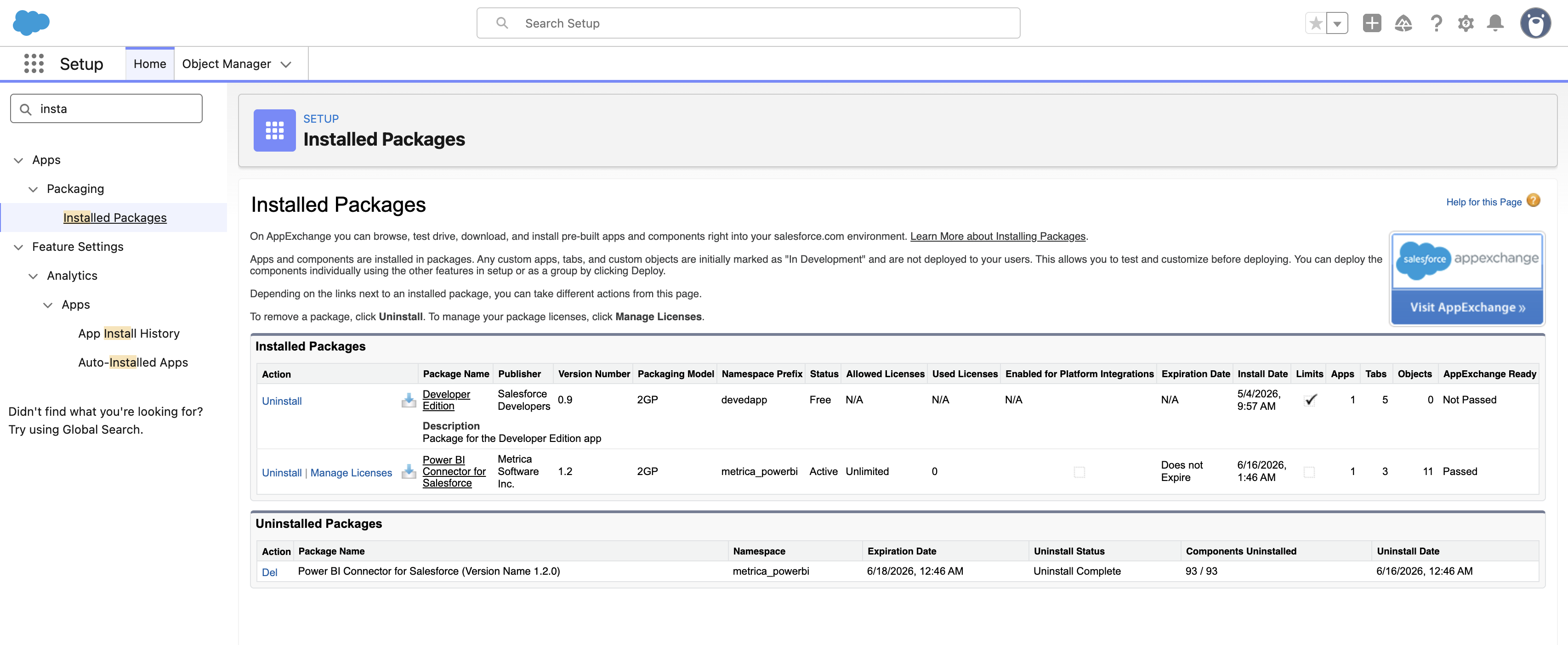
Sign in as a Salesforce administrator. Open Setup, then in the Quick Find box type insta and select Installed Packages.
Step 2: Click “Uninstall” #
Find Power BI Connector for Salesforce in the list and click Uninstall on the left.
Step 3: Review the warning #
Salesforce shows an Uninstalling a Package page that lists everything that will be deleted — all custom objects, custom fields, Apex classes, reports, list views, and the data stored in those objects.
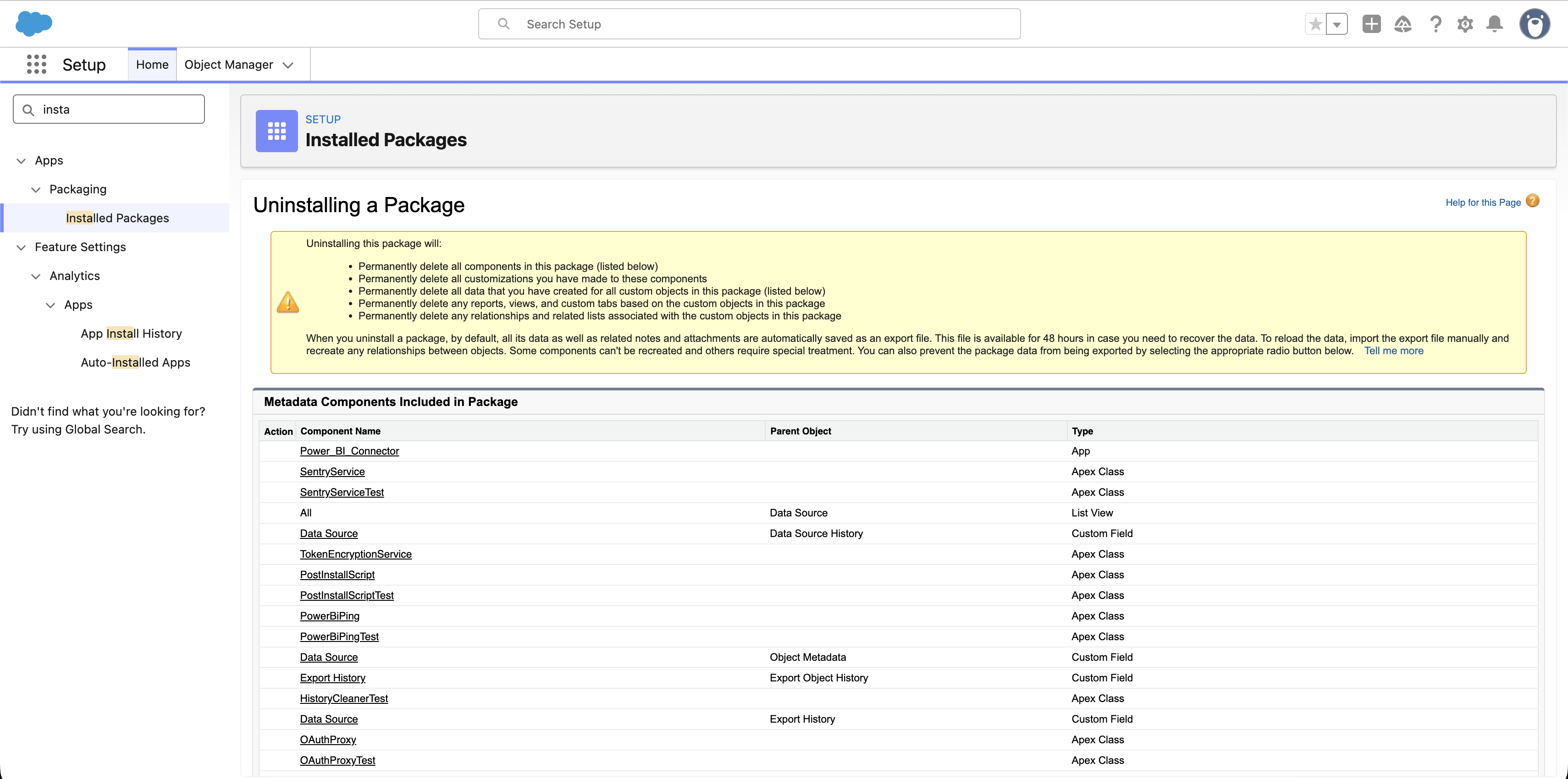
Scroll the Metadata Components Included in Package table to see exactly what’s being removed.
Step 4: Choose a data-export option #
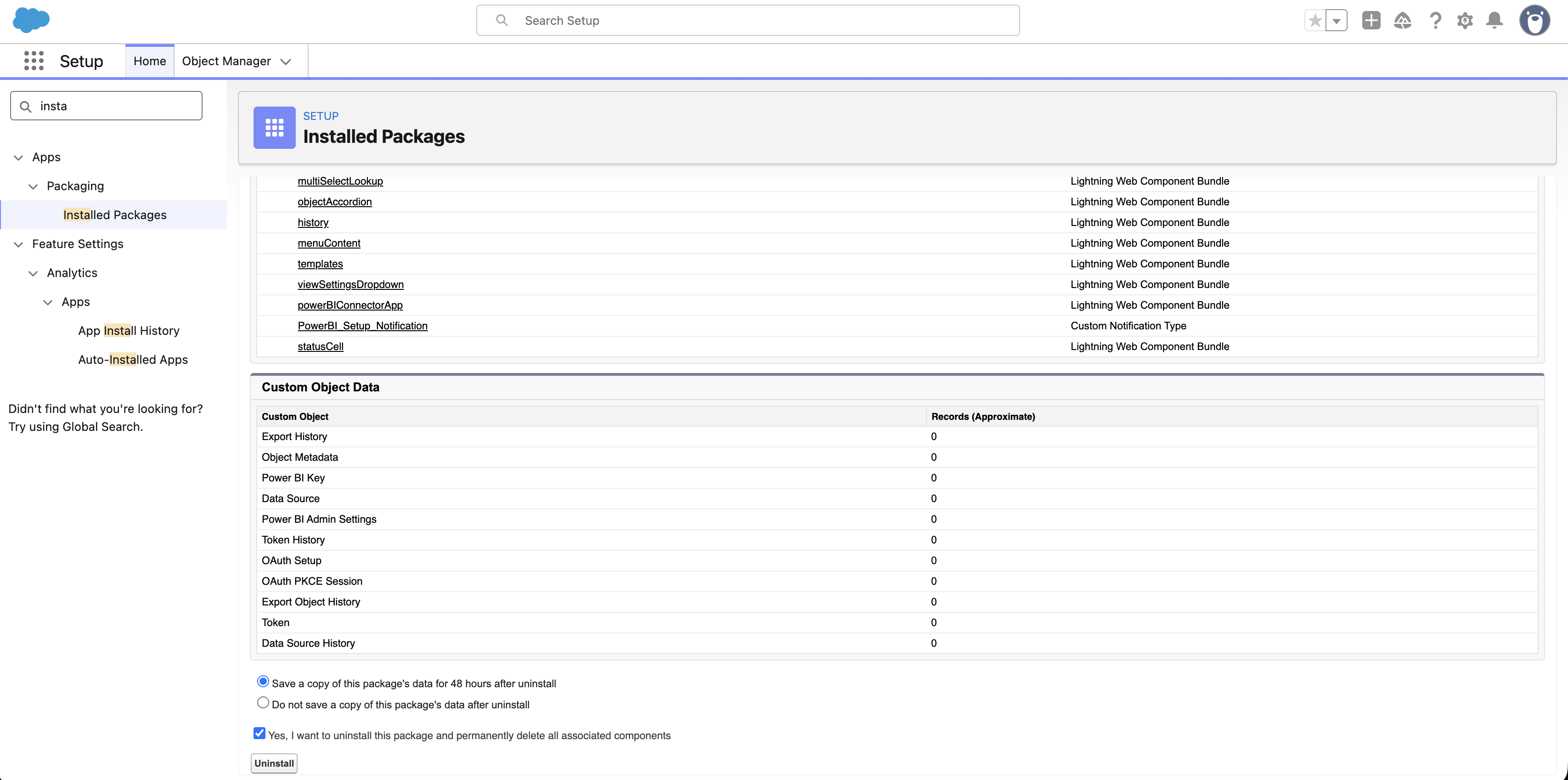
At the bottom of the uninstall page, Salesforce offers:
- Save a copy of this package’s data for 48 hours after uninstall — recommended. Salesforce produces an export file that’s downloadable for 48 hours after uninstall. After that, it’s deleted.
- Do not save a copy of this package’s data after uninstall — data is destroyed immediately and not recoverable.
Step 5: Confirm and uninstall #
Tick Yes, I want to uninstall this package and permanently delete all associated components, then click Uninstall.
Step 6: Wait for completion #
Uninstall typically takes a few minutes. Salesforce sends an email when it’s done.
Step 7: Verify #
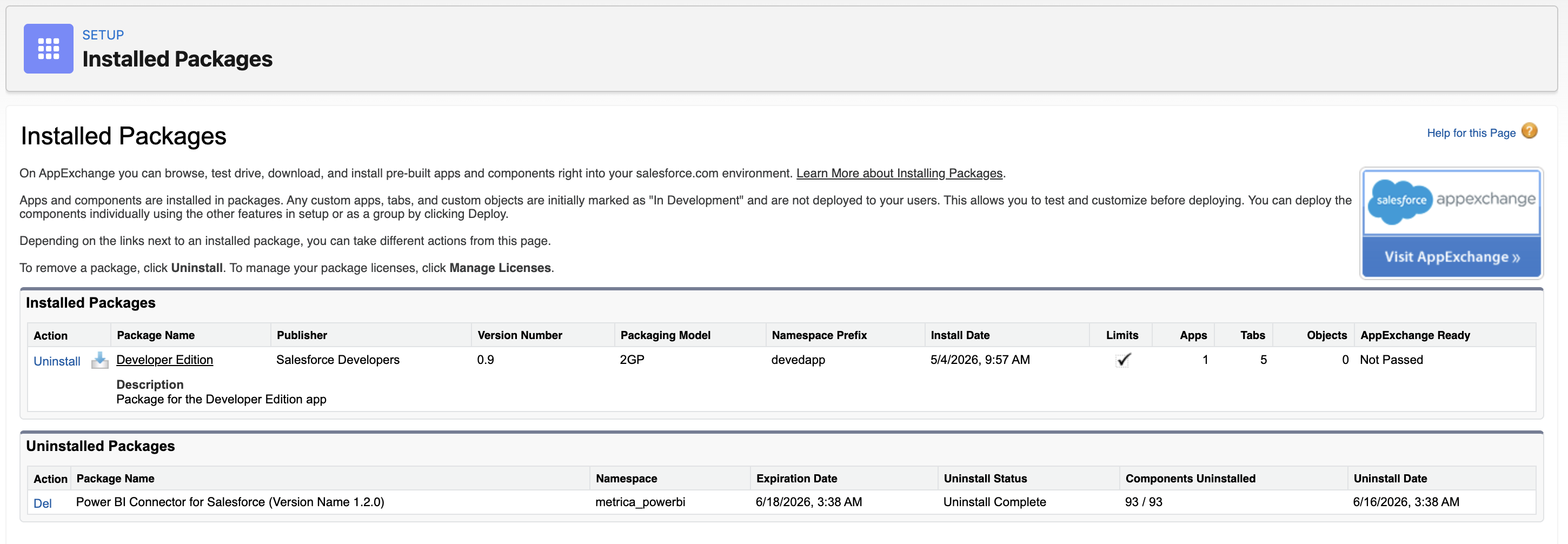
Return to Setup → Installed Packages. Power BI Connector for Salesforce now appears under Uninstalled Packages with Uninstall Status: Uninstall Complete.
Recovering data within 48 hours #
If you opted to save data in Step 4, the export file is available for 48 hours. Look for the download link on the Installed Packages page under the Uninstalled Packages section. After 48 hours, Salesforce deletes the export and the data is unrecoverable.
Reinstalling #
You can reinstall the connector from the AppExchange at any time — see Installation. A reinstalled instance starts with an empty data set unless you restore from a saved export.


