Table of Contents
Power BI Connector for Salesforce uses standard Salesforce permissions to control access.
This means:
- There are no custom permission systems in the connector
- Users only see and export data they already have access to in Salesforce
1. Complete Initial Setup #
Before managing user access, make sure the connector is fully configured:
- Salesforce Site is created
- Connected App / External Client App is configured
- OAuth settings are set correctly
- Custom Settings are configured
- Initial authorization is completed
👉 This setup is covered step by step in the Installation Guide.
See Installation Guide for full setup instructions.
2. Grant Users Access to the Application #
Users must have access to the connector app in Salesforce.
This is managed using standard Salesforce tools:
- Profiles
- Permission sets
- Permission set groups
If a user cannot see or use the connector, check that the app is assigned to them.
Salesforce guide: Manage Access to a Connected App
3. Grant Access to Data (Objects and Fields) #
The connector only shows data that users can access in Salesforce.
Make sure users have:
- Access to required objects (e.g., Account, Contact, Case)
- Access to necessary fields (field-level security)
If something is missing in the connector, it is usually due to missing permissions here.
Salesforce guide: Set Up Object and Field Permissions
4. Assign Permission Sets #
In most organizations, access is managed via permission sets.
Make sure:
- Permission sets include required objects and fields
- They are assigned to the correct users
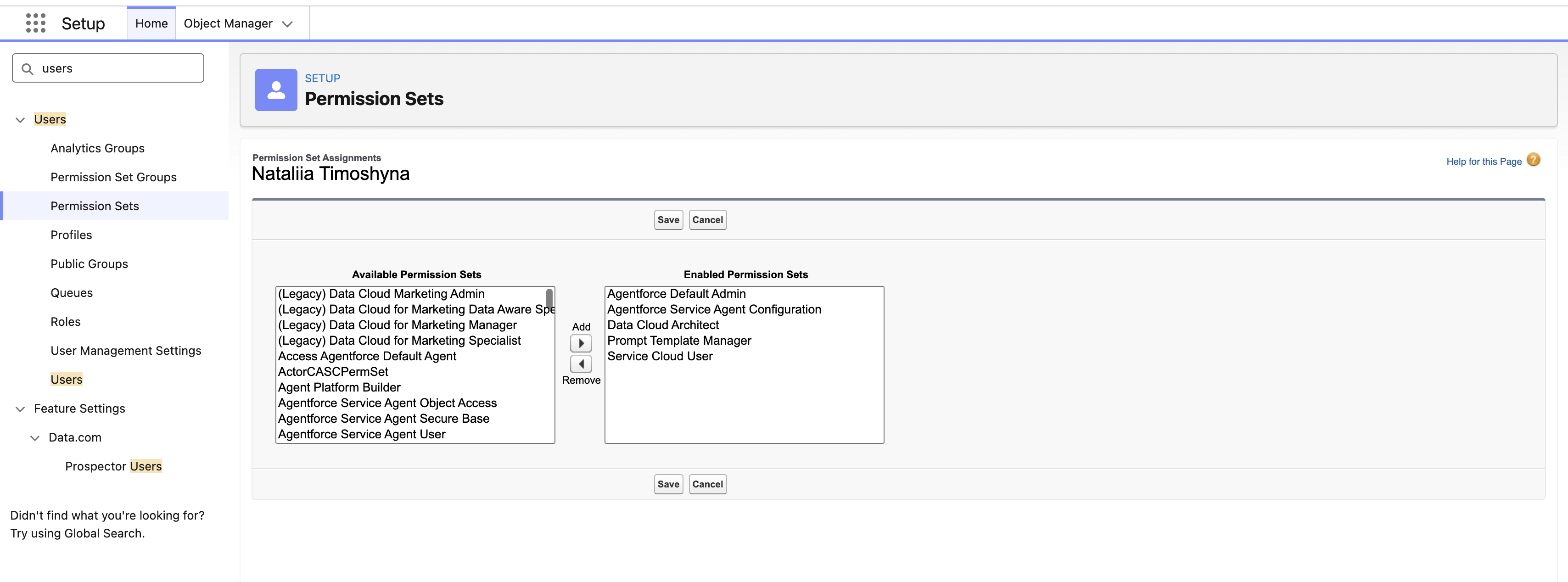
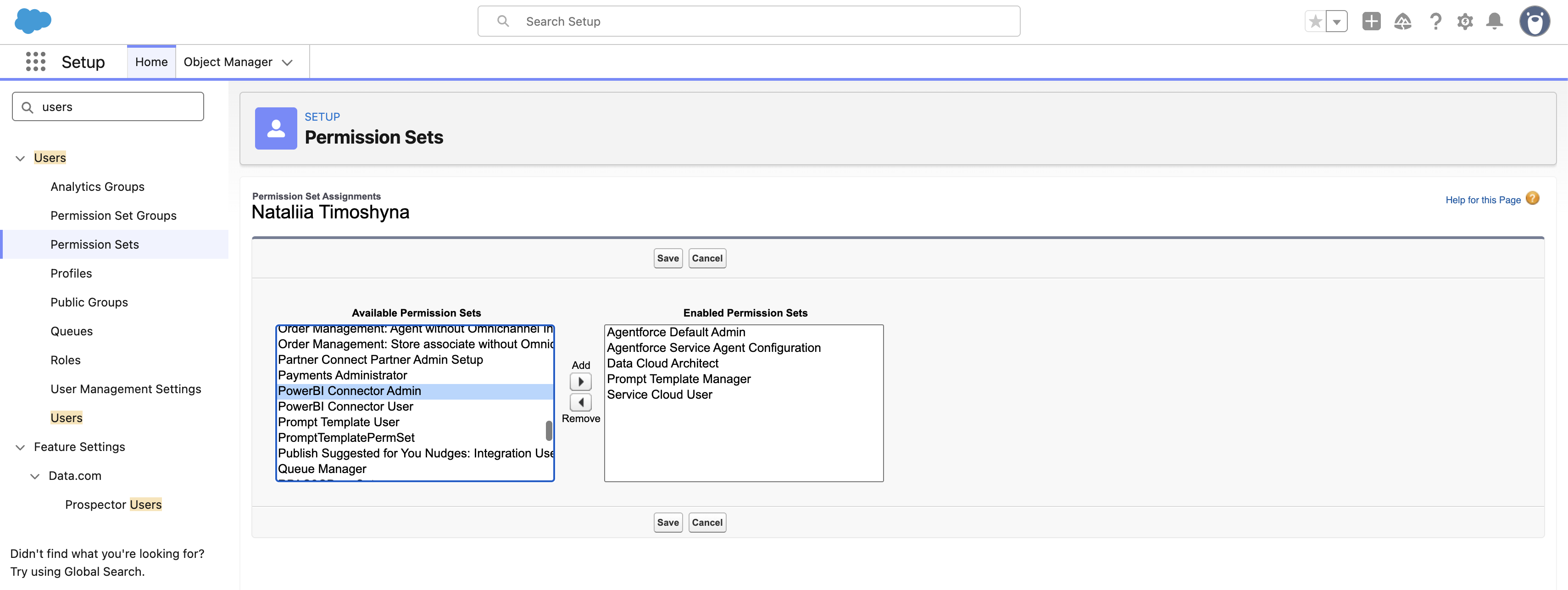
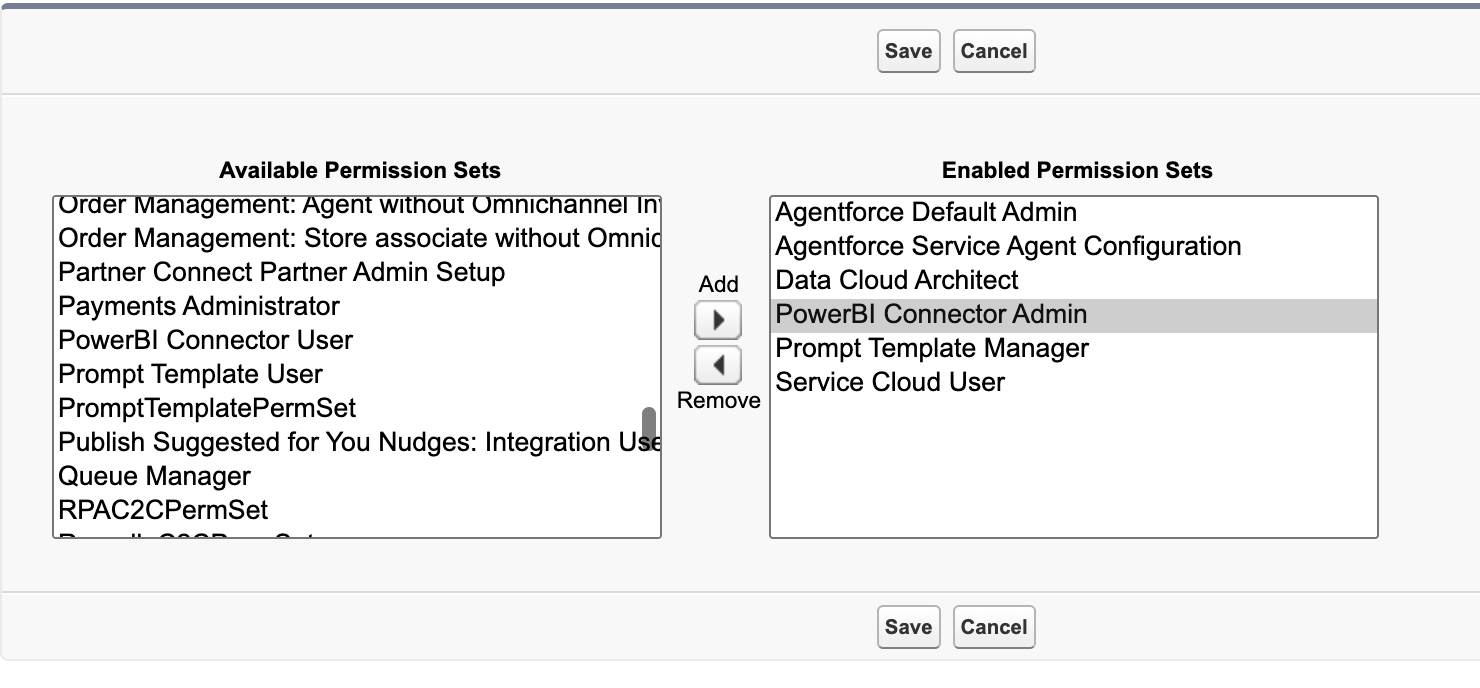
To grant a user the PowerBI Connector Admin or PowerBI Connector User role:
- In Setup, go to Users → Users, open the user, and click Edit Assignments in the Permission Set Assignments section
- In Available Permission Sets, select PowerBI Connector Admin or PowerBI Connector User
- Click Add to move it to Enabled Permission Sets, then click Save
Salesforce guide: Manage Permission Set Assignments
How Permissions Affect the Connector #
- Users only see objects they can access in Salesforce
- Fields hidden in Salesforce will not appear in the connector
- Apps or products not assigned to the user will not be visible
- No additional configuration is required inside the connector
💡 Summary #
- The connector fully relies on Salesforce permissions
- Configure access using profiles or permission sets
- Missing data is almost always a permission issue
- No separate permission setup is required in the connector


