Metrica
Metrica
✕
  • Home
  • Products
    • Power BI Connector for Salesforce
    • Power BI Connector for SAP
  • Resources
    • Blog
    • Trust Center
Explore Products

Home - Metrica Documentation: Power BI Connectors - Installation Guide

Getting Started

  • Installation Guide
  • Explore Power BI Connector for Salesforce

Admin Guide

  • Application Permissions Setup
  • Access Token Management

User Guide

  • How to Set Up Incremental Refresh in Power BI
  • How to Import Salesforce Data into Microsoft Power BI
  • How to Create Data Source
  • How to Share Data Source
  • How to View Entity Relationship Diagram
  • How to Optimize Data Export Time
  • How to View Data Sources History
  • How to View Export History

FAQ & Troubleshooting

  • What data can I export from Salesforce?
  • Why is my data export slow or taking a long time to refresh?
  • What does “Data Source” mean? How many data sources can I create?
  • Why can’t I see some fields or custom objects in my data export?

Support

  • Contact Support
  • Pricing and Licensing
View Categories
  • Home
  • Metrica Documentation: Power BI Connectors
  • Power BI Connector for Salesforce Documentation
  • Getting Started
  • Installation Guide

Installation Guide

4 min read

This guide walks you through installing the Power BI Connector package in Salesforce and completing the required configuration.

1. Install the Package #

Step 1: Download the Package #

Open the installation link in your browser:

[your Salesforce instance base URL]/packaging/installPackage.apexp?p0=04tgK000000Ad1hQAC

Replace [your Salesforce instance base URL] with your Salesforce instance URL.

Example:

https://myinstance.my.salesforce.com/packaging/installPackage.apexp?p0=04tgK000000Ad1hQAC

Step 2: Install the Package #

Follow the standard Salesforce installation steps and complete the installation.

Once installed, proceed with Salesforce configuration below.

2. Salesforce Configuration #

To enable the integration, you must configure:

  • A Salesforce Site
  • A Connected App (External Client App)
  • Custom Settings

If your organization already has a Salesforce Site enabled, you can skip site creation — just make sure to grant public access to the class:

metrica_powerbi.OAuthProxy

3. Create a Salesforce Site #

Step 1: Navigate to Sites #

Go to:

Setup → User Interface → Sites and Domains → Sites

Step 2: Create a New Site #

  • Click New
  • Fill in the required fields (you may use any appropriate values)
  • Make sure the Active checkbox is selected
  • Click Save

Step 3: Copy the Site URL #

After saving:

  • Copy the Site URL from the Sites list.
  • Save it — you’ll need it later.

Step 4: Enable Apex Class Access #

  • Click the site label to open Site Details
  • Click Public Access Settings
  • Scroll to Enabled Apex Class Access
  • Click Edit
  • Add:metrica_powerbi.OAuthProxy
  • Save

4a. Create a Connected App (Standard Path) #

Step 1: Enable Connected Apps #

Go to:

Setup → Apps → External Client Apps → Settings

Enable creating Connected Apps if not already enabled.

 Click New Connected App.

i
If you are not able to enable Connected Apps please follow alternative path.

Step 2: Basic Configuration #

Fill in:

  • Connected App Name – any appropriate name
  • Contact Email – your email address

Step 3: Enable OAuth Settings #

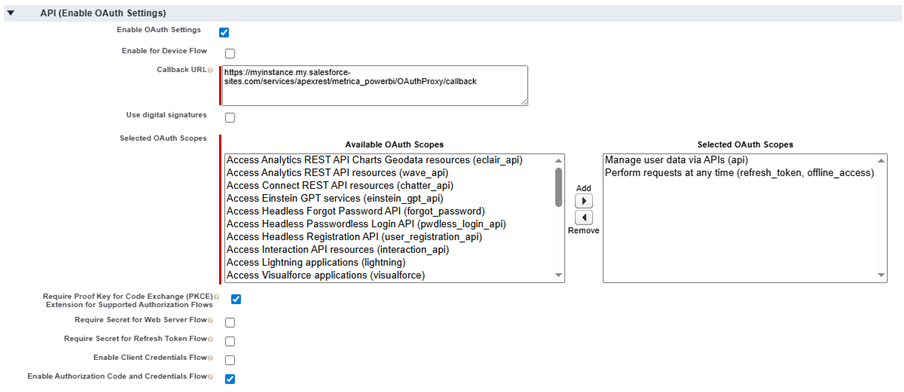
Open the API (Enable OAuth Settings) section.

Check:

  • ✅ Enable OAuth Settings

Callback URL #

Enter:

[Your Site URL]/services/apexrest/metrica_powerbi/OAuthProxy/callback

(Replace [Your Site URL] with the Site URL you copied earlier.)

OAuth Scopes #

Add the following scopes:

  • Manage user data via APIs (api)
  • Perform requests at any time (refresh_token, offline_access)

Required Checkboxes #

Make sure the following are checked:

  • ✅ Enable Authorization Code and Credentials Flow
  • ✅ Require Proof Key for Code Exchange (PKCE) Extension for Supported Authorization Flows

All other checkboxes should remain unchecked.
Step 4: Copy the Consumer Key #

After saving:

  • Click Manage Consumer Details
  • Copy the Consumer Key
  • Save it — you will need it for the next step

4b. Alternative Path: External Client App #

Step 1: Create External Client App #

Go to:

Setup → Apps → External Client Apps → External Client App Manager

Click “New External Client App” button

Step 2: Basic Configuration #

Fill in:

  • External Client App Name – any appropriate name
  • Contact Email – your email address

Step 3: Enable OAuth Settings #

Open the API (Enable OAuth Settings) section.

Check:

  • ✅ Enable OAuth Settings

Callback URL #

Enter:

[Your Site URL]/services/apexrest/metrica_powerbi/OAuthProxy/callback

(Replace [Your Site URL] with the Site URL you copied earlier.)

OAuth Scopes #

Add the following scopes:

  • Manage user data via APIs (api)
  • Perform requests at any time (refresh_token, offline_access)

Required Checkboxes #

Make sure the following are checked:

  • ✅ Enable Authorization Code and Credentials Flow
  • ✅ Require Proof Key for Code Exchange (PKCE) Extension for Supported Authorization Flows

All other checkboxes should remain unchecked.

Click “Create” button 

Step 4: Copy the Consumer Key #

After saving:

  • Click “Settings” tab and open “OAuth Settings” section
  • Click Consumer Key and Secret
  • Copy the Consumer Key
  • Save it — you will need it for the next step

5. Configure Custom Settings #

Step 1: Open Custom Settings #

Go to:

Setup → Custom Code → Custom Settings

Find Power BI Key and click Manage.

Click New above the Default section.

Step 2: Enter Configuration Details #

Fill in:

Client ID #

Paste the Consumer Key you copied earlier.

Base Site URL #

Paste the Site URL you copied earlier.

Base Salesforce URL #

Paste your Salesforce instance base URL.
(This is usually the same as your site URL but without -sites.)

Example:

https://myinstance.my.salesforce.com

Step 3: Wait for Activation #

After saving the settings:

⏳ Wait approximately 10 minutes.
The Connected App needs time to activate.

6. First Authorization #

Once activation is complete:

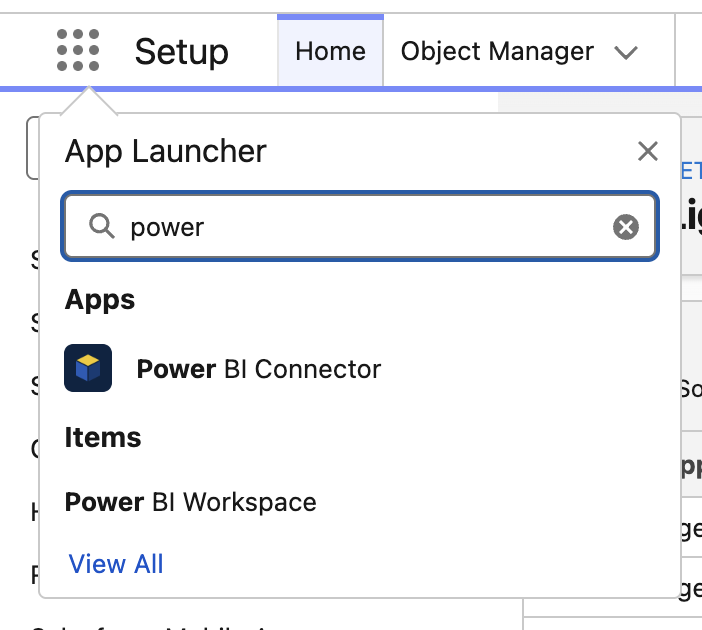
1. Open the Power BI Connector application.
      2. Click Authorize with Salesforce.

      3. Approve the authorization request.

        Setup Complete #

        You can now:

        • Create your first Data Source
        • Connect Power BI
        • Start importing data

        If you run into issues during activation, wait a few more minutes and try authorizing again.

        Updated on March 16, 2026

        Share This Article :

        • Facebook
        • X
        • LinkedIn
        • Pinterest
        Explore Power BI Connector for SalesforceExplore Power BI Connector for Salesforce
        Table of Contents
        • 1. Install the Package
          • Step 1: Download the Package
          • Step 2: Install the Package
        • 2. Salesforce Configuration
        • 3. Create a Salesforce Site
          • Step 1: Navigate to Sites
          • Step 2: Create a New Site
          • Step 3: Copy the Site URL
          • Step 4: Enable Apex Class Access
        • 4a. Create a Connected App (Standard Path)
          • Step 1: Enable Connected Apps
          • Step 2: Basic Configuration
          • Step 3: Enable OAuth Settings
            • Callback URL
            • OAuth Scopes
            • Required Checkboxes
          • Step 4: Copy the Consumer Key
        • 4b. Alternative Path: External Client App
          • Step 1: Create External Client App
          • Step 2: Basic Configuration
          • Step 3: Enable OAuth Settings
            • Callback URL
            • OAuth Scopes
            • Required Checkboxes
          • Step 4: Copy the Consumer Key
        • 5. Configure Custom Settings
          • Step 1: Open Custom Settings
          • Step 2: Enter Configuration Details
            • Client ID
            • Base Site URL
            • Base Salesforce URL
          • Step 3: Wait for Activation
        • 6. First Authorization
        • Setup Complete
        Metrica
        Explore Products
        Products
        • Power BI Connector for Salesforce
        • Power BI Connector for SAP
        Resources
        • Blog
        • Trust Center
        • Contact Sales

        Metrica Software builds enterprise data connectors that provide analytics platforms with direct access to complex business systems such as SAP and Salesforce.

        The focus is on predictable behavior, controlled access, and long-term operation in production environments.

        © 2026. All rights reserved.

        Privacy Policy

        Terms of Use

          Contact Us


          Secure & private form

          1-2 min

          ×

            Contact Sales


            Secure & private form

            1-2 min

            ×