Table of Contents
The native Salesforce Reports connector in Power BI returns a maximum of 2,000 rows. A larger Salesforce report may connect successfully but still appear incomplete in Power BI.
To export Salesforce reports to Power BI without the 2,000-row limit, use Power BI Connector for Salesforce, a Salesforce app available on AgentExchange (formerly AppExchange). Open the Reports section inside the connector, select a Salesforce report, and click Create Data Source. The connector prepares a data source using the report’s name, description, objects, and fields. You can review the structure, apply or adjust filters, preview the data, and connect the saved source to Power BI. Instead of downloading another static CSV or rebuilding a Salesforce report manually, teams can turn the report into a reusable Salesforce data source for Power BI.
Exporting existing Salesforce reports is only one of the capabilities of Power BI Connector for Salesforce. For a broader Salesforce to Power BI integration, you can also create data sources directly from standard and custom Salesforce objects, select the required fields and relationships, apply filters, and configure efficient refresh. See the complete Salesforce to Power BI integration guide.
Why Export Salesforce Reports to Power BI
A Salesforce report is a saved definition for retrieving and organizing CRM data. It starts with a standard or custom report type, which determines the Salesforce objects and relationships available. The report then applies selected fields, filters, groupings, formulas, and other reporting logic to answer a particular business question.
For example, a Salesforce report may show:
- Open pipeline by sales stage and region
- Forecast revenue by account owner
- Closed-won opportunities by product
- Cases by status, priority, and support team
- Campaign responses and influenced revenue
- Accounts without recent sales activity
Salesforce supports tabular, summary, matrix, and joined report formats. When the report runs, Salesforce generates its results from the current underlying records and the data available to the running user. Salesforce explains these structures in its guides to report formats and report filters.
When a company wants to export a Salesforce report to Power BI, it usually wants to use the dataset defined by that report as the starting point for a Power BI semantic model. The Salesforce report identifies the relevant records, fields, and business scope. Power BI is then used to create measures, relationships, visualizations, and dashboards.
The Salesforce report layout itself is not reproduced as a Power BI report page. Salesforce provides the source data and reporting logic, while the Power BI model and visuals are created separately.
Companies often start with Salesforce reports in Power BI because these reports already represent business views that sales, service, marketing, and operations teams understand and trust. Using an existing report can reduce the need to identify the correct Salesforce objects, relationships, fields, and filters again from the beginning.
Once the Salesforce report data is available in Power BI, teams can:
- Extend the existing analysis with Power BI measures and calculations
- Compare information from multiple Salesforce reports
- Combine Salesforce data with ERP, finance, marketing, product, or support systems
- Create reusable semantic models for multiple Power BI reports
- Publish dashboards for users who do not work directly in Salesforce
- Refresh the data as Salesforce records change
Depending on the export method, this can result in either a static file or a continuing Salesforce Power BI connection. The three available approaches differ significantly in row limits, refresh options, report support, and ongoing maintenance.
Three Ways to Export Salesforce Reports to Power BI
1. Export the Salesforce Report as a CSV File
Salesforce users can download a report and import the resulting CSV or Excel file into Power BI Desktop.
The basic process is:
- Open the report in Salesforce.
- Click Export.
- Select the required file format.
- Download the file.
- Open Power BI Desktop.
- Select Get Data and choose the exported file.
- Load or transform the data.
This is a reasonable option for an isolated analysis. However, it does not create a lasting Salesforce Power BI connection. Every update requires another manual export, and different file versions can quickly become difficult to control.
CSV export is most appropriate when:
- The analysis is genuinely one-time
- The dataset is small
- Regular refresh is not required
- Only one person needs the data
- Manual handling is acceptable
It is less suitable for operational reporting, shared Power BI models, scheduled refresh, or reports that must remain aligned with Salesforce.
2. Use the Native Power BI Salesforce Reports Connector
Power BI Desktop includes a native Salesforce Reports connector.
Users can select Get Data, choose Salesforce Reports, authenticate with Salesforce, and select a report in the Navigator. Microsoft documents the connection process in its Salesforce Reports connector guide.
This provides a quick way to connect Power BI to a small Salesforce report.
The main limitation is report size. Salesforce Reports API supports a maximum of 2,000 rows in this connection scenario.
If the Salesforce report contains more records, Power BI cannot retrieve the complete result through the native Salesforce Reports connector.
The native Salesforce Reports connector is most appropriate when:
- The report contains fewer than 2,000 rows
- The report has a relatively simple structure
- Reusable data source management is not required
- Rebuilding the model later will not create a problem
3. Use Power BI Connector for Salesforce
Power BI Connector for Salesforce provides a report-based connection without relying on the limited result returned by the native Salesforce Reports connector.
The connector is installed inside the Salesforce organization. Its Reports section lists the Salesforce reports available to the current user and allows a selected report to become the starting point for a Power BI data source.
The user can review and refine the source before connecting it to Power BI.
This approach provides:
- No 2,000-row report limit
- Support for tabular, summary, matrix, and joined reports
- Control over exported fields and records
- Data and relationship previews
- Reusable and shareable data sources
- Data source and export history
- Power BI scheduled and incremental refresh options
- No repeated CSV exports
- No custom Salesforce API pipeline
Why Use the Power BI Connector for Salesforce to Export Salesforce Reports
Power BI Connector for Salesforce is designed for companies that need an existing Salesforce report to become a complete, reusable, and governed source for ongoing Power BI reporting.
The native Salesforce Reports connector loads a selected report directly into Power BI, but the returned result is limited to 2,000 rows. Microsoft recommends using the Salesforce Objects connector when more rows are required and then recreating the report from individual Salesforce tables.
Power BI Connector for Salesforce uses the selected report to configure an underlying Salesforce data source. This removes the native report connector’s 2,000-row restriction while preserving the report logic and structure that the business already uses.
Export the Complete Salesforce Report
A Salesforce report containing more than 2,000 rows may connect successfully through the native connector while still returning an incomplete result.
Power BI Connector for Salesforce retrieves the complete dataset behind the selected report instead of relying on the capped result returned through the native Salesforce Reports connection.
This is important for growing operational datasets such as Opportunities, Activities, Orders, Assets, Cases, Campaign Members, and custom Salesforce records. Power BI refreshes continue to include the full eligible dataset as new records are added.
Reuse the Salesforce Report in Power BI Without Rebuilding It From Objects
Salesforce reports often contain an established combination of fields, filters, related objects, groupings, and organization-specific reporting logic.
Power BI Connector for Salesforce uses that existing report as the starting point for the Power BI data source. The BI team does not need to identify every Salesforce object and manually recreate the report logic through the native Salesforce Objects connector.
The connector supports:
- Tabular reports
- Summary reports
- Matrix reports
- Joined reports
- Standard and custom report types
- Standard and custom Salesforce fields
Support for joined reports is particularly valuable when a Salesforce reporting requirement combines several report types or related business processes in separate report blocks.
Turn Salesforce Reports Into Reusable Data Sources for Power BI
The native Salesforce Reports connector loads a report into an individual Power BI query. Power BI Connector for Salesforce adds a data source management layer inside Salesforce.
After selecting a report, users can create a named data source that can be:
- Reviewed before it is connected to Power BI
- Updated as reporting requirements change
- Reused across Power BI reports and semantic models
- Shared with selected Salesforce users or groups
- Managed by Salesforce administrators
- Extended with additional Salesforce data
Companies can create multiple independent data sources for different teams, reports, regions, or business processes. Updating one data source does not affect the others.
This creates a repeatable Salesforce Power BI integration instead of a collection of isolated report imports.
Control Salesforce Report Data Before It Reaches Power BI
Users can review the objects, fields, filters, and relationships included in the data source before generating the Power BI connection.
Power BI Connector for Salesforce provides:
- Field-level data selection
- Visual filters for dates, owners, statuses, and any other Salesforce fields
- SOQL mode for advanced filtering requirements
- Data previews
- An interactive Entity Relationship Diagram
- Relationship and dependency visibility
Filtering Salesforce data before export can reduce unnecessary data volume and keep the resulting Power BI model focused on the reporting requirement.
The Entity Relationship Diagram also helps analysts validate how the Salesforce objects are connected before they begin building the Power BI model. It can be exported for technical documentation or team review.
Share and Govern Salesforce Power BI Data Sources
Data source configurations can be shared with individual Salesforce users or groups. Shared users can access and use an approved data source without creating a duplicate configuration.
Administrators maintain visibility across data sources, which supports troubleshooting, ownership changes, and continuity when the original data source owner leaves the team.
Power BI Connector for Salesforce also records:
- Data source configuration changes
- Fields that were added or removed
- Sharing changes
- Export attempts and their status
- Exported row counts
- Export duration by table
- Failed tables
- Access token activity
- The user and time associated with each action
This gives administrators a Salesforce-side audit trail that the native report import does not provide.
Secure and Trace Each Salesforce Report Export
Power BI connections use personal access tokens generated and managed inside Salesforce. Tokens belong to individual users and can have controlled expiration periods.
Each export can therefore be associated with a specific user instead of relying on an untraceable shared connection. Power BI Connector for Salesforce also respects the Salesforce object, record, and field access available to the authorized user.
This makes Power BI Salesforce integration easier to review and control in environments where Salesforce data access and reporting activity must remain accountable.
Support Large, Recurring Power BI Refreshes
Power BI Connector for Salesforce supports Power BI incremental refresh, allowing a model to update recent or modified Salesforce records without reloading the entire dataset during every refresh.
Users can also filter data at the source and divide particularly large datasets into separate data sources. These options help control refresh time as reporting volumes grow.
Incremental refresh is configured through Power BI’s built-in functionality.
Expand the Power BI Salesforce Integration Beyond Salesforce Reports
Salesforce report export is one feature of Power BI Connector for Salesforce.
Teams can also create new data sources directly from standard objects, custom objects, installed Salesforce applications, and Historical Trending data. They can select the required fields, define relationships, apply filters, and combine several Salesforce entities for broader Power BI models.
Power BI reports can also be embedded back into Salesforce dashboards, including reports that combine Salesforce data with ERP, finance, marketing, or other business systems.
A company can therefore begin with existing Salesforce reports and expand the integration without replacing the connector or building a custom Salesforce API pipeline.
See the complete Salesforce-to-Power BI integration guide for the full Power BI Connector for Salesforce workflow and additional capabilities.
How to Connect Salesforce Reports to Power BI: Step-by-Step
The following steps show how to connect Salesforce report data to Power BI using a reusable data source created inside Power BI Connector for Salesforce.
Before You Export a Salesforce Report
Power BI Connector for Salesforce must be installed and authorized in your Salesforce organization. This is a one-time setup completed by a Salesforce administrator. See the Power BI Connector for Salesforce installation guide for the complete instructions.
Once the connector is installed, you need:
- Access to the required reports in Salesforce
- Power BI Desktop
The connector follows existing Salesforce permissions and displays only the reports available to the current user.
Step 1: Open the Reports Section in Power BI Connector Interface
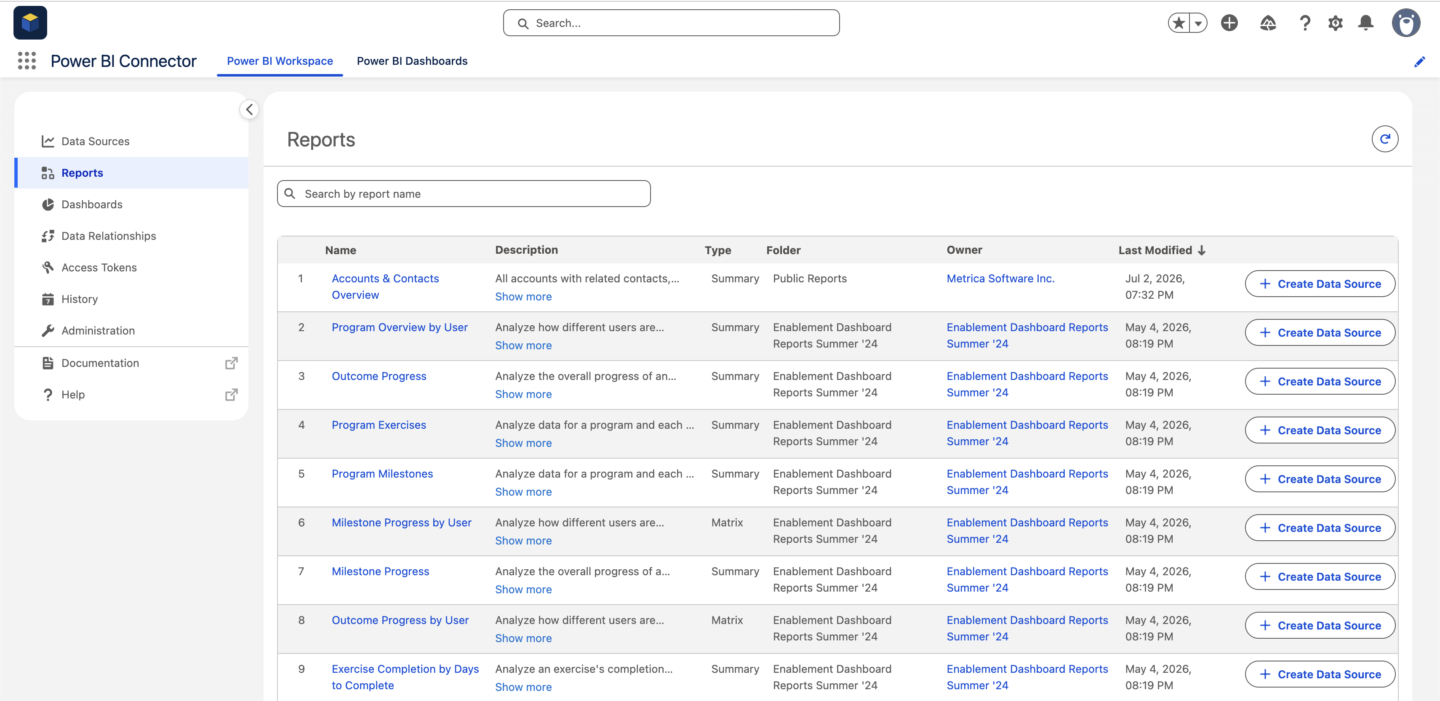
Open Power BI Connector for Salesforce in your Salesforce organization and select Reports.
The connector displays the reports available to the current Salesforce user. You can review each report’s name, type, folder, owner, and last modified date or use search to find the required report.
Step 2: Create a Data Source From the Salesforce Report
Find the report you want to export and click Create Data Source.
Power BI Connector for Salesforce uses the report configuration to create a data source from its underlying Salesforce objects, fields, relationships, and filters. The resulting data source does not rely on the report result limited to 2,000 rows by the native Salesforce Reports connector.
Tabular, summary, matrix, and joined reports can all be exported to Power BI and used as the starting point.
Step 3: Review the Generated Data Source for the Selected Salesforce Report
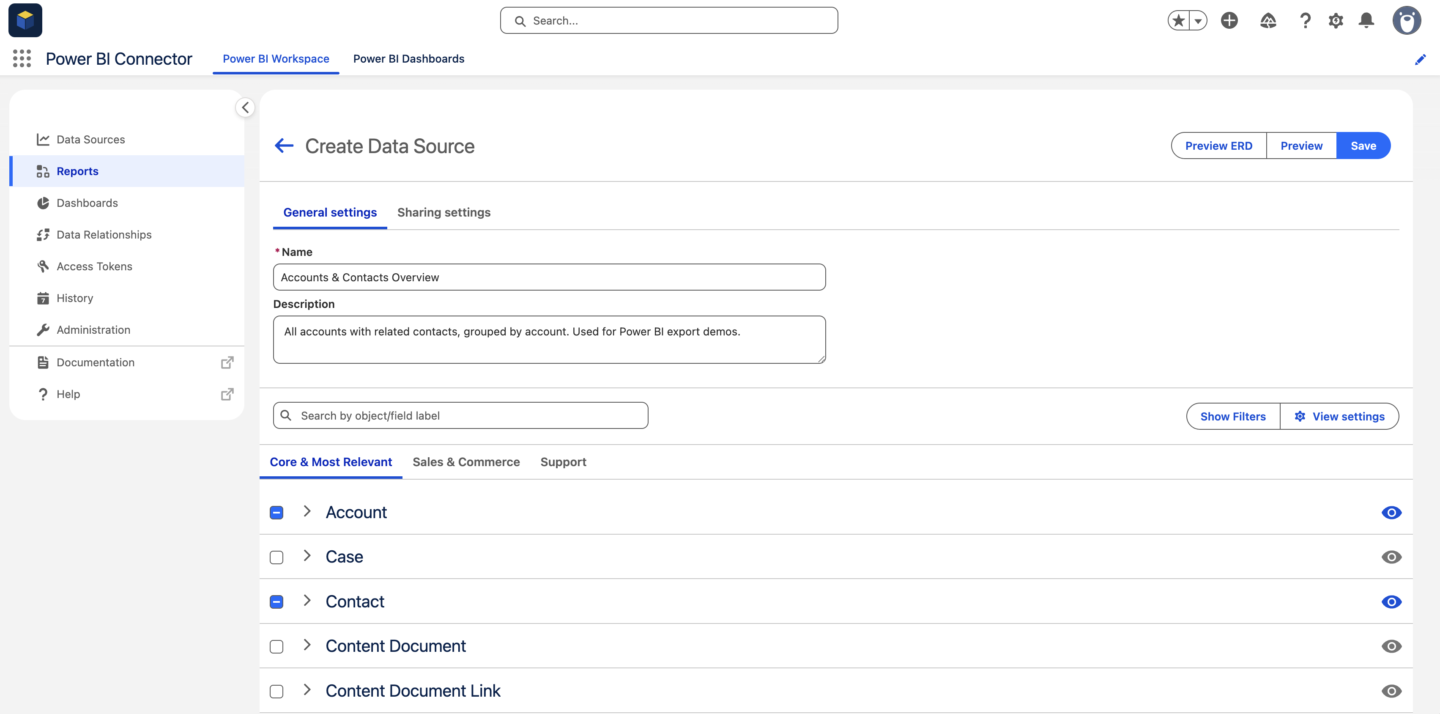
The connector opens the generated data source configuration.
Review:
- The data source name and description
- Salesforce objects included from the report
- Selected fields
- Relationships between the objects
- Filters carried over from the report
You can refine the configuration before exporting it. For example, remove fields that are not required, adjust filters, or include additional Salesforce data needed in the Power BI model.
Step 4: Preview and Save the Salesforce Data Source before Export
Use Preview Data to review exported data and Preview ERD to confirm the relationships between the selected Salesforce objects.
Once the configuration is correct, click Save. The report-based data source will appear in the Data Sources section.
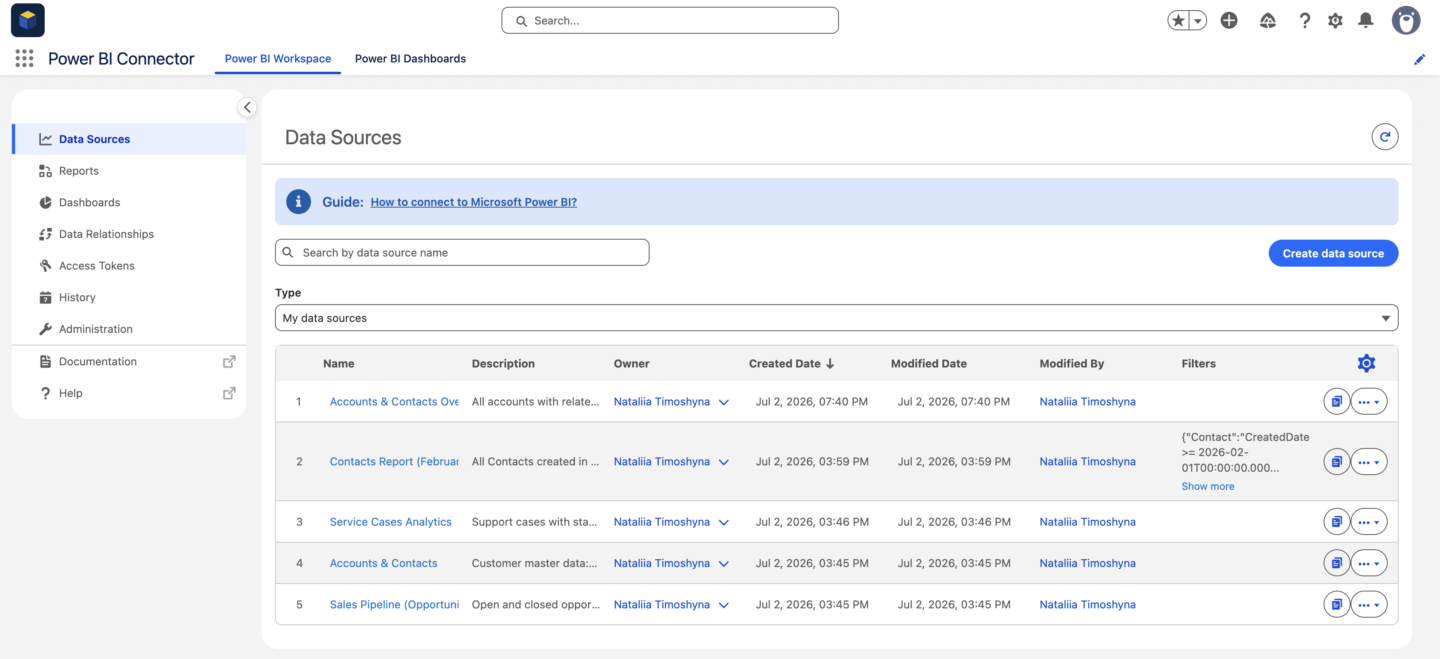
Sharing is optional, but it supports workflows where one person prepares the Salesforce data source and another person builds or maintains the Power BI model.
To share the data source:
- Open Data Sources
- Click the three-dot menu next to the source
- Select Share
- Add the required Salesforce users or groups
- Confirm by clicking Share
Shared data sources appear in the recipient’s Shared with me tab. Recipients can review the configuration and use it for Power BI exports without creating another data source. They cannot modify the original configuration.
The user connecting the shared data source to Power BI should use their own personal access token. Access tokens should never be shared between users.
See How to Share a Data Source for additional details.
Step 5: Create a Personal Access Token
The person connecting the data source to Power BI must create a personal connector access token.
In Power BI Connector for Salesforce:
- Open Access Tokens
- Click Create Token
- Enter a label, such as
Power BI - Optionally set an expiration date
- Click Create
- Copy the token and store it securely
The complete token is displayed only once. Expired or revoked tokens can no longer be used for exports or refreshes.
See Access Token Management for token security and administration options.
Step 6: Connect the Data Source to Power BI Desktop
Open Data Sources in Power BI Connector for Salesforce. Find the saved data source and click its Power Query copy icon.
The generated Power Query script is copied to your clipboard.
In Power BI Desktop:
- Create a blank report
- Select Get Data → Blank Query
- Open Manage Parameters and create a text parameter named
metricaToken - Paste your personal access token as the parameter value
- Open Advanced Editor for the blank query
- Replace the existing query with the Power Query script copied from Salesforce
- Click Done
- If Power BI requests credentials, select Anonymous and click Connect
- Add each required Salesforce table as a separate query
- Select Close & Apply
The Salesforce report is now connected to Power BI through a reusable data source that can be shared, monitored, and refreshed as Salesforce data changes.
See How to Import Salesforce Data Into Microsoft Power BI for the complete Power BI configuration process.
Step 7: Configure Power BI Refresh for Salesforce Report
The initial connection loads the current Salesforce data into Power BI Desktop. To keep the published semantic model updated, publish it to Power BI Service and configure a refresh schedule.
For smaller datasets, a regular scheduled refresh can reload the data from the saved Salesforce data source at the selected frequency.
For larger or continuously growing datasets, configure Power BI incremental refresh. This allows Power BI to process only recent or modified Salesforce records instead of reloading the complete dataset during every refresh.
See How to Set Up Incremental Refresh in Power BI for the complete configuration.
When Should You Create a Power BI Data Source From a Salesforce Report
Starting from an existing Salesforce report is useful when:
- Business users already trust the report
- The report contains the relevant objects and fields
- The Power BI team does not want to start from an empty object model
- The report is too large for the native 2,000-row connection
- A joined Salesforce report is involved
- Manual CSV exports are being repeated
- Several Power BI reports need the same Salesforce dataset
- The source must be updated and refreshed regularly
Starting directly from Salesforce objects may be more appropriate when no existing report represents the required dataset or when the Power BI model needs a completely new cross-object structure.
Power BI Connector for Salesforce supports both approaches. Users can create a data source from an existing Salesforce report or configure one directly from standard and custom Salesforce objects.
Salesforce Report Data You Can Analyze in Power BI
Sales Pipeline Reports
Export Opportunities, Accounts, Products, owners, stages, probabilities, amounts, and expected close dates.
Power BI can analyze:
- Total and weighted pipeline
- Pipeline coverage
- Win rate
- Sales cycle length
- Forecast by region
- Product performance
- Pipeline changes over time
Account and Customer Reports
Export Accounts, Contacts, Opportunities, Activities, Assets, Contracts, and Cases.
Power BI can analyze:
- Customer segments
- Account revenue
- Product penetration
- Client engagement
- Open Opportunities
- Renewal risk
- Service activity
Service and Case Reports
Export Cases, Accounts, Contacts, Products, Assets, owners, statuses, priorities, and resolution data.
Power BI can analyze:
- Open and resolved Cases
- Case volume
- Response time
- Resolution time
- Escalations
- Cases by product
- Repeat customer issues
Activity Reports
Export Tasks, Events, Accounts, Contacts, Opportunities, owners, types, and dates.
Power BI can analyze:
- Sales activity
- Account engagement
- Meetings and calls
- Follow-up completion
- Activity by team
- Activity associated with won Opportunities
Joined Reports
Use joined reports as the starting point for cross-object Power BI analysis.
Examples include:
- Pipeline and sales activity
- Accounts, Opportunities, and Cases
- New business and renewal performance
- Product sales and service demand
- Partner pipeline and direct sales
Common Problems When Exporting Salesforce Reports to Power BI
The Salesforce Report Is Not Visible
The Reports list follows Salesforce permissions.
Check whether the user has access to:
- The report folder
- The Salesforce report
- The underlying objects
- The required fields
- Any installed Salesforce application used by the report
Some Salesforce Fields Are Missing
Object permissions or field-level security may prevent fields from appearing.
Confirm that the authorized Salesforce user can view the object and field in Salesforce and that the field is selected in the data source.
Salesforce and Power BI Totals Are Different
Check:
- Salesforce report filters
- Data source filters
- Date and time zones
- Power BI transformations
- Power BI relationships
- Duplicate records created by joins
- DAX measures
- Last refresh date
The Power BI model may calculate or relate the records differently from the original Salesforce report.
The Power BI Dataset Does Not Refresh
Check:
- Power BI refresh history
- Connector access token
- Salesforce permissions
- Power BI dataset credentials
- Source filters
- Incremental refresh configuration
If an access token has expired or been revoked, generate a new token and update the Power BI connection.
Can You Embed Power BI Reports Back into Salesforce
After exporting Salesforce data and building the report in Power BI, teams can also embed selected Power BI reports back inside Salesforce.
Power BI Connector for Salesforce allows users to create dashboards inside Salesforce and add Power BI reports as dashboard widgets.
The original report remains in the Power BI Service. Salesforce displays the report through a secure embed URL, while Power BI continues to control access to the report content.
The embedded Power BI report can use:
- Salesforce data delivered through Power BI Connector for Salesforce
- Salesforce data combined with other business systems
- Finance, ERP, marketing, product, or support data
- Any other data already available in the Power BI report
This creates a reporting flow from Salesforce to Power BI and back from Power BI to Salesforce.
Learn how to embed Power BI reports in Salesforce.
Frequently Asked Questions
How Do I Export a Salesforce Report to Power BI?
Open Reports in Power BI Connector for Salesforce, select the Salesforce report, click Create Data Source, review the generated source, save it, and connect it to Power BI using the generated Power Query connection.
How Do You Connect Power BI to Salesforce?
Power BI can connect to Salesforce through a CSV export, Microsoft’s Salesforce Reports or Salesforce Objects connectors, or a Power BI Connector for Salesforce (AgentExchange app).
Power BI Connector for Salesforce supports report-based data sources as well as data sources created directly from standard and custom Salesforce objects.
What Is the Best Salesforce Power BI Connector to Export Salesforce Reports?
The best Salesforce Power BI connector depends on the size and structure of the report.
The native Salesforce Reports connector can be sufficient for a simple report containing fewer than 2,000 rows.
Power BI Connector for Salesforce is best suited for teams that need to export Salesforce reports with more than 2,000 rows, including joined reports, manage reusable data sources for ongoing Power BI reporting, and expand the integration beyond existing reports to standard and custom Salesforce objects.
Can You Get Real-Time Salesforce Data in Power BI?
Power BI Connector for Salesforce provides a refresh-based data connection rather than a true real-time DirectQuery connection.
Salesforce data is imported into Power BI and updated according to the refresh schedule configured in Power BI Service.
Incremental refresh can reduce the amount of data processed when only new or modified Salesforce records need to be loaded. The available refresh frequency depends on the organization’s Power BI configuration and licensing.
Can Power BI Connect Directly to Salesforce Reports?
Yes. Power BI includes a native Salesforce Reports connector. However, the Salesforce Reports API limits this connection to 2,000 report rows.
How Can I Export More Than 2,000 Salesforce Report Rows to Power BI?
Use Power BI Connector for Salesforce to create a Power BI data source from the report.
The connector uses the report as the starting point for an underlying Salesforce data source and does not have the native Salesforce Reports connector’s 2,000-row limit.
Can I Export a Joined Salesforce Report to Power BI?
Yes. Power BI Connector for Salesforce supports joined reports.
The connector uses the underlying data from the report blocks, so the cross-object analysis can be rebuilt and extended in Power BI.
Does the Power BI Connector for Salesforce Support Summary and Matrix Reports?
Yes. Tabular, summary, matrix, and joined Salesforce reports can be used to create Power BI data sources with the Power BI Connector for Salesforce.
Does Exporting a Report Copy the Salesforce Dashboard Into Power BI?
No. The Salesforce report is used to prepare the Power BI data source.
Power BI visuals, calculations, measures, report pages, and dashboards are built in Power BI.
Can Salesforce Report Data Refresh in Power BI?
Yes. After the data source is connected and the report is published, refresh is configured in the Power BI Service.
Power BI incremental refresh can also be configured for large and continuously growing Salesforce datasets.
Can I Change the Data Source After Creating It From a Report?
Yes. You can edit objects, fields and filters and continue using it in Power BI.
Which Salesforce Reports Can I See in the Power BI Connector for Salesforce?
The Reports section shows reports available to the current Salesforce user. Report and folder visibility follow that user’s Salesforce permissions.
Can I Combine Salesforce Report Data With Other Systems?
Yes. Power BI can combine Salesforce data with finance, ERP, marketing, product, support, or data warehouse sources.
Power BI Connector for Salesforce supplies the Salesforce side of the Power BI model.
Export Salesforce Reports to Power BI With a Managed Connection
Manual CSV exports can move a Salesforce report into Power BI once. The native Salesforce Reports connector provides a direct connection but stops at 2,000 report rows. The Salesforce Objects connector retrieves more data but requires the Power BI team to reconstruct the report from raw objects.
Power BI Connector for Salesforce provides a more complete route for teams evaluating a reusable Power BI integration with Salesforce.
Start with a tabular, summary, matrix, or joined Salesforce report. Review the resulting objects, fields, relationships, and filters. Save the source, connect it to Power BI, and reuse it across reports and refresh cycles.
Explore Power BI Connector for Salesforce