Most Salesforce Power BI integrations follow a predictable pattern. The native Salesforce Reports connector is the natural starting point: straightforward setup, no configuration overhead. Then the 2,000-row API limit surfaces, and teams move to the Salesforce Objects connector. The row limit disappears, but a different set of problems replaces it. Table previews take hours on large objects. Authentication fails due to OAuth session conflicts or IP restrictions. There is no server-side filtering capability; the connector loads entire objects into Power BI memory before any filtering can be applied. Field count limits per query, concurrent API call conflicts across shared Salesforce accounts, and a relational data model that requires significant expertise to build correctly in Power BI complete the picture.
For teams managing heavy reporting workloads, the native Power BI Salesforce integration adds more complexity than it resolves.
Power BI Connector for Salesforce takes a different approach. It is a managed application installed directly inside your Salesforce org, available on the Salesforce AppExchange, which means it operates natively within Salesforce rather than connecting from the outside. There are no external servers, no middleware, and no data leaving your Salesforce environment in transit. Server-side filtering, relationship preservation, and scheduled automated exports are built in, not bolted on.
This guide covers everything you need to connect Salesforce to Power BI: why Power BI is the right analytics layer for Salesforce data, where available integration methods fall short, and how to set up Power BI Connector for Salesforce from installation through to incremental refresh and performance optimization.
Why Use Power BI for Salesforce Reporting
Salesforce has its own reporting tools. So before building a Salesforce Power BI integration, it is worth asking: why go through the effort at all?
The answer is that Salesforce reports are built for operations, not analysis. A sales rep checking their pipeline, a manager reviewing team activity, a support lead counting open cases. Salesforce handles all of that well. What it does not handle is everything that comes after the basic view.
Salesforce Reporting Limitations
Salesforce reporting has hard structural limits that surface quickly for any team doing serious analytics:
- You cannot join more than two objects in a single report
- You cannot create calculated columns that span related objects
- The report builder displays up to 2,000 rows in the browser, and the Reports API enforces the same cap
- Historical trend data retains only three months by default
- There is no native way to blend Salesforce data with data from your ERP, marketing platform, or finance system
- Sharing reports with stakeholders outside Salesforce is limited
- Visualizations are basic compared to what dedicated BI tools produce
Power BI for Salesforce: Key Benefits
Power BI removes all of these Salesforce reporting constraints. Its data model handles complex multi-table relationships natively. DAX gives analysts precise control over calculations, time intelligence, and aggregations. Dashboards are interactive, shareable with anyone in the organization, and can blend Salesforce data with virtually any other data source in a single report.
A Salesforce Power BI integration enables reporting use cases that are simply not possible inside Salesforce alone:
- Cross-department reporting combining sales pipeline, finance, marketing spend, and product usage in one view
- Long-term trend analysis across years of CRM history without manual data assembly
- Automated scheduled refresh keeping dashboards current without manual exports
- Role-based access governed by existing Salesforce permissions, so each team sees only what it should
- Executive dashboards consolidating metrics from Salesforce and other business systems
For most organizations that end up here, Power BI is already the standard across finance, operations, HR, and marketing, often as part of a Microsoft 365 investment. The decision to use Power BI for Salesforce reporting is rarely made in isolation. It is the natural extension of an existing BI environment, and Salesforce becomes one of many data sources feeding into it.
The Problem with Native Power BI Salesforce Connectors
Power BI includes two native Salesforce connectors, Reports and Objects, and both hit limits that have no workaround as soon as data volume, team size, or governance requirements grow.
Salesforce Reports Connector: 2,000-Row Limit and Silent Data Truncation
The Reports Connector connects to existing Salesforce reports using the Salesforce Analytics API. It requires no understanding of the underlying data model and takes minutes to set up.
The core problem is dependency on pre-existing Salesforce reports. In practice, this creates several hard limits:
- 2,000-row cap. Enforced by the Salesforce Analytics API with no workaround. When a report exceeds this limit, Power BI silently truncates the data without displaying an error. Reports look complete, dashboards appear correct, and business decisions get made on incomplete data with no indication anything is wrong.
- No query flexibility. You get what the report shows, including all its filters, groupings, and calculations, with no ability to query differently.
- Silent breakage on schema changes. Any structural change to the underlying Salesforce report, such as a renamed field, a modified filter, or a different report type, breaks the Power BI connection or changes the data it receives, also with no alert.
Salesforce Objects Connector: API Limits, No Server-Side Filtering, and Authentication Issues
The Objects Connector queries Salesforce objects directly via the Salesforce REST API, bypassing the Reports layer entirely. There is no row limit, it gives direct access to standard and custom objects without requiring pre-built Salesforce reports, and it handles more complex data structures than the Reports Connector. For straightforward use cases with manageable data volumes, it works well.
At scale, however, the Objects Connector creates a different set of problems:
- No server-side filtering. The connector loads entire Salesforce objects into Power BI memory before any filtering is applied. On large objects, refresh times can stretch to hours.
- Not designed for large data volumes. The connector uses Salesforce’s standard REST API, not the Bulk API, which is specifically built for high-volume extractions. For objects with millions of records (Opportunities, Cases, Activities), this becomes the limiting factor before anything else does.
- Incremental refresh does not work effectively. Power BI’s incremental refresh relies on query folding to push date filters back to the data source. The native Objects connector does not support query folding, so every incremental refresh still loads the full object before filtering. The performance benefit of incremental refresh is effectively lost.
- Authentication failures. OAuth session caching, IP restriction settings, and Salesforce’s “Lock sessions to IP address” security setting all cause repeated authentication errors requiring manual intervention.
- Import Mode only. There is no DirectQuery option. Data is never live.
Native Power BI Salesforce Connectors: Enterprise Limitations
Beyond the individual technical limits, both connectors share a structural problem that becomes the dominant issue at organizational scale: they are designed for individual access, not shared reporting infrastructure. The consequences go well beyond inconvenience.
- No single source of truth. When every analyst builds their own connection and defines their own data model, the same metric — revenue, pipeline, churn — gets calculated differently across different reports. Leadership sees conflicting numbers depending on which dashboard they open. The credibility problem this creates is harder to fix than the technical one.
- Salesforce permissions stop at extraction. Data is extracted under the connecting user’s Salesforce access, so field-level security and object permissions apply at the point of extraction. But once the data is imported into Power BI, it is governed entirely by Power BI’s own sharing model. Anyone a Power BI report is shared with can see the extracted data regardless of what their Salesforce permissions would allow. Salesforce sharing rules, profile restrictions, and record-level visibility have no effect on who can view the data inside Power BI.
- API quota is a shared, unmanaged resource. There is no governance over who consumes Salesforce API calls or how much. A single analyst running a poorly scoped query on a large object can exhaust the org’s daily limit and take down every other integration simultaneously. There is no rate limiting, no quota allocation, and no way to prioritize business-critical refreshes over ad hoc extractions.
- No change management for schema updates. When Salesforce fields are renamed, objects deprecated, or data models restructured, there is no systematic way to identify which Power BI reports are affected. Changes that look minor in Salesforce can silently corrupt calculations across dozens of reports with no visibility until a stakeholder notices the numbers are wrong.
- No compliance mechanism. In regulated industries (financial services, healthcare, legal), knowing what data leaves Salesforce, who accessed it, and when is a compliance requirement, not a preference. Native connectors provide no mechanism to enforce data handling policies, log extractions, or demonstrate control over sensitive data flows to auditors.
For organizations with governance requirements, security reviews, or compliance obligations, this is not a technical inconvenience. It is an architectural gap that native connectors are not built to fill.
What Is Power BI Connector for Salesforce?
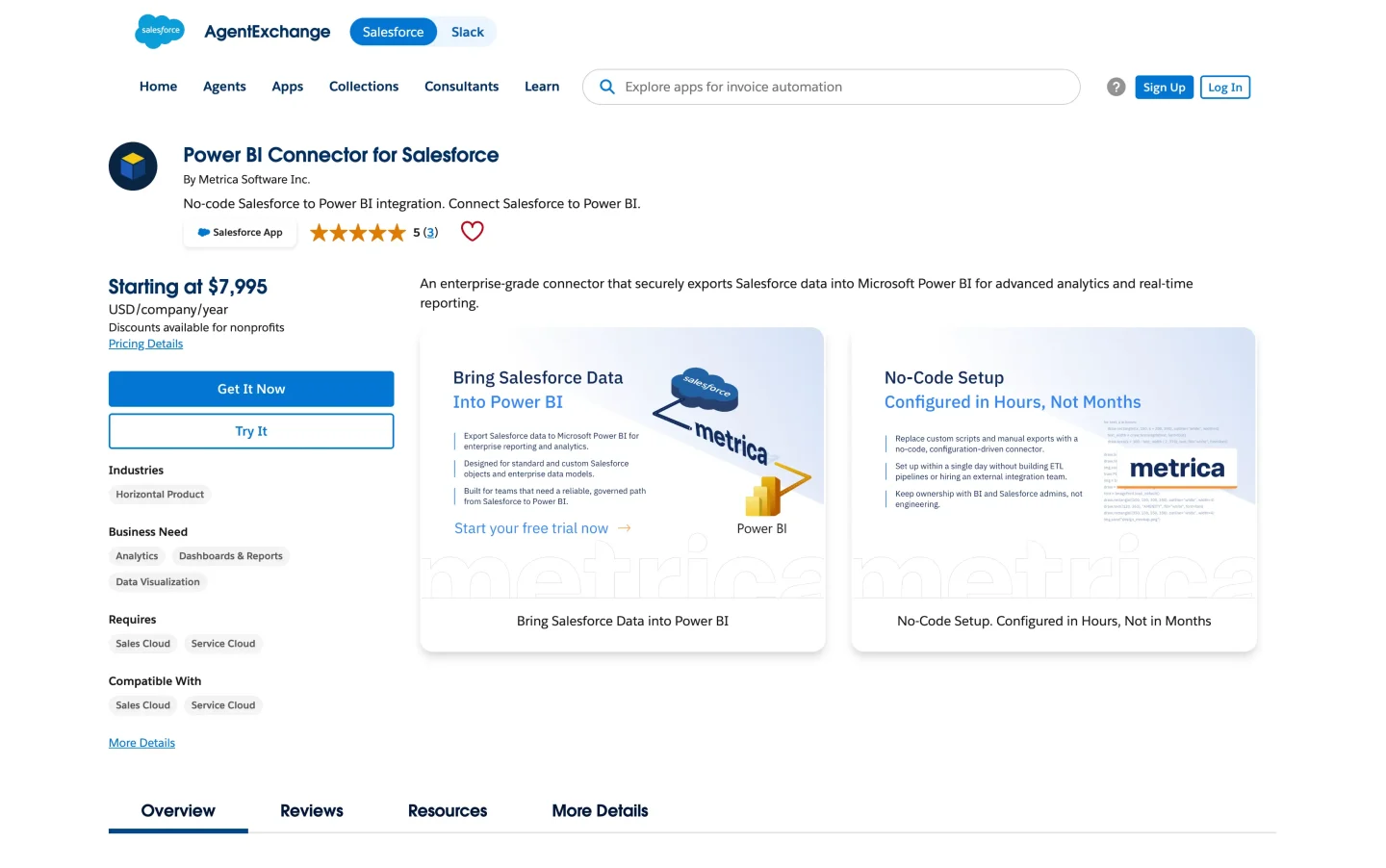
Power BI Connector for Salesforce is a dedicated Salesforce Power BI integration app built for teams where native connectors have become a bottleneck. It is available on the Salesforce AppExchange and certified by Salesforce.
How It Works
The fundamental difference from native connectors is where the work happens. With native connectors, everything is configured in Power BI: you connect, pull the data, then filter and model it in Power Query. The data comes in raw, and you work with it on the Power BI side.
With Power BI Connector for Salesforce, the configuration happens inside Salesforce. You define a data source – a saved configuration that specifies which Salesforce objects, fields, and filters to include. The connector makes that scoped, filtered dataset available through a secure endpoint. Power BI connects to that endpoint using an access token and pulls only the data you already defined. There is no raw object loading, no unfiltered extraction, no manual Power Query mapping.
This works because the Power BI Connector for Salesforce installs directly inside your Salesforce org as a managed AppExchange package. It is not an external tool connecting to Salesforce from the outside; it operates within your Salesforce environment. Data travels directly from Salesforce to Power BI through an OData endpoint hosted on a Salesforce Site you configure during setup. No third-party servers are involved and no data leaves your Salesforce environment in transit.
On the Power BI side, setup is minimal. Each data source generates a Power Query script. You paste it into Power BI, set a token parameter, and schedule a refresh. The definition of what data to pull, how to filter it, and how objects relate to each other is already handled in Salesforce.
Supported Salesforce Data
Power BI Connector for Salesforce supports export of all standard and custom Salesforce objects available in your org. Data is organized into categories for easier navigation:
Standard Salesforce objects, including:
- Core CRM objects: Account, Contact, Lead, Opportunity, Case, Task, Event, Campaign
- Sales objects: Contract, Order, Product, Price Book, Quote
- Service objects: Case Comment, Knowledge Article, Entitlement, Service Contract
- Marketing objects: Campaign Member, Lead Source
Custom objects created in your org, including objects from installed AppExchange packages. If your organization uses additional Salesforce products or integrations, their objects appear automatically without extra configuration.
What is not included: Objects the signed-in user does not have access to in Salesforce. Salesforce permissions govern everything. A user only sees objects and fields their Salesforce profile allows access to.
For the full list of supported objects and data, see the official Power BI Connector for Salesforce documentation: What data can I export from Salesforce?
Key Features
Power BI Connector for Salesforce is built around a set of capabilities specifically designed for production Salesforce reporting at scale.
- No row limits on any Salesforce object. Export full datasets without record caps, regardless of object size.
- Server-side filtering before data reaches Power BI. Define date ranges, owners, statuses, and other conditions at the source. Only matching records are transferred, keeping refresh times fast and API usage low.
- Unlimited shareable data sources. Create as many data sources as your reporting needs require. Share them across users and teams without duplicating configuration. Data sources live in Salesforce, not in individual analysts’ Power BI files — when someone leaves, configurations remain and administrators retain full visibility.
- Basic and SOQL query modes. Use the visual interface for standard filtering or switch to SOQL for advanced query logic, complex conditions, and precise field selection.
- Automatic relationship preservation. Object relationships are defined and preserved in the data source configuration. There is no manual join mapping required in Power Query, eliminating the risk of incorrectly modeled relationships.
- No field count limit per query. The native Objects connector hits a hard limit on fields per query. The connector has no such ceiling, enabling full object export without workarounds or query splitting.
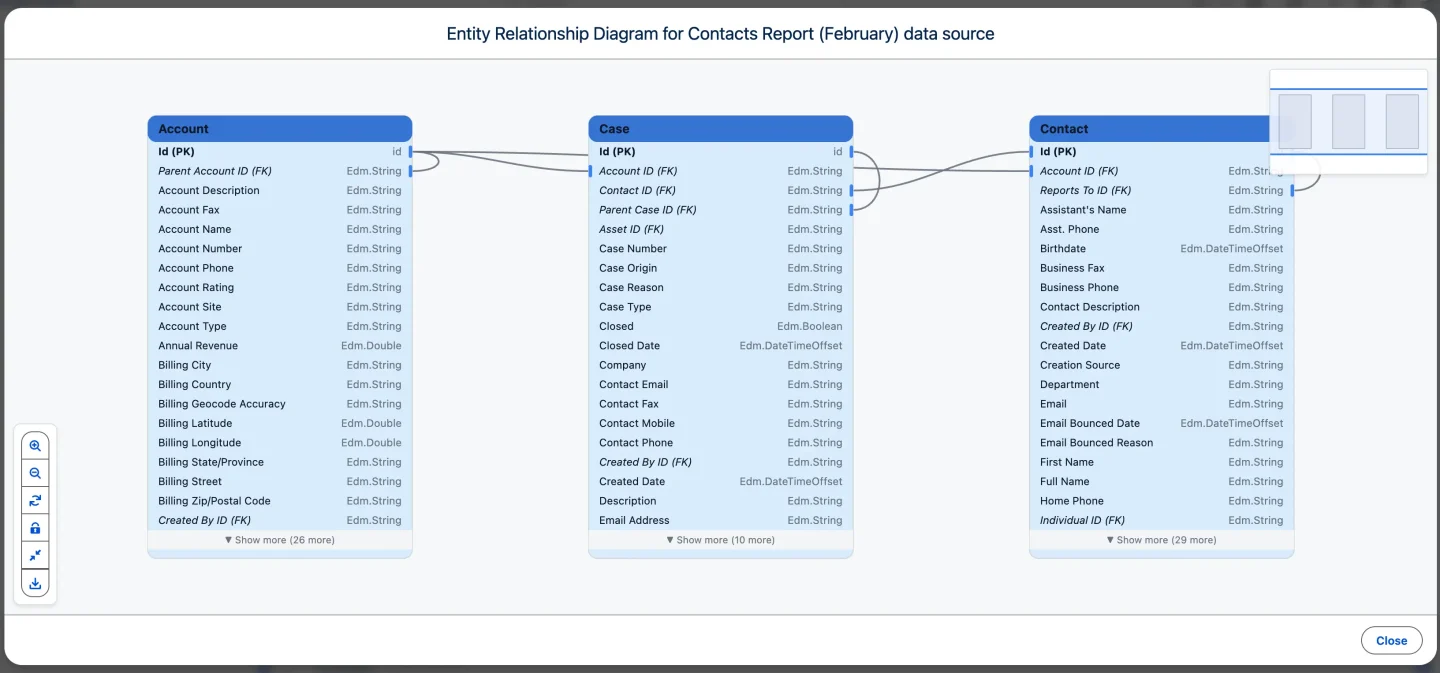
- Entity Relationship Diagram for Salesforce objects. Visualize relationships between objects before exporting to verify your Power BI data model is built correctly.
- Schema-aware handling of Salesforce changes. When fields are added, objects renamed, or API versions updated in Salesforce, the connector adapts rather than breaking. Downstream Power BI models remain stable as the Salesforce implementation evolves.
- Incremental refresh for large Salesforce datasets. Load only new or changed records on each refresh cycle instead of reloading everything. Essential for growing datasets like Opportunities, Cases, and Activities.
- Access governed by Salesforce permissions. Each user authenticates with their own access token scoped to their Salesforce profile. No separate permission configuration is needed — field-level security and object access carry through automatically.
- Access token management with expiry and revocation. Each user manages their own tokens. Set expiry dates, revoke immediately when needed, and track activity in token history.
- Full audit history of every configuration change. Every data source modification is logged with user, timestamp, and a detailed record of what changed. Required in regulated environments and organizations with data governance obligations.
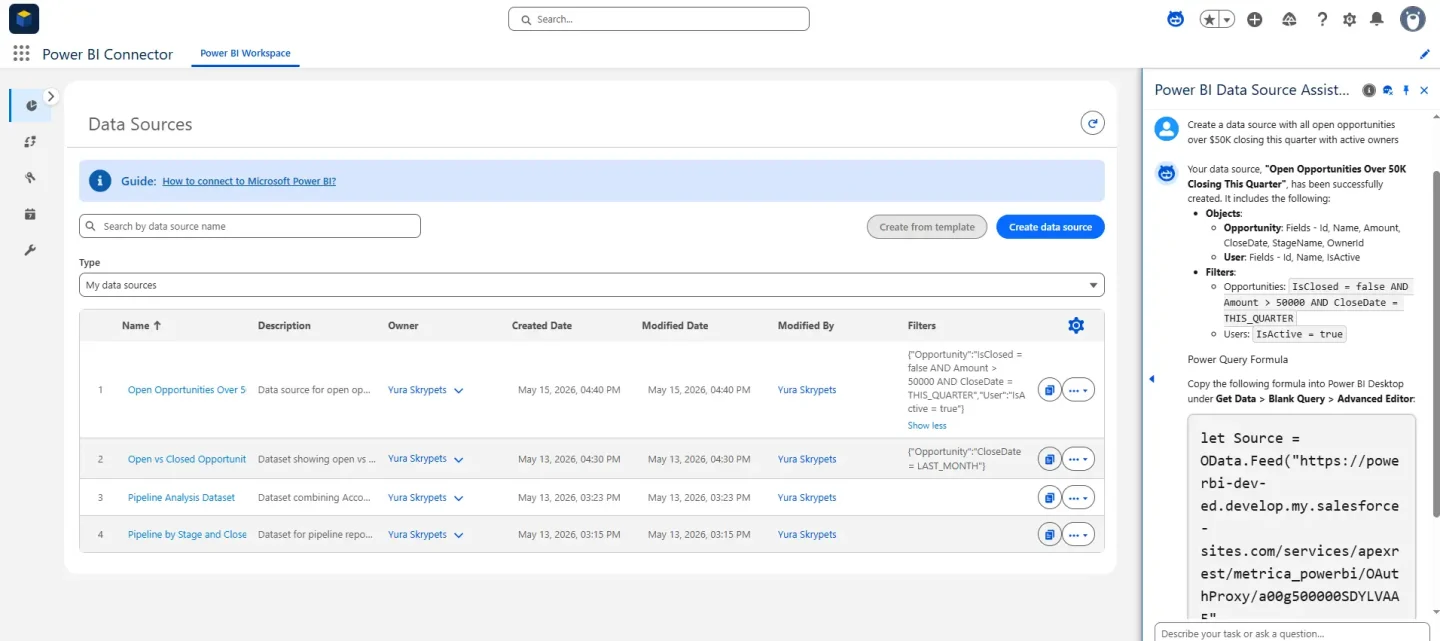
- Agentforce integration. Describe your reporting goal in natural language and the AI agent will either recommend the right Salesforce objects and fields, or create the data source for you end-to-end.
Who It’s For
Power BI Connector for Salesforce is designed for teams where Salesforce reporting has outgrown what native connectors can reliably deliver.
- Data and BI teams building governed, reusable reporting infrastructure across multiple Salesforce objects and business units. Teams that need one consistent data layer rather than a collection of individually maintained connections.
- Salesforce administrators who need visibility into what data is being exported, by whom, and when, with access controlled by the same permission model already in place in Salesforce.
- Enterprise organizations with large Salesforce datasets, strict data governance requirements, compliance obligations, or multiple teams reporting from the same org.
- RevOps and analytics teams responsible for pipeline reporting, revenue forecasting, and executive dashboards where data accuracy and refresh reliability are critical.
If you are a single analyst pulling occasional data for a one-off report, the native connectors may be sufficient. If you are building reporting infrastructure that needs to hold up under organizational demand, this is what the connector is designed for.
How to Connect Salesforce to Power BI: Step by Step
Power BI Connector for Salesforce makes connecting Salesforce to Power BI straightforward. The setup covers three things: configuring the connector inside Salesforce, creating your first data source, and importing data into Power BI. Follow the steps below in order to get from installation to your first working report.
Step 1: Install and Configure Power BI Connector for Salesforce
Power BI Connector for Salesforce is available on the Salesforce AppExchange. Click Get It Now, select your org, and complete the standard package installation. Salesforce will email you when it is done.
After installation, the connector requires three components configured in Salesforce: a Salesforce Site, a Connected App, and a Custom Setting. If your org already has an active Salesforce Site, you can skip creating a new one and configure it for the connector instead.
For the full installation and configuration walkthrough, see the Installation Guide.
Note: The AppExchange listing also includes two trial options for teams that want to evaluate the connector before installing in production. Try in your sandbox uses your own org data and configurations. Try in a test drive org provides a preconfigured environment with sample data and requires no setup.
Step 2: Create a Salesforce Data Source for Power BI
Once Power BI Connector for Salesforce is installed and authorized, it is ready to use immediately inside Salesforce.
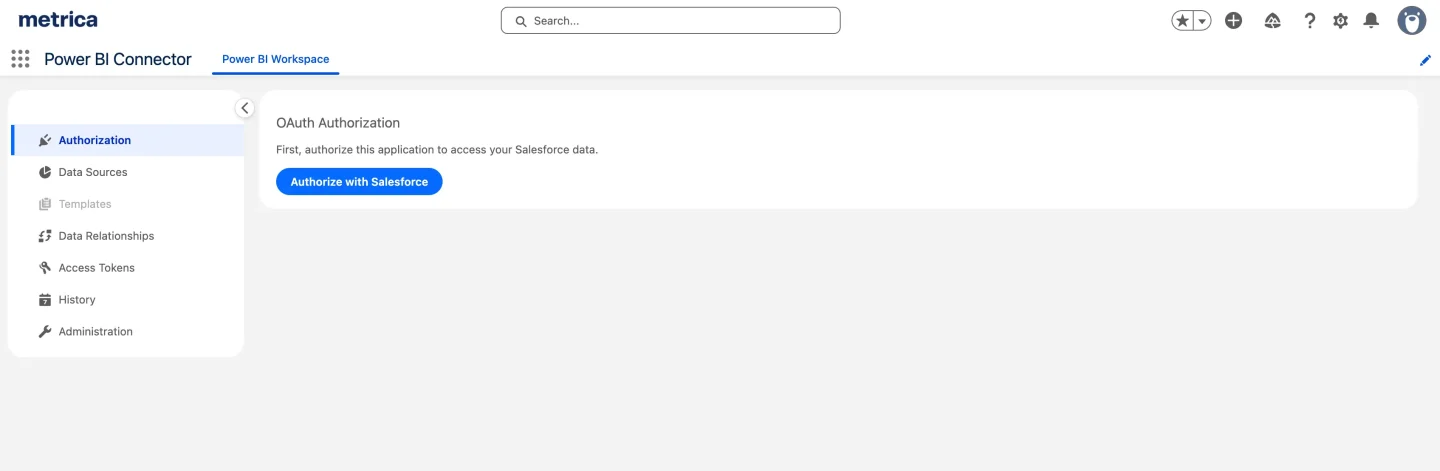
The first thing to do is create a data source: a saved configuration that defines which Salesforce data will be available for export to Power BI, including which objects and fields to include, and what filter conditions to apply. You can create unlimited data sources and organize them by reporting use case.
1. Open the Power BI Connector application from the Salesforce App Launcher, go to Data Sources, and click Create data source
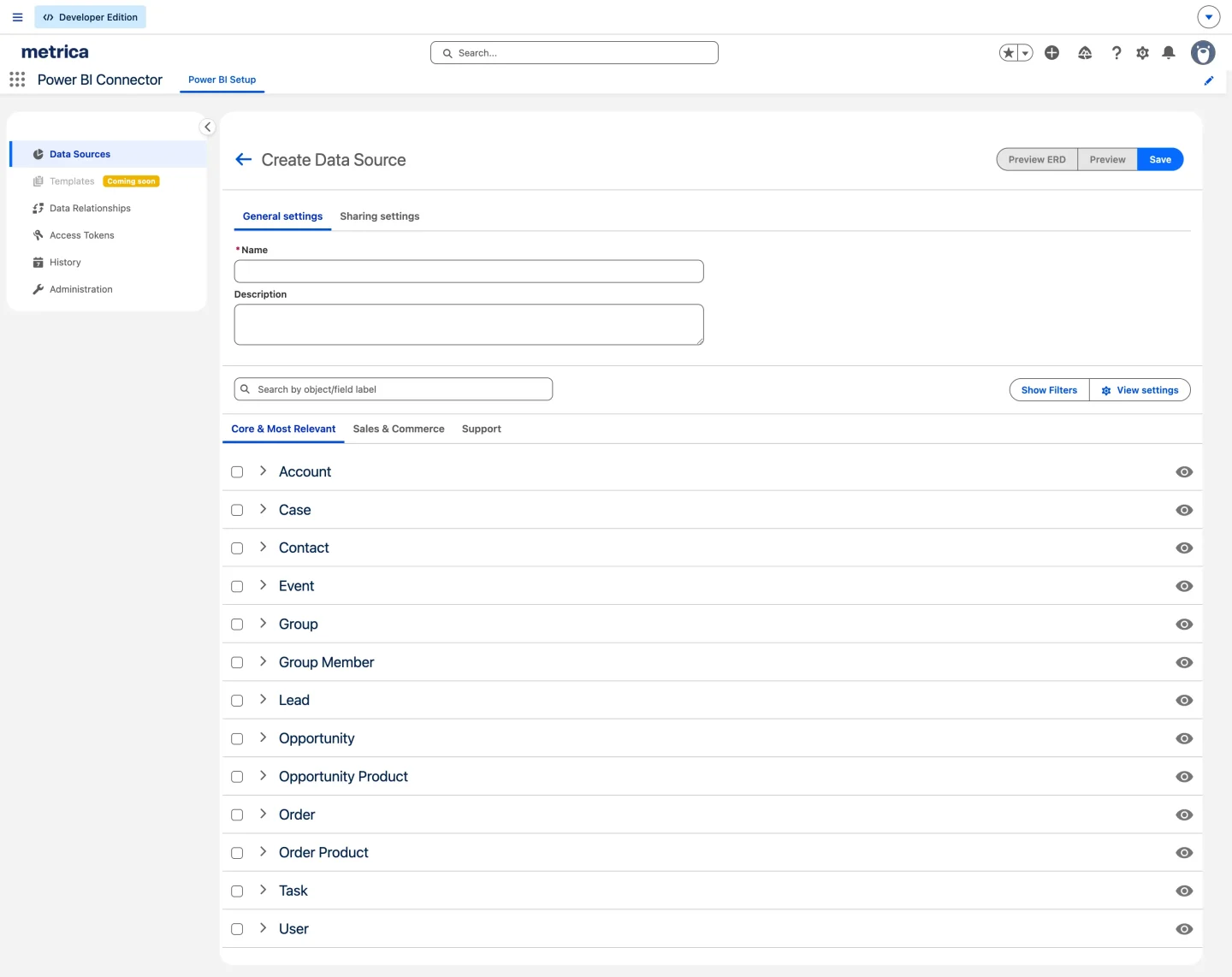
2. Enter a descriptive Name and an optional description
3. Select the Salesforce objects you need and expand each to choose individual fields. Select only the fields your report will need.
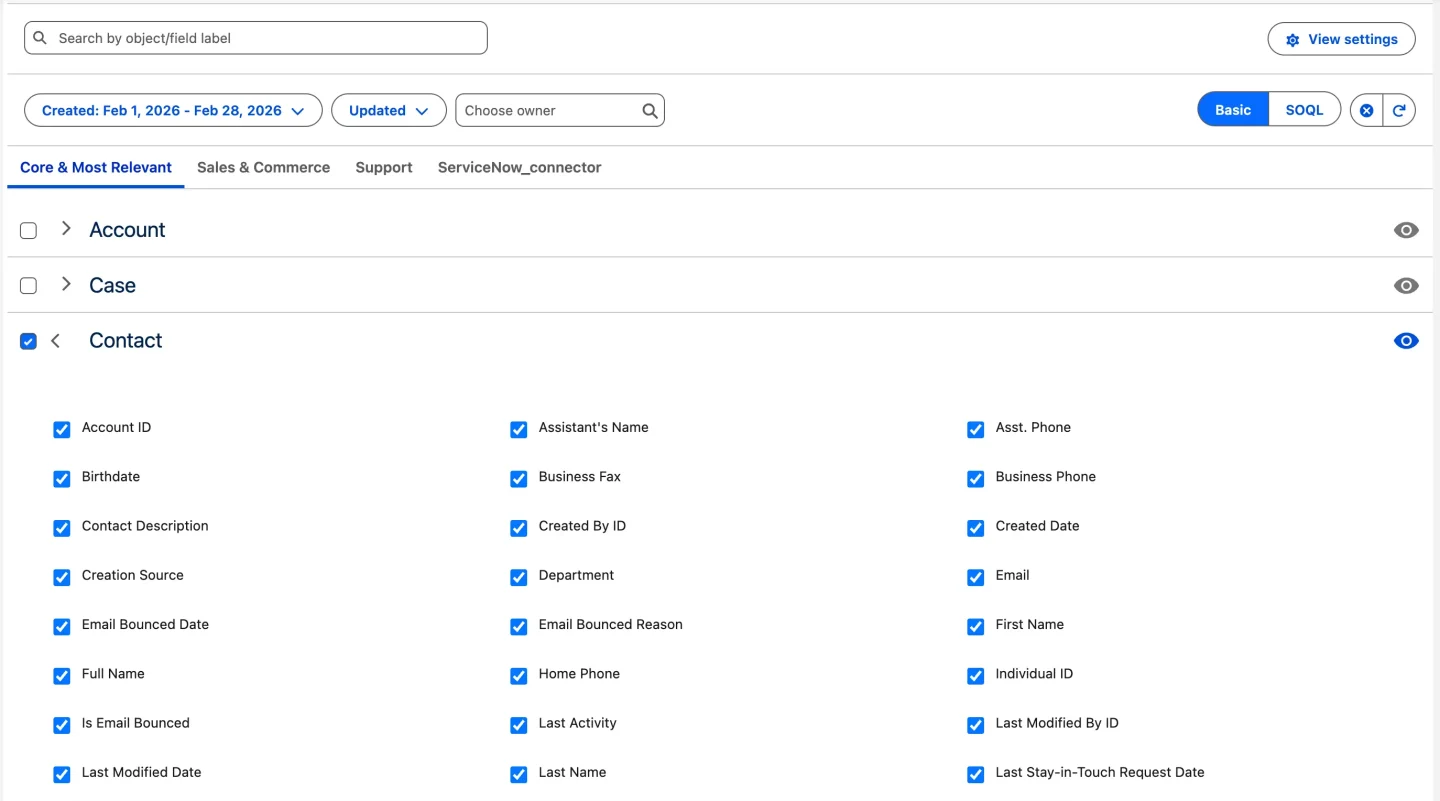
4. Apply filters to limit the records exported. Date filters are the most impactful, for example: CreatedDate >= 2026-01-01 AND CreatedDate <= 2026-09-30

5. Use Basic mode for standard filter logic or switch to SOQL mode for advanced query control
6. Click Preview ERD to verify object relationships before saving
7. Click Save
Need help setting up your data source? If you are unsure which objects and fields to select for your reporting goal, the Agentforce integration can handle it. Tell the agent what you want to report on and it will either walk you through the right configuration or build the data source and generate the Power Query formula for you.
Step 3: Generate a Salesforce Access Token for Power BI
Access tokens authenticate Power BI requests to Salesforce. Each token is scoped to the user who created it and inherits that user’s exact Salesforce permissions.
- Go to Access Tokens in the Power BI Connector for Salesforce app and click Create Token
- Enter a label and set an expiry date
- Click Create and copy the token immediately. It cannot be viewed again after leaving this page.
- Store it securely, not in a shared document.
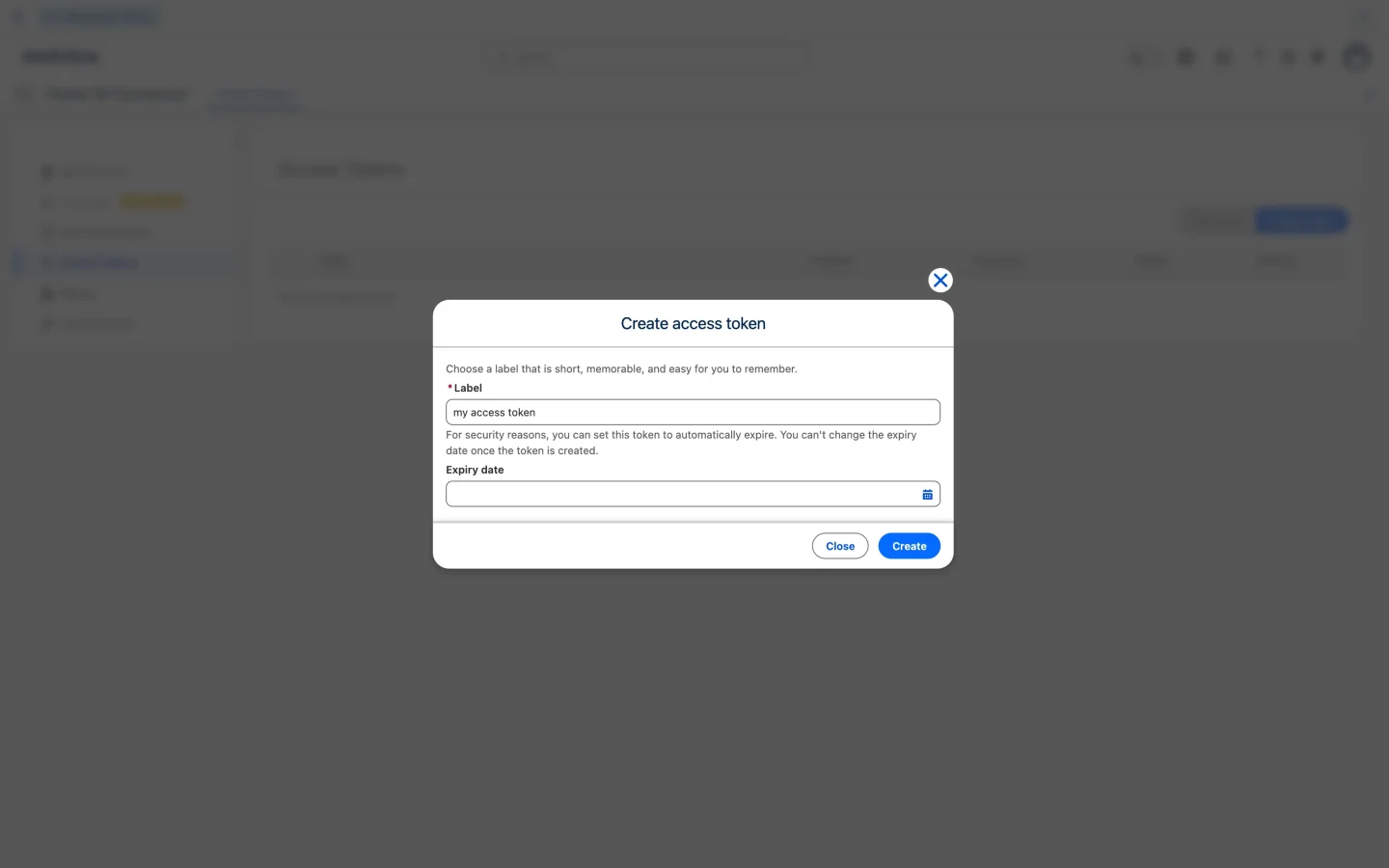
Set expiry dates on all tokens. Revoke tokens immediately when team members leave or connections are retired. Revocation takes effect immediately.
Step 4: Import Salesforce Data into Power BI Desktop
Copy the Power Query Script
In the Data Sources list, click the Power Query copy icon next to your data source. This copies a ready-to-use script to your clipboard.

Create the Token Parameter in Power BI
- Open Power BI Desktop and create a Blank Report
- Go to Get Data → Blank Query
- Open Manage Parameters → New Parameter and create a parameter named
metricaTokenwith your access token as the current value - Click OK
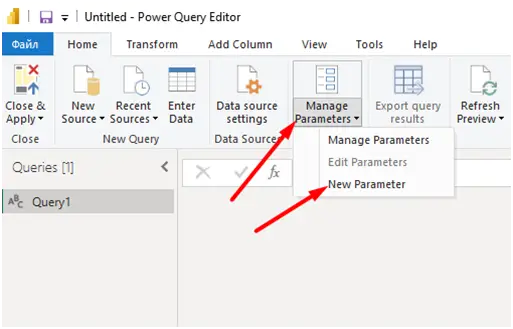
Storing the token as a parameter keeps it out of the query text and makes it easy to update when the token expires.
Paste the Power Query Script
- Right-click Query1 in the Queries panel and select Advanced Editor
- Clear the existing content, paste the copied script, and click Done
- If prompted for credentials, select Anonymous and click Connect
Anonymous is the correct selection here. Authentication is handled by the token inside the query. Power BI does not need separate Salesforce credentials.
Add Salesforce Objects as Tables
For each Salesforce object in your data source:
- Right-click the Table entry next to the object name and select Add as New Query
- Rename the query to match the Salesforce object name exactly
- Repeat for all required objects
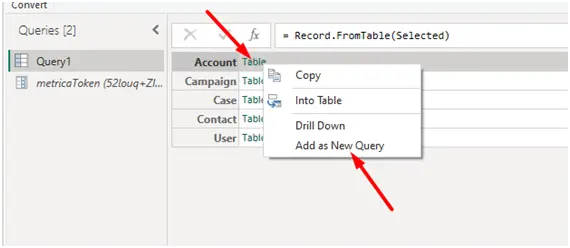
Click Close & Apply to load the data. Your Salesforce data is now live in Power BI and you can start building reports and dashboards straight away.
Best Practices for Salesforce Power BI Integration
Once your Power BI Salesforce connection is running, these practices keep it reliable and performant over time.
Keep Data Sources Focused and Filtered
The biggest driver of slow exports is data volume. Apply date range filters on every large table. Scope by owner, status, or record type wherever the report allows. Select only the fields your Power BI visuals will reference.
If a data source is still slow after filtering, split it by use case: Sales data, Support data, and Marketing data as separate data sources each export faster and are easier to maintain.
Match Refresh Frequency to Business Cadence
Refreshing a large Salesforce dataset hourly when business decisions happen daily puts unnecessary load on both platforms and increases the risk of exhausting Salesforce API limits. Daily or twice-daily refresh covers most reporting needs.
Use Incremental Refresh for Large and Growing Datasets
For Salesforce objects that accumulate records continuously — Opportunities, Cases, Activities — full refresh becomes slow and API-expensive over time. Incremental refresh loads only new or changed records on each cycle, keeping historical data intact. See the Incremental Refresh Setup Guide for full configuration steps.
Share Data Sources Instead of Duplicating Them
Once a data source is well-configured, share it instead of duplicating it. Go to the three-dot menu next to any data source and select Share. Add users or groups and they will find it in their Shared with me tab. They can use it for exports but cannot modify it. Changes you make apply immediately for everyone.
Administrators see all data sources across the org regardless of sharing settings, ensuring continuity when team members change roles or leave.
See the official documentation for full details: How to Share Data Source
Track Changes with Data Source History
The connector logs every change to every data source: who made it, when, and exactly what changed, including fields added or removed, filters updated, and sharing modified. Go to History → Data sources history to review the full log.
See the official documentation for full details: How to View Data Sources History
Troubleshooting Salesforce Power BI Integration Issues
Authorization Fails During Connector Setup
The Connected App has not finished activating. Wait 10 minutes after saving Custom Settings and try again. If it still fails after 15 minutes, verify the Callback URL matches your Salesforce Site URL exactly.
Fields or Custom Objects Missing in the Connector
Almost always a Salesforce permissions issue. The connector shows only what the signed-in user can access in Salesforce. Check field-level security, object permissions, and profile or permission set assignments in Salesforce Setup, not in the connector.
Power BI Showing Only 2,000 Rows from Salesforce
This happens with the native Power BI Salesforce Reports connector, not with Power BI Connector for Salesforce, which has no row limit. If you are seeing truncated data, verify you are using the correct connector and that your data source is querying objects directly.
Slow Salesforce Data Export or Power BI Refresh Timeout
Data volume is the primary cause. Apply date range filters, remove unused fields, split large data sources into smaller ones by use case, and enable incremental refresh. Avoid refreshing more frequently than your business needs require.
Power BI Refresh Fails with Salesforce Authentication Error
The access token has expired or been revoked. Generate a new token in the connector app and update the metricaToken parameter in Power BI Desktop or Power BI Service.
Incremental Refresh Slider Grayed Out in Power BI
The query does not reference RangeStart and RangeEnd, or their types are not set to Date/Time. Both conditions must be met. Parameter names are case-sensitive. Check both names and types before attempting to enable the policy.
Salesforce Data in Power BI Looks Stale After Refresh
Check the Power BI Service refresh history to confirm the last refresh completed successfully. If it completed but data is still old, verify the date filter in your data source is not scoped too narrowly and that the incremental refresh window covers the expected time range.
Frequently Asked Questions
Q · 01
What is the difference between the Salesforce Reports connector and the Salesforce Objects connector in Power BI?
The Reports connector pulls data from existing Salesforce reports and is limited to 2,000 rows per report. The Objects connector queries Salesforce objects directly with no row limit but requires data modeling knowledge and is subject to Salesforce’s daily API call quota. For production reporting, the Objects connector is the more capable option, though both have limitations at organizational scale.
Q · 02
Why is my Power BI Salesforce refresh failing?
The most common causes are an exhausted Salesforce API quota shared across all integrations in your org, an expired or invalid OAuth session, IP restriction settings in Salesforce blocking the connection, or an access token that has expired. Check the Power BI Service refresh history for the specific error, then verify API quota usage in Salesforce Setup.
Q · 03
How do I get more than 2,000 rows from Salesforce into Power BI?
Switch from the Salesforce Reports connector to either the Salesforce Objects connector (native, no row limit) or Power BI Connector for Salesforce, which queries objects directly with server-side filtering and no row limit.
Q · 04
Is there a row limit when using Power BI Connector for Salesforce?
No. Power BI Connector for Salesforce has no row limit. This is one of the key differences from the native Salesforce Reports connector, which caps at 2,000 rows enforced by the Salesforce Analytics API.
Q · 05
How many data sources can I create in Power BI Connector for Salesforce?
Unlimited. There are no system caps or pricing restrictions on the number of data sources.
Q · 06
Does Power BI Connector for Salesforce work with custom Salesforce objects?
Yes. All standard and custom Salesforce objects your user has access to are available, including objects from installed AppExchange packages.
Q · 07
What Salesforce edition is required for Power BI integration?
Salesforce API access is required, which is available on Enterprise, Unlimited, Performance, and Developer editions. Professional Edition does not include API access by default and requires an add-on.
Q · 08
How often can Power BI refresh Salesforce data?
Refresh frequency depends on your Power BI licensing. Power BI Pro supports up to 8 scheduled refreshes per day. Power BI Premium supports up to 48. Salesforce API limits also factor in since frequent refresh schedules on large datasets can exhaust your org’s daily API quota.
Q · 09
Is Power BI Connector for Salesforce secure?
Yes. The connector installs inside your Salesforce org as a managed package and operates entirely within your Salesforce environment. Data does not pass through external servers. Authentication uses access tokens scoped to individual Salesforce users, and all access is governed by existing Salesforce field-level and object-level permissions.
Q · 10
What happens if an access token expires?
Power BI refreshes using that token will fail until a new token is generated and the metricaToken parameter is updated. Data already loaded into Power BI remains intact. Only new refreshes are affected.
Q · 11
Can multiple team members share the same Salesforce data source?
Yes. Data sources can be shared with specific users or groups. Recipients can use the data source for exports but cannot modify the configuration. Each user generates their own access token for their Power BI connection.
Q · 12
What is incremental refresh and do I need it for Salesforce data?
Incremental refresh tells Power BI to load only new or changed records on each refresh cycle instead of reloading the entire dataset. It is worth setting up for any Salesforce object that grows continuously over time, such as Opportunities, Cases, and Activities, where full refreshes become increasingly slow and API-expensive as data volume grows.
Conclusion
Connecting Salesforce to Power BI with native connectors works for simple, small-scale use cases. As reporting complexity grows, row limits, API exhaustion, authentication failures, and the absence of any shared data governance turn the native approach into a maintenance burden.
Power BI Connector for Salesforce addresses these problems at the architectural level: centralized data sources, server-side filtering, Salesforce-native permissions inheritance, and a full audit trail, all within your existing Salesforce environment. No external infrastructure, no engineering overhead beyond initial setup, and no row limits on any object.
For teams building Salesforce Power BI reporting that needs to hold up under real organizational demand, the AppExchange connector is the right foundation.
Get Started with Power BI Connector for Salesforce
Try Power BI Connector for Salesforce on Salesforce AppExchange — Install directly in your Salesforce org or explore with a free trial.
Browse the Documentation — Full setup guides, configuration references, and troubleshooting.
Book a Demo — Schedule a live session with the product team.
Contact Support — Questions about setup, licensing, or specific use cases.