Power BI Connector for SAP fully supports S/4HANA Public Cloud (Public Edition). Because Public Cloud tenants do not use SAP Cloud Connector, the connector reaches your tenant through SAP Communication Arrangements configured in the Fiori launchpad, over Basic authentication with a dedicated communication user. This page walks a S/4HANA administrator through the steps to prepare a tenant for the connector.
Scope of this setup: who does what #
Configuring Power BI Connector for SAP against an S/4HANA Public Cloud tenant is a joint task:
- You (S/4HANA administrator) prepare the tenant — activate any required scope items in Central Business Configuration (CBC), create a communication user, a communication system, and the communication arrangements listed below.
- Metrica handles the SAP BTP side — the connector application, the subaccount, and the
Destinationthat points at your tenant API host. Once you share the tenant API URL and communication user credentials with our onboarding team, we finish the connection on the BTP side.
The tenant must permit Basic authentication for communication users. OAuth-only tenants are not supported for this connector, because the standard S/4HANA OData catalogs are only reachable with Basic authentication.
Step 1: Activate the required scope items in CBC #
Standard SAP_COM_* scenarios are gated by scope items in your tenant. If a scenario is not selectable in the Communication Arrangements app (you see “No communication scenario data found” when creating a new arrangement), the corresponding scope item is not active and must be added in SAP Central Business Configuration (CBC).
Open CBC from SAP for Me → Systems & Provisioning, or from the BTP subaccount that runs the CBC subscription. CBC is a separate application from the Fiori launchpad.
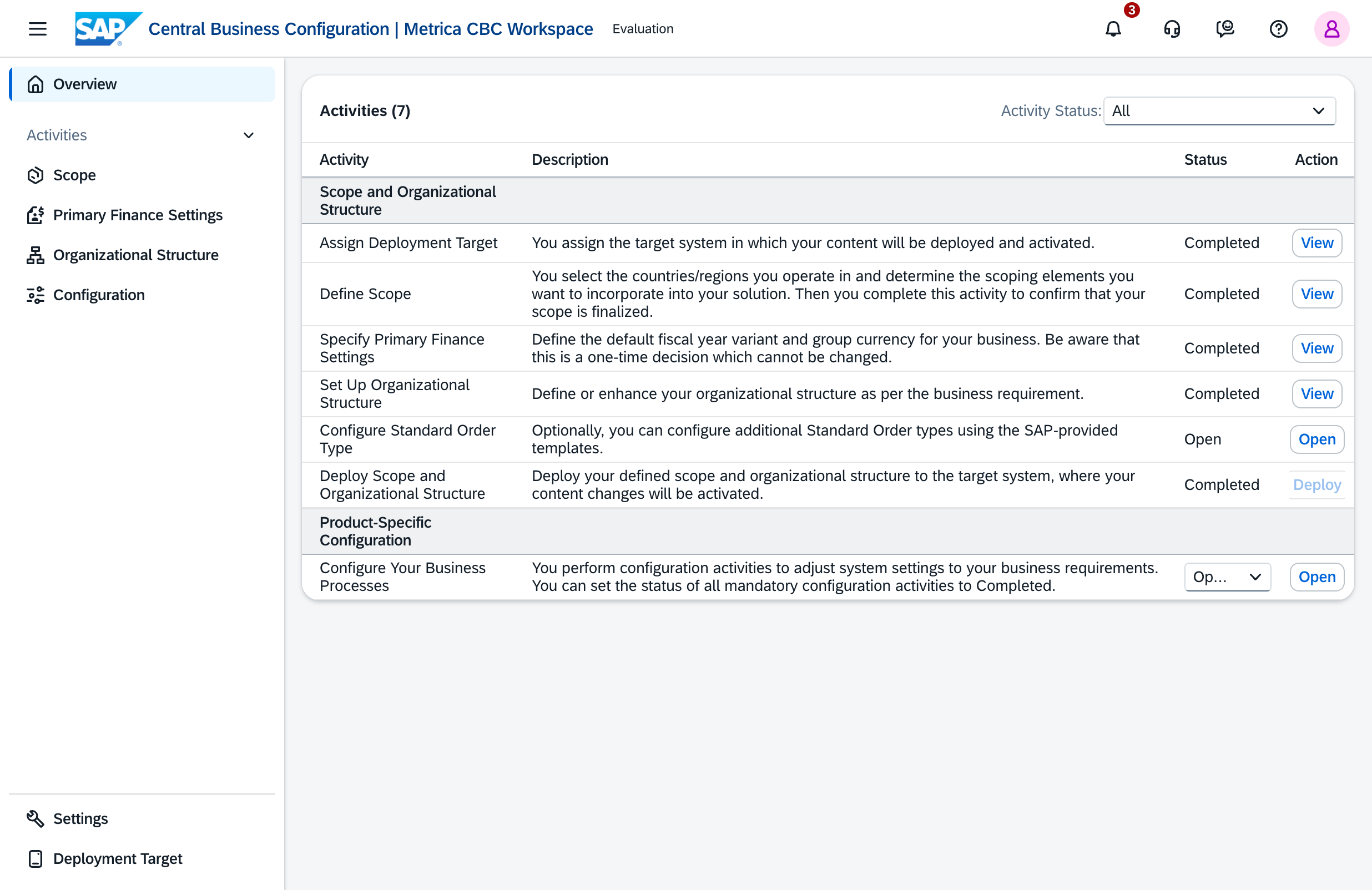
In your Implementation workspace (or an Evaluation workspace for a partner demo tenant):
- Open Define Scope and choose Edit (Initiate Change). This reopens Set Up Organizational Structure for re-confirmation only — no data is reset.
- Add the scope item that carries the scenario you need (for example
1RO— Master Data Integration — which carriesSAP_COM_0008andSAP_COM_0009). Choose Complete Activity. - Re-confirm the reopened Set Up Organizational Structure activity (no changes needed) and choose Complete Activity.
- Choose Deploy. In a multi-system landscape, transport the customizing to the tenant that runs the communication arrangements.
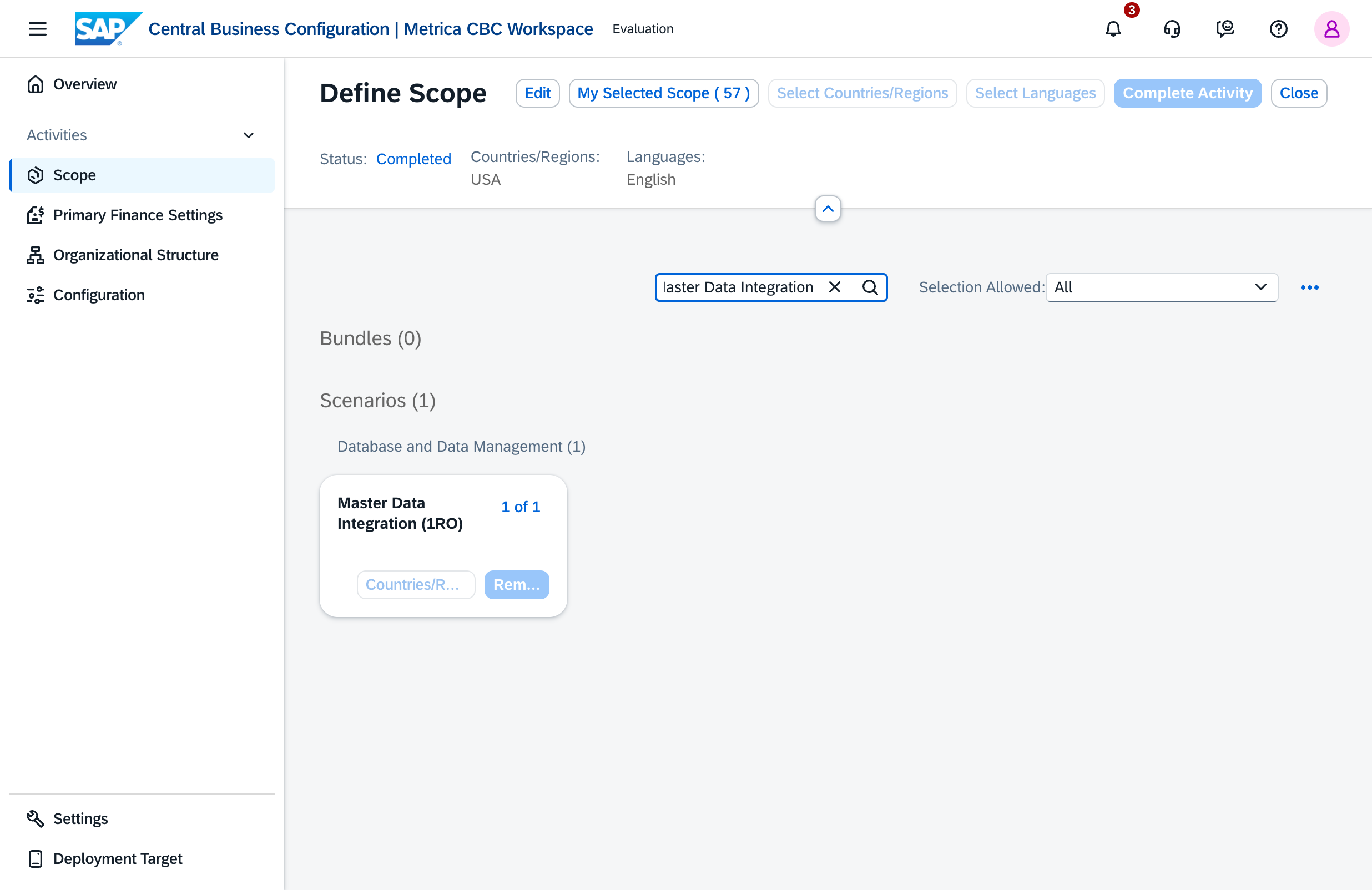
Deploy plus activation runs in the background and may take from a few minutes to a couple of hours. Once the activity progress bar reaches 100%, re-open Communication Arrangements → New and confirm that the scenario now appears.
Scope items are add-only — once activated they cannot be removed. Items shown with a lock icon require an SAP support ticket. If you are unsure which scope item corresponds to the data you want to read from Power BI, contact us and we’ll map it for you.
Step 2: Create a communication user #
The connector authenticates to your tenant as a dedicated communication user over Basic authentication. Create it in the Maintain Communication Users Fiori app.
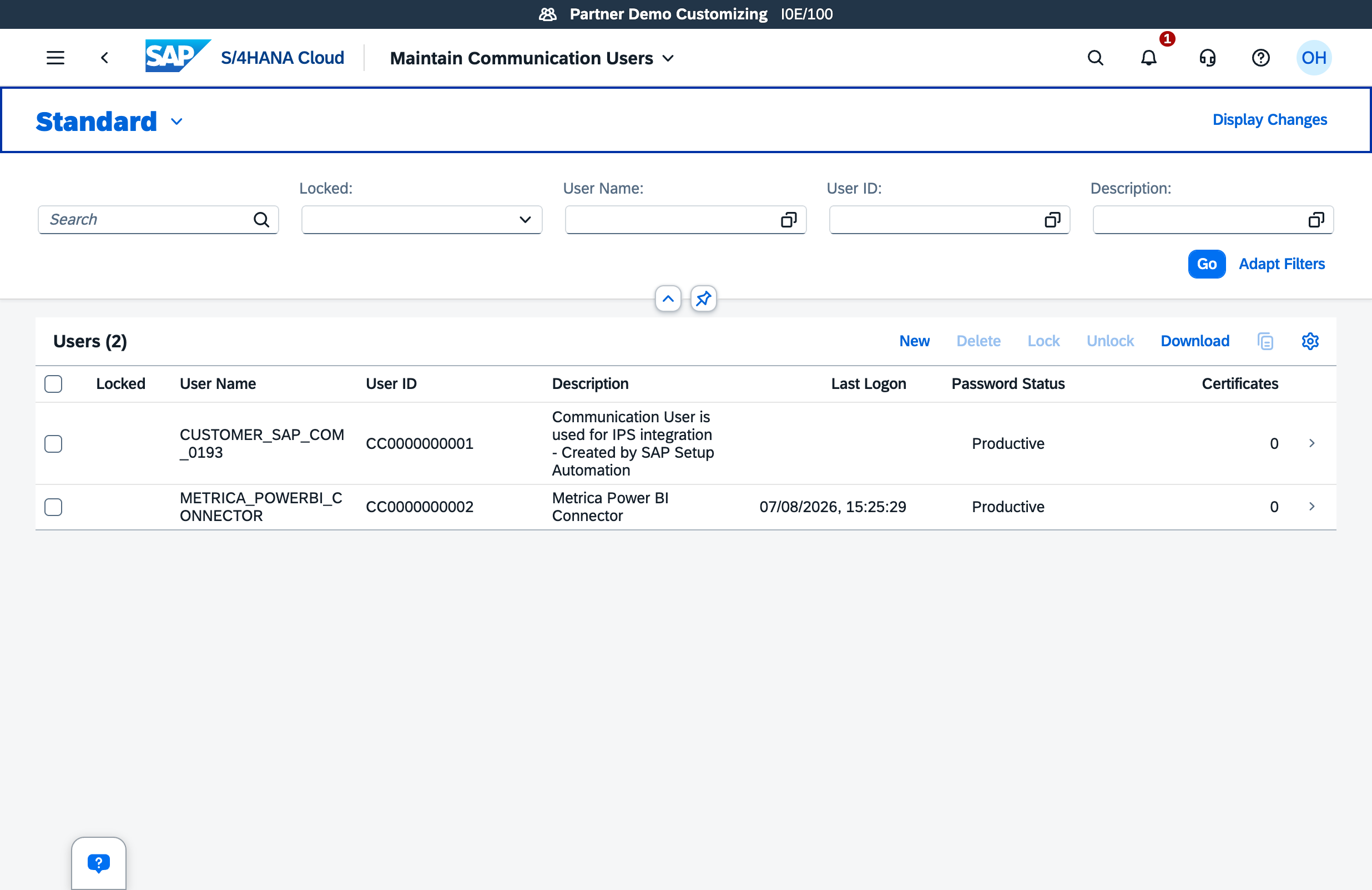
- Choose New.
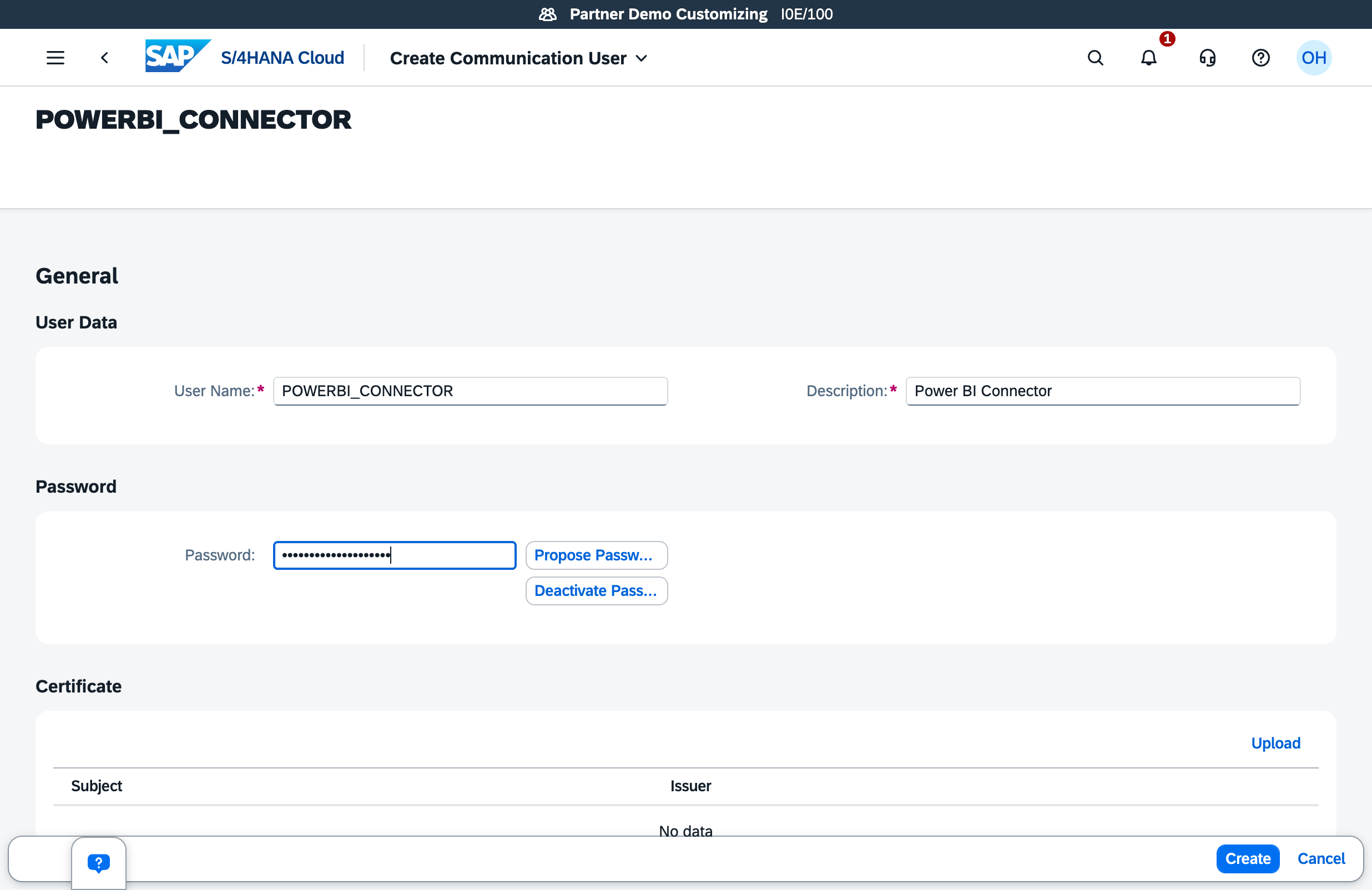
- Enter a User Name (for example
POWERBI_CONNECTOR), a Description, and a Password. - Avoid
$,`,\,",',:and spaces in the password — these characters can break credential handling downstream. - Choose Create.
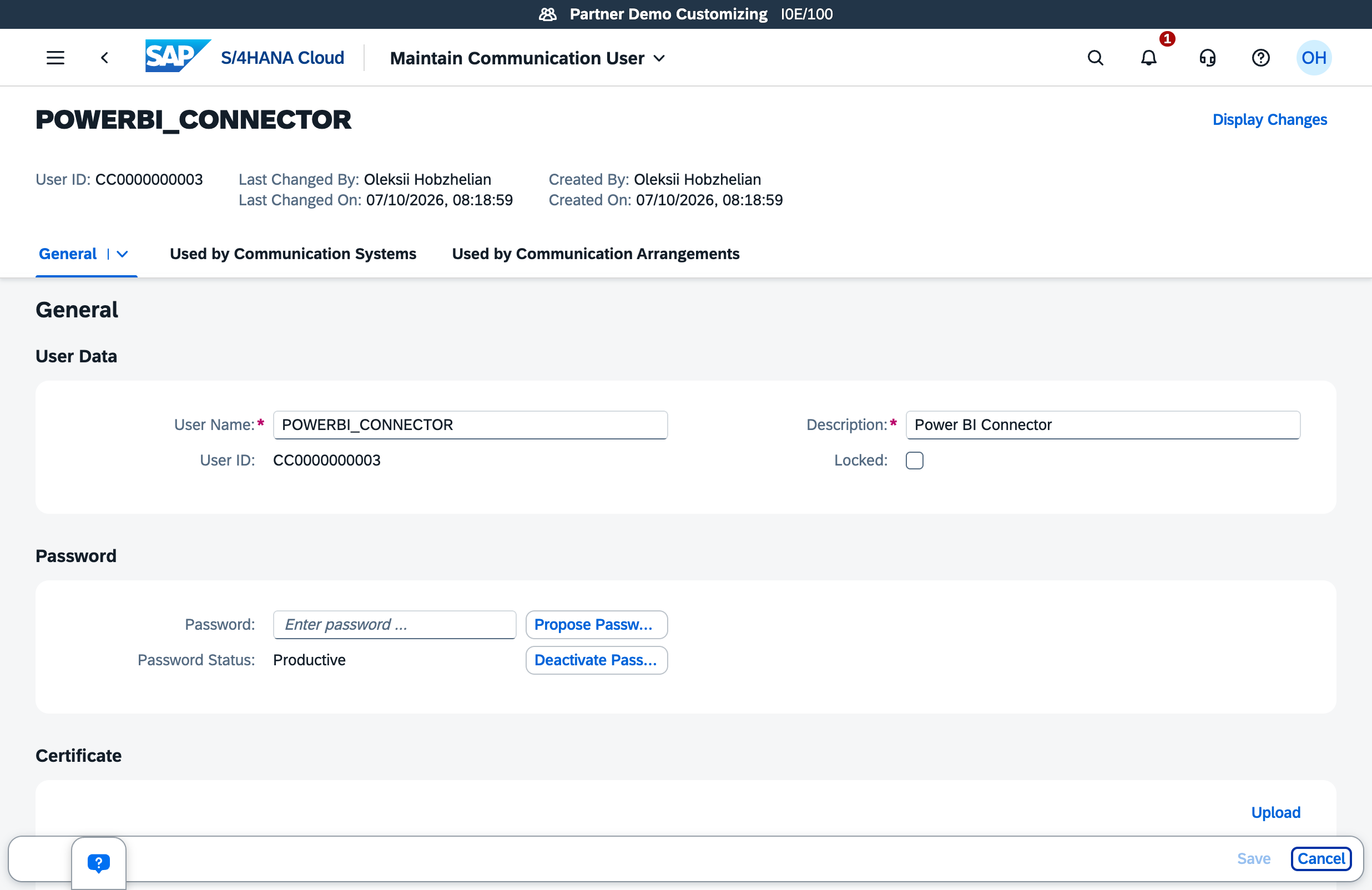
If the user later shows Locked because of too many failed attempts, open the user, clear the Locked checkbox, reset the password, and choose Save.
Step 3: Create a communication system #
Create a Communication System in the app of the same name. It represents the connector in your tenant and holds the inbound user from step 2.
- Choose New, enter a System ID and System Name (for example
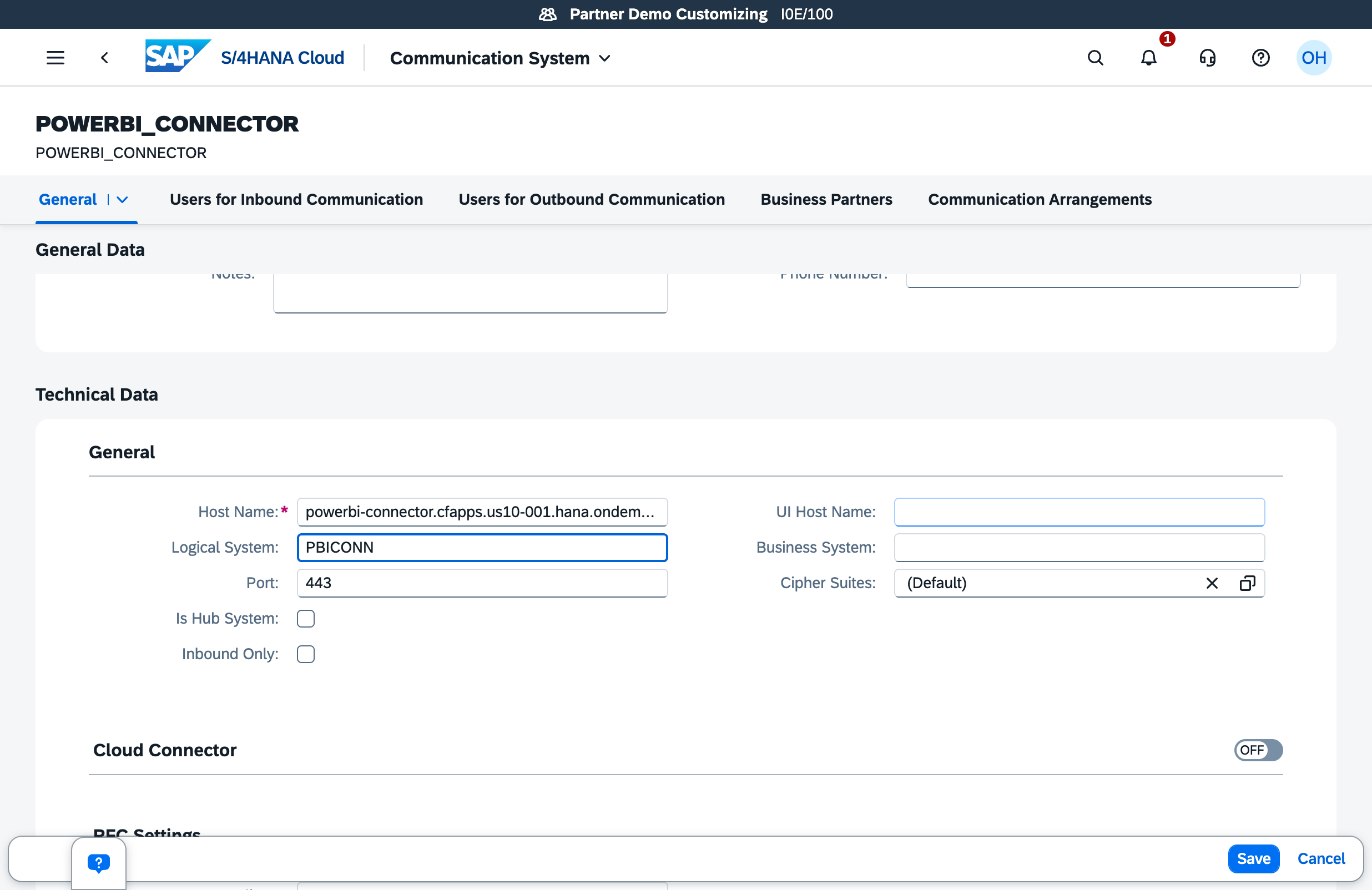
POWERBI_CONNECTOR), and choose Create. - Set Host Name to any resolvable FQDN (for example the connector application host that our onboarding team gives you).
localhostis rejected. - Set a Logical System — uppercase, 10 characters or fewer (for example
PBICONN). Master-data scenarios such asSAP_COM_0008andSAP_COM_0009require it.
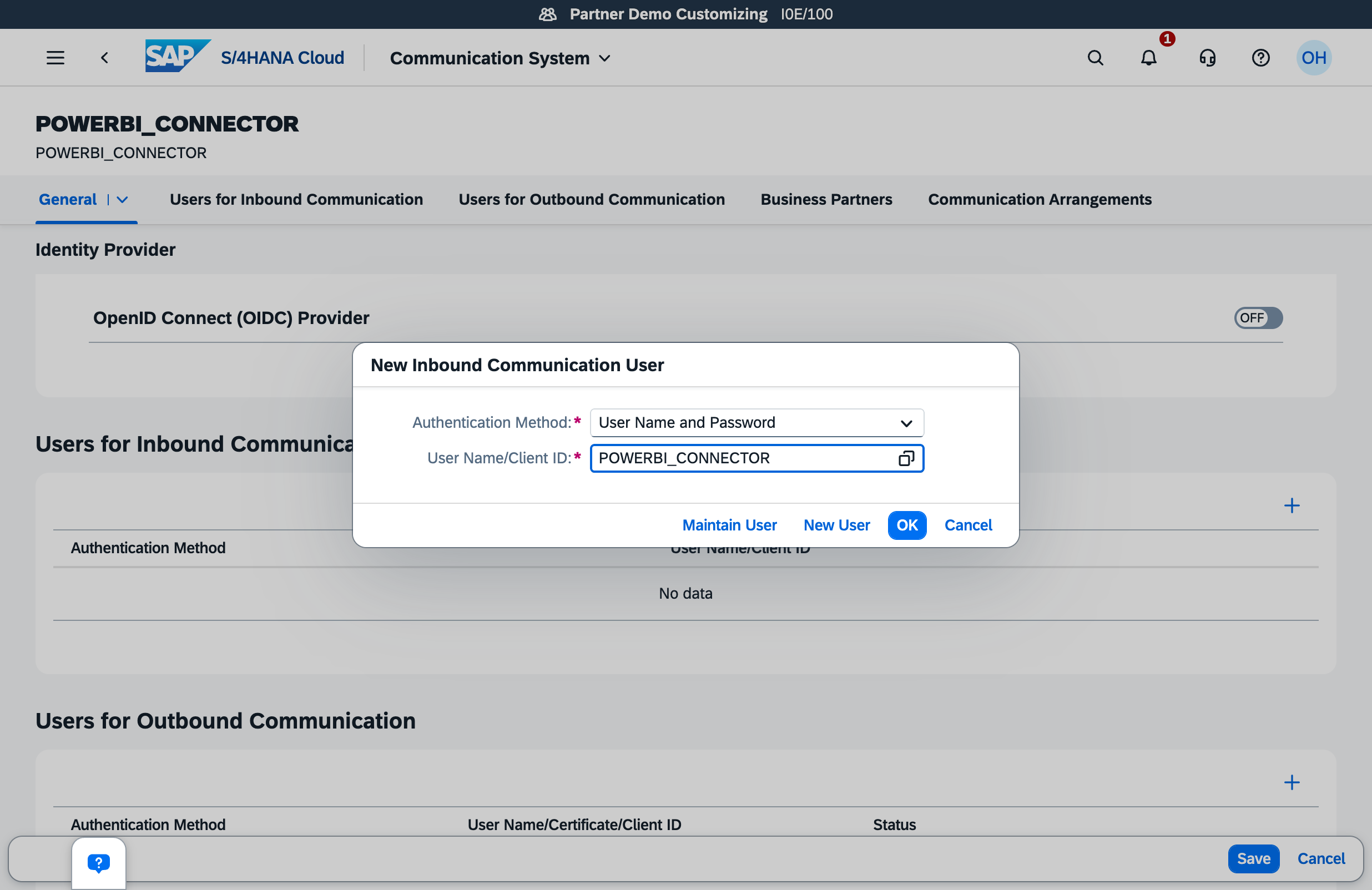
- Under Users for Inbound Communication, choose Add and select the user created in step 2.
- Keep Authentication Method: User Name and Password and choose OK.
- Choose Save.
Step 4: Create the communication arrangements #
Each arrangement links a scenario to the communication system from step 3 and exposes its services to the connector. Create them in the Communication Arrangements Fiori app.
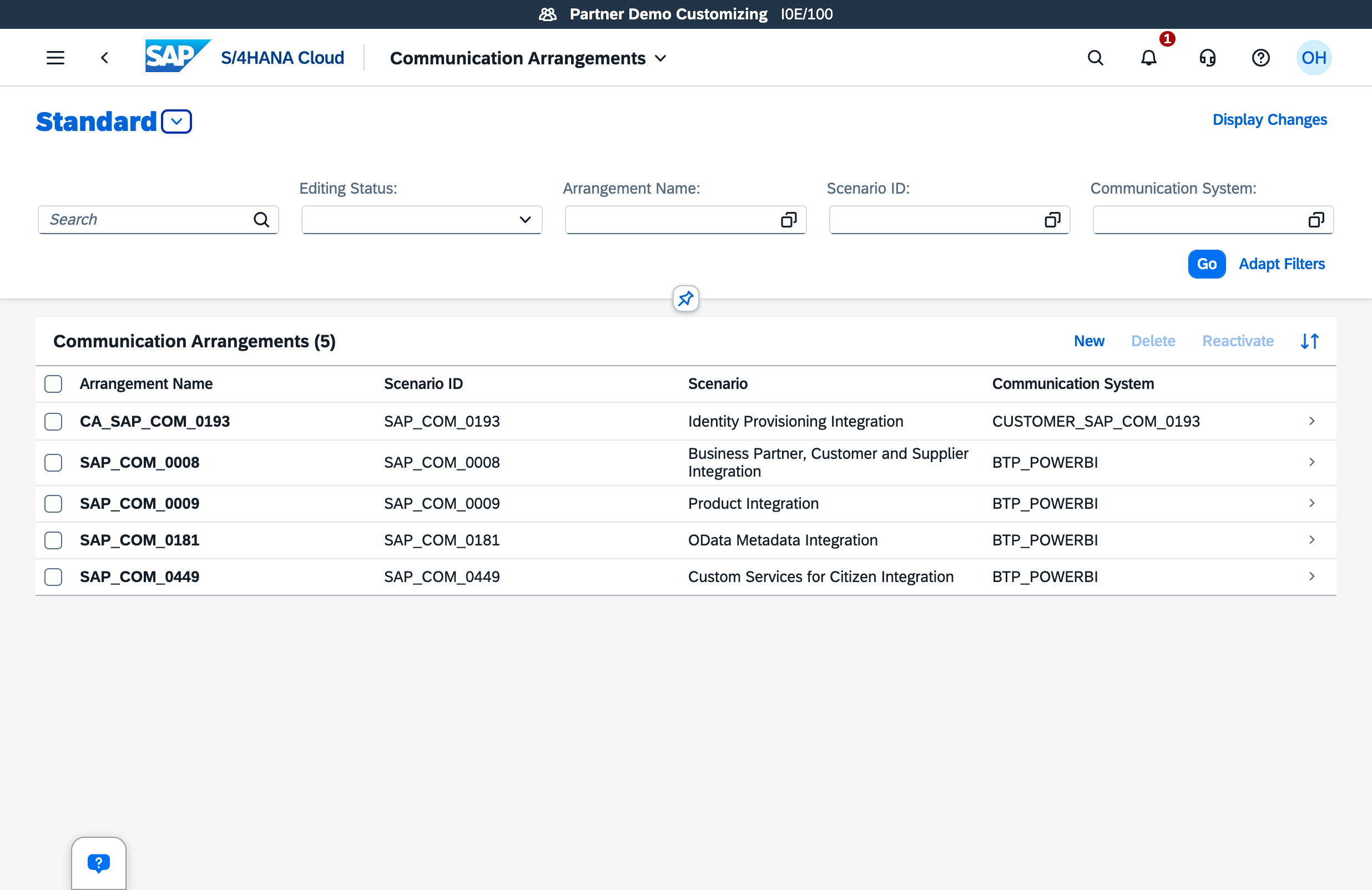
For each arrangement:
- Choose New, select the Scenario, adjust the Arrangement Name if needed, and choose Create.
- Set Communication System to the system from step 3 — the inbound User Name fills in automatically.
- Choose Save.
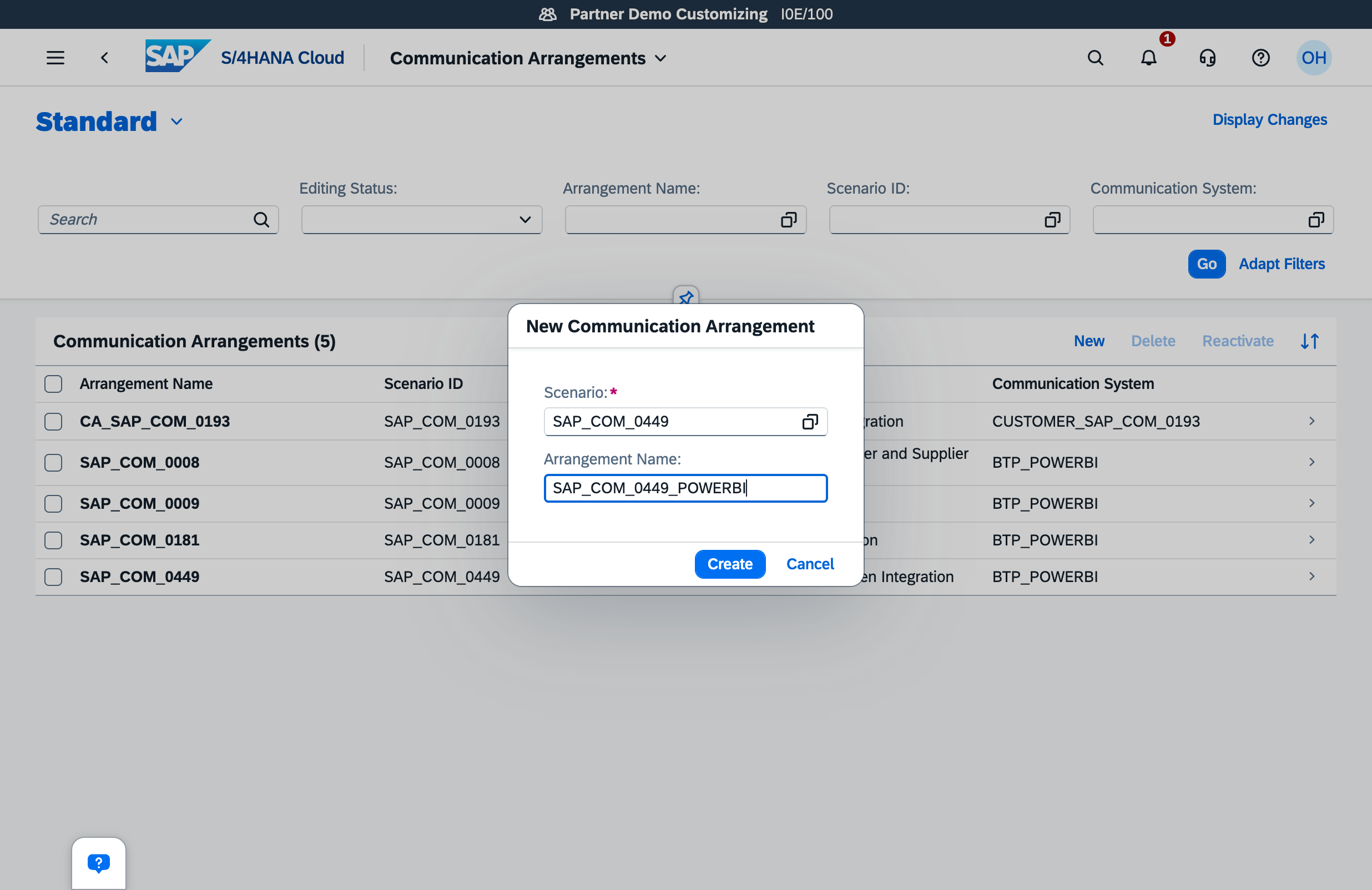
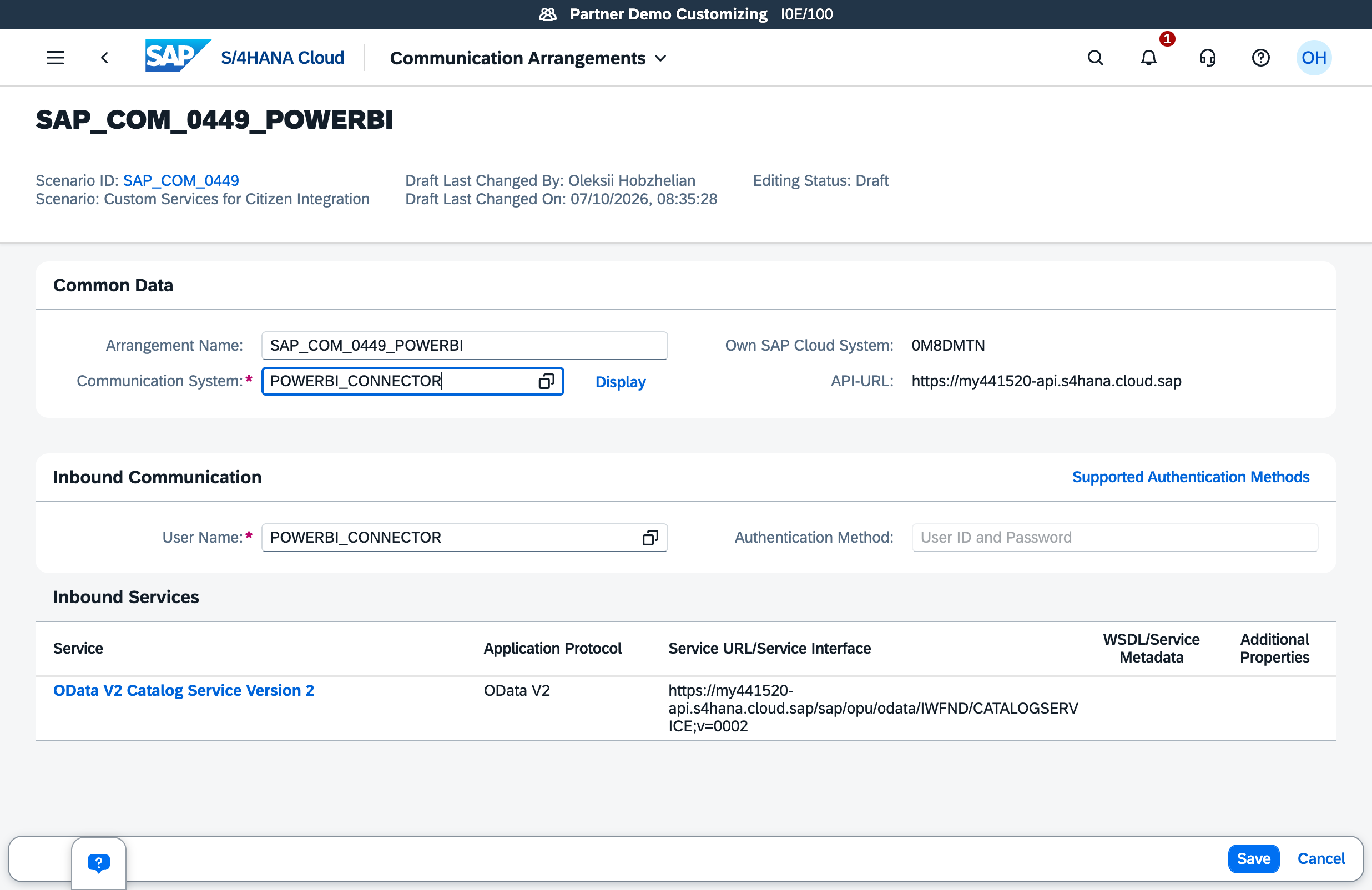
Create at minimum:
SAP_COM_0449— exposes the classic (OData V2) Gateway service catalog. This is what makes services discoverable in the connector. Ships in the baseline scope, so no CBC activation is required.SAP_COM_0181— exposes the OData V4 service-groups catalog. Skip only if you never plan to read V4-only APIs from Power BI.- One arrangement per API you want to read. Common examples:
SAP_COM_0008— Business Partner / Customer / Supplier (API_BUSINESS_PARTNER)SAP_COM_0009— Product / material master (API_PRODUCT_SRV)SAP_COM_0109— Sales orders (API_SALES_ORDER_SRV)SAP_COM_0120— Billing documents (API_BILLING_DOCUMENT_SRV)SAP_COM_0106— Outbound deliveriesSAP_COM_0057— Supplier invoices
For bidirectional master-data scenarios (SAP_COM_0008, SAP_COM_0009) the arrangement also shows an Outbound Communication section with a required user. Because Power BI Connector for SAP only reads, deactivate the outbound services so no outbound user is needed. Keep the inbound services and user active.
The API-URL shown on each arrangement (for example https://my123456-api.s4hana.cloud.sap) is what our onboarding team needs for step 5.
Step 5: Share the API URL and credentials with Metrica #
Send the following to your Metrica onboarding contact:
- The API host shown on any of your communication arrangements (for example
https://my123456-api.s4hana.cloud.sap— note the-apisegment; the Fiori hostmy123456.s4hana.cloud.sapdoes not serve APIs). - The SAP client of the tenant (Public Edition is usually
100). - The communication user name and password from step 2. Share the password through a secure channel — a password vault or an encrypted message, not email.
- The list of scenarios you arranged in step 4, so we can confirm that the APIs you expect are discoverable.
Metrica creates the corresponding Destination in the connector’s SAP BTP subaccount, using Basic authentication and the credentials you provided. Once the destination is in place, the connector’s Add Service catalog search will show the APIs you arranged, and you can start building Power BI data sources on top of them.
What’s next? #
- Confirm the tenant is reachable by creating a Power BI data source in the connector — the arranged services should appear in Add Service.
- If a service is listed but returns no rows, check that the corresponding
SAP_COM_*arrangement is active for your communication user, and that the underlying scope item is active in CBC. - Custom CDS-view services (
ScopedServiceCollection) and OAuth-only tenants are not supported — contact us if you need guidance on alternatives.
Related #
- Installation Guide — end-to-end onboarding flow for Power BI Connector for SAP.
- Contact Support — get help with scope items, arrangements, or any error you hit during setup.


