Dashboard templates are ready-made Power BI reports for common SAP questions: sales orders, billing, the order backlog, deliveries, purchasing, returns, production, products and business partners. Each template already contains the queries, the data model and a finished report page. You create its data source in the connector, open the template in Power BI Desktop, paste the data source URL, and the dashboard loads with your SAP data.
What You Can Do #
- Get a working dashboard in a few minutes without building queries or visuals
- Create the matching data source in one click, with exactly the SAP services and fields the template reads
- Choose how many months of documents to load when the template opens
- Refresh the report at any time to pull current SAP data
- Edit the data source, the queries and the visuals like any other Power BI report
Before You Start #
- Power BI Desktop on Windows. Templates (.pbit files) open in Power BI Desktop only.
- An access token from Access Tokens in the connector. See Create an Access Token.
- The SAP services the template reads. They are listed per template under Template Reference and shown again before the data source is created.
Step 1: Pick a Template #
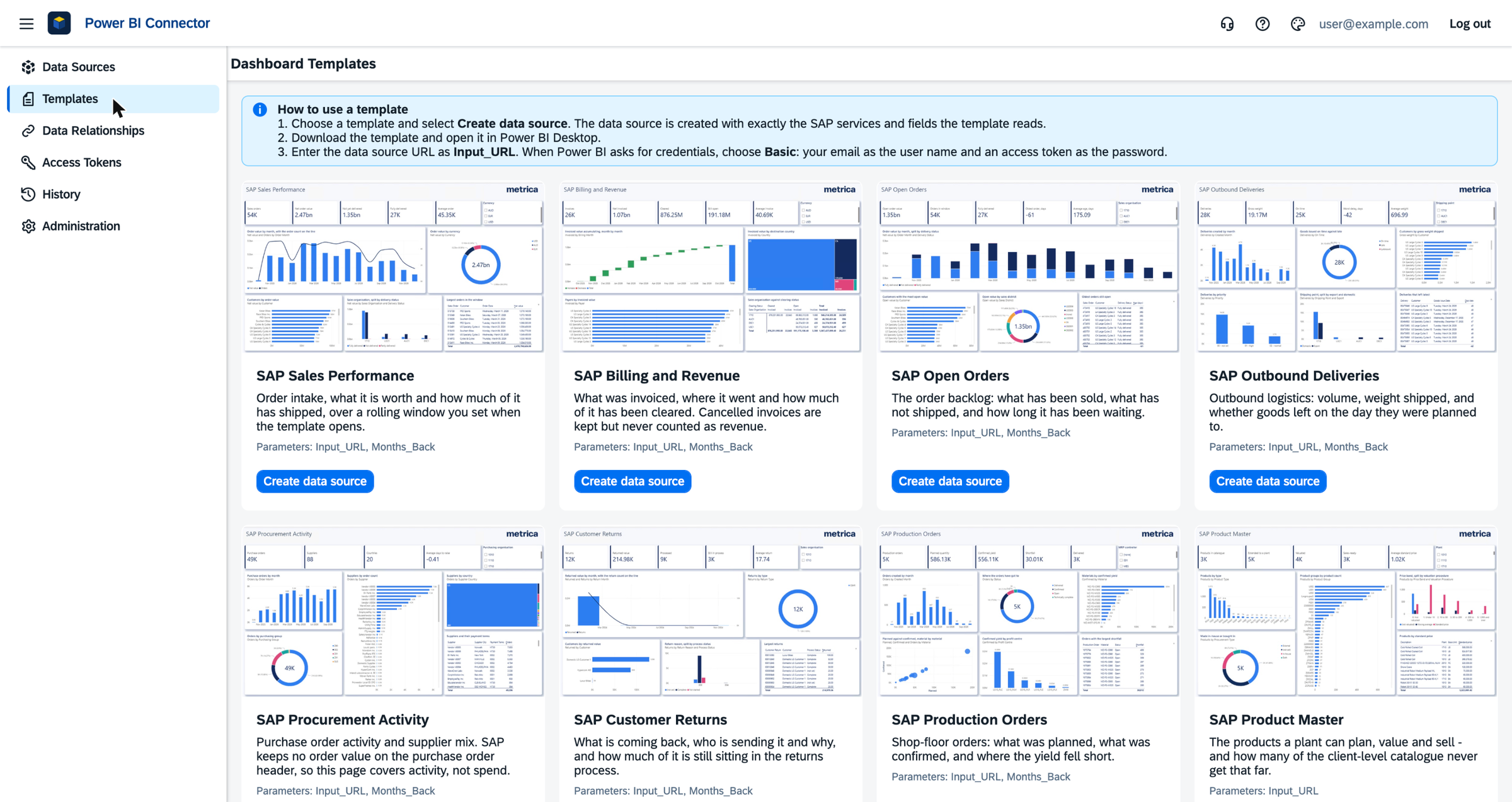
- Open Power BI Connector and select Templates in the side navigation.
- Each card shows a preview of the dashboard, what it answers and the parameters it asks for.
- Select Create data source on the template you want.
Step 2: Create the Data Source #
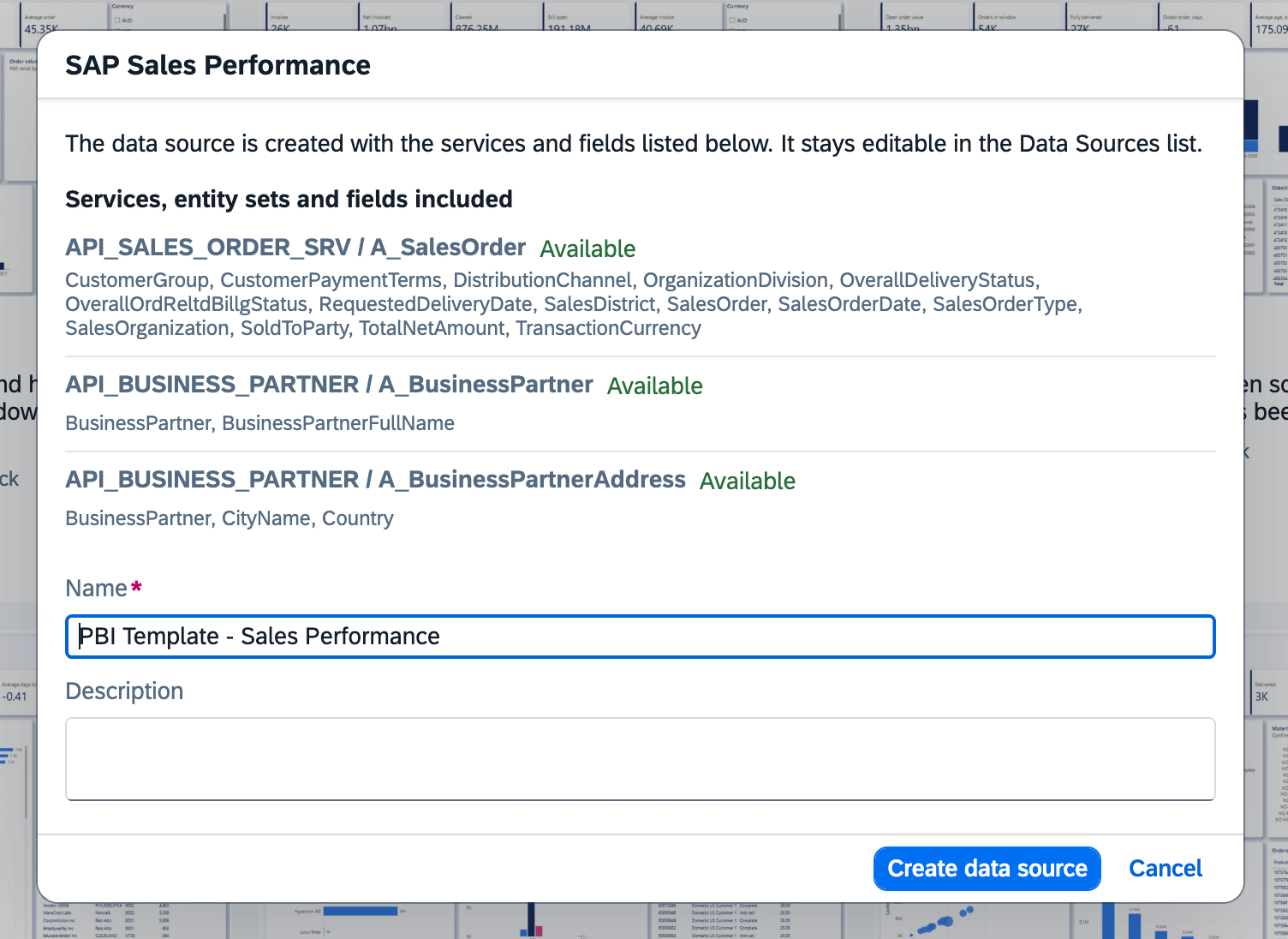
The dialog lists the SAP services, entity sets and fields the template reads, with a status next to each service. The connector creates a data source with exactly these fields selected.
- Keep the suggested Name or change it. Optionally add a Description.
- Select Create data source.
Step 3: Copy the URL and Download the Template #
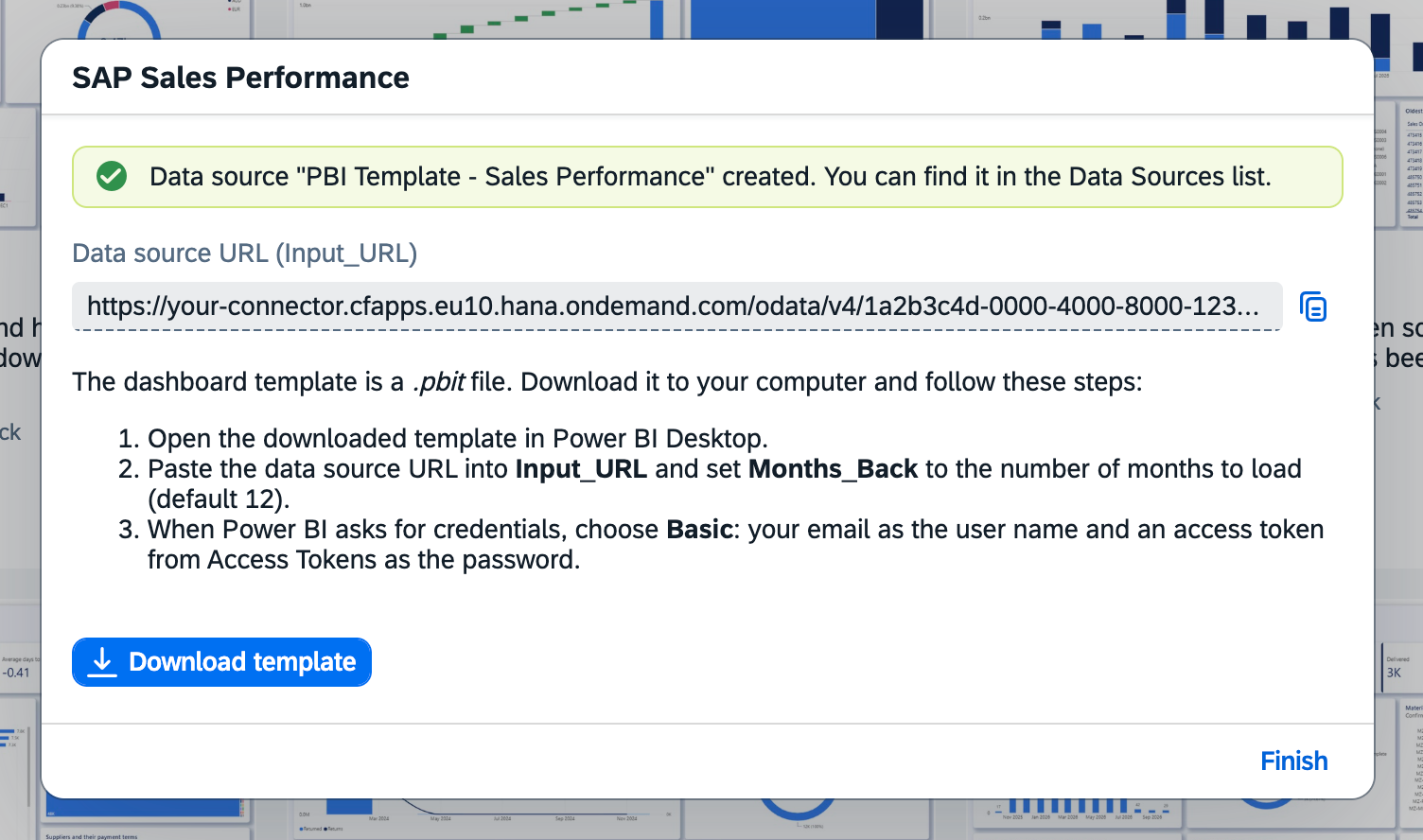
- Select the copy icon next to Data source URL (Input_URL). You paste this URL into Power BI in the next step.
- Select Download template to save the .pbit file.
- Select Finish.
Step 4: Open the Template in Power BI Desktop #
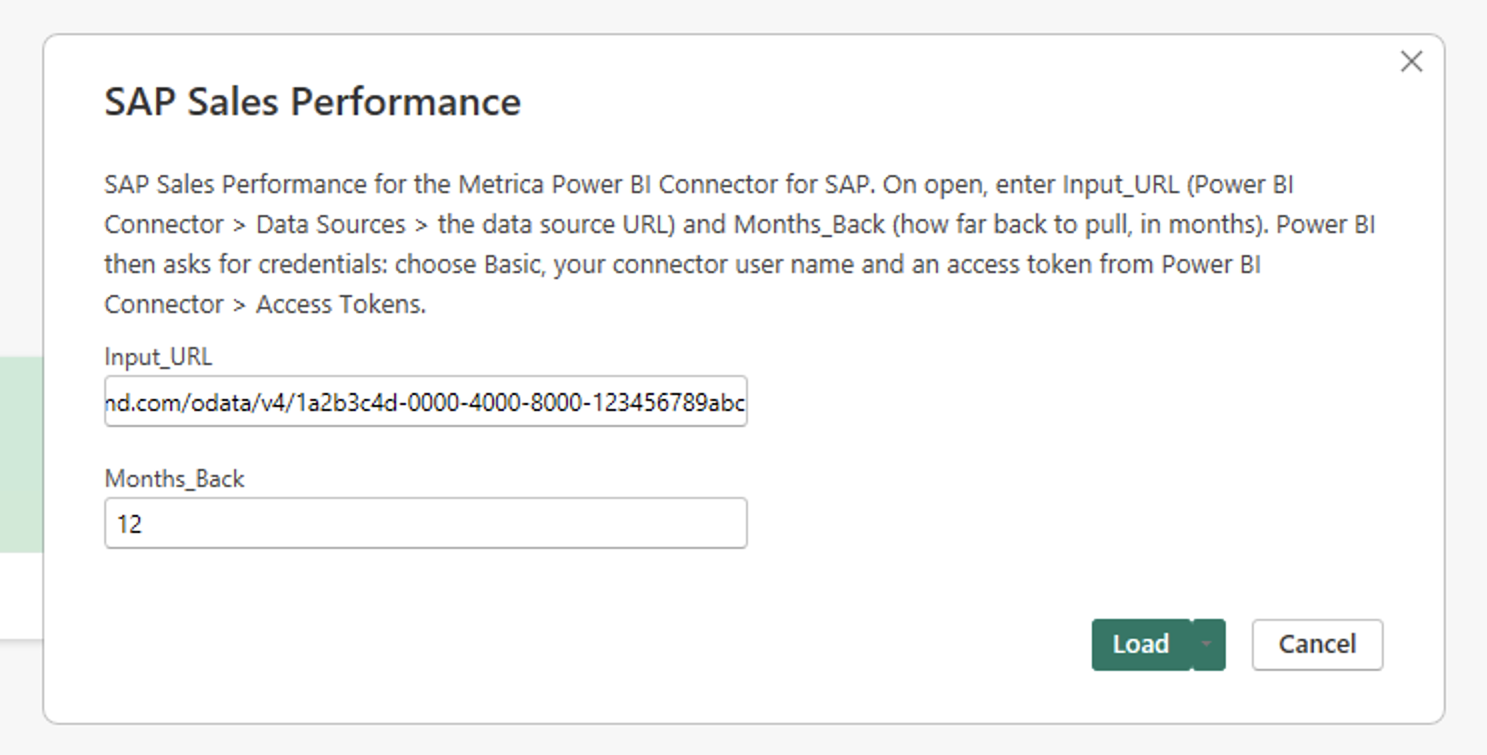
Double-click the downloaded .pbit file. Power BI Desktop opens a new, untitled report and asks for the template parameters.
- Input_URL: paste the data source URL you copied in Step 3.
- Months_Back: the number of months of documents to load. The default is 12. SAP Product Master and SAP Business Partners do not have this parameter.
- Select Load.
Step 5: Enter Your Credentials #
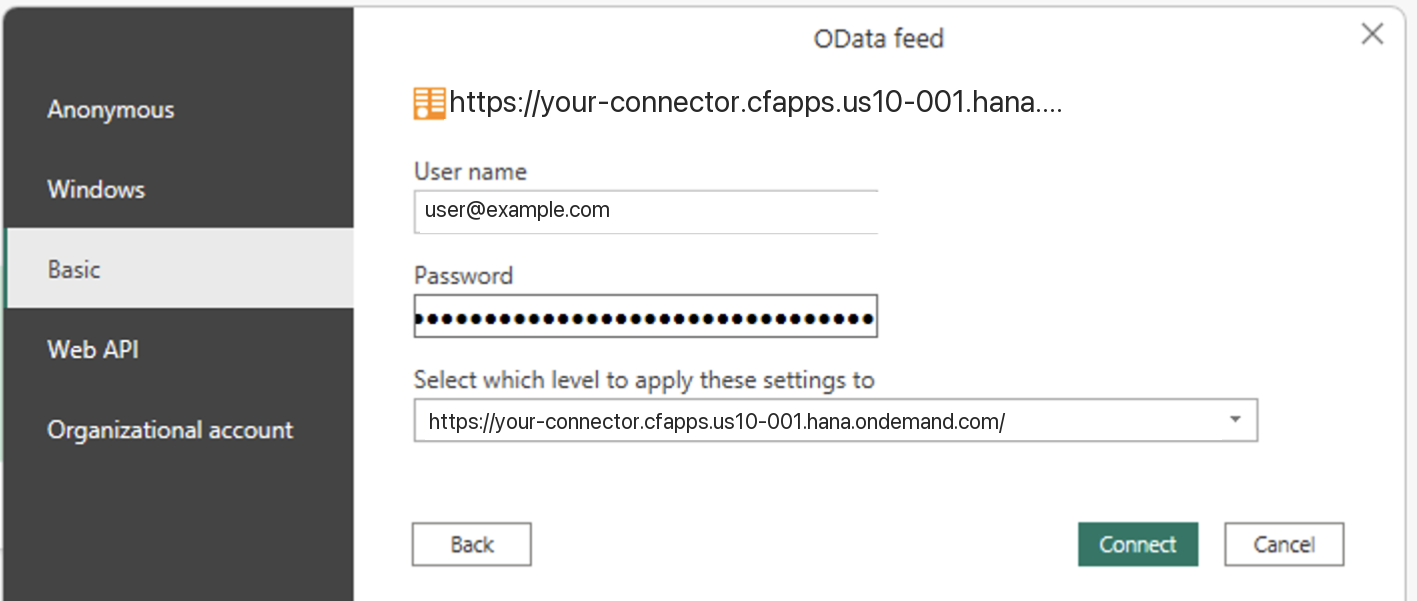
The first time this computer connects to your connector, Power BI asks how to sign in.
- Select Basic.
- User name: the email address you sign in to the connector with.
- Password: your access token.
- Select Connect.
The Dashboard Loads #
Power BI reads your SAP data through the data source and builds the model.
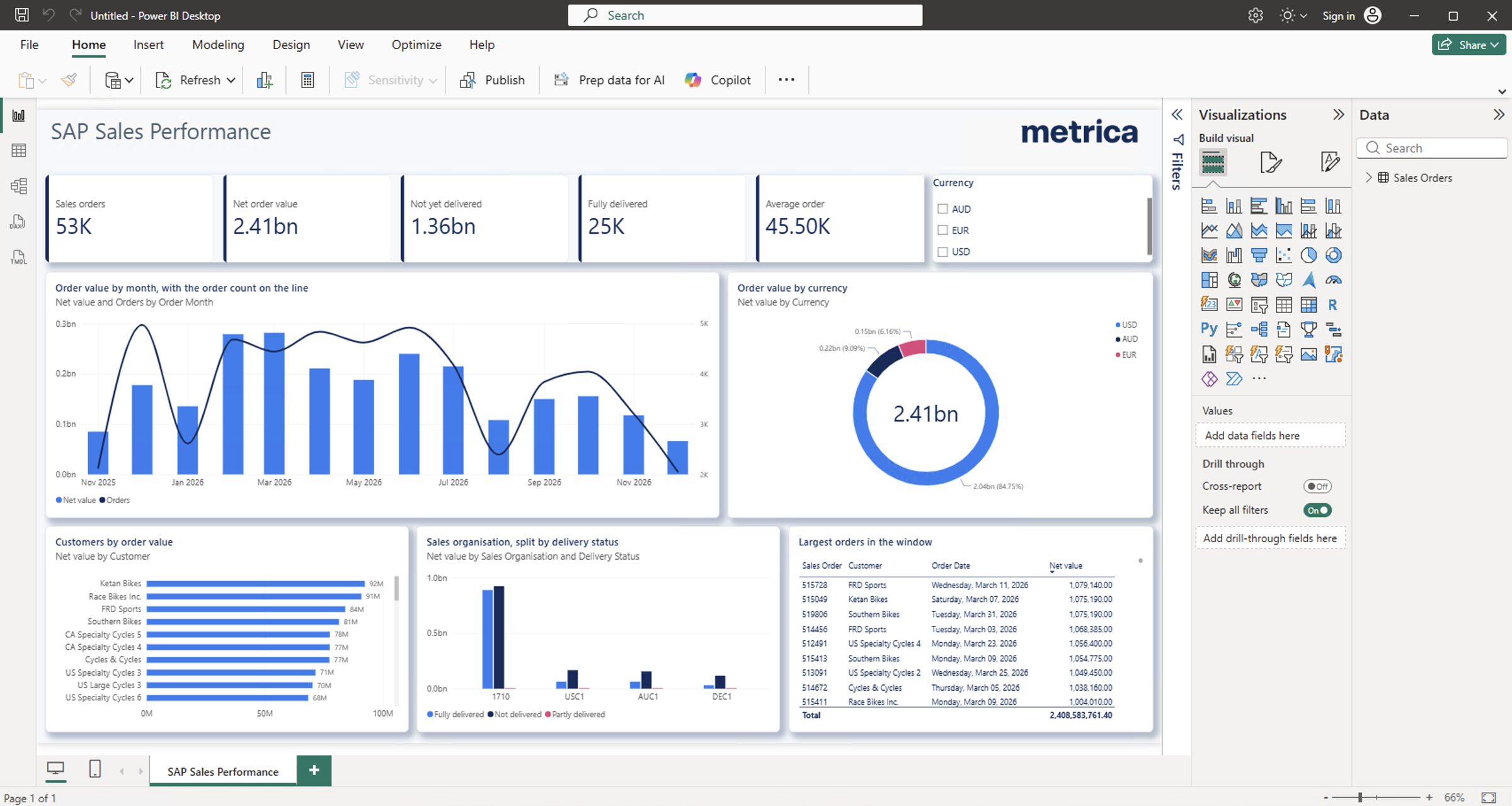
- Select Refresh on the Home tab to pull the latest data.
- Save the report as a .pbix file to keep it. The template file itself stays unchanged, so you can open it again for another report.
- To load a different period, change Months_Back: on the Home tab open the Transform data drop-down, select Edit parameters, enter the new value and refresh.
Template Reference #
Each template reads exactly the services, entity sets and fields below. The data source created in Step 2 already contains them; use this list if you edit the data source or build one by hand. SAP Sales Performance and SAP Open Orders read the same fields, so one data source serves both.
SAP Sales Performance #
Order intake, what it is worth and how much of it has shipped, over a rolling window you set when the template opens.
- Parameters: Input_URL, Months_Back
- Data source name: PBI Template – Sales Performance
- API_SALES_ORDER_SRV / A_SalesOrder: CustomerGroup, CustomerPaymentTerms, DistributionChannel, OrganizationDivision, OverallDeliveryStatus, OverallOrdReltdBillgStatus, RequestedDeliveryDate, SalesDistrict, SalesOrder, SalesOrderDate, SalesOrderType, SalesOrganization, SoldToParty, TotalNetAmount, TransactionCurrency
- API_BUSINESS_PARTNER / A_BusinessPartner: BusinessPartner, BusinessPartnerFullName
- API_BUSINESS_PARTNER / A_BusinessPartnerAddress: BusinessPartner, CityName, Country
SAP Billing and Revenue #
What was invoiced, where it went and how much of it has been cleared. Cancelled invoices are kept but never counted as revenue.
- Parameters: Input_URL, Months_Back
- Data source name: PBI Template – Billing Documents
- API_BILLING_DOCUMENT_SRV / A_BillingDocument: AccountingPostingStatus, BillingDocument, BillingDocumentDate, BillingDocumentIsCancelled, BillingDocumentType, CompanyCode, Country, CreationDate, CustomerGroup, CustomerPaymentTerms, DistributionChannel, Division, InvoiceClearingStatus, PayerParty, Region, SalesDistrict, SalesOrganization, TaxAmount, TotalGrossAmount, TotalNetAmount, TransactionCurrency
- API_BUSINESS_PARTNER / A_BusinessPartner: BusinessPartner, BusinessPartnerFullName
SAP Open Orders #
The order backlog: what has been sold, what has not shipped, and how long it has been waiting.
- Parameters: Input_URL, Months_Back
- Data source name: PBI Template – Sales Performance
- API_SALES_ORDER_SRV / A_SalesOrder: CustomerGroup, CustomerPaymentTerms, DistributionChannel, OrganizationDivision, OverallDeliveryStatus, OverallOrdReltdBillgStatus, RequestedDeliveryDate, SalesDistrict, SalesOrder, SalesOrderDate, SalesOrderType, SalesOrganization, SoldToParty, TotalNetAmount, TransactionCurrency
- API_BUSINESS_PARTNER / A_BusinessPartner: BusinessPartner, BusinessPartnerFullName
- API_BUSINESS_PARTNER / A_BusinessPartnerAddress: BusinessPartner, CityName, Country
SAP Outbound Deliveries #
Outbound logistics: volume, weight shipped, and whether goods left on the day they were planned to.
- Parameters: Input_URL, Months_Back
- Data source name: PBI Template – Outbound Deliveries
- API_OUTBOUND_DELIVERY_SRV / A_OutbDeliveryHeader: ActualGoodsMovementDate, CreationDate, CustomerGroup, DeliveryDate, DeliveryDocument, DeliveryDocumentType, DeliveryPriority, HeaderGrossWeight, HeaderNetWeight, HeaderWeightUnit, IsExportDelivery, OverallDelivReltdBillgStatus, OverallGoodsMovementStatus, PickingDate, PlannedGoodsIssueDate, SalesOrganization, ShipToParty, ShippingPoint, SoldToParty
- API_BUSINESS_PARTNER / A_BusinessPartner: BusinessPartner, BusinessPartnerFullName
SAP Procurement Activity #
Purchase order activity and supplier mix. SAP keeps no order value on the purchase order header, so this page covers activity, not spend.
- Parameters: Input_URL, Months_Back
- Data source name: PBI Template – Purchase Orders
- API_PURCHASEORDER_PROCESS_SRV / A_PurchaseOrder: AddressCityName, AddressCountry, AddressName, AddressRegion, CompanyCode, CreationDate, DocumentCurrency, Language, PaymentTerms, PurchaseOrder, PurchaseOrderDate, PurchaseOrderType, PurchasingGroup, PurchasingOrganization, PurchasingProcessingStatus, Supplier
SAP Customer Returns #
What is coming back, who is sending it and why, and how much of it is still sitting in the returns process.
- Parameters: Input_URL, Months_Back
- Data source name: PBI Template – Customer Returns
- API_CUSTOMER_RETURN_SRV / A_CustomerReturn: CreationDate, CustomerPaymentTerms, CustomerReturn, CustomerReturnDate, CustomerReturnType, DistributionChannel, HeaderBillingBlockReason, IncotermsClassification, OrganizationDivision, OverallSDProcessStatus, RetsMgmtProcessingStatus, SDDocumentReason, SalesOrganization, SoldToParty, TotalNetAmount, TransactionCurrency
- API_BUSINESS_PARTNER / A_BusinessPartner: BusinessPartner, BusinessPartnerFullName
SAP Production Orders #
Shop-floor orders: what was planned, what was confirmed, and where the yield fell short.
- Parameters: Input_URL, Months_Back
- Data source name: PBI Template – Production Orders
- API_PRODUCTION_ORDER_2_SRV / A_ProductionOrder_2: FunctionalArea, MRPController, ManufacturingOrder, ManufacturingOrderType, Material, MfgOrderActualReleaseDate, MfgOrderConfirmedYieldQty, MfgOrderCreationDate, MfgOrderPlannedEndDate, MfgOrderPlannedStartDate, MfgOrderScheduledEndDate, MfgOrderScheduledStartDate, OrderIsClosed, OrderIsConfirmed, OrderIsDelivered, OrderIsTechnicallyCompleted, ProductionPlant, ProductionSupervisor, ProductionUnit, ProductionVersion, ProfitCenter, StorageLocation, TotalQuantity
SAP Product Master #
The products a plant can plan, value and sell – and how many of the client-level catalogue never get that far.
- Parameters: Input_URL
- Data source name: PBI Template – Product Master
- API_PRODUCT_SRV / A_Product: BaseUnit, CreationDate, Division, GrossWeight, IsBatchManagementRequired, ItemCategoryGroup, NetWeight, Product, ProductGroup, ProductType, WeightUnit
- API_PRODUCT_SRV / A_ProductDescription: Language, Product, ProductDescription
- API_PRODUCT_SRV / A_ProductPlant: AvailabilityCheckType, BaseUnit, IsBatchManagementRequired, MRPResponsible, MRPType, Plant, ProcurementType, Product, ProfitCenter, PurchasingGroup
- API_PRODUCT_SRV / A_ProductValuation: BaseUnit, Currency, InventoryValuationProcedure, Product, StandardPrice, ValuationArea, ValuationClass
- API_PRODUCT_SRV / A_ProductSalesDelivery: BaseUnit, ItemCategoryGroup, Product, ProductSalesOrg
SAP Business Partners #
Who is in the business partner master, where they sit and how complete their records are.
- Parameters: Input_URL
- Data source name: PBI Template – Business Partners
- API_BUSINESS_PARTNER / A_BusinessPartner: BusinessPartner, BusinessPartnerCategory, BusinessPartnerFullName, BusinessPartnerGrouping, CreationDate, Customer, Supplier
- API_BUSINESS_PARTNER / A_BusinessPartnerAddress: AddressTimeZone, BusinessPartner, CityName, Country, Language, PostalCode, Region
- API_BUSINESS_PARTNER / A_BusinessPartnerRole: BusinessPartner, BusinessPartnerRole
- API_BUSINESS_PARTNER / A_BusinessPartnerBank: BusinessPartner
- API_BUSINESS_PARTNER / A_BusinessPartnerTaxNumber: BusinessPartner
Troubleshooting #
| What you see | What it means | What to do |
|---|---|---|
| The column … of the table wasn’t found | A field the template reads is missing from the data source. | Open the data source in the connector, add the field listed under Template Reference, save, then refresh. |
| 401 Unauthorized, or the credentials prompt returns | The token is mistyped, expired or revoked, or a method other than Basic was selected. | Select Basic and enter your email and a valid token. See Troubleshooting. |
| Empty visuals, no error | No documents fall inside the Months_Back window. | Raise Months_Back under Transform data → Edit parameters and refresh. |


