Table of Contents
Power BI Connector for Salesforce allows you to export Salesforce data into Power BI in a structured, flexible, and scalable way.
Whether you’re building dashboards, reports, or analytics workflows — this connector gives you full control over what data is exported and how it’s structured.

What You Can Do #
With the connector, you can:
- Export any Salesforce objects (standard and custom)
- Select only the fields you need
- Apply filters to limit data volume
- Define relationships between objects
- Build multiple data sources for different use cases
- Create data sources directly from your existing Salesforce reports — joined reports included
- Build and manage Power BI dashboards from your data sources
Each data source becomes a ready-to-use dataset in Power BI.

Key Features #
Flexible Data Selection #
Choose exactly what data to export:
- Objects
- Fields
- Filters
No unnecessary data — only what you need.
Reports & Dashboards #
Work directly with your existing Salesforce analytics:
- Browse Salesforce reports and turn any report into a data source in one click — including joined reports, which most connectors cannot export
- Create and manage Power BI dashboards — embed any Power BI report, including data from systems beyond Salesforce
- Track dashboard changes in Dashboards history
Entity Relationship Diagram (ERD) #
Visualize how your data is connected:
- View relationships between objects
- Explore dependencies
- Export diagrams for documentation

Data Source Management #
- Create unlimited data sources
- Edit and update configurations anytime
- Share data sources with other users
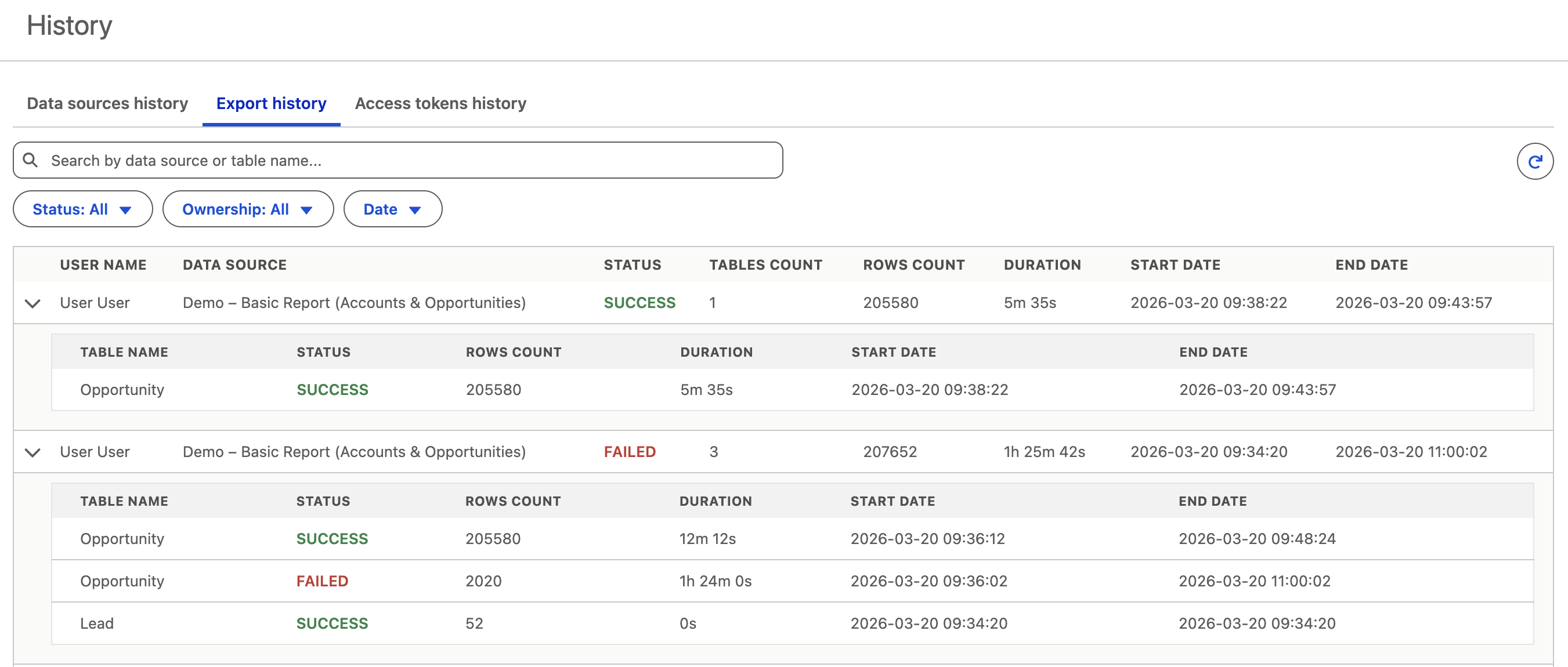
Export Monitoring #
Track and troubleshoot exports:
- View export history
- Check status and duration
- Identify failed tables
Access Token Security #
- Secure exports with access tokens
- Control token expiration
- Manage tokens per user
Performance Optimization #
Optimize how your data is exported:
- Split large datasets into smaller ones
- Use filters to reduce volume
- Apply incremental refresh
How It Works #
- Create a data source
- Select objects, fields, and filters
- Generate an access token
- Connect Power BI
- Start exporting data
New to setup? Start with How to Create Data Source.
Who Is This For? #
- Data analysts building Power BI dashboards
- Salesforce admins managing data access
- Teams needing reliable reporting from Salesforce
- Organizations working with large or complex datasets
Next Steps #
Explore step-by-step guides:
- Create your first data source
- Configure relationships
- Set up incremental refresh
- Monitor exports and performance
Browse full documentation: Power BI Connector for Salesforce Docs


