Power BI Connector for Salesforce is available through Salesforce’s Test Drive program — a quick way to try the connector with sample data, without installing anything in your own org. Use Test Drive for evaluation, demos, or to confirm the connector fits your reporting workflow before deciding to install.
Step 1: Open the AppExchange listing #
Go to the Power BI Connector for Salesforce listing on AppExchange.
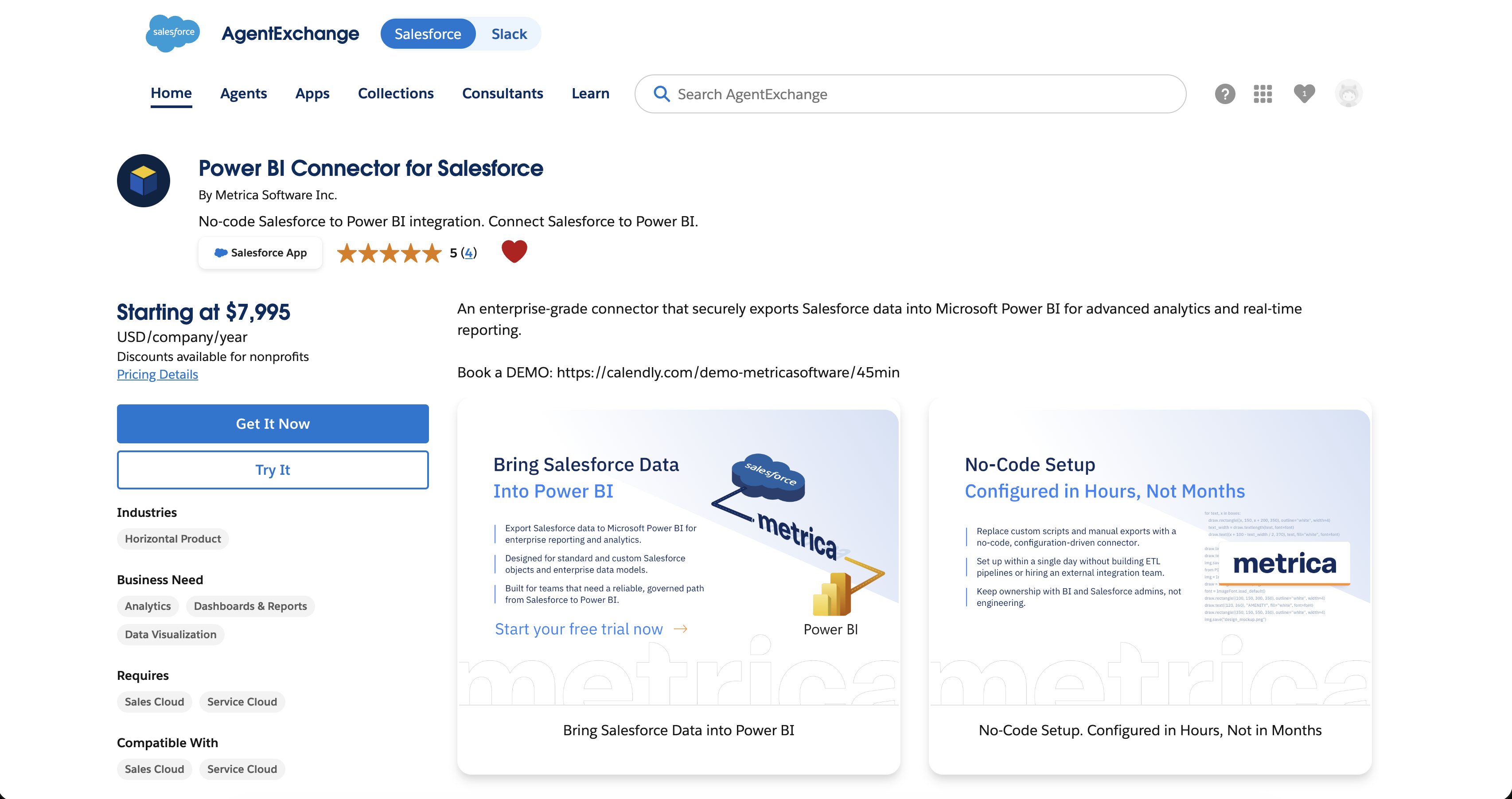
Step 2: Click “Try It” #
On the listing, click the Try It button (just below Get It Now) to start the trial flow.
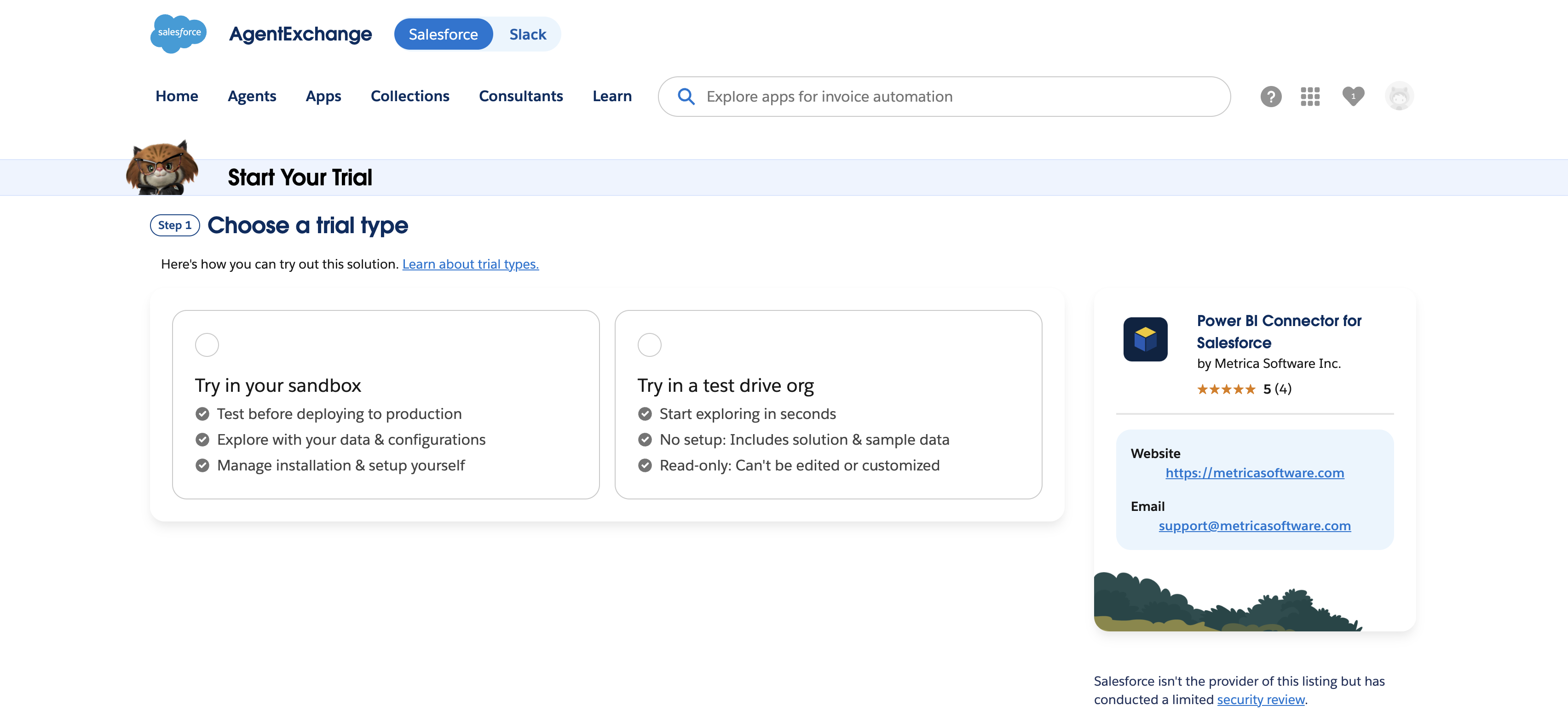
Step 3: Choose “Try in a test drive org” #
Salesforce presents two trial options:
- Try in your sandbox — installs into a sandbox of your own org. Use this if you want to test against your real Salesforce data and configuration.
- Try in a test drive org — instant access to a shared Salesforce org pre-loaded with the connector and sample data.
For evaluation, select Try in a test drive org.
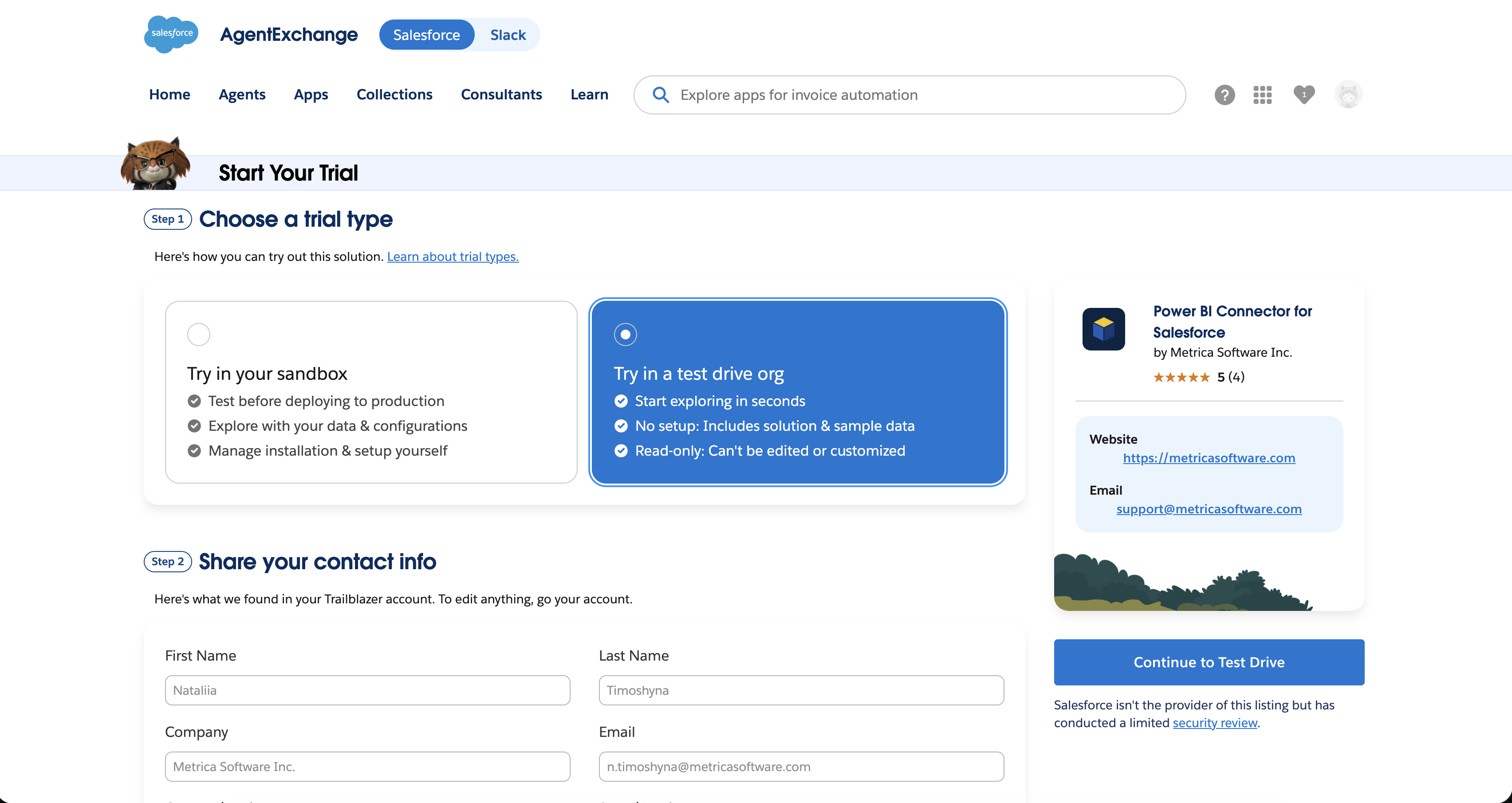
Step 4: Share your contact information #
Salesforce pre-fills your contact details from your Trailblazer account. Review them and click Continue to Test Drive.
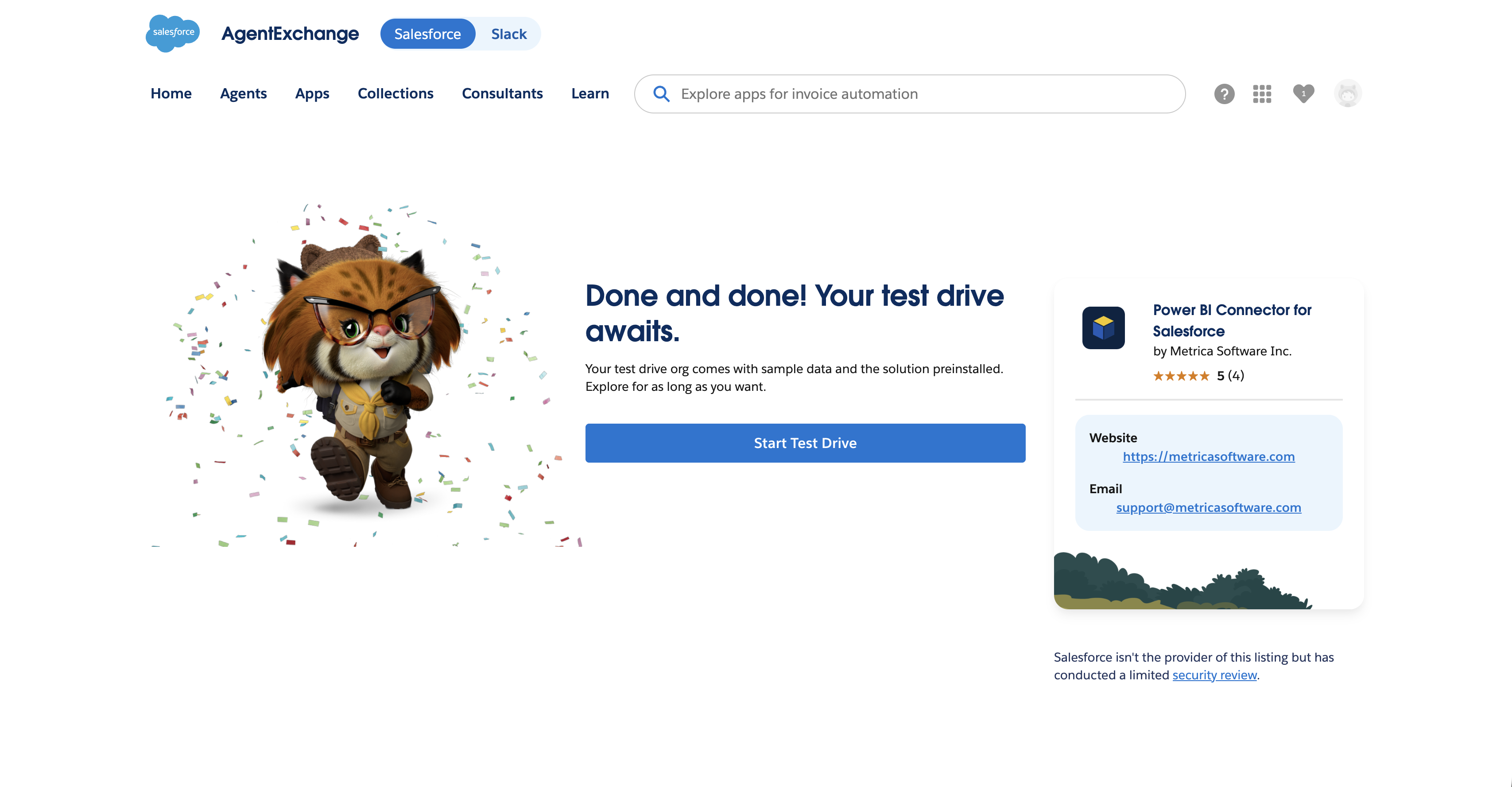
Step 5: Start the test drive #
Salesforce provisions the trial org. When it’s ready you’ll see a confirmation screen — click Start Test Drive.
What you can do in the test drive #
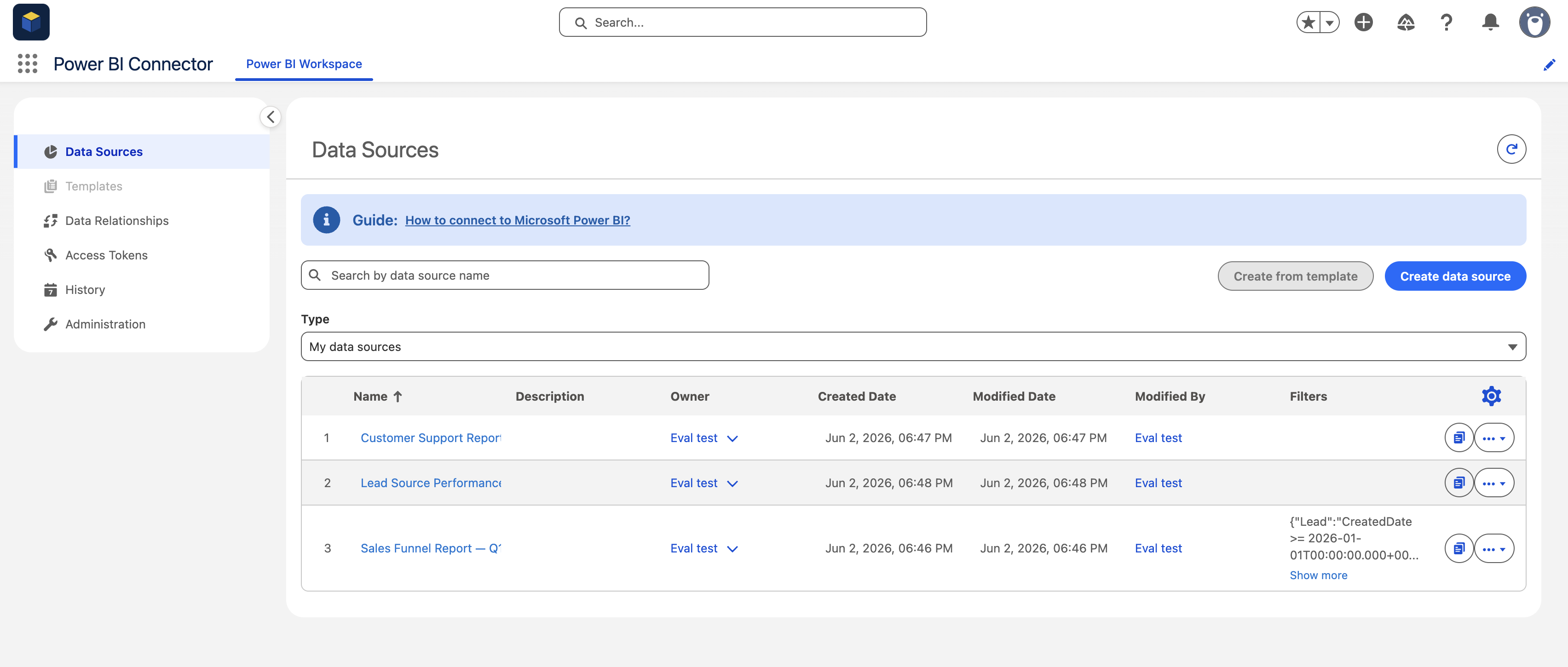
You land directly inside the Power BI Connector workspace in a sample Salesforce org. Three pre-built data sources are already there, but you’re not limited to those:
- Create new data sources from scratch.
- Edit, clone, or delete data sources — yours and the pre-built ones.
- Create access tokens.
- Connect Power BI Desktop and pull data into a report.
The How to connect to Microsoft Power BI guide linked at the top of the page walks you through that last part.
What’s limited #
- Regular-user permissions only. The evaluation account is a regular user, not a tenant administrator. Settings on the Administration page (token expiry policy, visibility into other users’ activity, and similar tenant-wide controls) aren’t available during the test drive.
- Sample data only. The data sources read sample Salesforce records, not your own org’s data.
- Shared org, limited duration. The test drive org is shared across all evaluators, and sessions expire after the time window set by Salesforce. Check the AppExchange listing for the current duration.
Ready to install? #
When you’re ready to use Power BI Connector with your own Salesforce data, see Installation.


