Salesforce Historical Trend Reporting captures how record values change over time, letting you report on historical snapshots of objects such as Opportunities and Cases. Power BI Connector for Salesforce exports this trended data alongside standard objects, so you can analyze pipeline movement, case aging, and other changes over time in Power BI.
1. Enable Historical Trending in Salesforce #
- In Salesforce Setup, search for Historical Trending (Feature Settings → Analytics → Reports & Dashboards → Historical Trending)
- Select an object — for example, Case or Opportunity
- Check Enable Historical Trending
- Optionally configure the data scope and select the fields to track
- Click Save
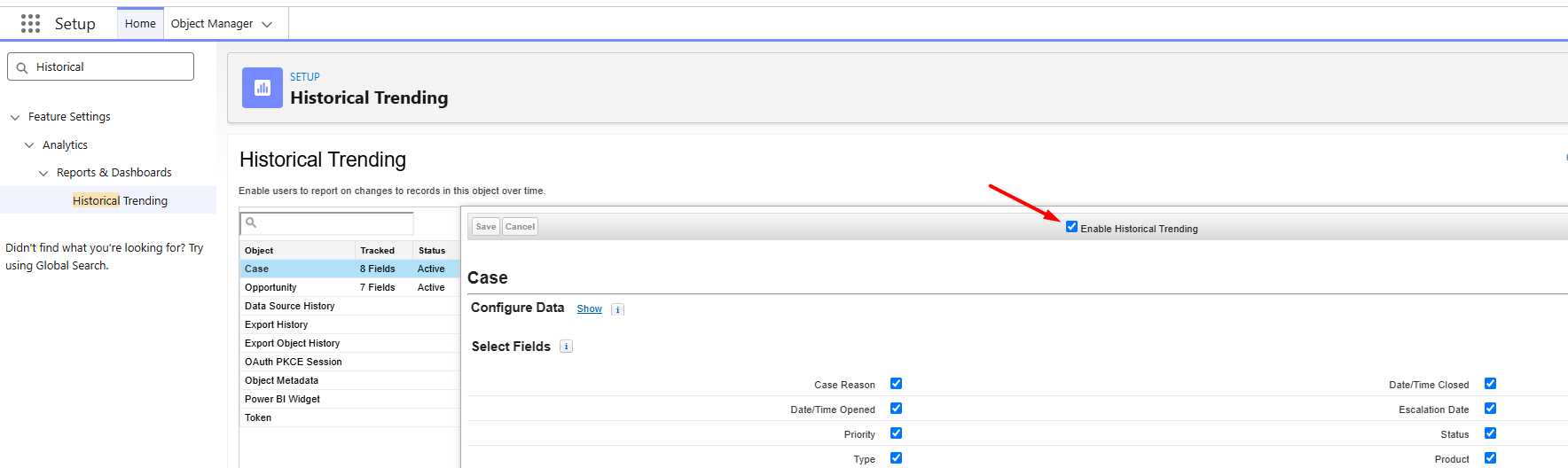
For supported objects, retention limits, and configuration details, see the official Salesforce article: Historical Trend Reporting.
2. Export Historical Data in Power BI Connector #
Once Historical Trending is enabled, the trended objects appear in the data source editor under a dedicated Historical Trending tab, named <Object> (Historical) — for example, Case (Historical) and Opportunity (Historical).
- Go to Power BI Connector → Data Sources and create or edit a data source
- Switch to the Historical Trending tab in the object list
- Select historical objects and fields the same way as standard objects
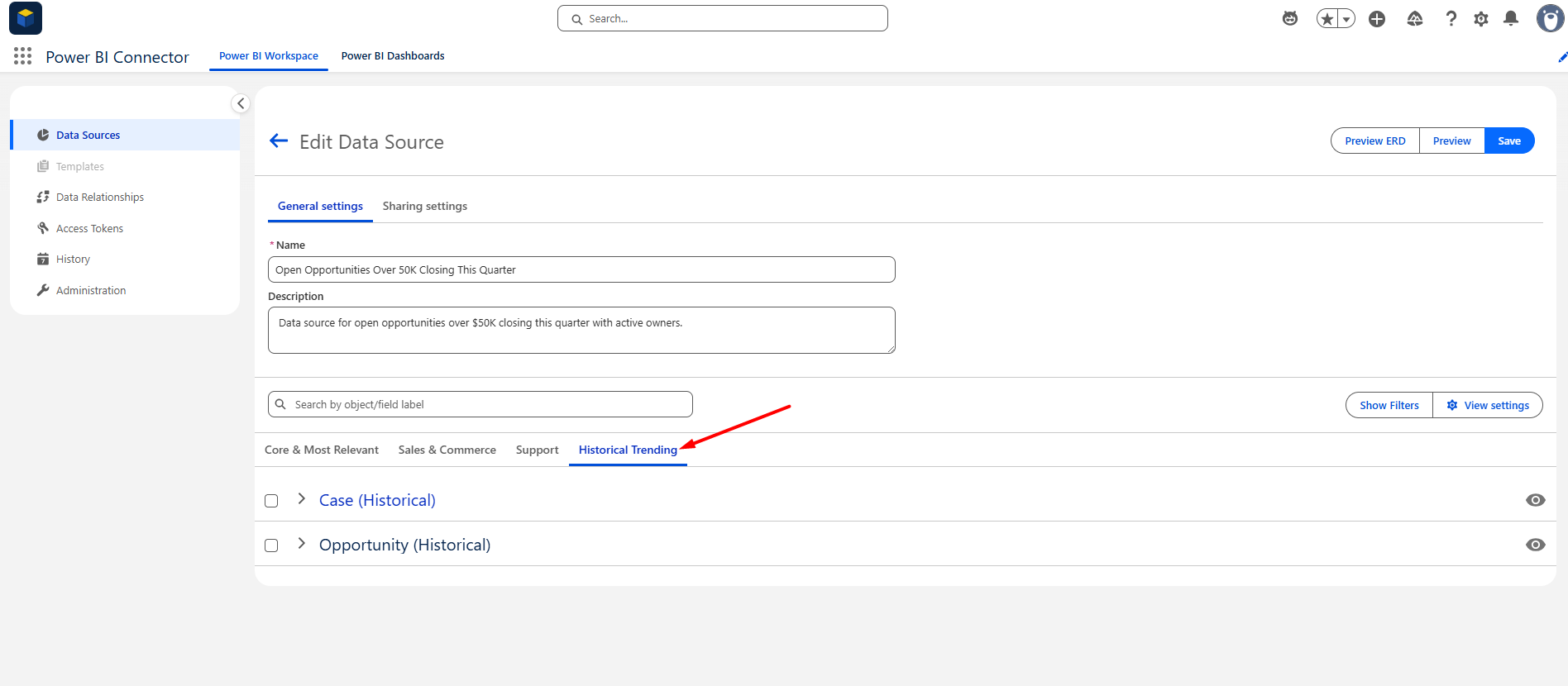
Historical objects behave like any other export: apply filters, preview the data, and connect Power BI.
💡 Notes #
- Only objects with Historical Trending enabled in Salesforce appear in the Historical Trending tab
- How far back historical data goes is controlled by Salesforce Historical Trend Reporting retention settings, not by the connector
- See What data can I export from Salesforce? for the full overview of exportable data


