Dashboard templates are ready-made Power BI reports for the most common Salesforce questions: pipeline, forecast, win/loss, leads, cases and accounts. Each template already contains the queries, the data model and a finished report page. You generate its data source in the connector, open the template in Power BI Desktop, enter two values, and the dashboard loads with your live Salesforce data.
What You Can Do #
- Get a working dashboard in a few minutes without building queries or visuals
- Generate the matching data source in one click, with every required field preselected
- Refresh the report at any time to pull current Salesforce data
- Edit the generated data source, the queries and the visuals like any other Power BI report
- Publish the report to the Power BI service and refresh it on a schedule
Before You Start #
- Power BI Desktop on Windows. Templates (.pbit files) open in Power BI Desktop only.
- An access token from Power BI Connector → Access Tokens. See Create an Access Token.
- Permission to create data sources in the connector app.
Step 1: Pick a Template #
- Open the Power BI Connector app in Salesforce.
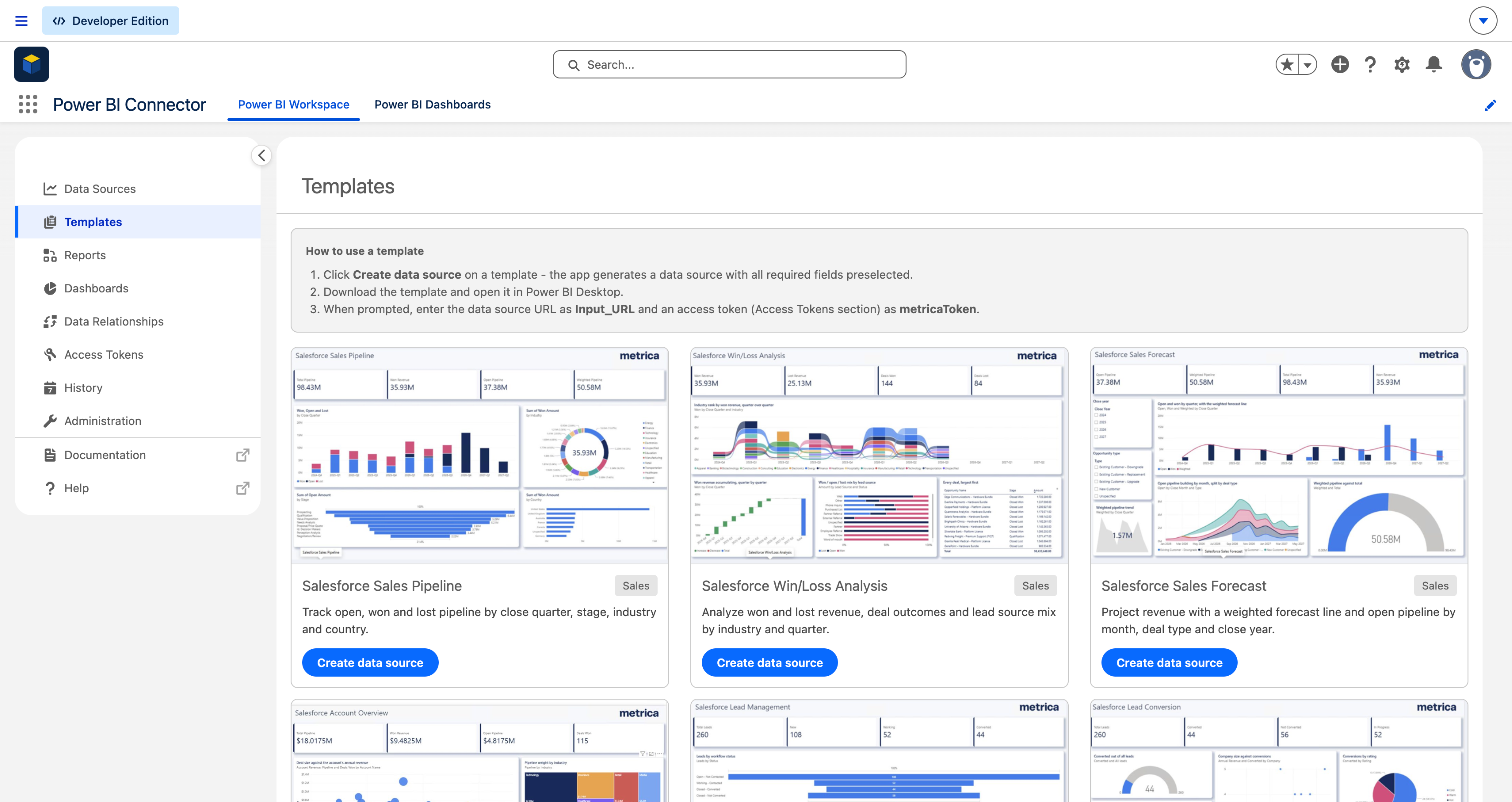
- In the left menu, click Templates.
- Each card shows a preview of the dashboard, its area (Sales, Leads, Service or Accounts) and what it answers. Click Create data source on the template you want.
Step 2: Generate the Data Source #
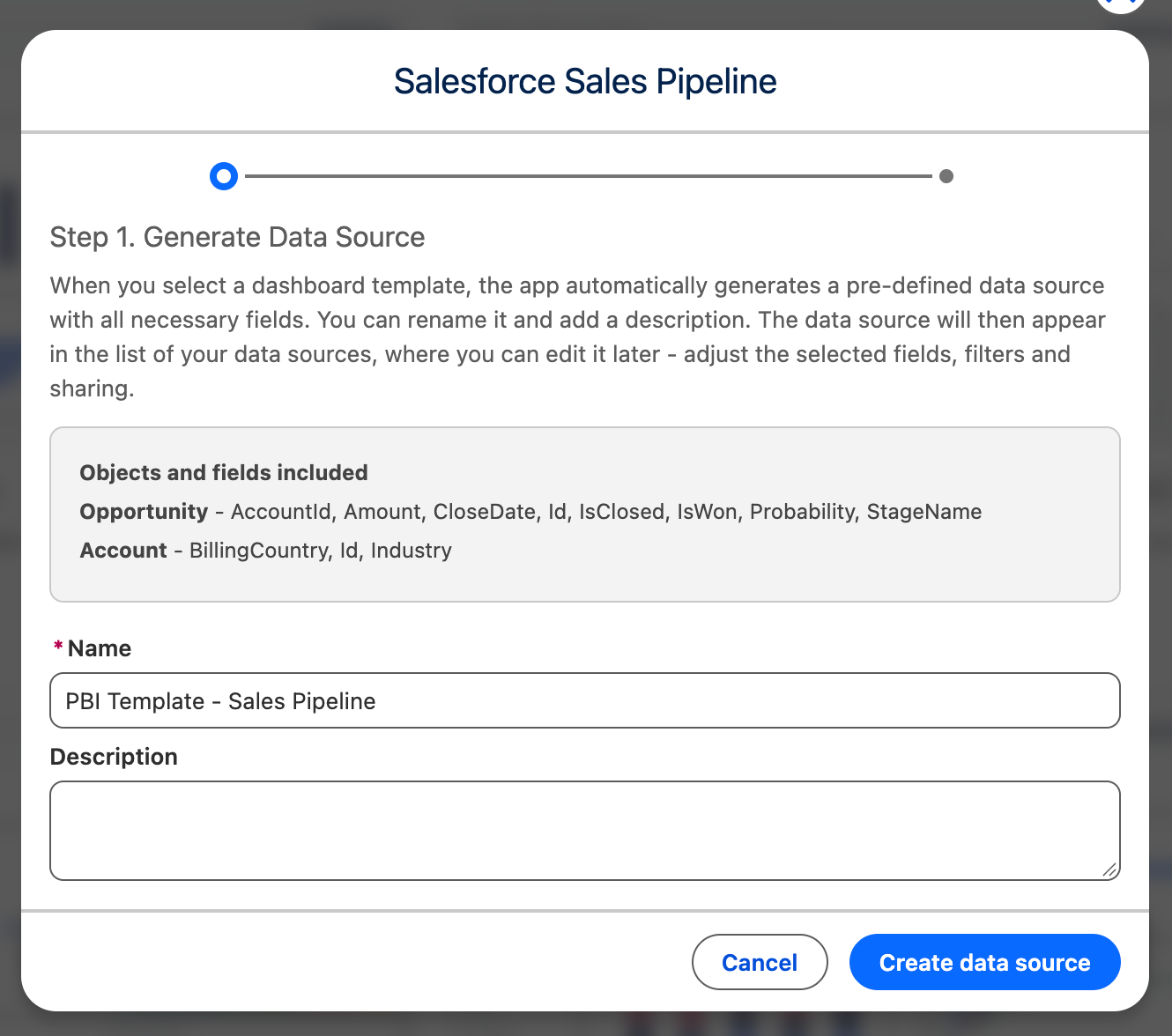
The dialog lists the Salesforce objects and fields the template needs. The app creates a data source with exactly these fields selected.
- Keep the suggested Name or change it. Optionally add a Description.
- Click Create data source.
Step 3: Copy the URL and Download the Template #
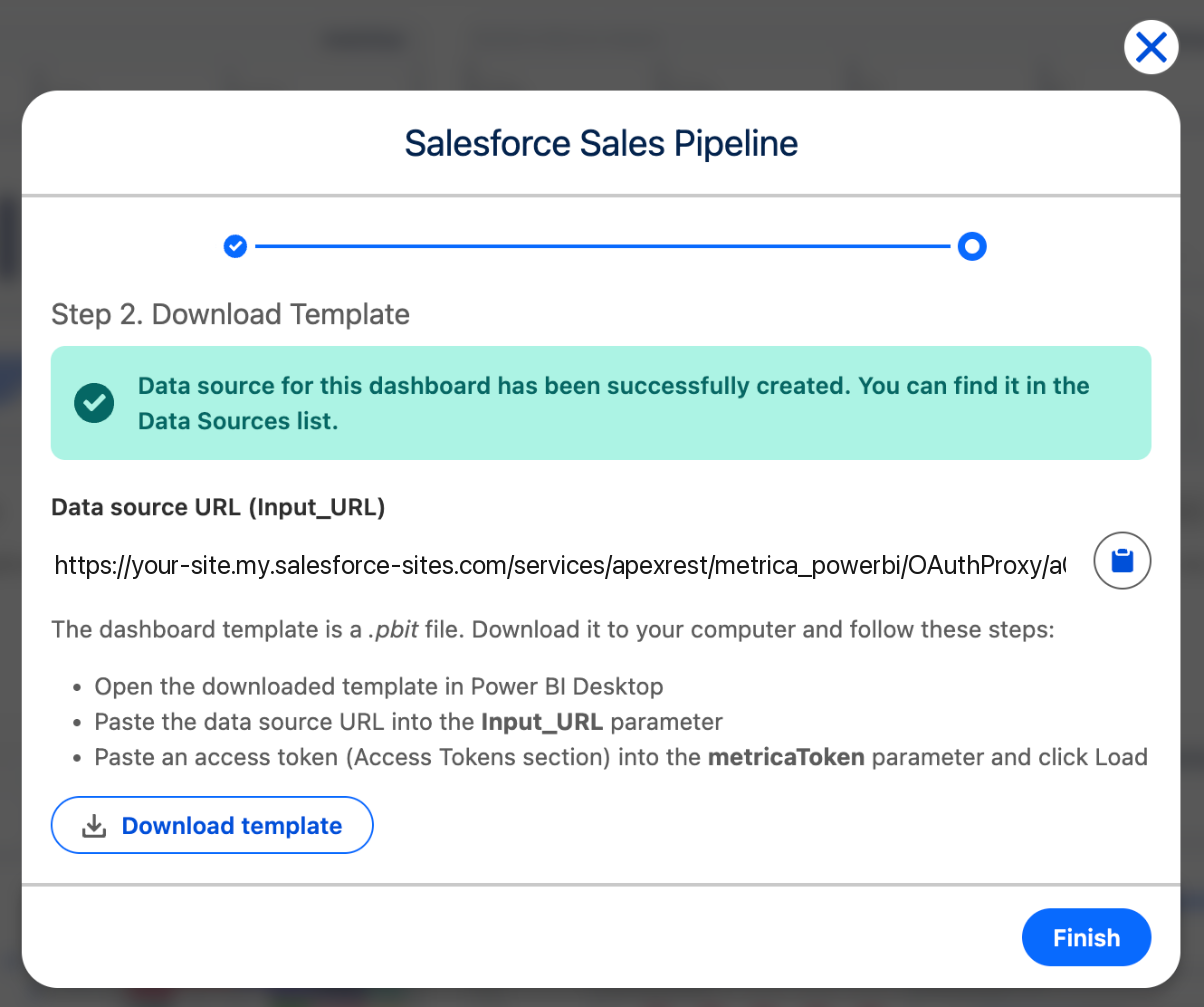
- Click the Copy button next to Data source URL (Input_URL). You will paste this URL into Power BI in the next step.
- Click Download template to save the .pbit file.
- Click Finish.
Step 4: Open the Template in Power BI Desktop #
Double-click the downloaded .pbit file, or use File → Open report in Power BI Desktop. Opening a template creates a new, untitled report; the template file itself is never changed, so you can reuse it.
Power BI asks for two values before it loads anything:
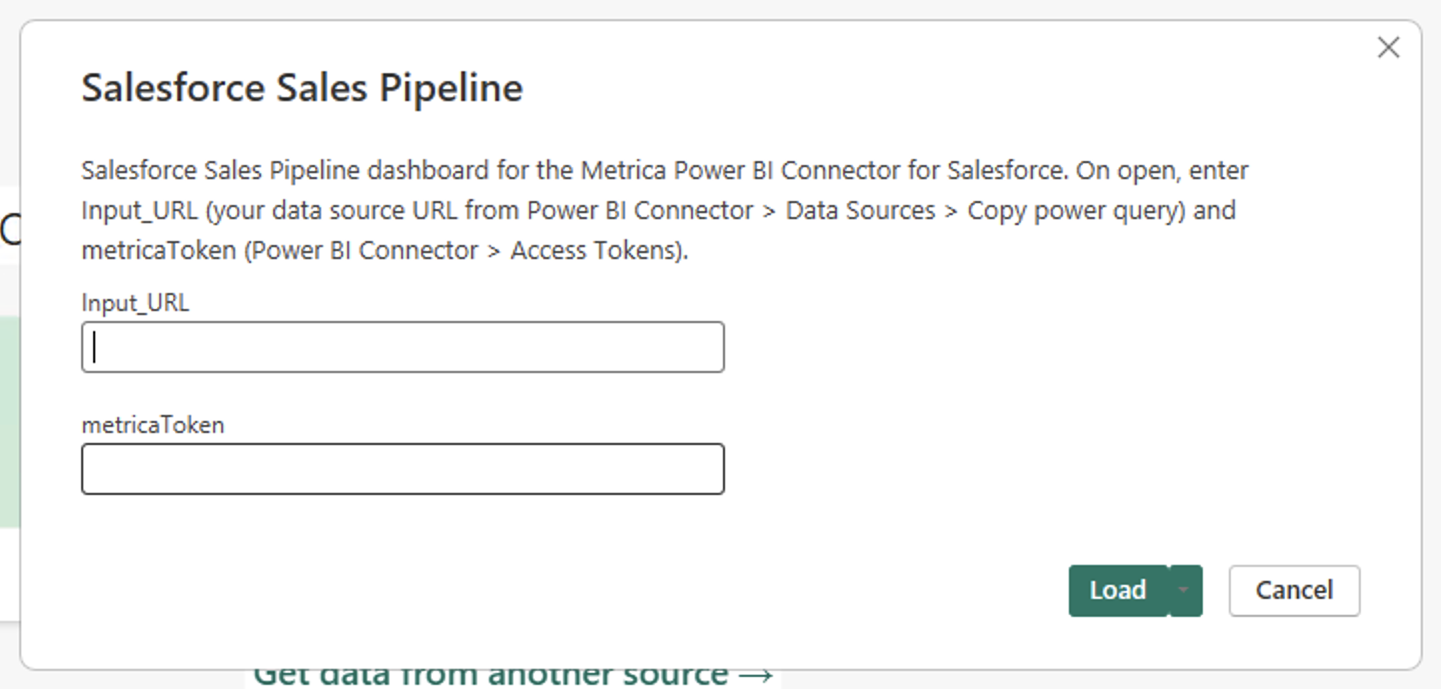
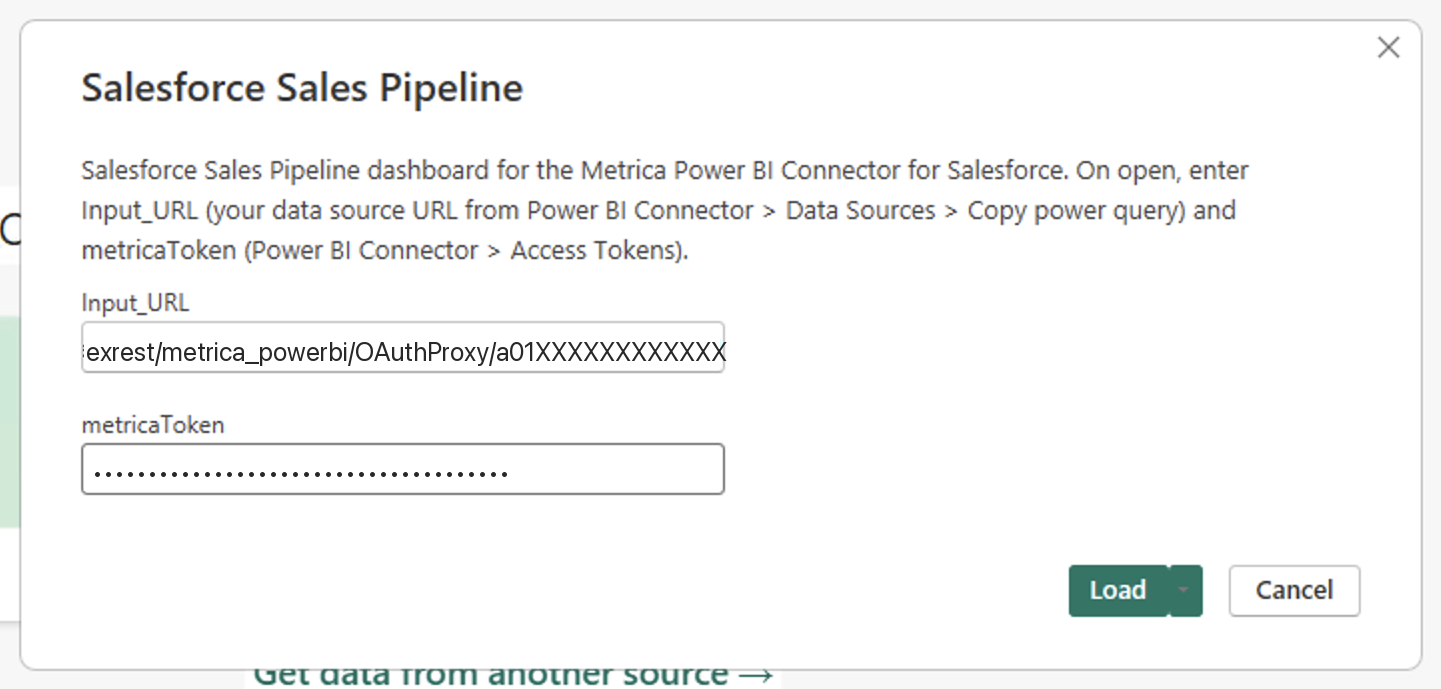
- Input_URL: paste the data source URL you copied in Step 3.
- metricaToken: paste your access token.
- Click Load.
Step 5: Choose Anonymous if Asked #
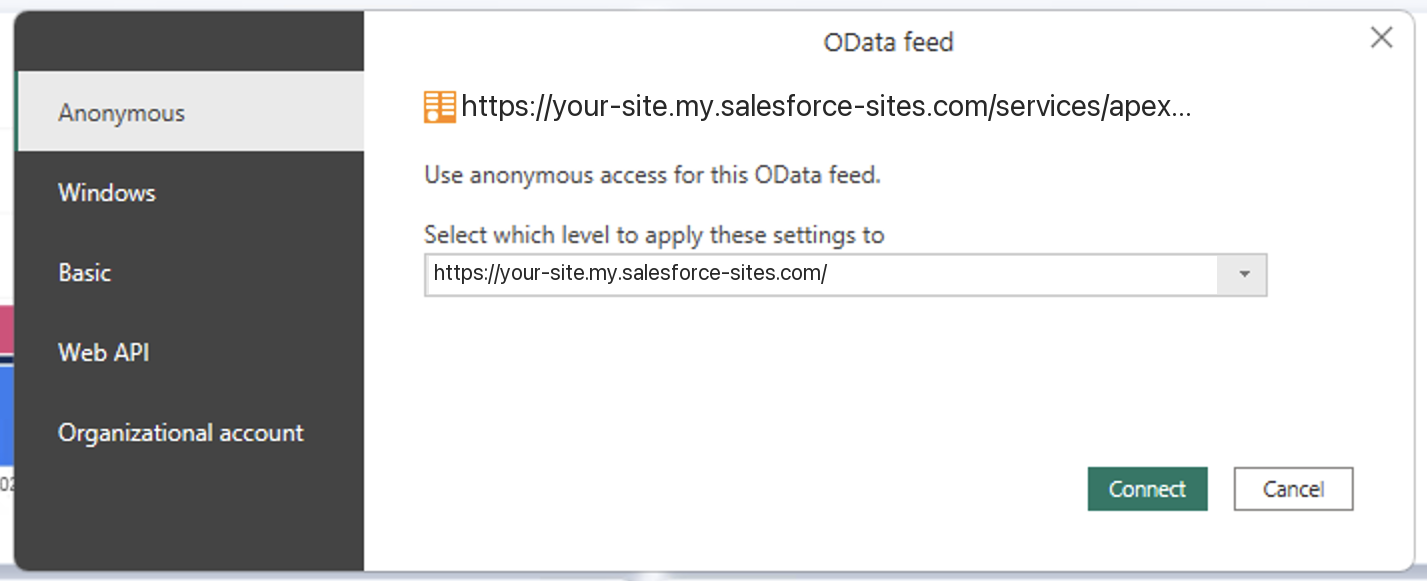
On a computer that has not connected to this data source URL before, Power BI asks how to authenticate.
- Select Anonymous.
- Click Connect.
The Dashboard Loads #
Power BI queries your Salesforce org through the data source and builds the model. Loading takes from a few seconds to a minute depending on the number of records.
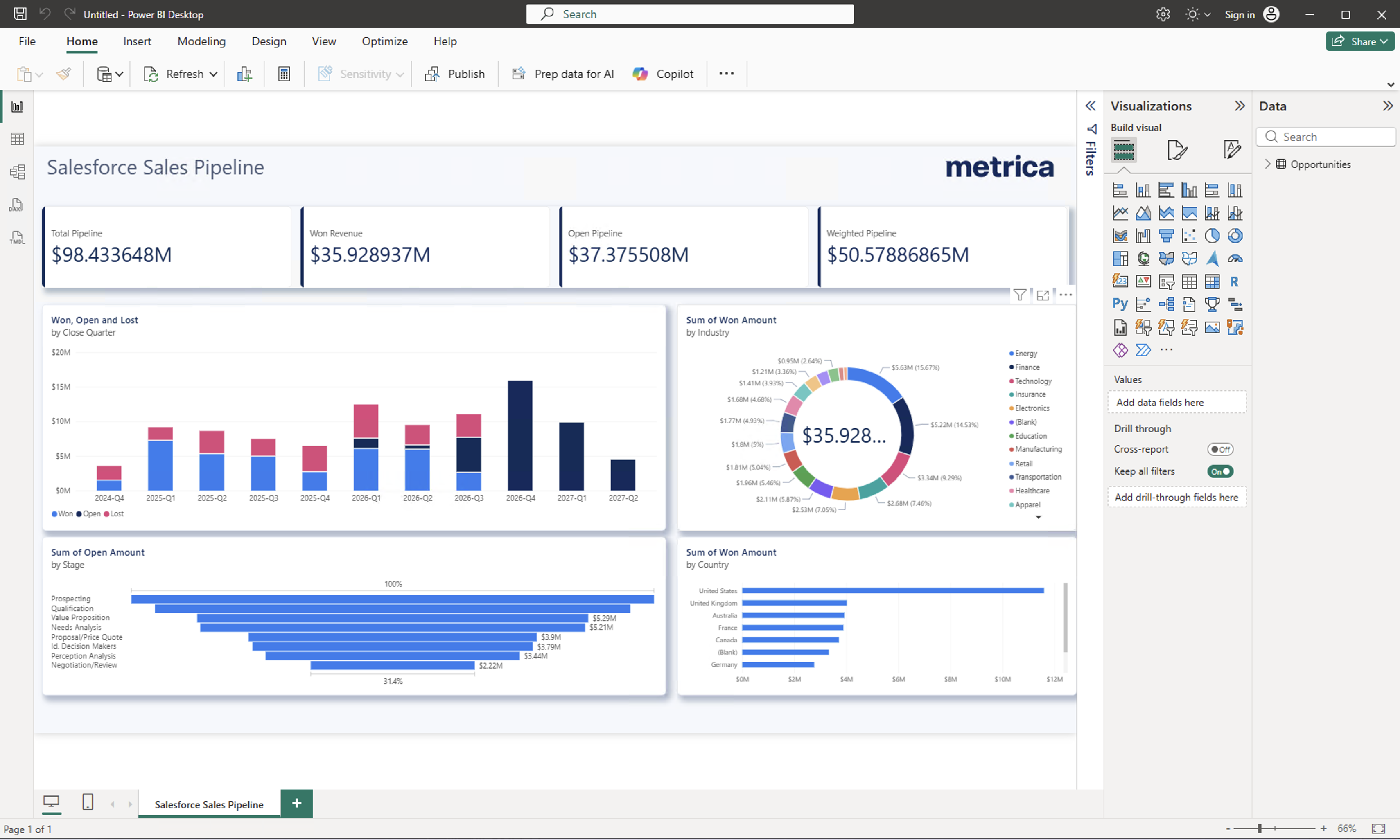
This is a live connection, not a snapshot. Click Refresh on the Home tab to pull the latest data. Save the report as a .pbix file to keep it; the next time you open the .pbit you will be asked for the two values again.
Updating the Token #
When your access token expires or is revoked, create a new one and put it into the report’s parameter: on the Home tab open the Transform data drop-down → Edit parameters, replace metricaToken, click OK and refresh. In the Power BI service the same parameter is under the semantic model Settings → Parameters.
Template Reference #
Each template reads exactly the objects and fields below. The generated data source already contains them; use this list if you edit the data source or build one by hand.
Salesforce Sales Pipeline #
Sales. Track open, won and lost pipeline by close quarter, stage, industry and country.
- Opportunity: AccountId, Amount, CloseDate, Id, IsClosed, IsWon, Probability, StageName
- Account: BillingCountry, Id, Industry
Salesforce Win/Loss Analysis #
Sales. Analyze won and lost revenue, deal outcomes and lead source mix by industry and quarter.
- Opportunity: AccountId, Amount, CloseDate, Id, IsClosed, IsWon, LeadSource, Name, StageName
- Account: Id, Industry
Salesforce Sales Forecast #
Sales. Project revenue with a weighted forecast line and open pipeline by month, deal type and close year.
- Opportunity: Amount, CloseDate, Id, IsClosed, IsWon, Probability, StageName, Type
Salesforce Account Overview #
Sales. Compare pipeline and won revenue across accounts, with deal size against account annual revenue.
- Opportunity: AccountId, Amount, Id, IsClosed, IsWon
- Account: AnnualRevenue, Id, Industry, Name
Salesforce Lead Management #
Leads. Monitor lead flow by workflow status, rating, source, industry and country.
- Lead: Company, Country, Id, Industry, LeadSource, Rating, Status
Salesforce Lead Conversion #
Leads. Measure conversion across the funnel, with drop-off and conversions by rating, company size and revenue band.
- Lead: AnnualRevenue, Company, Id, Rating, Status
Salesforce Case Management #
Service. Follow cases by workflow status, priority, channel and escalation reasons.
- Case: AccountId, Id, Origin, Priority, Reason, Status
- Account: Id, Name
Salesforce Support Workload #
Service. See case load by account, open against closed by reason, and priority mix by case type and channel.
- Case: AccountId, Id, Origin, Priority, Reason, Status, Type
- Account: Id, Name
Salesforce Account Portfolio #
Accounts. Review the account base by rating, industry, country and account type, including hot accounts.
- Account: AnnualRevenue, BillingCountry, Id, Industry, Name, NumberOfEmployees, Rating, Type
Salesforce Account Value #
Accounts. Size the account base by annual revenue and employees, split by revenue band, country and industry.
- Account: AnnualRevenue, BillingCountry, Id, Industry, NumberOfEmployees, Rating, Type
Troubleshooting #
| What you see | What it means | What to do |
|---|---|---|
| We expected a property … but the OData service omitted it | A field the template uses is missing from the data source. | Open the data source in the connector app and add the field listed above, then refresh. |
| 400 Bad Request or Missing user key | The token is missing, mistyped, expired or revoked. | Create a new token and update the metricaToken parameter. |
| A credentials prompt that does not accept the token | The wrong authentication method is selected. | Choose Anonymous. |
| Empty visuals, no error | The data source returned no rows. | Check the filters on the data source and that your Salesforce user can see the records. |
| (Blank) appears in a chart | Some records have no value in that field, for example accounts without an Industry. | This is real data. Fill the field in Salesforce or filter the blank category in the visual. |


