Access to Power BI Connector for HubSpot is granted through HubSpot’s Connected apps settings. A HubSpot Super Admin decides which HubSpot users can sign in to the connector and what role they get inside it. Once granted access, a user signs in to the connector with their existing HubSpot credentials — there is no separate account to create.
Roles #
The connector has two roles:
- User — sign in, create and edit personal data sources, share them with other HubSpot users in the same portal, create personal access tokens, view your own activity history.
- Admin — everything a User does, plus account-wide settings on the Administration page (for example, the token expiry policy) and visibility into other users’ activity. See Create a data source for the admin’s cross-account visibility on data sources, and Configure the token expiry policy for the Administration-page settings.
Add or remove users (HubSpot Super Admin) #
Only HubSpot Super Admins can manage the connector’s user list. Open HubSpot’s Settings → Integrations → Connected apps, find Power BI Connector for HubSpot, and manage its users from there. You can grant any HubSpot user access to the connector and assign them either the User or Admin role.
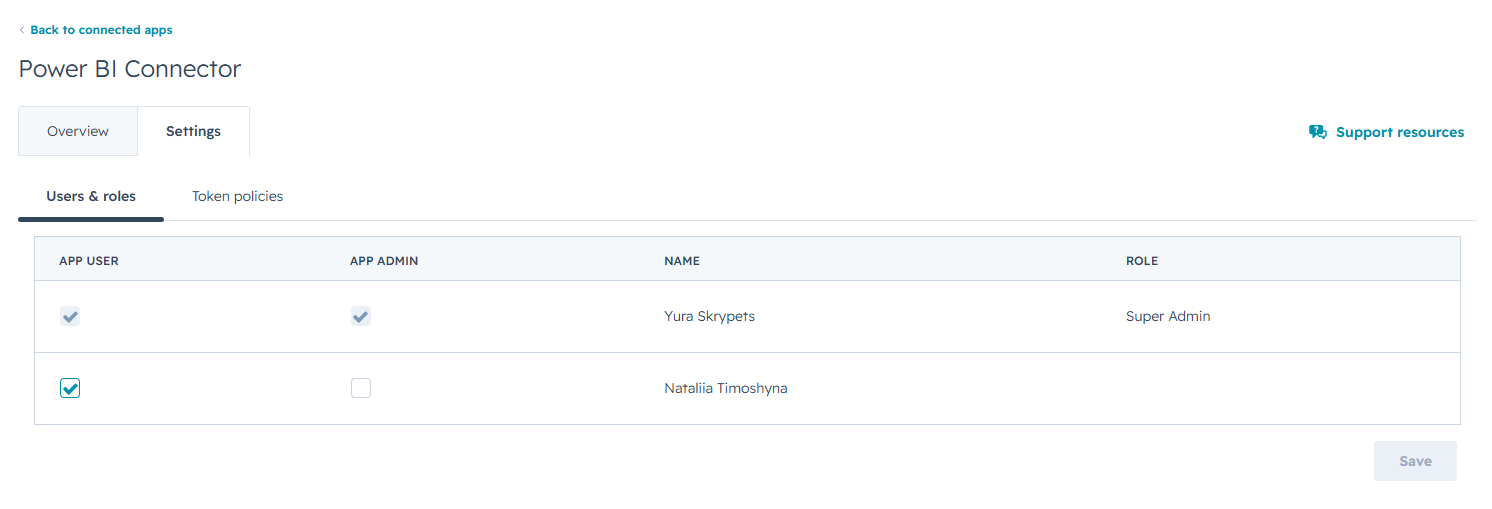
For the general HubSpot mechanics of managing connected-app users and permissions, see HubSpot’s own documentation: Connected apps in HubSpot.
The connector’s own Admin role does not include the ability to add or remove users — admins inside the connector have to ask a HubSpot Super Admin for changes to the user list.
Where to check your role #
Open the Administration item in the connector’s left navigation. If you can see it, you have the Admin role. If you can’t, you have the User role.


