Power BI Connector for HubSpot installs into your HubSpot portal as a UI Extension. Installation is a one-time action that requires a HubSpot Super Admin in the target portal.
Before you start #
- You’re a Super Admin (or have App Marketplace install permission) in the HubSpot portal where you want the connector to run.
- Your HubSpot subscription includes the Hubs whose data you want to query (Sales, Marketing, Service, Operations, Commerce). The connector reads whatever your portal makes available.
- You have a Power BI Desktop installation and an account that can publish to a Power BI workspace.
Step 1 — Install from HubSpot Marketplace #
Sign in to HubSpot and visit the connector’s listing on the HubSpot Marketplace. Click Install app and follow the prompts. HubSpot walks you through:
- Selecting the destination portal (if you manage more than one).
- Reviewing the OAuth scopes the connector requests — these control what HubSpot data the connector can read. Approve to continue.
- Confirming the install.
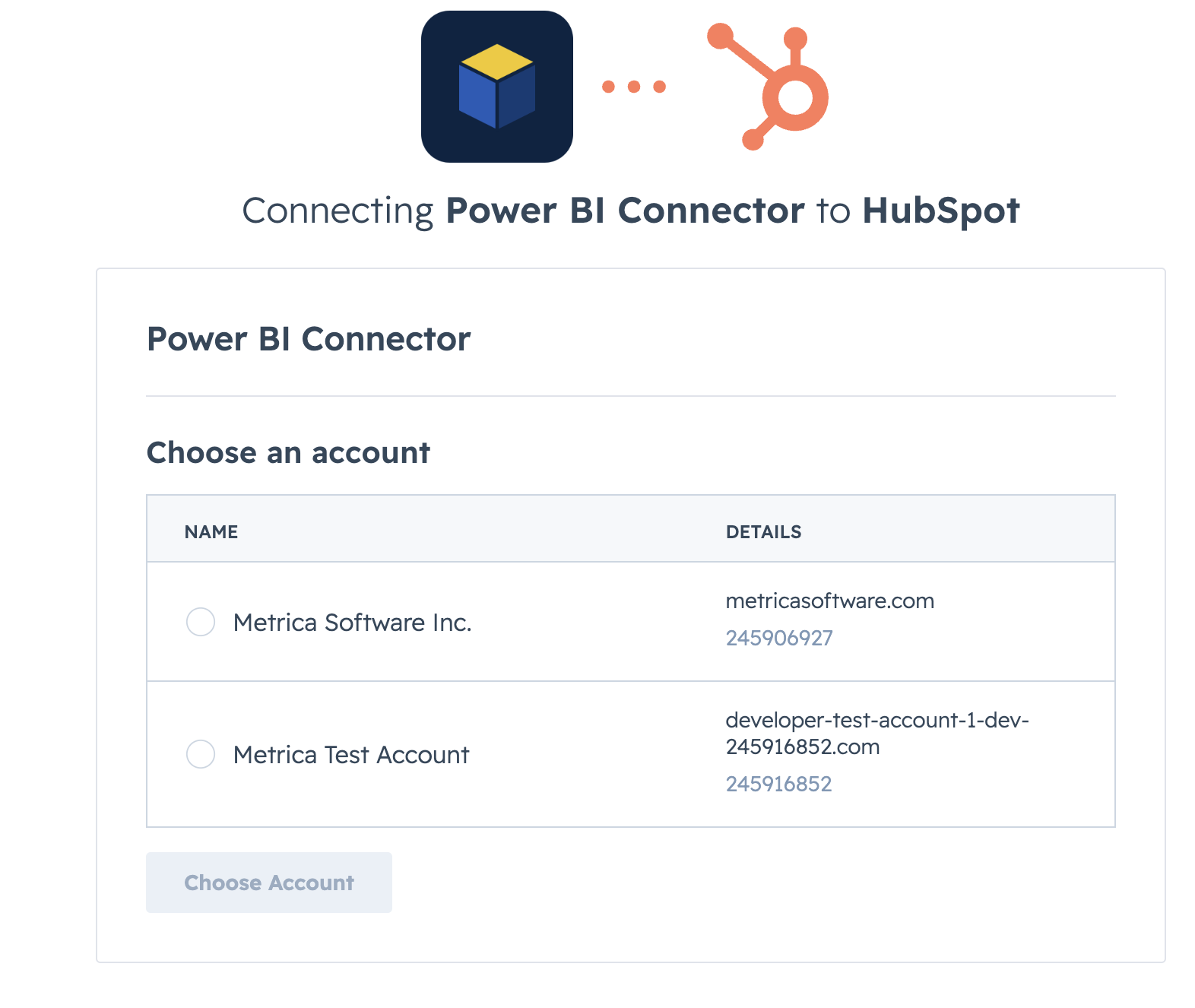
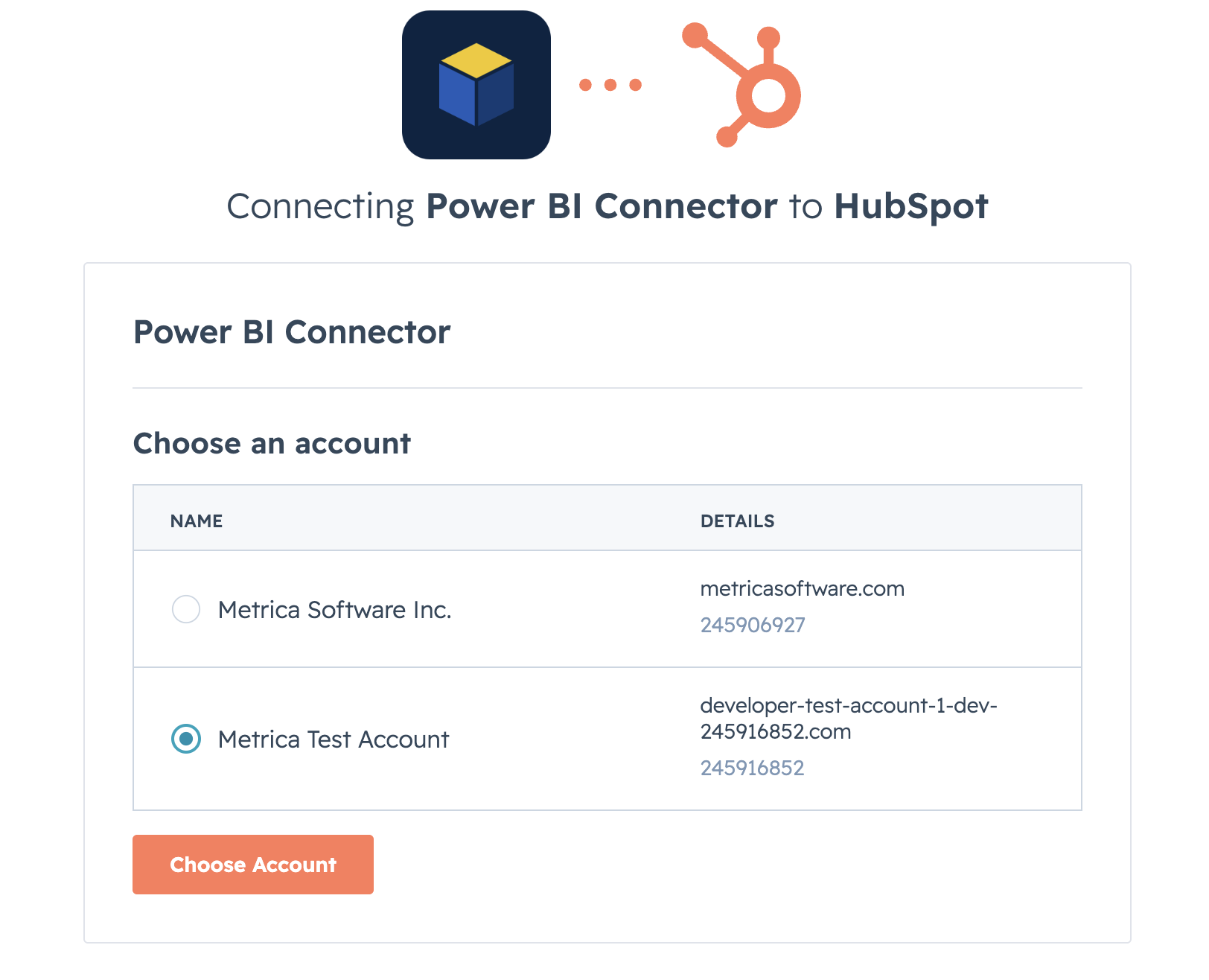
The OAuth scopes are read-only and scoped to the data you select. The connector does not write back to HubSpot.
Step 2 — Open the connector #
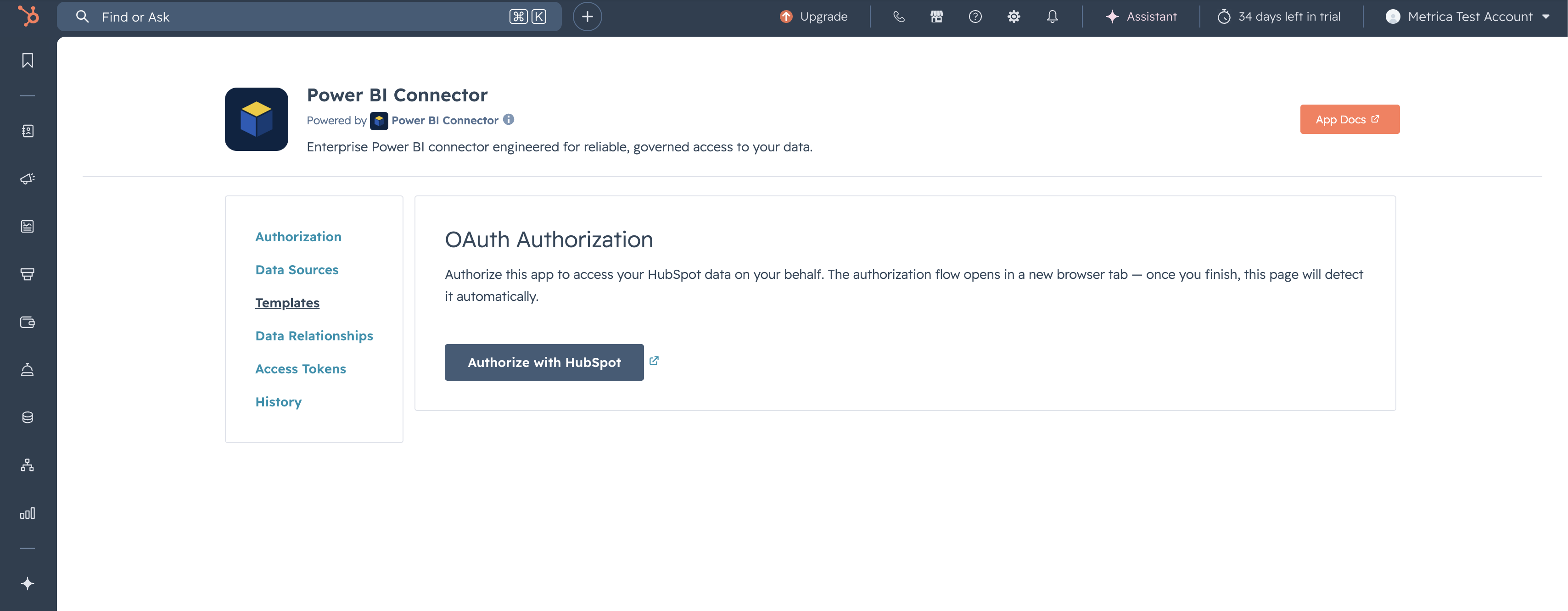
After install, HubSpot lands you on the connector inside the app. You can re-enter it later from HubSpot Apps in the main HubSpot navigation. The URL pattern is app-na*.hubspot.com/app/.
Step 3 — Grant connector roles (optional) #
By default, the HubSpot Super Admin who installed the connector becomes its Admin. Other HubSpot users can sign in to the connector immediately as users — they can build their own data sources and create their own access tokens. If you want to grant additional connector-admin rights, see Application Permissions Setup.
Step 4 — Build your first data source #
You’re ready. Follow the Quickstart to create your first data source and load it into Power BI Desktop.
Uninstalling #
To remove the connector, go to HubSpot Settings → Integrations → Connected Apps, find Power BI Connector for HubSpot, and click Uninstall. This:
- Revokes the OAuth grant.
- Stops the connector from reading any HubSpot data.
- Existing OData URLs will start returning 401 on the next Power BI refresh.
Data sources, tokens, and history records are retained on the Metrica side for 30 days in case you reinstall, then deleted.


