Metrica
Metrica
✕
  • Home
  • Products
    • Power BI Connector for Salesforce
    • Power BI Connector for SAP
  • Resources
    • Blog
    • Trust Center
Explore Products

Home - Metrica Docs - Browse and Search the Data Sources List

Getting Started

  • Welcome
  • Installation Guide
  • Quickstart — from Zero to a Power BI Report
  • Explore Power BI Connector for HubSpot

User Guide

  • Create a Data Source
  • Connect Power BI Desktop
  • Schedule Refresh in Power BI Service
  • Edit a Data Source
  • Filter Rows
  • Preview Data
  • Preview the Associations Map
  • Clone a Data Source
  • Share a Data Source
  • See What’s Been Shared with You
  • Transfer Data Source Ownership
  • History
  • Explore Associations
  • Browse and Search the Data Sources List
  • Delete a Data Source

Admin Guide

  • Create an Access Token
  • Manage Access Tokens
  • Configure the Token Expiry Policy
  • Application Permissions Setup

FAQ & Troubleshooting

  • Troubleshooting
  • How many data sources can I create?
  • Why is the URL of every data source different?
  • Can I change the data source URL after creation?
  • Can I use the OData URL outside Power BI?
  • Why do I get 401 from the Power BI service after a successful Desktop refresh?
  • Why does the connector limit me to 5 active tokens?
  • What happens if I lose a token?
  • Can a tenant admin see the value of my access tokens?
  • Will the recipient see my access token if I share with them?
  • Can I share a data source with a user from a different tenant?
  • What happens to a shared data source if I leave the company?
  • How is Preview Associations Map different from Data Relationships?
  • Why does the Basic filter editor sometimes disable itself?
  • Why doesn’t the connector cache HubSpot data?
  • Why are my HubSpot datetimes showing in UTC?
  • What happens if I delete or archive a HubSpot property?
  • Why are HubSpot API limits showing up in my refresh errors?
  • What’s the difference between a HubSpot Private App and OAuth connection?

Support

  • Contact Support
  • Pricing and Licensing
  • Subscription Plans and Trial Limits
  • Data Security and Privacy Statement
  • End-User License Agreement
  • Service Level Agreement (SLA)
View Categories
  • Metrica Docs
  • Power BI Connector for HubSpot Documentation
  • User Guide

Browse and Search the Data Sources List

1 min read

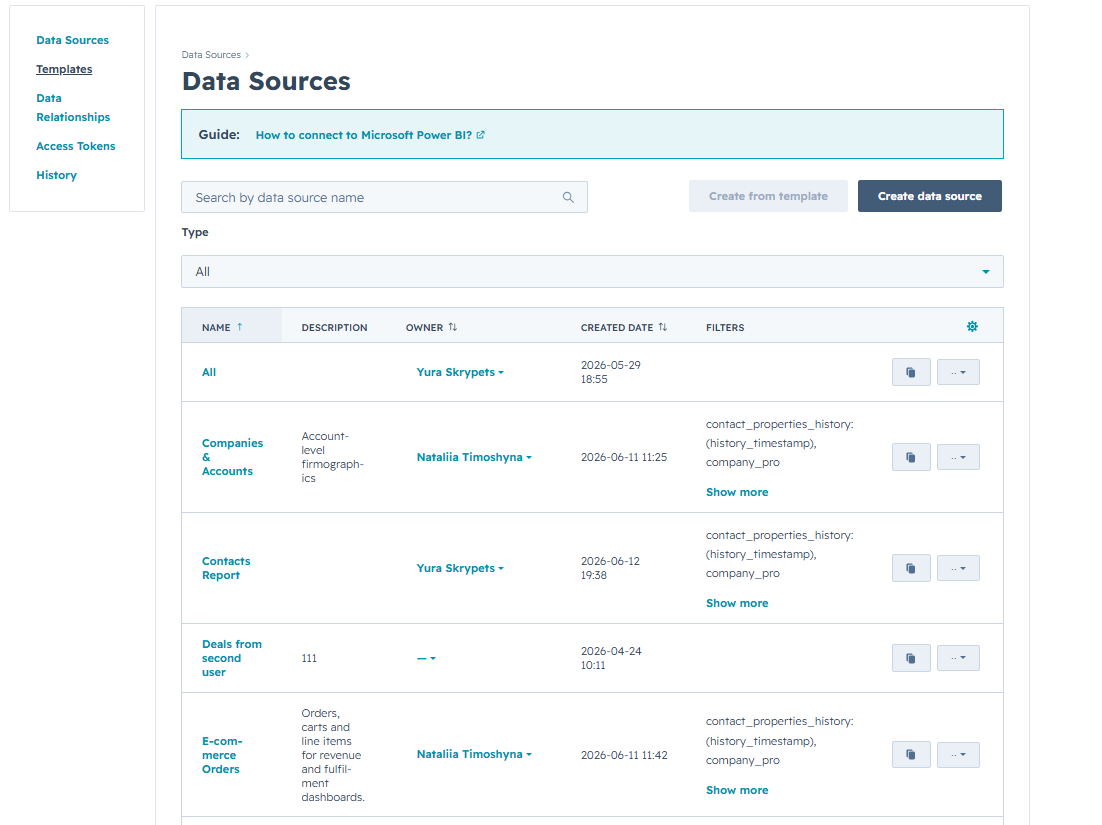
The Data Sources page is where you spend most of your time when you have more than a handful of data sources. This page covers the controls in the list toolbar — filter, search, and column visibility.

browse list 01 multi row

Filter by ownership #

The Type selector at the top of the toolbar slices the list by who owns each row.

browse list 02 type filter open

  • My data sources (default) — rows you own. You can edit, share, delete, or transfer ownership of these.
  • Shared with me — rows owned by other users who have shared them with you. Read-only from your side. See See what’s been shared with you.
  • All — union of the two. The owner column tells you who created each row.

Search #

The Search box matches by name, description, ID, and OData URL. Matching is case-insensitive and substring-based.
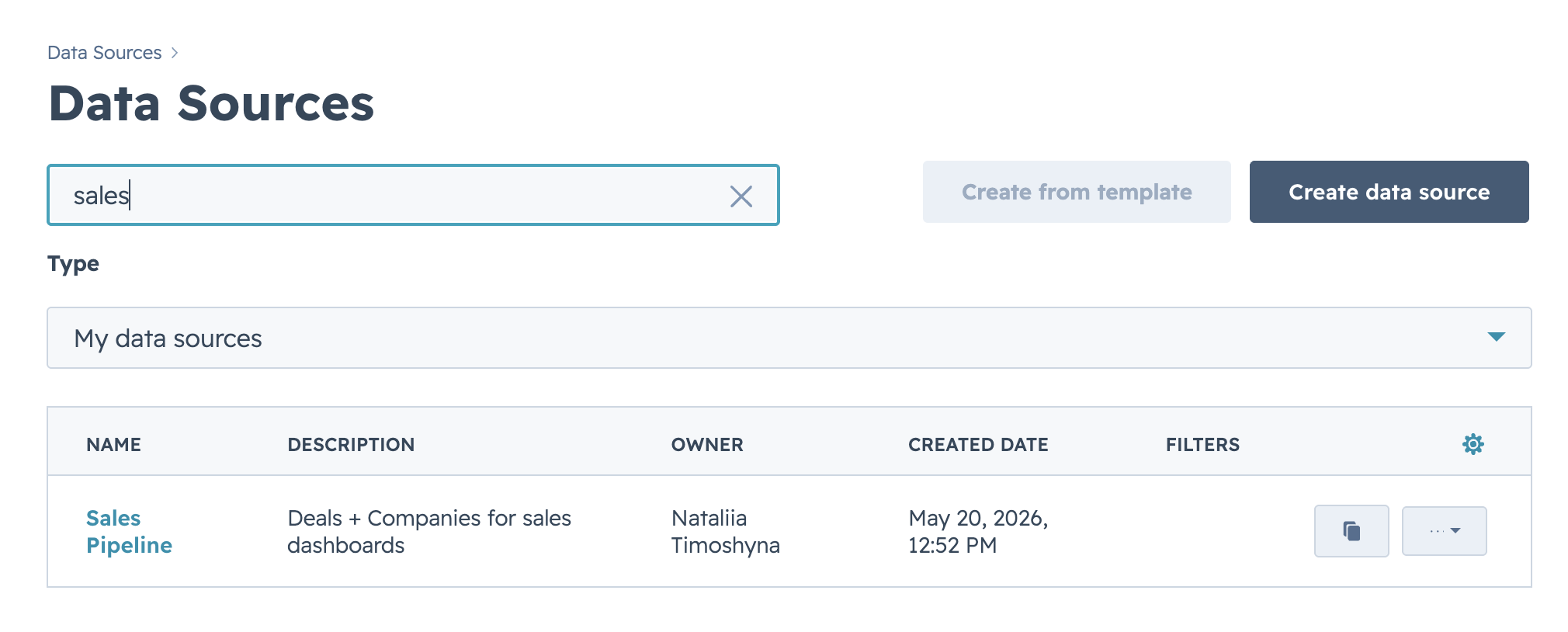
browse list 03 search filtered

The search box and the Type selector compose: a search query is applied after the ownership slice. Switch to All if you can’t find what you expect — the row may belong to a colleague who shared it with you.

Sort #

Click a column header that’s underlined (it’s a link, not a label) to change the sort order. The arrow on the column indicates the current direction. By default the list is sorted by Modified At, most-recent first.

Configure columns #
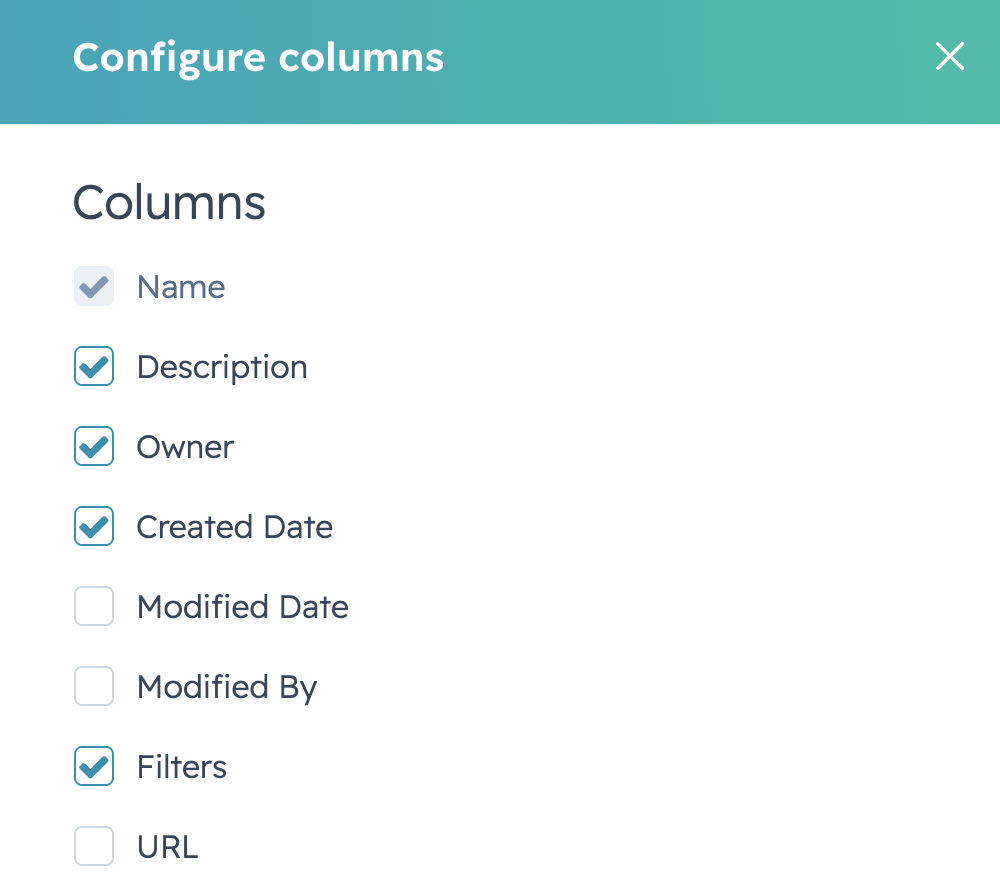
Use the gear icon to the left of the Create button to toggle column visibility.

Screenshot pending: browse list 04 configure columns

Each row in the popover is one column on the list. Untick a column to hide it. The change is local to your browser; other users see their own configuration.

i

Some columns are always visible (Name, Actions). Toggles for those are disabled.

Related #

  • Create a data source
  • See what’s been shared with you
Updated on May 20, 2026

Share This Article :

  • Facebook
  • X
  • LinkedIn
  • Pinterest
Explore AssociationsDelete a Data Source
Table of Contents
  • Filter by ownership
  • Search
  • Sort
  • Configure columns
  • Related
Metrica
Explore Products
Products
  • Power BI Connector for Salesforce
  • Power BI Connector for SAP
Resources
  • Blog
  • Trust Center

Metrica Software builds enterprise data connectors that provide analytics platforms with direct access to complex business systems such as SAP and Salesforce.

The focus is on predictable behavior, controlled access, and long-term operation in production environments.

© 2026. All rights reserved.

Privacy Policy

Terms of Use

    Book a Demo


    Secure & private form

    1-2 min

    ×

      Contact Sales


      Secure & private form

      1-2 min

      ×