Metrica
Metrica
✕
  • Home
  • Products
    • Power BI Connector for Salesforce
    • Power BI Connector for SAP
  • Resources
    • Blog
    • Trust Center
Explore Products

Home - Metrica Docs - Edit a Data Source

Getting Started

  • Welcome
  • Installation Guide
  • Quickstart — from Zero to a Power BI Report
  • Explore Power BI Connector for HubSpot

User Guide

  • Create a Data Source
  • Connect Power BI Desktop
  • Schedule Refresh in Power BI Service
  • Edit a Data Source
  • Filter Rows
  • Preview Data
  • Preview the Associations Map
  • Clone a Data Source
  • Share a Data Source
  • See What’s Been Shared with You
  • Transfer Data Source Ownership
  • History
  • Explore Associations
  • Browse and Search the Data Sources List
  • Delete a Data Source

Admin Guide

  • Create an Access Token
  • Manage Access Tokens
  • Configure the Token Expiry Policy
  • Application Permissions Setup

FAQ & Troubleshooting

  • Troubleshooting
  • How many data sources can I create?
  • Why is the URL of every data source different?
  • Can I change the data source URL after creation?
  • Can I use the OData URL outside Power BI?
  • Why do I get 401 from the Power BI service after a successful Desktop refresh?
  • Why does the connector limit me to 5 active tokens?
  • What happens if I lose a token?
  • Can a tenant admin see the value of my access tokens?
  • Will the recipient see my access token if I share with them?
  • Can I share a data source with a user from a different tenant?
  • What happens to a shared data source if I leave the company?
  • How is Preview Associations Map different from Data Relationships?
  • Why does the Basic filter editor sometimes disable itself?
  • Why doesn’t the connector cache HubSpot data?
  • Why are my HubSpot datetimes showing in UTC?
  • What happens if I delete or archive a HubSpot property?
  • Why are HubSpot API limits showing up in my refresh errors?
  • What’s the difference between a HubSpot Private App and OAuth connection?

Support

  • Contact Support
  • Pricing and Licensing
  • Subscription Plans and Trial Limits
  • Data Security and Privacy Statement
  • End-User License Agreement
  • Service Level Agreement (SLA)
View Categories
  • Metrica Docs
  • Power BI Connector for HubSpot Documentation
  • User Guide

Edit a Data Source

1 min read

You can change the name, description, sharing, services, fields, and filters of a data source you own. Shared users see the same form in a read-only view.

i

Who can edit

  • The owner of the data source can change everything on the form.
  • Users it has been shared with can open the form to inspect the configuration but cannot save changes.
  • To hand ownership over to a colleague, see Transfer data source ownership.

Open the editor #

On Data Sources, find the row you want to change. Two ways to open it:

  • Click the row to open the editor directly.
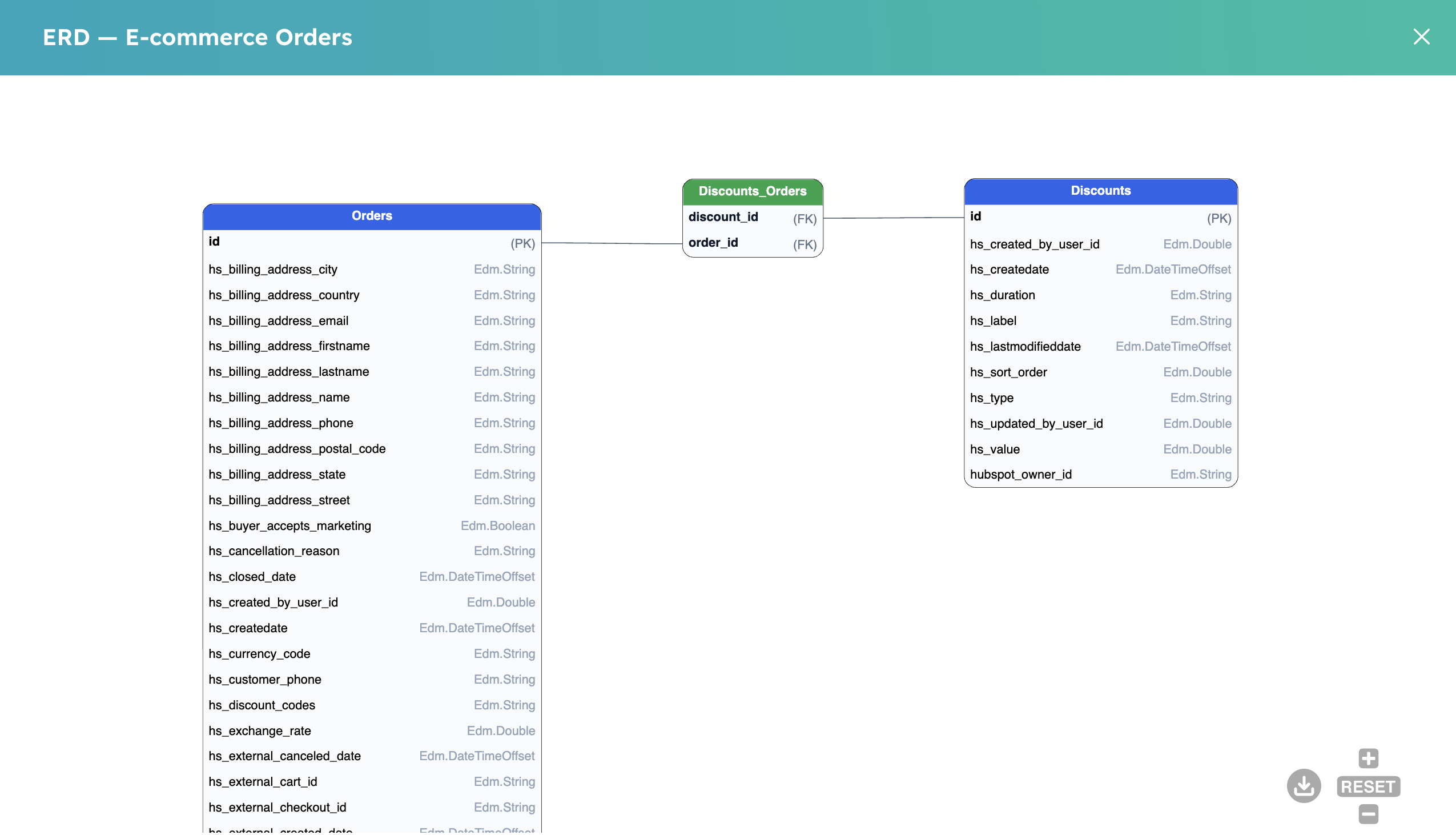
  • Open the row’s Actions menu and select Edit. The menu also exposes Clone, Delete, Share, Transfer ownership, and Preview ERD.
edit 01 list row

Screenshot pending: edit 02 row actions

Make your changes #

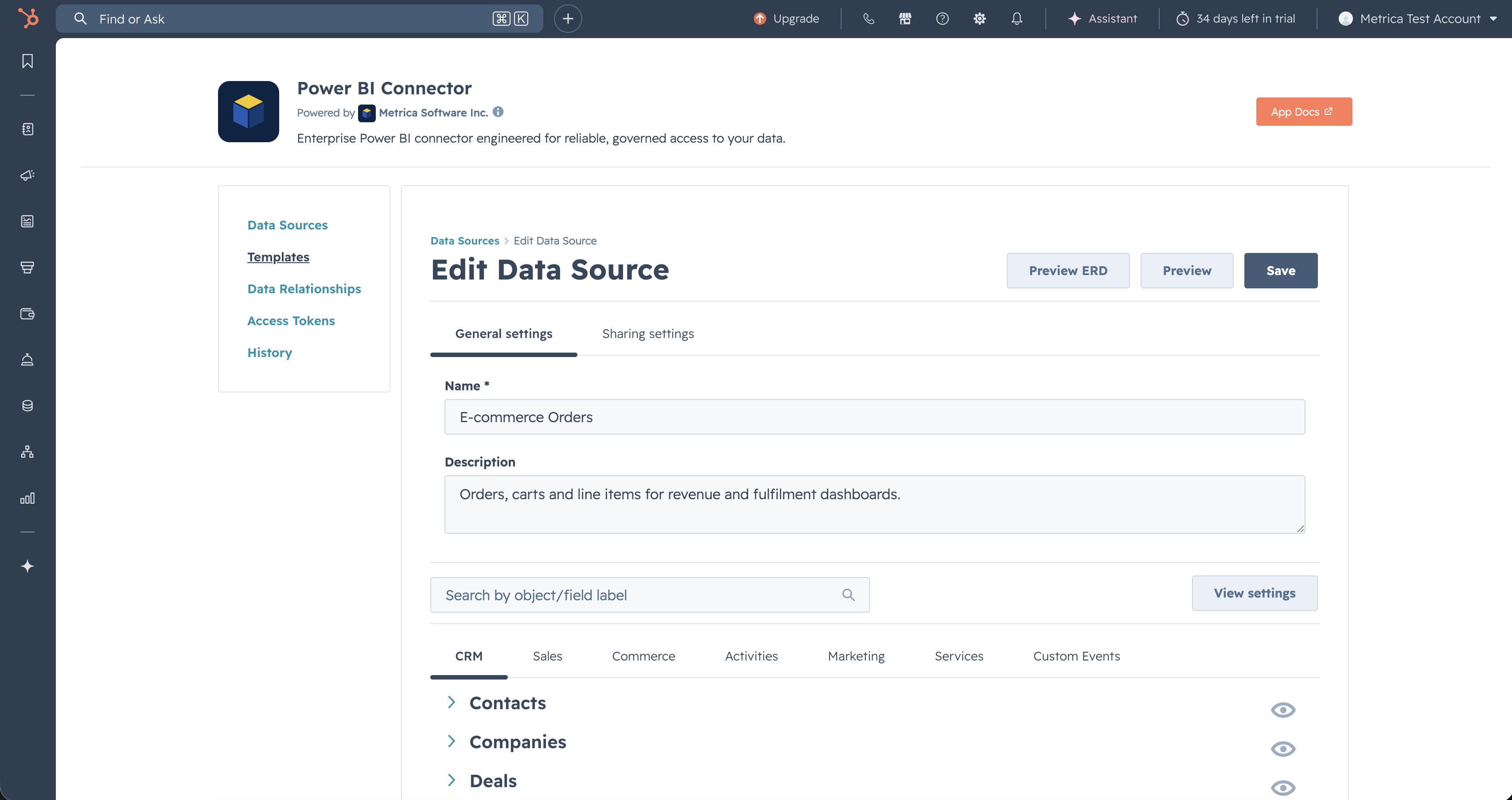
The page title switches to Edit Data Source. Apart from the title, the form is identical to the one used when creating a data source, and the existing values are pre-filled.
edit 03 form

You can:

  • Rename the data source or update its description.
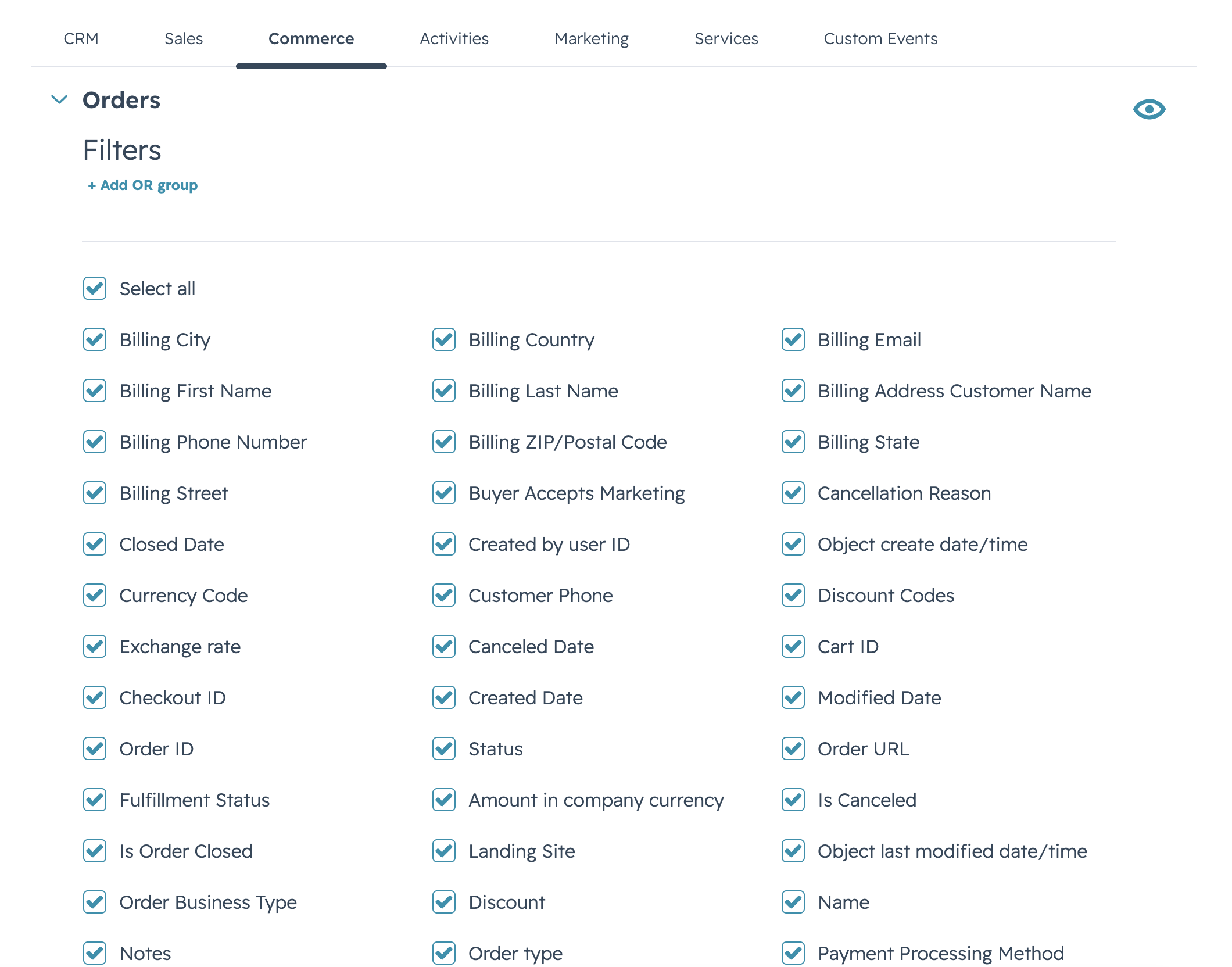
  • Add or remove HubSpot objects. Removing a service drops every object, field, and filter that belonged to it.
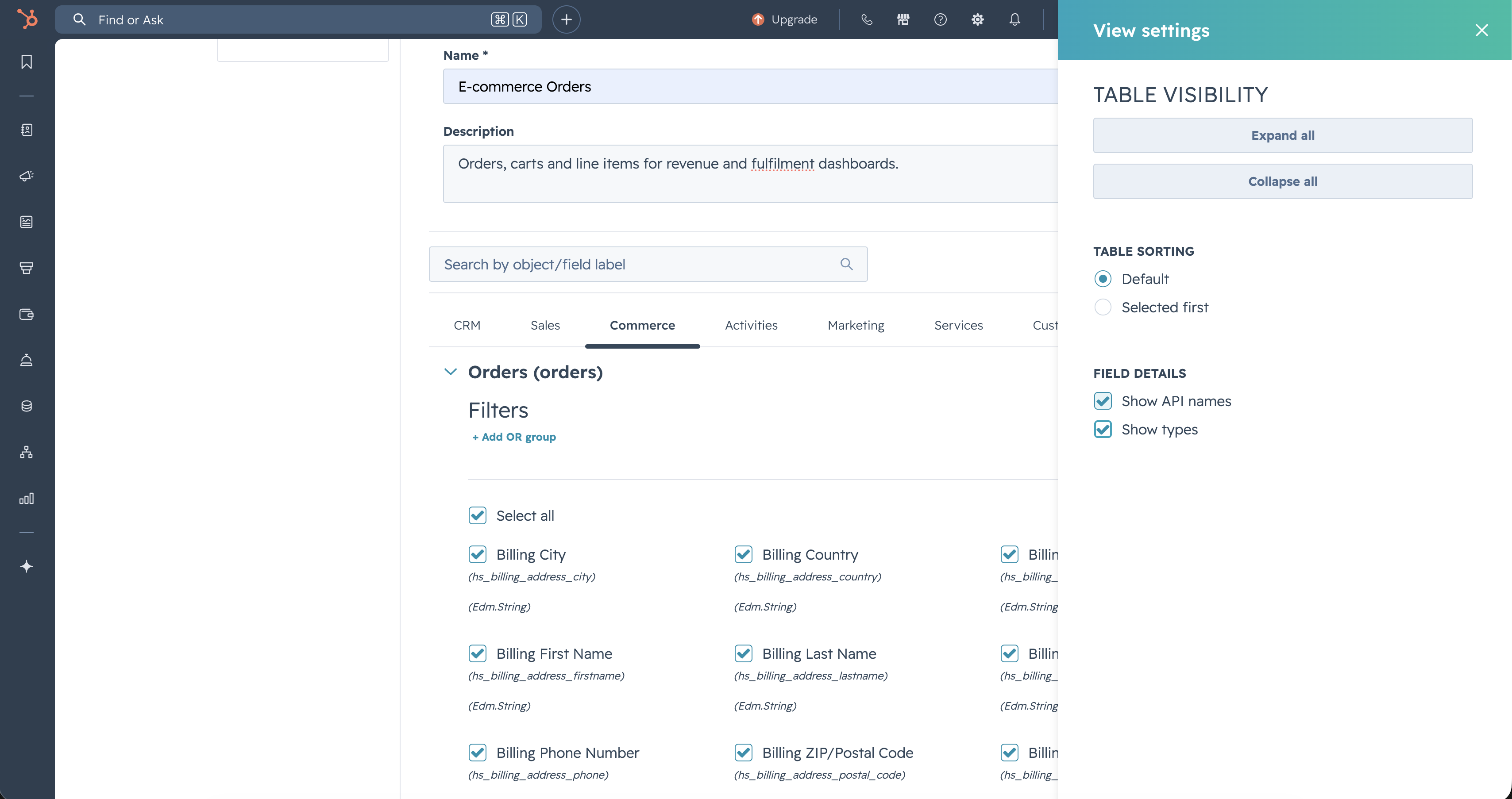
  • Pick or unpick fields on an object.
  • Adjust the row filter — see Filter rows.
  • Add or remove users in Shared with. Same rules as creation: each entry is an email address; recipients get read-only access.

Save or discard #

Select Save to commit. If you navigate away with unsaved edits, the app asks you to confirm before discarding them.

The URL column on the list never changes when you edit a data source. Power BI reports that already use the URL keep working — they just see the new selection on the next refresh.

Related #

  • Share a data source
  • Clone a data source
  • Delete a data source
Updated on May 20, 2026

Share This Article :

  • Facebook
  • X
  • LinkedIn
  • Pinterest
Schedule Refresh in Power BI ServiceFilter Rows
Table of Contents
  • Open the editor
  • Make your changes
  • Save or discard
  • Related
Metrica
Explore Products
Products
  • Power BI Connector for Salesforce
  • Power BI Connector for SAP
Resources
  • Blog
  • Trust Center

Metrica Software builds enterprise data connectors that provide analytics platforms with direct access to complex business systems such as SAP and Salesforce.

The focus is on predictable behavior, controlled access, and long-term operation in production environments.

© 2026. All rights reserved.

Privacy Policy

Terms of Use

    Book a Demo


    Secure & private form

    1-2 min

    ×

      Contact Sales


      Secure & private form

      1-2 min

      ×