Preview lets you sanity-check what Power BI will see — before you save the data source. There are two complementary previews:
- Object preview — a sample of rows from one object, including its filters.
- Selection preview — a tabular summary of every object in the data source, with the fields and filter you’ve picked. Useful for sanity-checking a multi-object selection.
Preview always queries the back end live. It doesn’t save anything to the data source. You can preview as often as you like.
Preview a single object #
Inside the object panel, select the eye icon next to the object name (tooltip: Data preview). A dialog opens with paged rows from the HubSpot object.
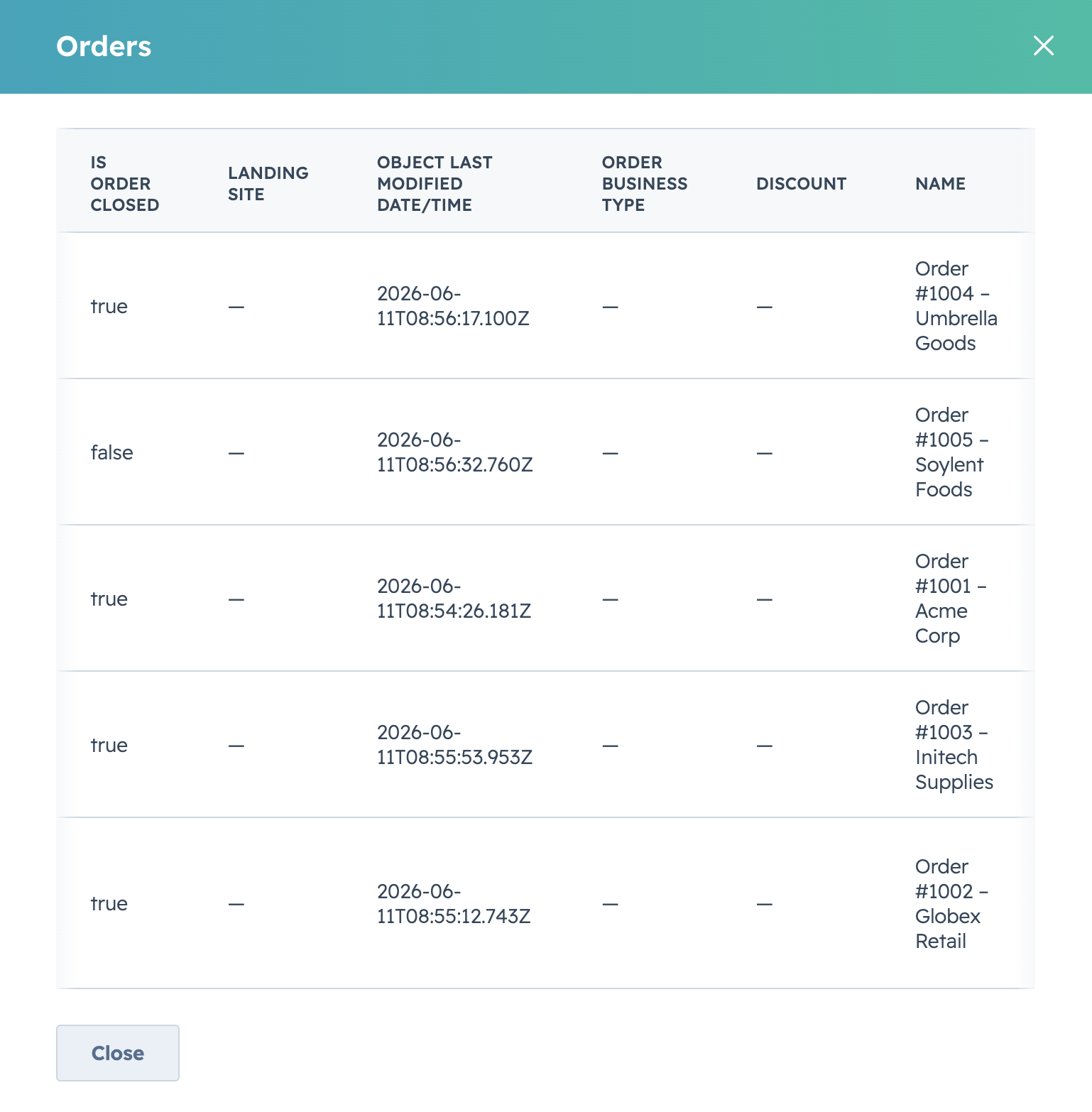
Use the page navigation in the dialog footer to scroll through the sample. The values are read directly from the live HubSpot object and reflect any filter expression you have applied to the object.
Preview the whole selection #
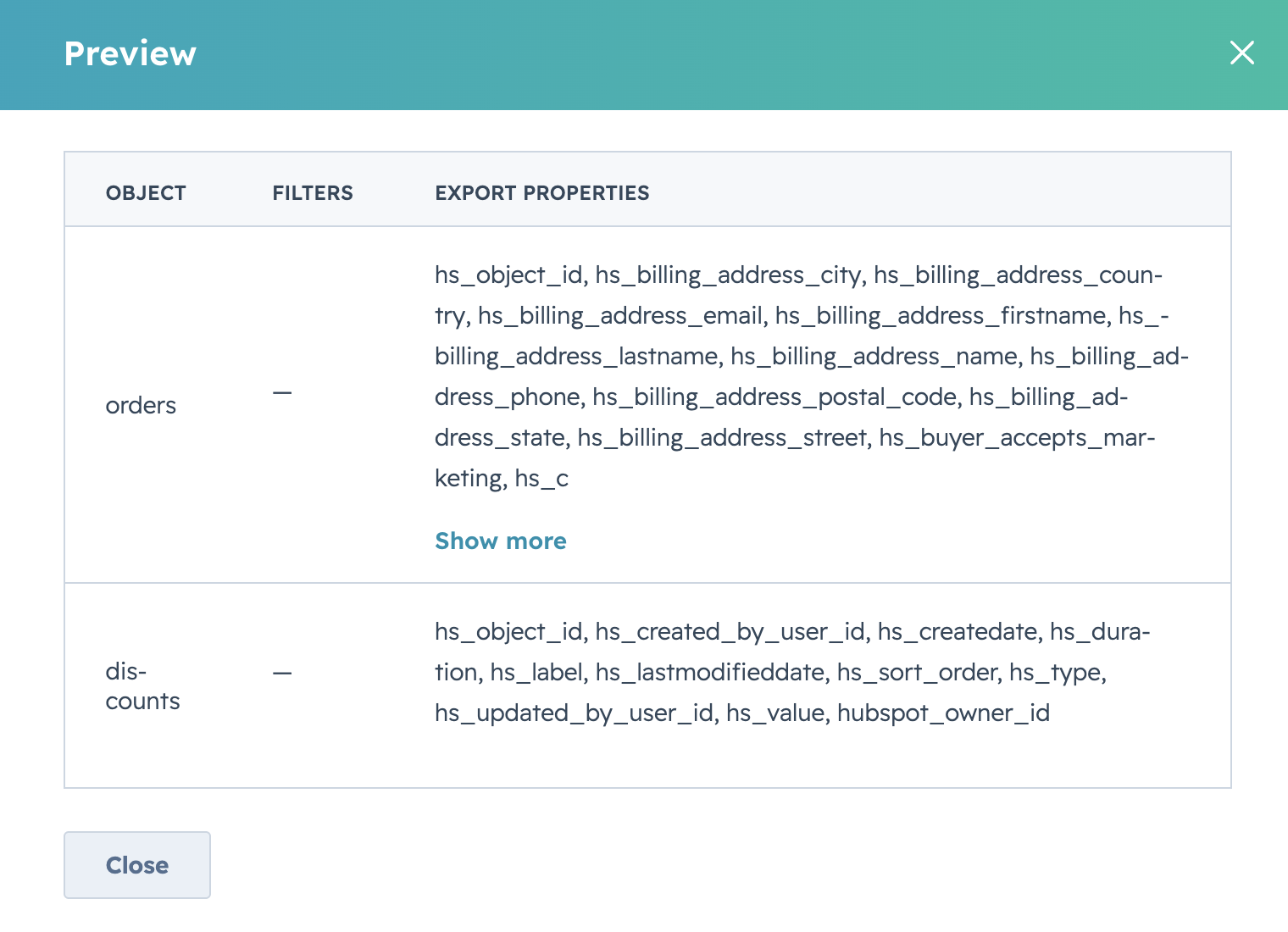
In the footer of the data source form, select Preview. A summary table lists every service, object, filter, and property in the current selection. It’s the fastest way to spot an object you’ve forgotten to filter, or fields you’ve selected without realising.
When preview is disabled #
The preview buttons disable until at least one property is selected. The tooltip on the button explains the missing prerequisite.


