Power BI Desktop connects to a data source over OData. The flow is: copy the data source’s URL from the connector, paste it into the OData feed connector in Power BI Desktop, and authenticate with your personal access token. Once loaded, the HubSpot objects show up as tables you can build a report on.
Prerequisites
- A data source you own or that has been shared with you — see Create a data source or Share a data source.
- An active personal access token — see Create an access token.
- Power BI Desktop installed on your machine.
Step 1 — Copy the data source URL #
On Data Sources, find the row you want to load. The URL column shows the OData endpoint, and the copy icon next to it copies the full URL to your clipboard.
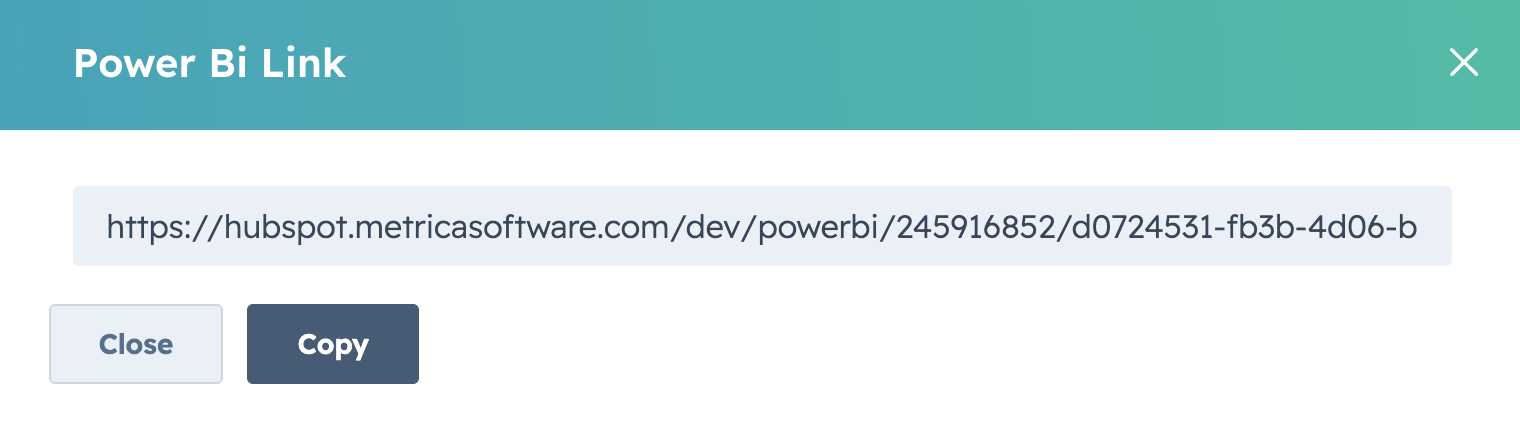
The URL is unique per data source. It’s the same URL every time you refresh — only the rows behind it change as HubSpot data evolves.
Step 2 — Have your access token ready #
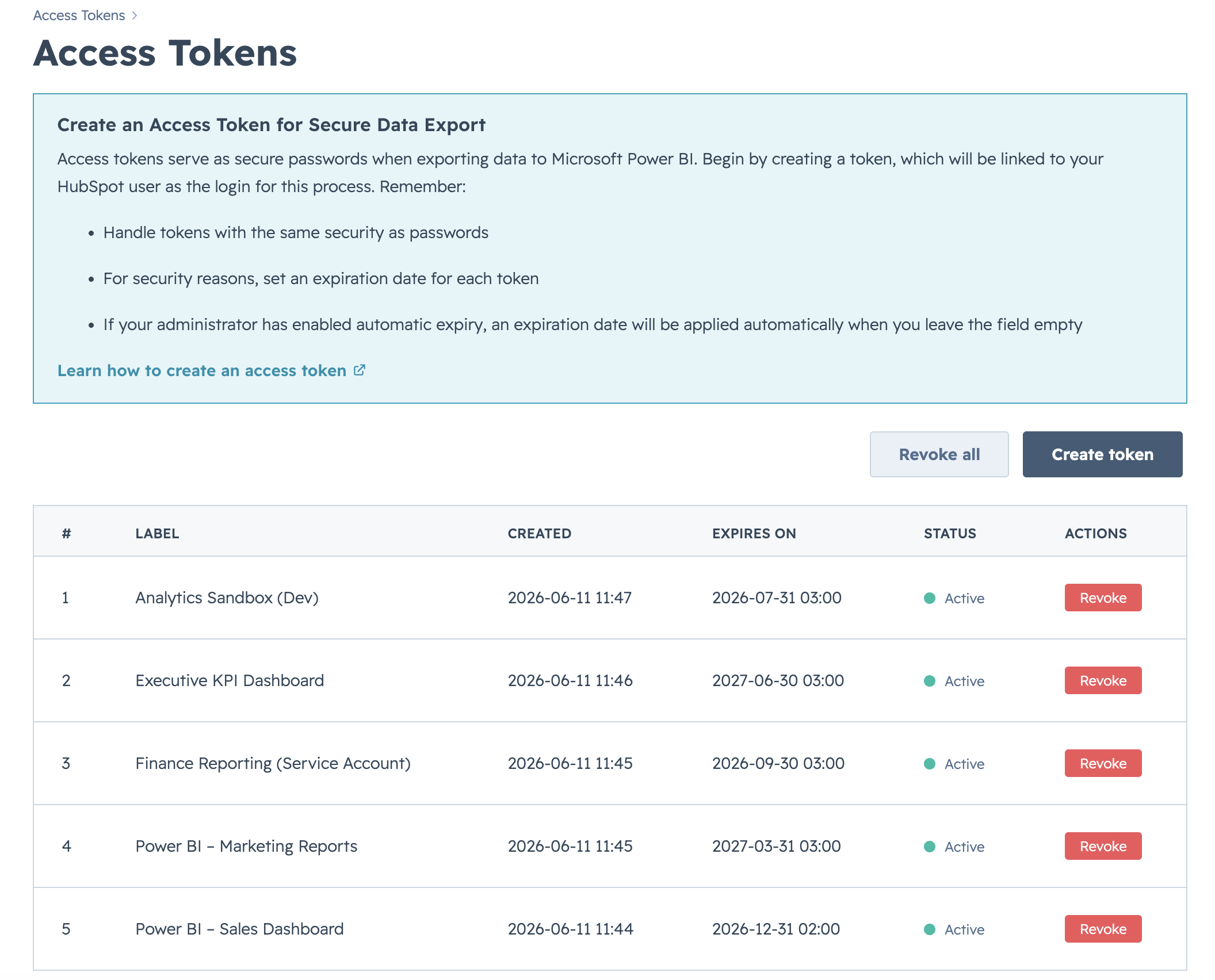
If you don’t have a token yet, create one on the Access Tokens page. The page shows every token you’ve created with its label and status; a green Active badge means it’s ready to use.
Step 3 — Add an OData feed in Power BI Desktop #
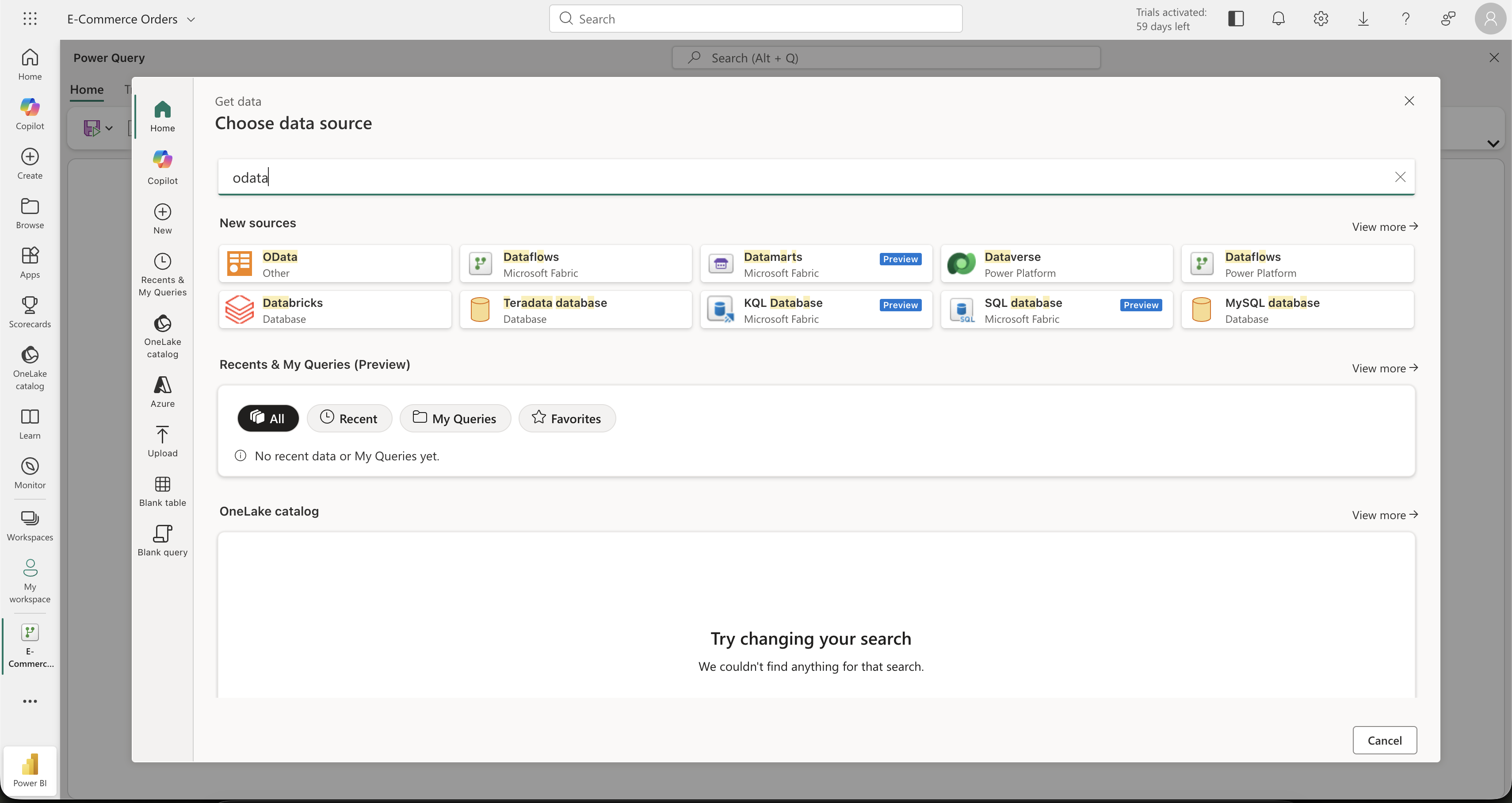
- In Power BI Desktop, select Get data → OData feed.
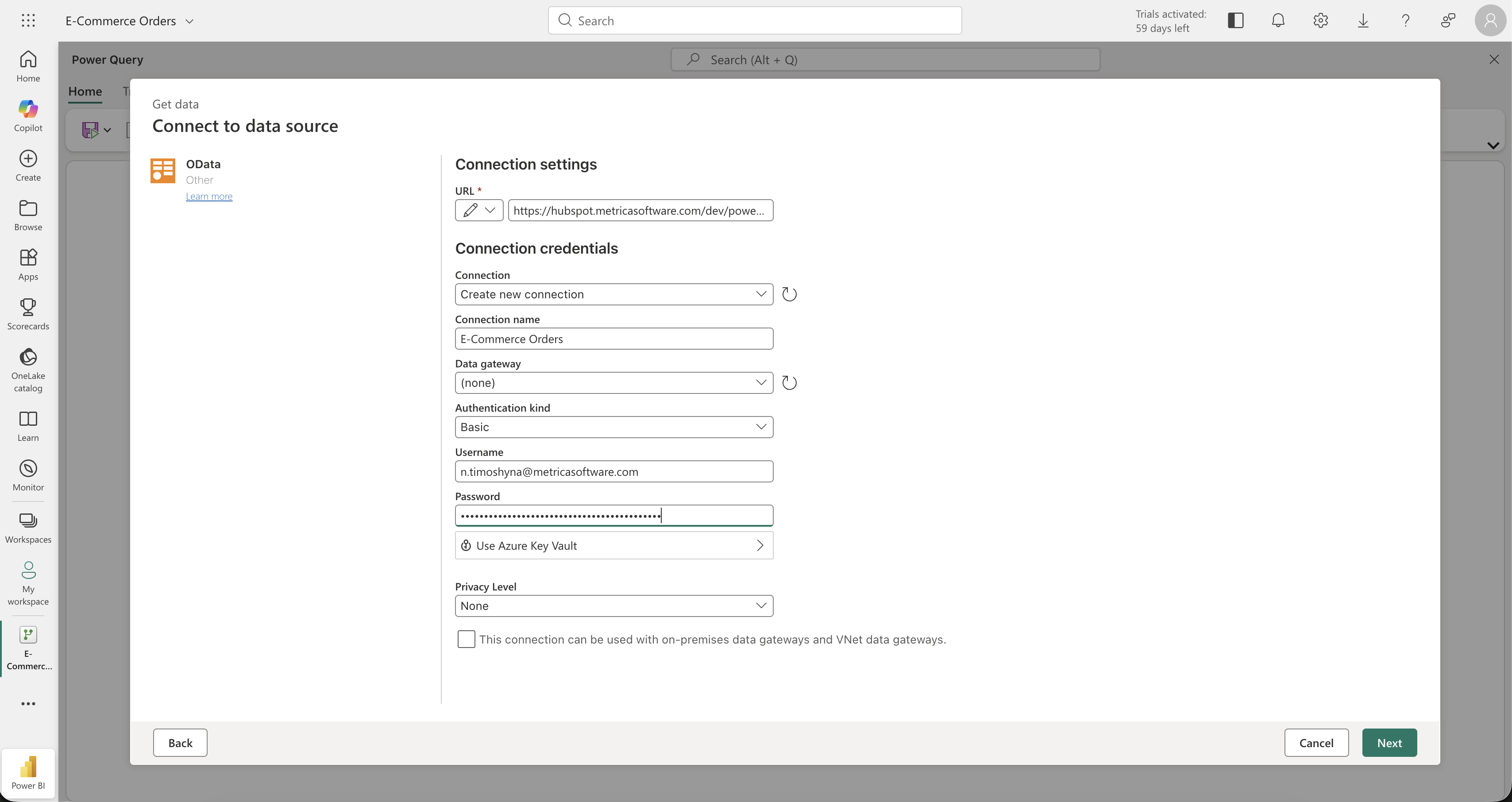
- Paste the data source URL into the URL field. Leave the rest at defaults.
- When prompted for credentials, choose Basic.
- Enter your connector user name in the User name field and paste the access token value into the Password field.
- Confirm. Power BI fetches the metadata, lists every object from the data source, and lets you pick which ones to load.
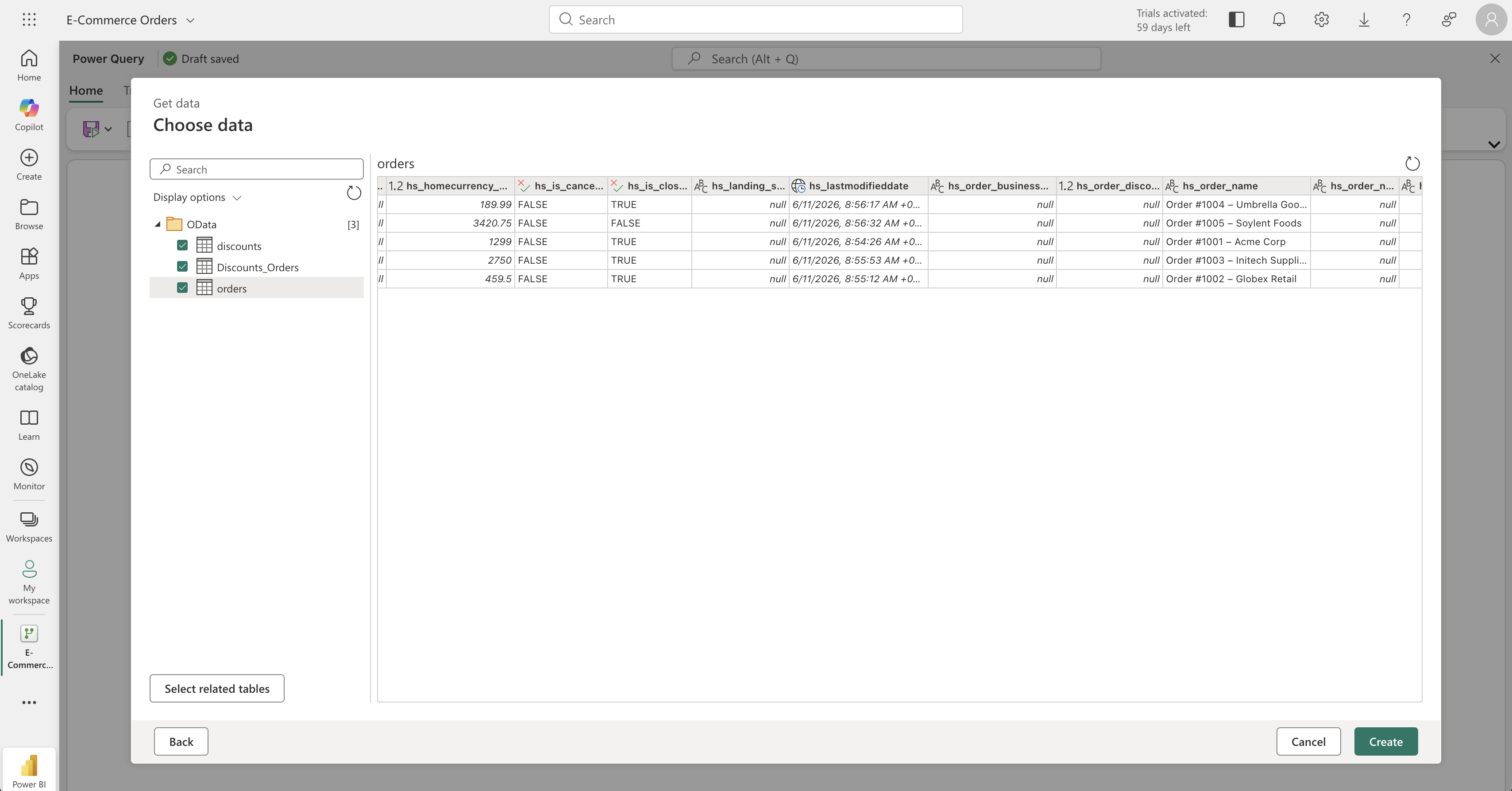
Power BI Desktop caches the credentials per URL. If you ever revoke the token, Power BI will keep trying the old value on refresh and fail with a 401. Update the credentials under File → Options and settings → Data source settings.
Step 4 — Publish and schedule #
Once the model loads correctly, you can publish it to the Power BI service and set up scheduled refresh — see Schedule refresh in Power BI service.
Troubleshooting #
- 401 Unauthorized — the token was revoked or expired, or the user name is wrong. Create a fresh token and update Power BI’s credentials.
- 403 Forbidden — your user has access to the connector but not to this data source. Check the sharing list with the owner.
- Slow first load — the HubSpot object caches metadata. The first load can take up to a minute; subsequent refreshes are much faster.


