Transfer ownership when someone else should be responsible for a data source — for instance, when the original owner is leaving or when the data source belongs to a different team. The new owner inherits full control; the previous owner keeps read access through the sharing list.
Transfer is one-way: only the new owner (or an Admin) can transfer it again. Make sure you really mean to hand the data source over before confirming.
Admins can transfer ownership of any data source in the portal, including ones they don’t own. This is especially useful when the original owner has left the team — an admin can reassign the data source without needing the previous owner to sign in.
Open the transfer dialog #
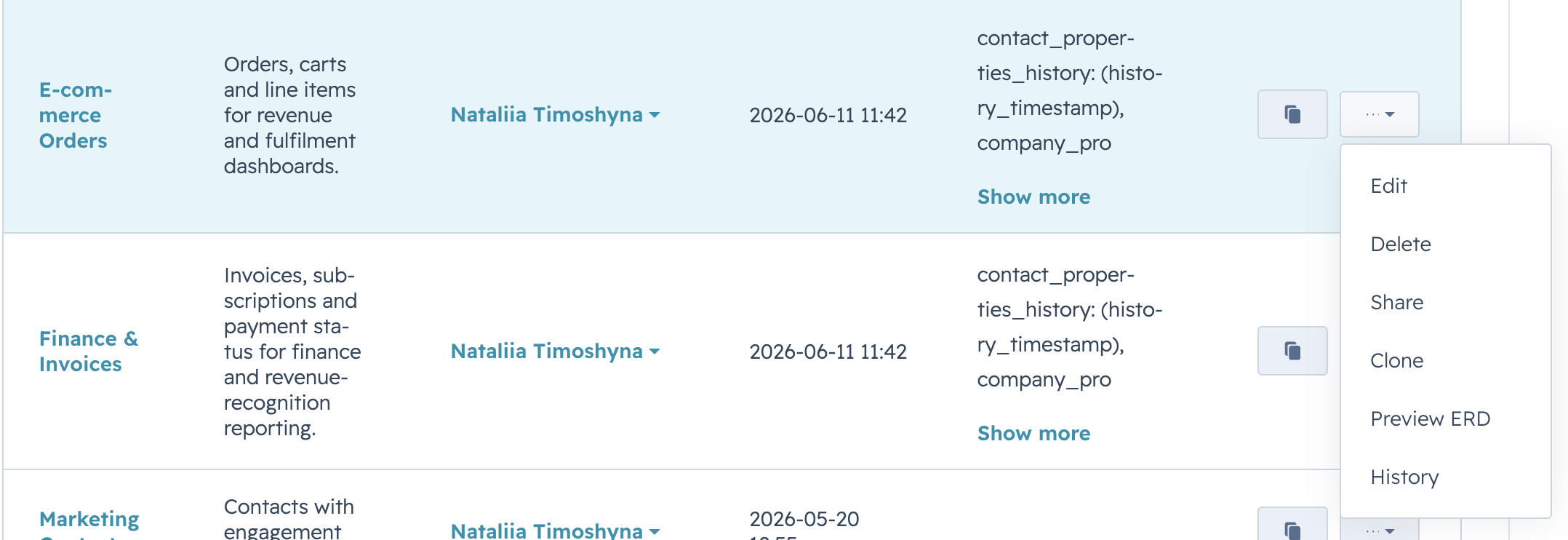
On Data Sources, open the row’s Actions menu and select Transfer ownership.
Pick the new owner #
Type the new owner’s email address. The dialog validates the address as you type. When the address is valid, a confirmation sentence appears, naming both the data source and the proposed new owner.
Select Transfer to commit. The dialog closes and the row disappears from your My data sources view — it now lives under Shared with me.
What changes after the transfer #
- The new owner sees the data source under My data sources with full editing rights.
- The previous owner is added to the sharing list automatically, retaining read-only access.
- The OData URL is unchanged. Any Power BI report bound to it continues to refresh after the new owner provides their own access token (the previous owner’s token is no longer used for this data source).
- The event is recorded in history with both the previous and the new owner.


